
In general, iPhone Restore Mode is used to reset a faulty or broken operating system on an iPhone or iPad that is experiencing problems. Below are the steps to enter Restore Mode on all iPhone models.
Put iPhone into recovery mode
iPhone restore mode can be described as a built-in safety mechanism, designed to prevent further damage to an iPhone or iPad when it runs into problems.
When an iPhone enters recovery mode, it automatically launches the “iBoot Stage 2 Loader” program, which is designed to examine the firmware and perform a series of tests to ensure that any issues are working as they should on your device.
Apple recommends using Restore Mode if your iPhone is an Apple brand, if iTunes doesn't recognize your machine, and if you see the "Hanging with iTunes" screen on your iPhone.
Restore Mode will also be used to unlock an unlocked iPhone, unlock a device in restricted USB mode , and repair an iPhone that cannot install software program updates.
Steps to enter Recovery Mode on all iPhone models
To put your iPhone into Restore mode, you need a Mac or Windows Home computer with the latest version of iTunes installed and a cable to connect your iPhone to the computer (charging cable).
1. Connect iPhone to laptop using your charging cable.
2. Open Finder on your Mac (macOS Catalina or later). If you're using an earlier version of macOS or a Windows Home PC, open iTunes (if iTunes is already open, close it and reopen it).
3. Follow the steps below to enter restore mode on your dummy iPhone.
iPhone 8 and later: Press and release the Amounts Up button > Press and release Reduced Amount > Then, press and hold the Face Button (Power button) until you see the restore mode screen.
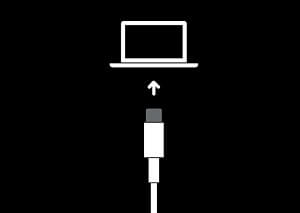
iPhone 7/7 Plus: Press and hold the Side button and the Decreasing Amount button simultaneously. Keep holding them until you see the restore mode screen.
iPhone 6 or earlier: Press and hold Home and Side (Power) at the same time. Keep holding them until you see the restore mode screen (iTunes and cable logo).
Word: Don't release the button when you see the iPhone start with the Apple logo. Keep holding the button until you see the recovery mode screen.
4. Replace or restore an iPhone with iTunes
Once your device enters recovery mode, you will notice a pop-up window on your computer screen, which will allow you to Replace or Restore your machine.
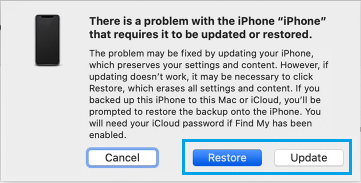
If you choose to replace , iTunes will attempt to install the latest software program on your device without deleting any data.
If you choose to Restore , iTunes will completely erase all data from your device and install the latest software program required on your iPhone.
In any case, wait patiently for iTunes to push the software onto your iPhone. If the software takes more than 15 minutes and your iPhone exits recovery mode, let it finish and repeat step 3.
5. Set up iPhone using a backup or as a new machine
Once the replacement/restore procedure is complete, you will be able to find your iPhone from the “Hello” screen.
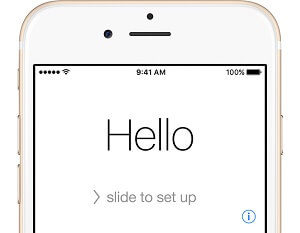
Follow the on-screen instructions until you reach the "Apps & Info" screen. Choose Restore from iCloud or iTunes (if a backup exists). Otherwise, choose the Set Up as New iPhone option.
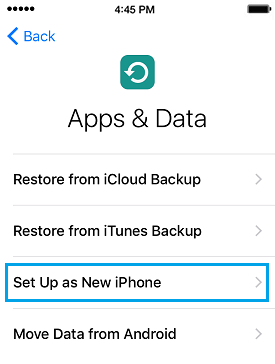
Word: If a backup is not accessible or usable, your only option is to set it up as a new iPhone , and you will not be able to recover the information on your iPhone either.
How do I exit recovery mode?
For those who change their mind, you can quickly exit your machine from Restore Mode by following the steps below.
iPhone 8 and later Quick Release and Press Number and Decreasing Number of Buttons > Press and hold the Face Button until you see your device boot up with the Apple logo

iPhone 7/7Plus: Hold each Decrease Amount and Face Button (ON/OFF button) until you see your device start with the Apple logo.
iPhone 6 and earlier : Press and hold Home and Power (Faceted Button) until you see your device start with the Apple logo.
- How to Backup an iPhone to a Mac Using Finder
- How to Backup an iPhone to a Windows Laptop Using iTunes
