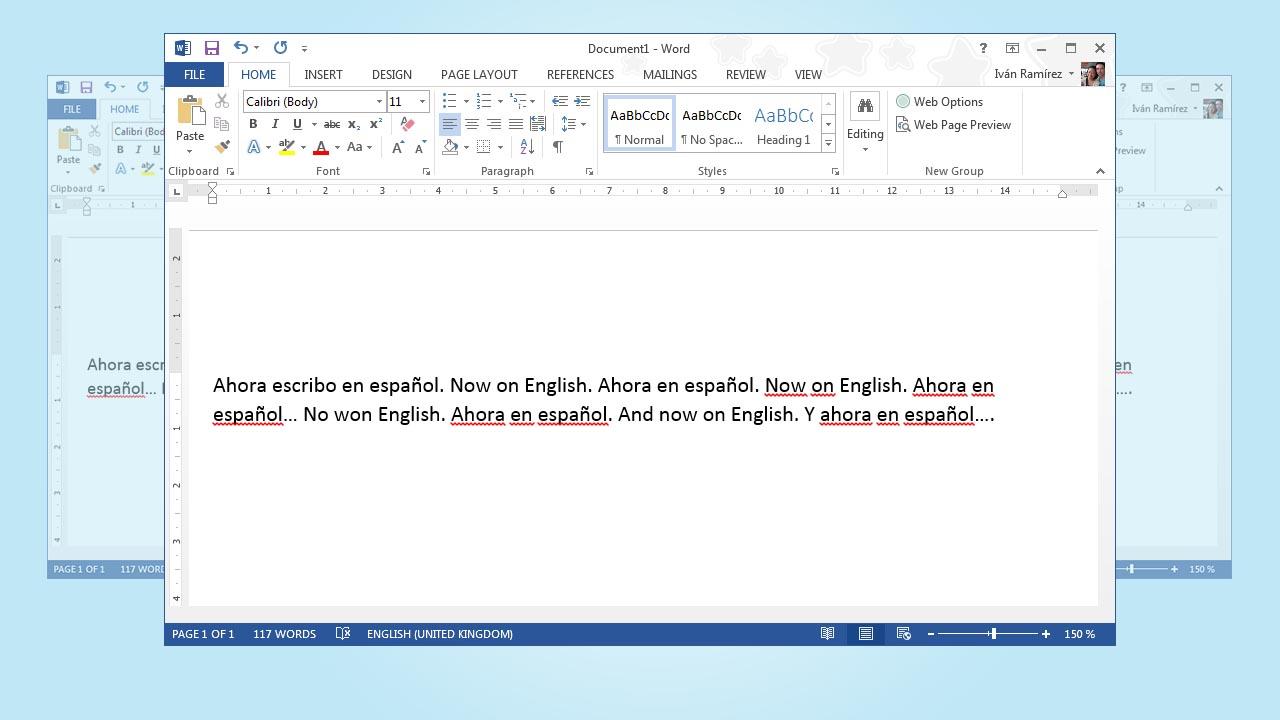
If you use Word daily, you're probably familiar with the situation where spell checker decides to change the language mid-type. It's especially noticeable when you're using a US International keyboard to type in Spanish , and yet the spell checker insists on switching to English every time you start typing.
Many users try disabling automatic language detection and setting Spanish as the default, but the change doesn't work: when typing, Word reverts to English without asking. The good news is that there are several possible causes and, therefore, several solutions that you can combine to get the spell checker to stick in your preferred language. If you still can't get it to work, see how to change the language in Office.
Why Word changes the spell checker language
Several factors influence the spell checker's language selection: what Word detects in the text, Word's own settings, the editing languages in Office, and the language and keyboard settings in Windows. An imbalance in any of these areas can cause the spell checker to switch languages without your input.
Automatic language detection attempts to guess the language based on words and context. If the text is mixed or contains English terms, it may become confused and force a change. Even if you disable language detection, language tags embedded in styles, templates, or pasted text may still override your manual selection.
The keyboard and input method also matter. With a US International keyboard, you can type accented characters without changing the layout, but Windows associates each input method with a language. If the system interprets that you're using an English-linked method, Word may inherit that clue and switch the spell checker to English when you start typing.
Another common factor is the document's origin: many files come with styles or templates that already have a defined language, or they include snippets pasted from web pages or emails with their own language tags. These tags travel with the text and, if you don't neutralize them, cause constant changes.
Finally, there are the versions and updates. Office receives improvements and bug fixes for language compatibility and spell-checking tools. If your Office isn't up to date, you might encounter unusual spell-check behavior that has already been resolved in newer versions.
Set Word to set the proofing language
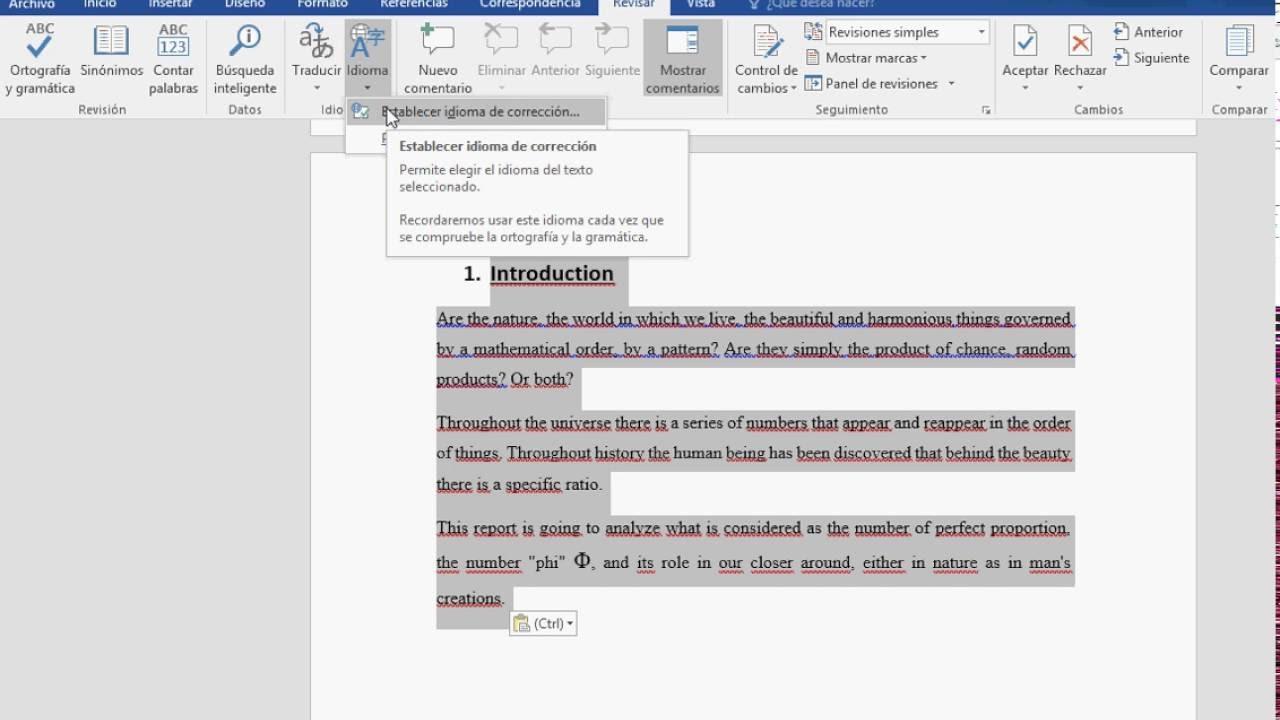
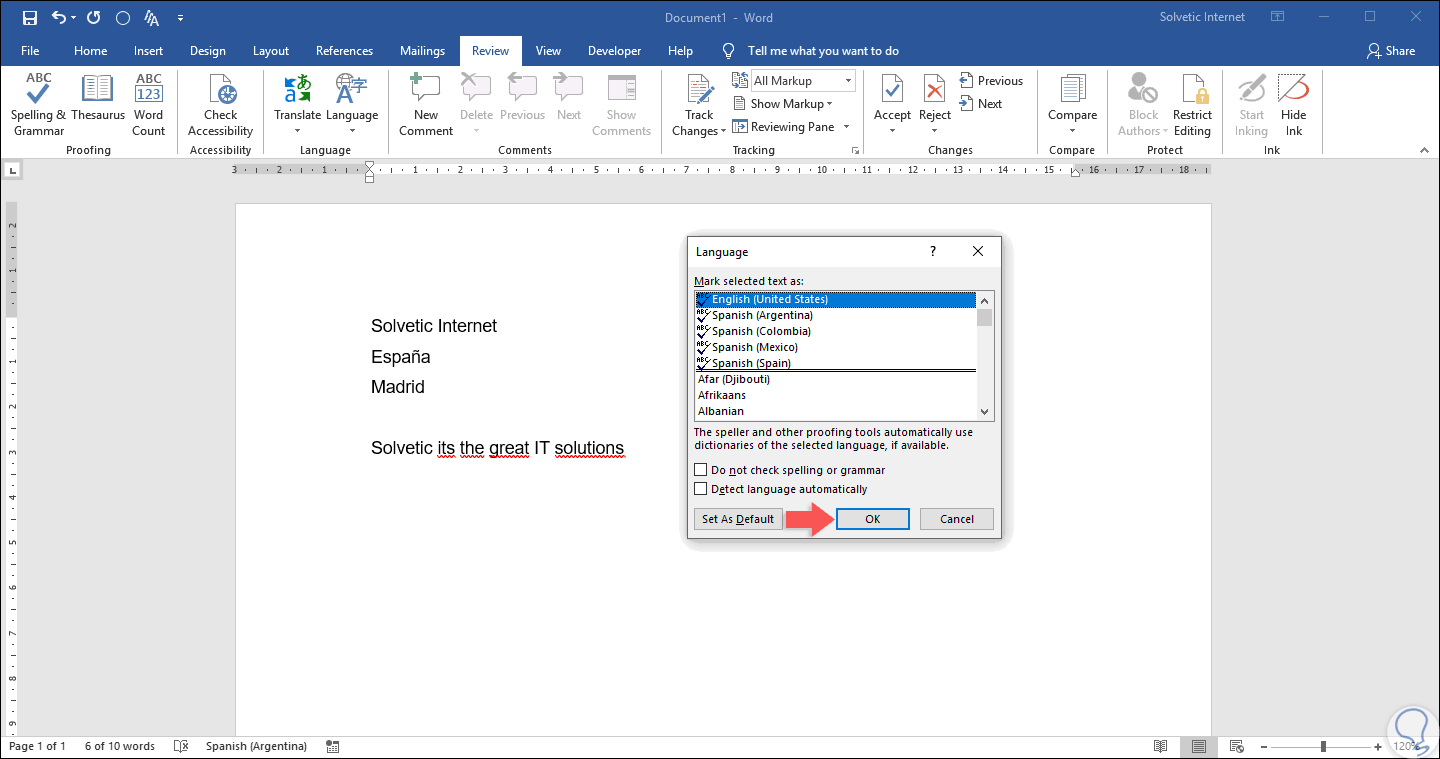
The first step is to get things organized in Word. Start by going to Proofing > Language > Set Proofing Language. Select Spanish and uncheck the Automatically detect language option . Check the Set as default box so that it applies to new documents based on the regular template.
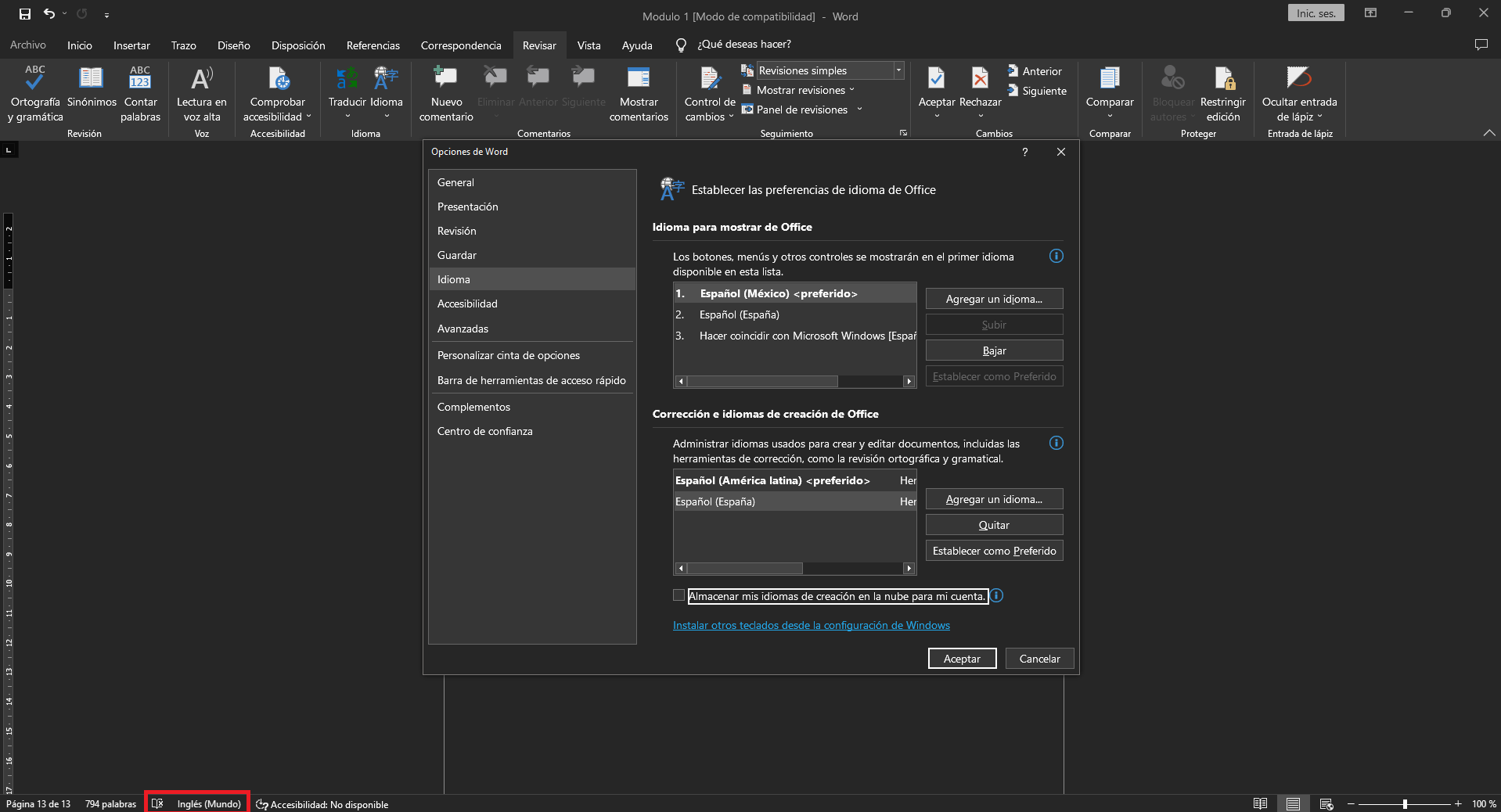
Check the authoring languages in File > Options > Language. There you'll see the editing languages and their corresponding proofing tools. Set Spanish as your preferred editing language and make sure the proofing tools are enabled . If they aren't listed as installed, add the language or update the installation.
Check the Normal style and, if you're using custom styles, its language. Open the Styles panel, edit the Normal style, and go to Format > Language to set it to Spanish. This prevents the document from reapplying a different language to each new paragraph when using that base style.
If you frequently paste content from the web or email, change the default paste settings: File > Options > Advanced, and in the Cut, copy, and paste section, select Keep only text for pasting from other programs. This prevents hidden language tags from being included along with the formatting.
Run the wiper on documents that are already problematic. Select everything with Ctrl+A, go to Proofing > Language > Set Proofing Language, choose Spanish, uncheck Automatically detect language, and confirm. If the change doesn't stick, clear the formatting with Ctrl+Space or Paste Special as Plain Text , and reapply the language at the end.
Don't forget to keep Office up to date. From File > Account > Update Options, check for updates and install them. Office updates fix issues with languages and review tools , as recommended by Microsoft community advisors in similar threads.
Adjust Windows: Display and Keyboard Language
Although Word sets the proofing language, Windows also plays a role. In Settings > Time & Language > Language & Region, add Spanish to Preferred Languages if it isn't already there. Having it at the top of the list helps applications prioritize Spanish . If you prefer, you can also set the system display language to Spanish, although this isn't required.
In the Keyboard settings, check your input methods. You can keep your US International keyboard layout to type in Spanish without any problems. The important thing is that the layout you're using doesn't force Windows to label the input as English when you start Word. If you have multiple input methods, set Spanish as the default.
In Advanced Keyboard Settings, review two key options: the default input method preference and whether a different method is allowed per window. Use Override for the default input method with Spanish, or disable per-application switching if it causes unwanted jumps . This prevents Word from inheriting a keyboard assigned as English when it opens.
There's an option some users mistake for spell checker behavior: the automatic keyboard layout change based on the app's language. If you've already disabled it, great; just make sure it doesn't re-enable after updates . The goal is to decouple the input method from the Word spell checker's language.
If you share a computer or frequently switch between languages, consider creating keyboard shortcuts to consciously change your input method, rather than automatically. Controlling the keyboard switch yourself prevents false signals that can confuse Word when it's reviewing your typing.
Solve problems in specific documents
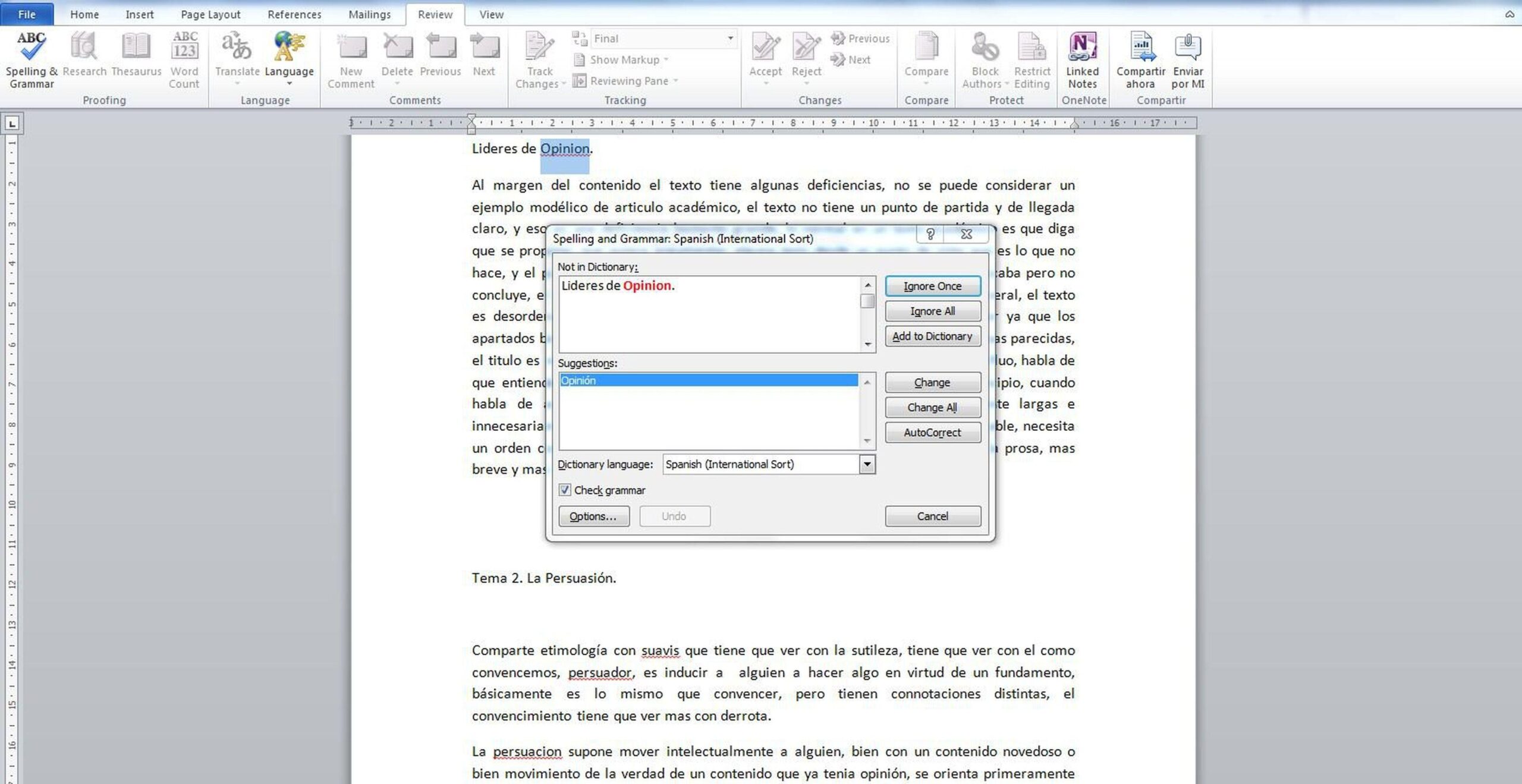
When a file is already corrupted, it's best to work in several layers. Start by cleaning up the text: select everything, apply the Spanish language, and if there's still resistance, clear the direct formatting with Ctrl+Space. This removes language tags attached to specific sections that ignore the general settings.
Review tables, headers, footers, and text boxes. In each one, select its content and apply the language. It's common for the main document to be in Spanish, but a header inherited from a template may still be in English , and each new page will reactivate the change.
Check the styles: Title, Heading 1, Body Text, Footnote, etc. Edit the styles you use and set their language in Format > Language. If a style remains in English, it will force the spell checker to change every time you use it , even if the Normal style is correctly set.
Avoid pasting formatted content from external sources. Use Paste and choose Keep Text Only or Paste Special > Plain Text. If you need to retain some formatting, paste as text and then apply the document style to maintain clean formatting and the correct language.
If the document is based on a custom template, open it directly, correct the language of its styles, and save it. Otherwise, every new document that relies on that template will inherit the wrong language , and the problem will recur.
Another thing to check is the Normal template. Close Word, rename Normal.dotm so it's regenerated when you open Word, and then re-set the language and styles in the new document. A corrupted or misconfigured Normal.dotm file can cause language problems in all the files you create.
If you collaborate with others, check if Track Changes are affecting the changes . Sometimes, insertions made by users with English Word are marked in that language. Once the changes are accepted, reselect the affected text and reapply the language to normalize it.
With very old files or conversions from other formats, exporting to a clean DOCX helps. Save a copy as a DOCX file, open it, select everything, set the language, and save. The conversion removes metadata and legacy tags that continue to cause errors in spell check.
And a bit of context: you'll see answers in forums where independent advisors recommend confirming the Windows display language, adding Spanish to your preferred languages, and updating Office from File > Account. These recommendations are valid and should be applied before trying advanced solutions . Keep in mind that some answers are automatically translated and may contain unusual wording.
If you get to the source of the problem and discover that, when you type with your US International keyboard, the language immediately reverts to English, check that the editing language in Word is set to Spanish and that the default input method in Windows isn't being forced to English. The key is to separate the keyboard layout from the proofing language : you can type with US International and still proofread in Spanish without any issues.
One last side note: in some threads hosted or linked from social media, you'll see privacy and cookie notices displayed before you can read them. These don't affect the technical solution, but they explain why it's sometimes difficult to access the thread content if you don't accept the initial banner.
With all of the above in place, Word will stop changing languages on its own. The balance between the editing language in Word, document styles, detection options, Office updates, and the Windows keyboard is what determines the spell checker's behavior and prevents mid-paragraph surprises.
It's worth taking a few minutes to review the key elements: in Word, disable automatic detection and set Spanish as the default; in Office, keep your spell-checking tools up to date; in Windows, organize your languages and keyboard layouts to avoid conflicting signals; and, in unruly documents, clean up styles and pasted formatting. When every layer works in the same direction, Word's spell checker will stay where you tell it to, and you can focus on writing without battling with the language.


Passionate writer about the world of bytes and technology in general. I love sharing my knowledge through writing, and that's what I'll do on this blog, show you all the most interesting things about gadgets, software, hardware, tech trends, and more. My goal is to help you navigate the digital world in a simple and entertaining way.