- Office allows you to customize the interface language, editing, and spell checking.
- Changing the language can be applied to both the display and the help tools.
- Additional language packs can be downloaded and installed depending on your version of Office.
- Successfully making the switch may require adjustments to both Office and your settings. Windows.

Changing the language in Microsoft Office is one of those tasks that, although it may seem simple, often raises many questions for users of all levels. Have you ever encountered Word , Excel, or PowerPoint in English, German, or any other language you don't speak? You're not alone. Fortunately, Office offers multiple options to adapt its language to your needs, whether in the interface, help, editing, or even the proofing tools.
In this article, you'll find a comprehensive and clear guide to changing the language in Office in any version (Office 2010, 2013, 2016, 2019, 2021, and Microsoft 365 ), with practical explanations, troubleshooting tips , and everything you need to know to fully customize your experience. Whether you want to work more comfortably, learn a new language, or simply stop struggling with menus and commands you don't fully understand, you'll find all the information you need here.

Why change the Office language?
There are many reasons to change the language in Office . Perhaps you bought a computer in another country and it came pre-installed in a language you don't speak, or maybe you share a computer and want to work in your native language. For language learners, changing the interface can be a great help in improving technical vocabulary. Furthermore, if you collaborate in an international environment or need to work with clients from other countries, switching between different languages will make your life much easier.
Another common reason is the use of multilingual proofreading tools , ideal if your documents mix Spanish, English, or other languages and you want the spelling and grammar to adapt on the fly.
Understanding Language Types in Office
Before we get into the practical steps, it's important to understand that Office manages language in three large, independent areas :
- User interface language: the one used for buttons, menus and controls in all Office programs.
- Editing and proofreading language: used when writing and editing documents, including spelling and grammar checking.
- Help language: The language in which you'll see Office documentation and context-sensitive help.
Each of these languages can be configured individually , allowing for complete customization. For example, you can have the interface in Spanish, proofread text in French, and access the help in English.

How to find out your Office version and architecture (32 or 64 bits)
Before downloading any packages or changing settings, the first step is to identify which version of Office you have installed and whether it's 32-bit or 64-bit . This is crucial for downloading the appropriate language pack and avoiding errors during installation. To find out, follow these steps:
- Open any Office application (Word, Excel, PowerPoint…)
- Click on the menu Archive (the first one on the top left).
- Choose the option Account (usually at the bottom of the side menu).
- Click on the About Word/Excel/PowerPoint. On the first line, you'll see the version, and at the end, whether it's 32-bit or 64-bit.
Save this information because you will need it in the following steps.
Step by Step: How to Change the Language in Office
We're going to break down the process so you can change the Office language in all the important aspects , both in classic versions (Office 2010, 2013, 2016, 2019, 2021) and in Microsoft 365.
Change the user interface language
- Open an Office application (for example, Word).
- Click on Archive > Options > Language.
- In the language preferences dialog box, look for the section Display languages in Office.
- If the language you want is already listed, select it and press Set as default.
- If it doesn't appear, click on Add a language, select the desired language and follow the steps to download and install the corresponding package.
- Once installed, go back to the language window, select the language you added, and set it as default.
- Restart the Office application for the changes to take effect.
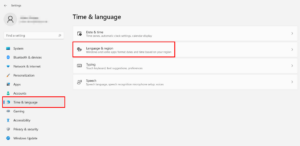
Tip : If you prefer that the Office language automatically syncs with the Windows language, you can select the "Match with Microsoft Windows" option . You can also learn more about changing the system language in Windows.
How to install a new language pack in Office
If the language you want to use is not listed, you will need to download and install the corresponding language pack from the official Microsoft website :
- Go to the Microsoft website to download language packs.
- Select the language you need.
- Choose the right version for your Office (32 or 64 bit).
- Download and install the file by following the steps in the wizard.
- Open any Office application and repeat the above process to select the new language as the default.
This procedure applies to Office 2010, 2013, 2016, 2019, and 2021, as well as Microsoft 365.
Change the editing and proofreading language
The editing language is the one used to write and edit content, as well as to enable automatic spelling and grammar checking. To change it:
- Open an Office application.
- Accede to Archive > Options > Language.
- In section Editing and proofreading languages, find the language you want to use. If available, select it and click Set as default.
- If not available, add it from Add additional editing languages and press Add.
- Check that in the column Keyboard distribution appears as enabled. If not, click the corresponding link and follow the steps to activate it.
- For proofing tools, if the language is marked as installed, you can now start working. If not, you'll need to download the language accessory pack from the Microsoft website.
Spelling and grammar checking in multiple languages
If you often write documents in different languages, Office allows you to set the proofing language for each document or even for a single paragraph:
- Open the document in Word, Excel, PowerPoint, etc.
- Go to the tab Check and select Language > Set proofing language.
- In the pop-up window, choose your preferred language and press Accept.
This is especially useful in presentations, emails , or reports that need to be reviewed in multiple languages.
Language settings in Microsoft 365/Office Online
In the most current version of Office, known as Microsoft 365 (formerly Office 365), the steps are very similar, although with some particularities:
- The interface language may depend on your Microsoft account or Windows settings.
- On the Office Online website, you can adjust your language from your profile settings or directly from your browser.
- To change editing and proofreading, open Word, Excel, or PowerPoint online, go to File > Options > Language and select the language of your preference.
Remember that if you use Office on multiple devices, you may need to repeat the process on each one if the local language settings are different.

Change the language in Office for Mac
On Mac , Office is integrated with the system's default language. To change it:
- Go to System preferences > Language and Region.
- Add the desired language and set it as primary.
- Restart your Mac for the changes to take effect.
- When you open Office, you'll see that the interface is already in the chosen language.
In recent versions, you can also change the editing language directly from each app's preferences, although the interface language depends on the operating system.

What to do if the language doesn't change or you have problems
Sometimes, even after following all the steps, the Office language doesn't fully update . For example, after installing the Spanish language pack, the suite may still display menus in English. This usually happens because:
- Remains of previous Office installations.
- Use of unofficial add-ins or plugins.
- Conflicts between different installed language packs.
One possible solution is to add a different language variant . For example, if you've selected "Spanish from Spain" and it's not working, try adding "Spanish from Mexico" or another Latin American country. After a few minutes, Office usually applies the change correctly.
In more stubborn cases, it is advisable to:
- Completely uninstall Office and reinstall it, selecting the correct language from the beginning.
- Remove and reinstall language packs from the official Microsoft website.
- Update Office via Windows Update or Office Update itself.
If you continue to have problems, check if there are restricted permissions or user accounts without administrative privileges on your computer , as these may limit the installation of additional packages.


Passionate writer about the world of bytes and technology in general. I love sharing my knowledge through writing, and that's what I'll do on this blog, show you all the most interesting things about gadgets, software, hardware, tech trends, and more. My goal is to help you navigate the digital world in a simple and entertaining way.