- Comparing dates with TODAY() to detect birthdays without using the year.
- Conditional formatting to automatically highlight who's birthday is today.
- Custom lists to sort by months, days, and real priorities.
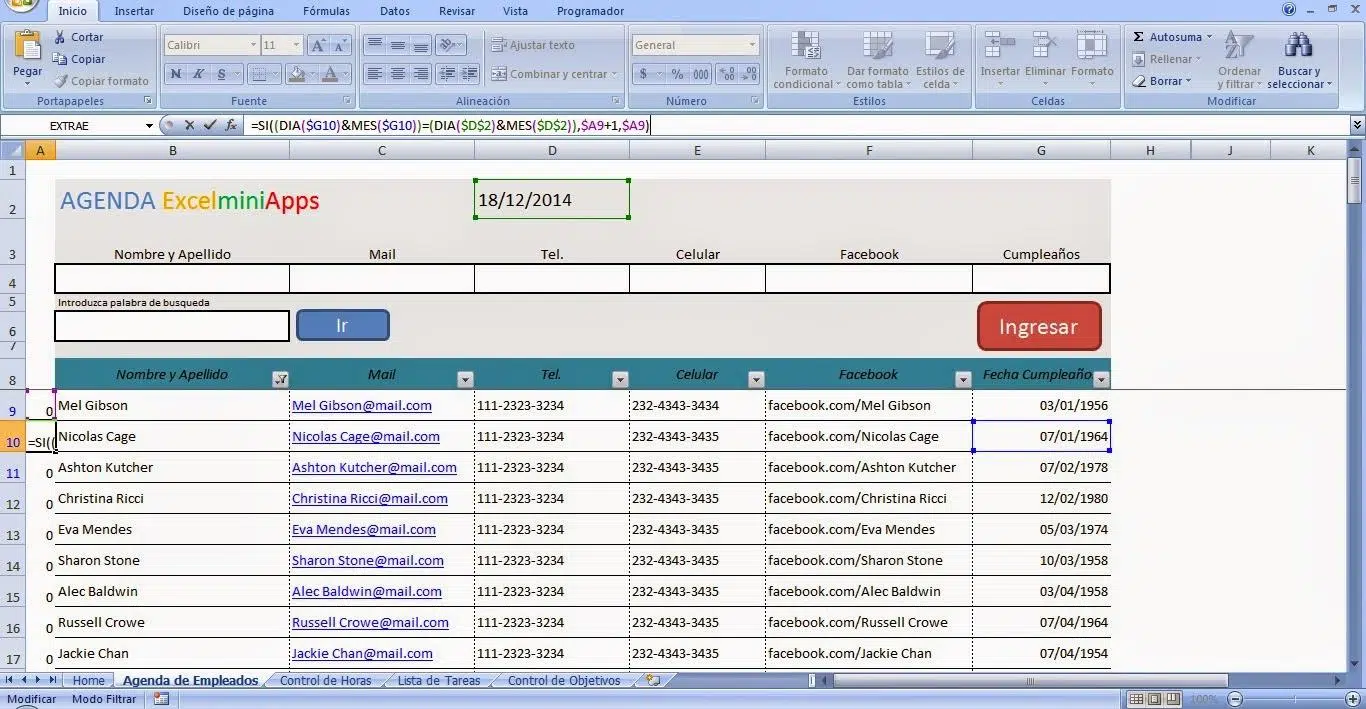
If you work with a contact list and struggle to remember important dates, Excel can become your best friend for making sure you don't forget to wish everyone a happy birthday. The key is to automate who has a birthday today and highlight it in the table , so you can see it at a glance without having to review dates one by one.
Furthermore, when managing large lists, sorting by month or day of the week doesn't always work with simple alphabetical order. Excel's built-in custom lists allow you to sort by month or day correctly , and you can also create your own lists (for example, Tall, Medium, Short or Sizes S, M, L, XL) to sort data based on criteria other than alphabetical order.
Key ideas to get your bearings
- Compare month and day the date of birth with the current date is sufficient to detect birthdays.
- El conditional format gives a visual cue to instantly locate who to congratulate.
- Custom lists allow sort by months, days or categories like Priority or Size without alphabetical errors.
Automatically detect birthdays in Excel
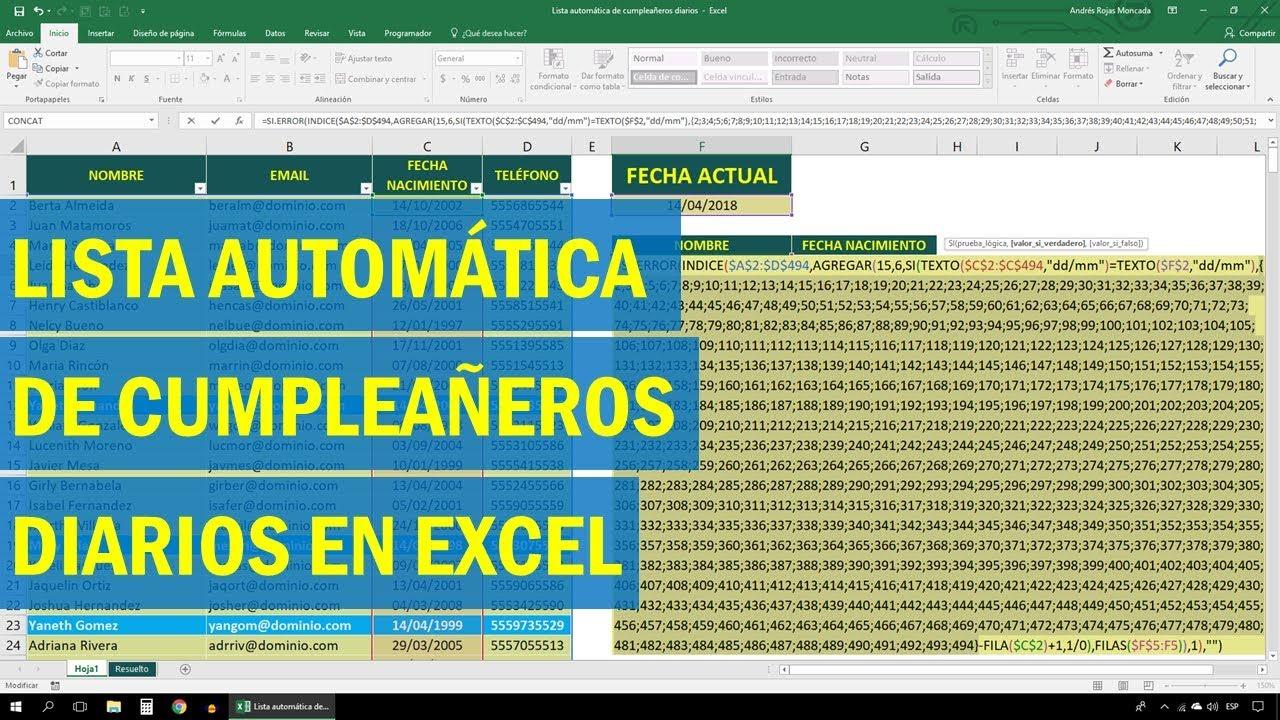
To make the process easy, we'll use simple formulas and a conditional formatting rule. The combination of these makes your spreadsheet "smart" without complicating things with macros or complicated settings.
Step 1: Get your sheet ready
Open the workbook where you already have your contacts and their birthdates. Ideally, use a clear structure: names in column A and birthdates in column B. This will make it easy to apply formulas and rules without getting lost in the data.
Make sure Excel recognizes the dates as dates, not text. If a date is in text format, the comparison will fail even if it appears correct at first glance . A quick trick is to change the cell format to Date and see if the program interprets it correctly; if you're unsure, consult the guide on number formats in Excel.
Step 2: Put your data into context
In addition to the date of birth, you might want to save other useful information (such as addresses or phone numbers ) so you have everything handy when you need to notify your contacts . This doesn't interfere with birthday greetings, but it saves you time when you have to send them.
In any case, to detect birthdays you don't need the year of birth. All that matters is that the month and day match today's date , so forget about subtracting ages or more complex calculations.
Step 3: Test with a simple formula
Let's write a formula that checks if someone's birthday is today. Its logic is straightforward: compare the month and day of the person's date with the month and day of TODAY() . A typical option in Spanish is:
=Y(MES(B2)=MES(HOY());DIA(B2)=DIA(HOY()))
Place it, for example, in cell C2 and confirm. If it returns TRUE, that person's birthday is today . If it returns FALSE, today is not their birthday.
Step 4: Compare month and day correctly
The function HOY() It gives you the current system date, and with MES() y DIA() you extract its parts. Note that we are not comparing years; just two numbers: month and day.This avoids complications with the birth year and works for any day on the calendar.
If you prefer, you could opt for a text-based check like TEXTO(B2;"dd-mm")=TEXTO(HOY();"dd-mm"), but the formula with MES() y DIA() It is cleaner and more direct. Stick with the one that is clearest to you..
Step 5: Be careful with the parentheses
Make sure that each function has its closure and that the structure of the Y() fits the comparisons well. An out-of-place parenthesis is the classic error that breaks the evaluation. Take a second look before filling it out.
Step 6: Complete the day condition
If you started by comparing only the month, also add the day comparison to make the condition accurate. The birthday only appears when the month and day coincide at the same time., just what he does Y() in the example formula.
Step 7: Apply the formula to the entire list
Once cell C2 works, use the fill handle (bottom right corner of the cell) to drag the formula down and cover all your contacts. Excel will replicate the comparison for each row without you having to type anything else.
Step 8: Auto-highlight with conditional formatting
To see it at a glance, let's highlight the day's birthdays in green. Select the range where you want the rule to apply (for example, the entire column B with birthdates or the entire table). Then, go to Conditional Formatting and choose to create a New Rule.
Choose the option to Use a formula to determine which cells to format and paste the formula you already tested, adjusting the relative/absolute references if necessary. Set a green fill for the TRUE case (when the condition is met) and save. As soon as you click OK, today's birthdays will be highlighted.
Step 9: Check the result
Review the list and confirm that the rows for people celebrating today are displayed in the correct format. If you don't see anything in green, today probably doesn't correspond to any date, or there's a formatting/date issue that needs correcting.
If anything incorrect appears (for example, names highlighted where they shouldn't be), check that the dates are being interpreted correctly by Excel and that the formula is using the correct column. A slight discrepancy in references (B2 vs. B$2 or $B2) can change the rule's behavior.
Step 10: Resolve doubts and improve flow
Is something still not quite right, or would you like to refine the spreadsheet? Make a note of it and ask your team or the community for feedback. Feedback from other users helps you find shortcuts and avoid silly mistakes ; you can even ask your questions in specialized Excel technical communities if needed.
Practical tips for working more comfortably
If your list grows frequently, it's a good idea to convert it into an Excel spreadsheet (Ctrl+T). Spreadsheets automatically expand formulas and rules to new rows , so each new contact is automatically added to the system without you having to do anything.
When using conditional formatting, label the rule with a clear name (for example, Today's Birthday ). This way, if you create other rules later (reminders, priorities, etc.), you'll know which is which and avoid overriding them.
If you'd like to have "birthdays tomorrow" or "birthdays this week," you can adapt the approach. Simply compare the date of birth against TODAY()±1 or narrow it down by the number of days . Maintain the logic of ignoring the year and focus on the range of days/months.
Finally, consider adding a helper column with the month of birth (=MES(B2)) or another with the day (=DIA(B2)). These columns facilitate quick filters and graphs, which gives you an overview of birthday peaks throughout the year.
Sort by days, months, and categories with custom lists
Excel includes pre-made custom lists for days of the week and months of the year . These allow you to sort your data in natural order (Monday, Tuesday, Wednesday… or January, February, March…), instead of alphabetical order, which will mix everything up. You can also create your own lists to sort by priority, size , or any sequence other than alphabetical.
When to use built-in custom lists
Imagine a spreadsheet with columns like Delivery (by month) and Priority . If you try to sort the months column alphabetically, April might appear before February, which isn't helpful if you want to see the actual calendar. A built-in custom list sorts January, February, March… into the correct sequence , and the same applies to Monday, Tuesday, etc.
Sort with an integrated step-by-step list
- Select the columns you want to sort. Include headers if you have them so that Excel recognizes them in the dialog box.
- On the ribbon, click Data > Filter to prepare the view and be able to sort precisely from the corresponding dialog box.
- In the pop-up box of Order, on the list Sort by, choose the column you are interested in. For example, if you want to reorder by delivery date, select Delivery.
- On the list Order, Select Custom list. This is how we tell Excel that we want to use a special sequence. (days or months) and not the alphabet.
- In the cuadro of Custom lists, select the list you want (for example, January to December) and press Accept. The sheet will be arranged following that natural order..
Create your own custom list
When the criterion isn't a month or a day, you can create a custom list, for example: Tall, Medium, Low or S, M, L, XL . Excel will use that sequence to sort where you select it.
- In a blank column, write the values in the exact order you want them sorted (top to bottom). That order defines the hierarchy.
- Select all the cells you just typed and go to File > Options > Advanced.
- Scroll down to the section General and click Edit custom lists…
- In the window of Custom lists, press Import to bring that sequence from the selected cells. By accepting, the list will be available for sorting. on any page of the book.
Examples of use that save you time
If your contact list has a Priority column to determine who to call first, create a custom list called High, Medium, Low and sort it accordingly. You won't have to recreate filters or manually remember what comes first or last.
For a communications calendar, sort by month using the built-in January–December list, and within each month, by day of the week. This way, you can organize weekly tasks without the alphabet getting in your way.
Tips for ordering with custom lists
Make sure the headers are correctly selected in the Sort dialog box. This prevents the first record from being mixed up with the header row.
If you plan to reuse the criteria across multiple books, create the custom list once and verify that it's available in your profile. It's a minimal investment that significantly increases your speed whenever you need it.
Remember that you can also create or delete a custom list as needed and use it to sort or autofill series in Excel. As soon as a sequence becomes irrelevant, cleaning it up keeps your workspace organized.
Are you missing something or need support?
If at any point the sorting process isn't behaving as expected, or if you have any questions about the Sort dialog box , ask around or seek advice in Excel expert communities. The Excel Tech Community and other technical support forums often resolve specific issues quickly , and you can always compare the features of your version there.
Integrate everything into your daily life
A workflow that works very well is: 1) detect today's birthdays using the formula; 2) highlight them with conditional formatting; 3) sort by month or priority using custom lists; 4) filter who to contact and take action. With this process, your spreadsheet goes from being a mere list to a dashboard that guides your work, focusing you on what needs to be done each day.
For shared spreadsheets, accompany the table with a brief instructions tab (which column to edit, how to add a new contact, etc.). This prevents someone from breaking formulas or rules due to lack of knowledge , and maintains consistency even when multiple people are editing simultaneously. If you work with Outlook, learn how to synchronize your Outlook contacts so everyone sees the same thing.


Passionate writer about the world of bytes and technology in general. I love sharing my knowledge through writing, and that's what I'll do on this blog, show you all the most interesting things about gadgets, software, hardware, tech trends, and more. My goal is to help you navigate the digital world in a simple and entertaining way.