- Constantly updating router drivers and firmware is essential to fix connection errors and enable new speed protocols.
- Adjusting advanced parameters on the network card, such as roaming aggressiveness and transmission power, allows you to adapt the reception to complex environments.
- The combination of strategic hardware placement and electromagnetic interference management maximizes signal stability throughout the home.
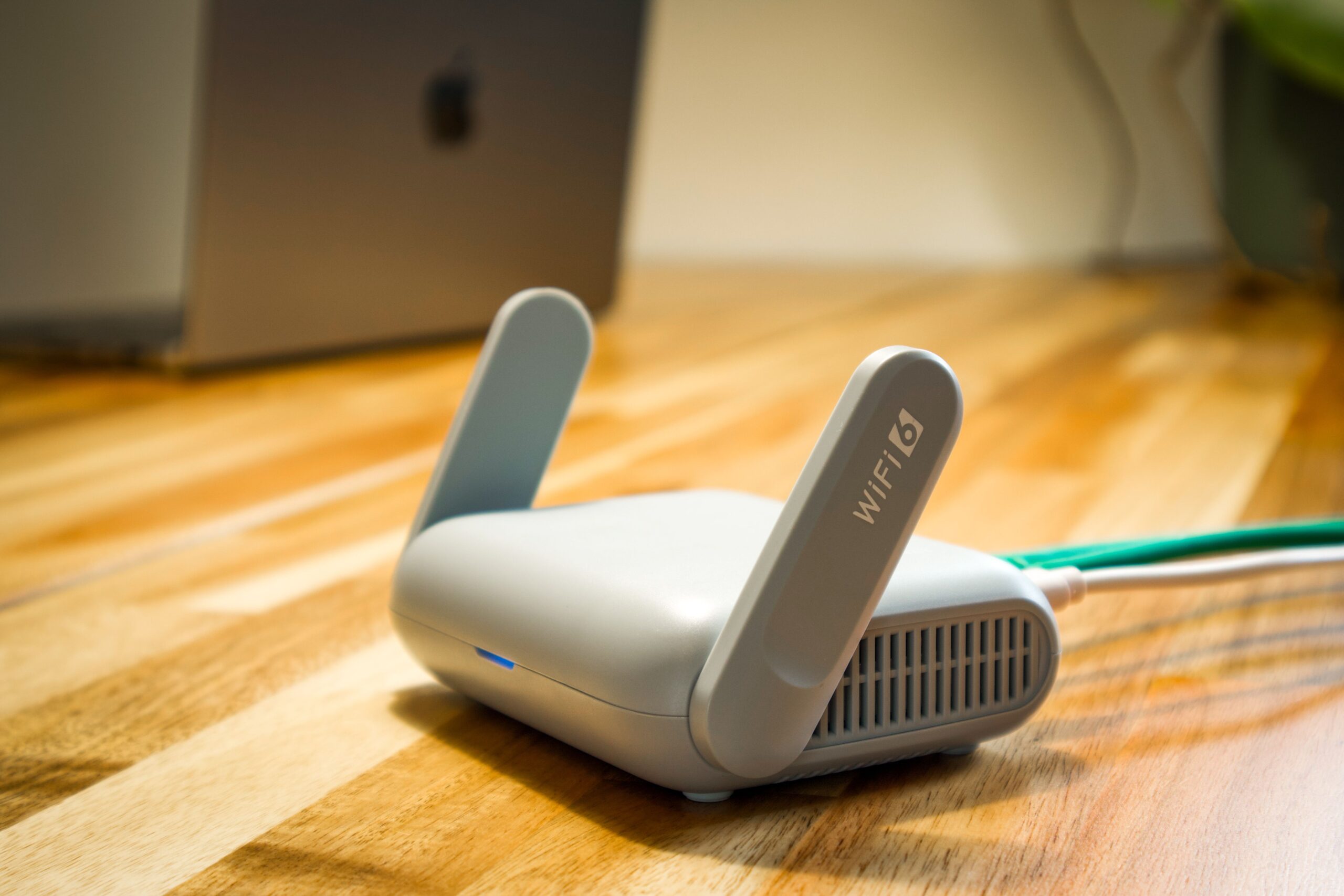
I'm sure it's happened to you: you're in the middle of an online game or an important video call, and suddenly the Wi-Fi decides to act up and the signal drops drastically. It's frustrating, especially when you know you're paying for a decent speed but your laptop just can't seem to connect. We often blame the router, but the truth is that connection performance largely depends on how your computer's Wi-Fi receiver is configured.
To fix these browsing issues, you don't need to be a networking expert, but you do need to know where to tweak things. From updating drivers to adjusting hidden network adapter settings , there are plenty of tricks to ensure your computer doesn't fall behind. In this article, we'll break down step-by-step how to get the most out of your wireless card and what to do when the hardware seems to be reaching its limits.

The critical importance of updated drivers
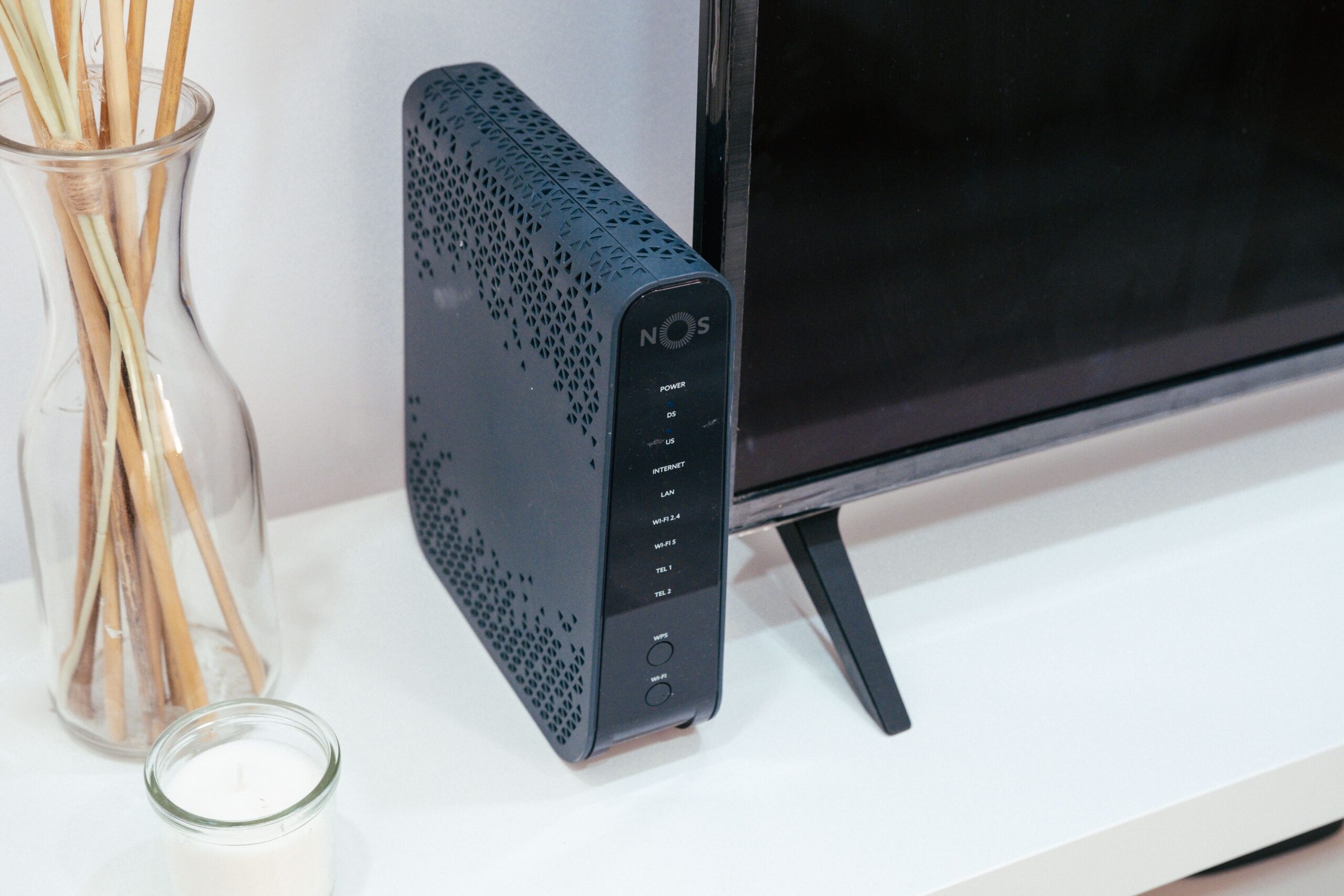
The driver is essentially the translator between your Wi-Fi card hardware and the operating system. If this software is outdated, you'll likely experience frequent drops or be unable to see modern networks. Updating your drivers not only fixes annoying bugs but also allows your PC to be compatible with newer protocols (such as upgrading from Wi-Fi 5 to Wi-Fi 6), optimizing your actual transfer speed.
To do this properly, avoid clicking the "update driver" button in Windows Device Manager, as it often installs outdated, generic versions. Ideally, go directly to the manufacturer's website (Intel, Realtek, Broadcom, etc.) or use driver update software to download the latest version. If you have an Intel AX210 graphics card, for example, make sure the version matches the latest available to avoid security issues and improve stability.

Advanced settings for users who want more power

If you delve into the advanced properties of your network adapter, you'll discover a menu full of options that most people don't even know exist. This is where the magic happens to stabilize the signal based on your environment:
- Roaming Aggressiveness: If you have a mesh network system with multiple nodes, set this to "High." This will allow your laptop to quickly switch to the access point with the strongest signal instead of being stuck near a distant router.
- Potency of transmission: By default, it's set to maximum, which is great for range, but in areas with many devices, it can generate noise. However, for most users, keeping it at the highest level This is the key to not losing data packets.
- channel width: On the 5GHz or 6GHz band, always leave this option set to "Automatic." Forcing a lower bandwidth could drastically limit your speed, while automatic mode allows you to take advantage of the 80MHz or 160MHz bandwidth if your router supports it.
- Performance Enhancement (Packet Burst): Enabling packet bursting on Intel chipsets can reduce wait times between frames, resulting in a smoother connection and reactive.
Combating interference and electromagnetic noise

Sometimes the problem isn't the software, but what's around it. Wi-Fi travels via radio waves that can interfere with all sorts of things. Wireless peripherals, such as mice, keyboards, or Bluetooth speakers, often operate on similar frequencies and can cause high latency . If you're experiencing problems, you might need to clean up any interfering Bluetooth drivers , try using cables, or change your router's channel.
Speaking of channels, imagine they're like highways. If all your neighbors are using channel 6, there'll be a massive traffic jam. Using tools like WifiInfoview or Heatmapper , you can scan for the least congested channels in your area and change your router's settings to switch to an empty "highway," thus improving your data flow.

Router and physical environment optimization
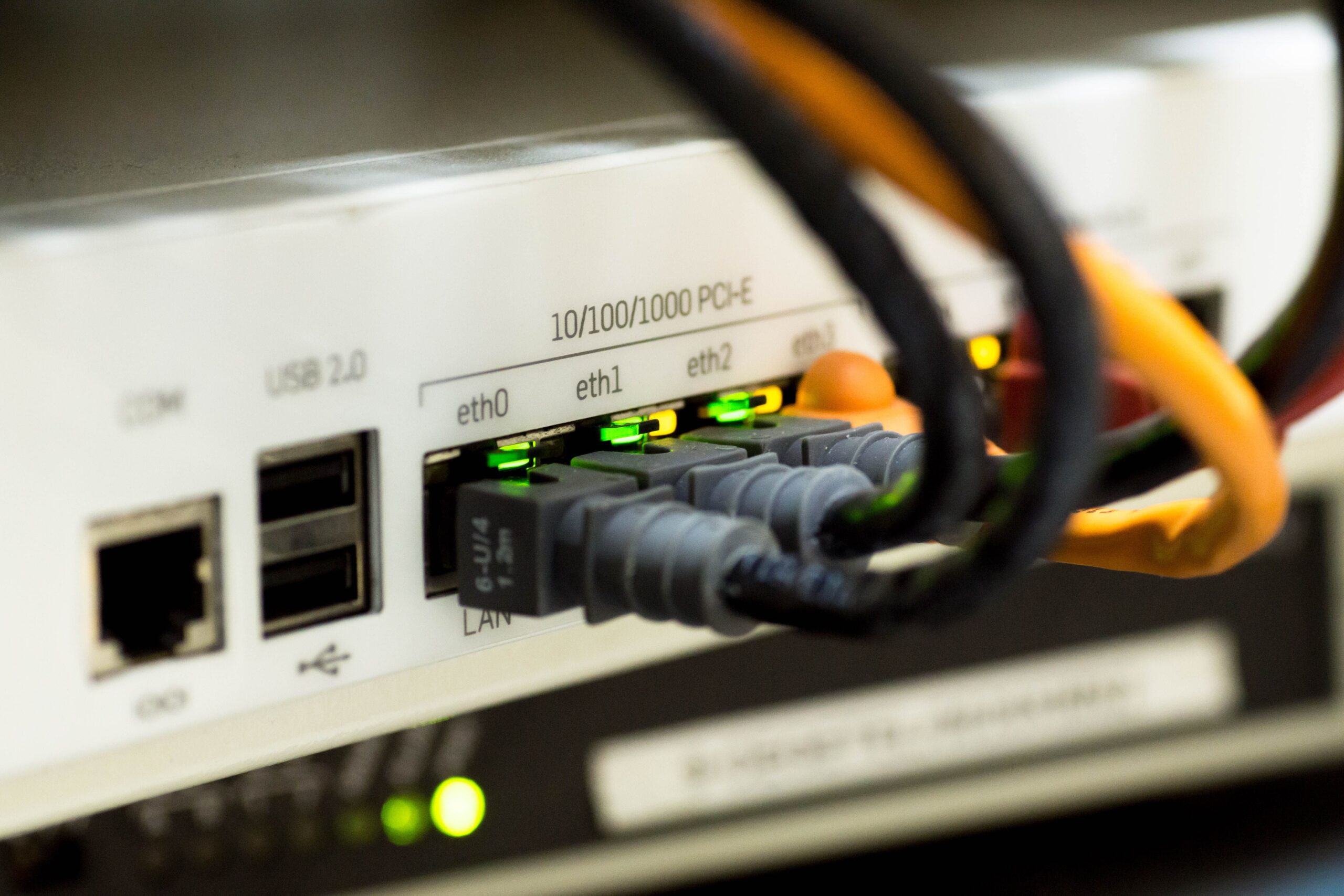
It's no use having the best driver if the router is hidden behind a sofa or inside a closet. Location is vital: find a central and elevated spot in the house. Thick walls and mirrors are the worst enemies of the signal. If you have a very large house, keep it simple and place a repeater or signal extender in the areas where coverage starts to weaken, making sure the repeater receives at least 80% of the original signal.
Furthermore, managing frequency bands is crucial. The 2.4GHz band has greater range and penetrates walls better, but it's slower and more congested. The 5GHz or 6GHz bands are incredibly fast , but have a shorter range. The smartest approach is to enable both and let the device decide, or force the 5GHz band if you're close to the device for maximum speed.
Quick solutions and system maintenance
When nothing else seems to work, there are some console commands in Windows that can work wonders by resetting the network stack. Running Command Prompt as administrator and using commands like `netsh winsock reset` or `ipconfig /flushdns` clears the network cache and resets basic configurations, eliminating logical conflicts that might be slowing down your browsing.
Don't forget about power management either. Windows has a tendency to turn off the network card to save battery, which causes brief interruptions. Go to the adapter's power settings and disable the option "Allow the computer to turn off this device to save power." This ensures that the card always performs at 100%, regardless of whether you're plugged in or not.
To achieve a flawless connection, the most effective approach is to combine manual driver updates with smart router placement and adjusting roaming aggressiveness. By eliminating interference from other devices and optimizing transmission channels, the hardware can operate without restrictions, ensuring that the contracted speed actually reaches your computer screen.


Passionate writer about the world of bytes and technology in general. I love sharing my knowledge through writing, and that's what I'll do on this blog, show you all the most interesting things about gadgets, software, hardware, tech trends, and more. My goal is to help you navigate the digital world in a simple and entertaining way.