- PnPUtil allows you to export, install and remove drivers from the console.
- Filters by class, bus and IDs facilitate device auditing and diagnostics.
- Advanced options list drivers, interfaces, classes and the device tree.
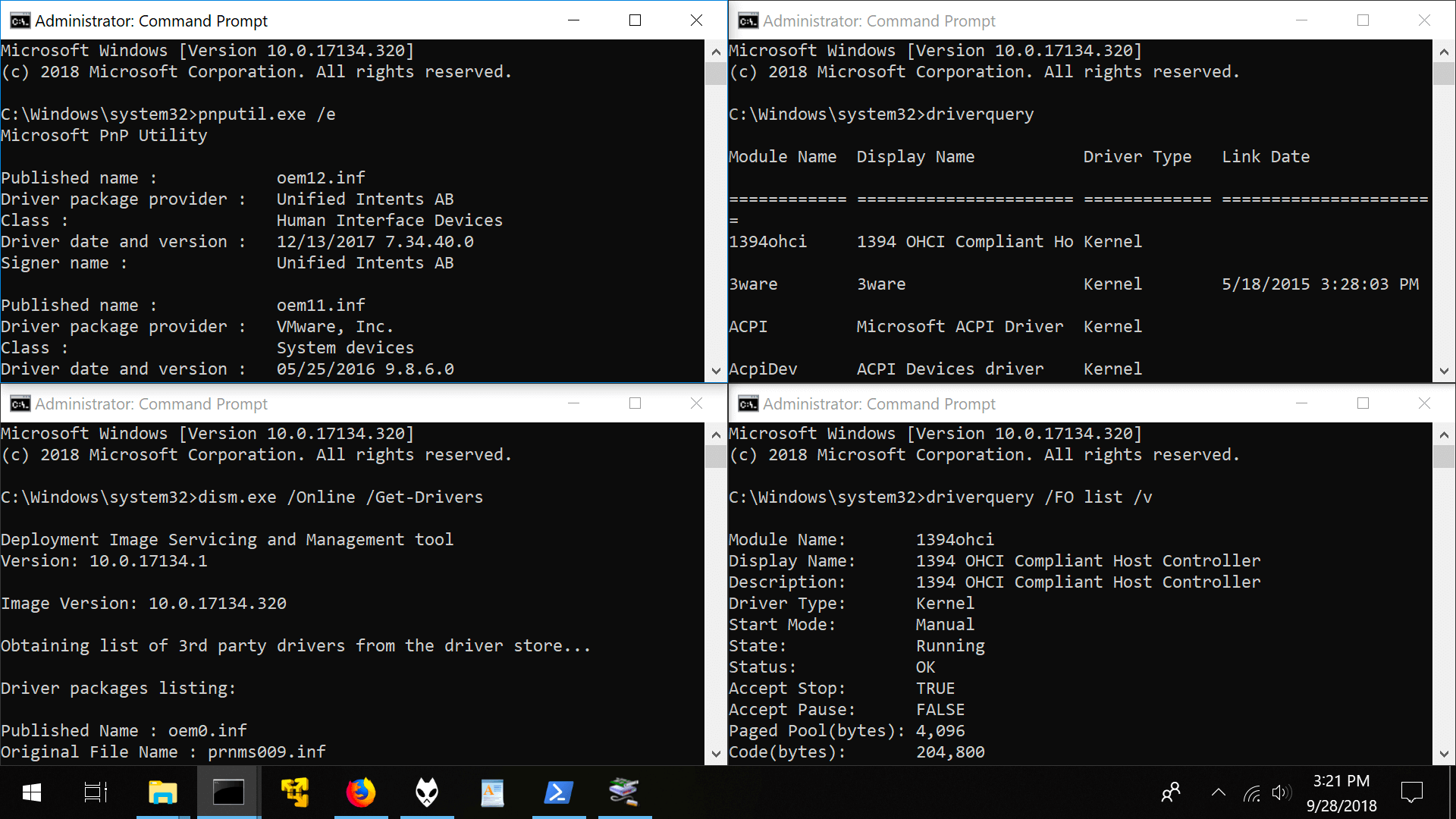
If you've ever reinstalled Windows or set up multiple computers, you know that drivers can be a real headache. Knowing PnPUtil well allows you to quickly and safely create backups , install, uninstall, audit, and even restart devices from the command line using native Windows tools.
This comprehensive guide provides essential and advanced information for working with PnPUtil: from exporting all system drivers to a folder, to listing problematic devices , filtering by class or bus, and managing OEM drivers. Everything is explained step-by-step, with practical examples and ready-to-copy and paste commands.
What is PnPUtil and where is it?
PnPUtil (PnPUtil.exe) is the command-line utility for managing Plug and Play drivers and devices. It is included in all versions of Windows since Vista and is located in %windir%\system32 (for example, C:\Windows\System32).
To use it, open a Command Prompt or PowerShell window as an administrator. The general syntax shows all the operations available in modern versions of Windows: add, remove, export, list, enable, disable, restart, and uninstall.
PNPUTIL  | /enum-devicetree  |
         /disable-device <...> | /enable-device <...> | /restart-device <...> |
         /remove-device <...> | /scan-devices  | /enum-classes  |
         /enum-interfaces  | /enum-containers  | /?]
A quick tip: first run the help with PNPUTIL /? to confirm the options supported by your version of Windows, as some brands arrived in Windows 10 1607, 1903, 2004 and others in Windows 11 (21H2, 22H2 and 23H2).
The DriverStore folder and why it matters
Windows stores drivers in the driver store location: C:\Windows\System32\DriverStore . This location contains both drivers currently in use and older packages that may no longer be needed and could take up valuable space.
Before cleaning anything up, it's a good idea to list and export your files. That way, if you delete a package you later need, you can easily restore it from your backup.
Export drivers with PnPUtil
Exporting driver copies is fundamental to any migration or reinstallation. You can export a specific driver or all OEM (third-party) packages from the repository to a destination folder. Ensure the destination folder exists before running the command to avoid path errors.
pnputil /export-driver oem6.inf .pnputil /export-driver * C:\DriverBackupThe /export-driver option has been available since Windows 10, version 1607. It is ideal to create the folder on an external drive or network (for example, E:\Drivers) and launch the bulk export with the asterisk.
You can also do this with PowerShell if you prefer: `Export-WindowsDriver -Online -Destination 'C:\DestinationPath'` . This alternative extracts the drivers present on the online system and places them in the specified folder with a clear structure by provider.
List driver packages (OEM)
To inspect what's installed in the driver store (or to see all installed drivers ), use `/enum-drivers` . You can filter by class or display the files for each package if you need to analyze the details.
pnputil /enum-driverspnputil /enum-drivers /class 'System'pnputil /enum-drivers /filesClass flags arrived in Windows 11 21H2, and the /files option for viewing associated files was added in Windows 11 22H2. This makes it easier to identify which packages are third-party and which ones need to be cleaned up.
Add and install drivers
When you need to integrate drivers into the repository (and, if necessary, install them on matching hardware ), use ` /add-driver` . This works for both specific INF files and wildcard patterns.
pnputil /add-driver X:\driver.infpnputil /add-driver C:\OEM\*.infpnputil /add-driver device.inf /installThe full syntax supports useful flags such as /subdirs to iterate through subfolders, /install to apply to matching devices, and /reboot if the computer needs to be restarted to complete the operation.
PNPUTIL /add-driver <filename.inf | *.inf> This command has been available since Windows 10 version 1607. When deploying drivers in bulk from a repository (for example, on a NAS with multiple folders per model), /subdirs and /install save you a lot of time.
Remove drivers from the warehouse
To remove a package from the DriverStore, use /delete-driver . You can uninstall it from devices that use it with /uninstall and force removal even if it's in use with /force (extreme caution).
pnputil /delete-driver oem0.infpnputil /delete-driver oem1.inf /forcePNPUTIL /delete-driver <oem#.inf> These options have been available since Windows 10 version 1607. Forcing a restart may be necessary in environments where a driver is stuck, but remember that this can affect stability if the device is critical.
Manage devices: disable, enable, restart, and remove
PnPUtil doesn't just deal with packages; it also operates directly on devices. Since Windows 10 version 2004, you can disable , enable , restart , or remove hardware by filtering by instance, ID, class, or bus.
Disable devices
Disable by instance ID, compatible hardware, class, or bus. Combinations with filters are useful for deployments and troubleshooting problematic devices.
pnputil /disable-device "USB\VID_045E&PID_00DB\6&870CE29&0&1"pnputil /disable-device /deviceid "USB\Class_03"pnputil /disable-device /class "USB" /bus "PCI"PNPUTIL /disable-device Windows 11 22H2 introduced class and bus filters, and the /force flag to disable even critical devices. Use it with caution, as it can leave essential services inactive.
Enable devices
The reverse process is just as simple and supports the same filters by class and bus (Windows 11 22H2). Enabling by ID or by class speeds up device commissioning .
pnputil /enable-device "USB\VID_045E&PID_00DB\6&870CE29&0&1"pnputil /enable-device /deviceid "USB\Class_03"pnputil /enable-device /class "USB" /bus "PCI"PNPUTIL /enable-device Reboot devices
Very useful after updating drivers. It restarts a specific device, all devices matching a given ID, or filters by class and bus, maintaining control over maintenance actions without restarting the entire system.
pnputil /restart-device "USB\VID_045E&PID_00DB\6&870CE29&0&1"pnputil /restart-device /deviceid "USB\Class_03"pnputil /restart-device /class "USB" /bus "PCI"PNPUTIL /restart-device Remove devices
Try removing devices from the system. You can remove an entire subtree (including children) and force the operation if the device is critical, which is useful when resolving persistent hardware conflicts.
pnputil /remove-device "USB\VID_045E&PID_00DB\6&870CE29&0&1"pnputil /remove-device /deviceid "USB\Class_03"pnputil /remove-device /class "USB" /bus "PCI"PNPUTIL /remove-device The /subtree flag and optional reset have been available since Windows 10 2004; class/bus filters and /force arrived in Windows 11 22H2, expanding granular control.
Check for hardware changes
Scans the system for hardware changes synchronously or asynchronously. Note that administrator privileges are required to run this command.
pnputil /scan-devices/scan-devices If you provide `/instanceid` , the analysis will be limited to that device subtree. Using `/async` runs it in the background, which is useful in concurrent work environments.
List devices and detect problems
The /enum-devices command provides a detailed inventory. You can filter by connected or disconnected, class, problem, bus, and display relationships, services, stack, drivers, interfaces, properties, or resources.
pnputil /enum-devicespnputil /enum-devices /connectedpnputil /enum-devices /instanceid "ROOT\SYSTEM\0000"pnputil /enum-devices /class "Display"pnputil /enum-devices /problem 28pnputil /enum-devices /problem /deviceidspnputil /enum-devices /deviceid "USB\Class_03"pnputil /enum-devices /bus "PCI"The full syntax shows the range of filters and rich outputs. Very useful for auditing and documenting a system in a forensic and repeatable way.
PNPUTIL /enum-devices ] ] The tags were introduced in stages: connected/classes/problems from Windows 10 1903; /drivers in 2004; and in Windows 11 21H2/22H2 came bus, deviceids, services, stack, interfaces, properties and resources for a 360º view.
Device Tree: Hierarchical View
Since Windows 11 23H2, /enum-devicetree allows you to list the device tree starting from a specific root and add layers of detail such as services, stack, drivers, or interfaces.
pnputil /enum-devicetreepnputil /enum-devicetree "ROOT\SYSTEM\0000"pnputil /enum-devicetree ROOT\SYSTEM\0000 /driverspnputil /enum-devicetree /connected /interfacespnputil /enum-devicetree /stack /interfaces /drivers /servicesThe /connected , /services , /stack , /drivers and /interfaces filters facilitate much more visual diagnostics of the hardware and software topology without leaving the terminal.
List interfaces, classes, and containers
To view device interfaces by GUID, whether enabled or disabled, use /enum-interfaces . From Windows 11 22H2 onwards, the /properties flag displays all of their properties.
pnputil /enum-interfaces /enabledpnputil /enum-interfaces /class "{884b96c3-56ef-11d1-bc8c-00a0c91405dd}"PNPUTIL /enum-interfaces If you need to review device classes, `/enum-classes` lists them all and you can filter by name or GUID. The ` /services` flag adds class services to correlate dependencies.
pnputil /enum-classespnputil /enum-classes /class "Display"PNPUTIL /enum-classes Finally, /enum-containers (Windows 11 23H2) works with device containers: it filters by identifier, status (connected/disconnected), problems, and allows listing devices and exporting to different formats.
pnputil /enum-containerspnputil /enum-containers /containerid "{00000000-0000-0000-ffff-ffffffffffff}"pnputil /enum-containers /connected /devicespnputil /enum-containers /disconnected /devices /format xml /output-file disconnecteddevices.xmlPNPUTIL /enum-containers ]The TXT, XML, or CSV output allows for effortless integration of inventories with external tools, reports, or automation scripts.
Mapping legacy commands
If you're coming from older versions, legacy shortcuts are still supported. While they work, Microsoft recommends the current, modern syntax for clarity and compatibility.
-a  <filename.inf>  ==>  /add-driver <filename.inf>
-d  <oem#.inf>      ==>  /delete-driver <oem#.inf>
-e                     ==>  /enum-drivers
Migrating your scripts to the new syntax will prevent surprises in future versions of Windows and maintain a more solid automation foundation.
Practical examples of copying and restoring
Let's start with the essentials: creating the copy. Open a terminal with administrator privileges and navigate to the location where you want to save the drivers. It's a good idea to use a simple path, for example, E:\Drivers on a USB drive.
E:
mkdir Drivers
cd Drivers
pnputil /export-driver * ./
The system will export all packages to the current folder. This approach is useful before formatting or for replicating drivers on computers of the same model, minimizing reinstallation time.
With the backup complete, there are two ways to restore. One is manually: open Device Manager , right-click on the hardware, select "Update driver," and then "Browse my computer for driver software." Select the backup folder and let Windows detect the appropriate INF file.
The other method is automated with PnPUtil. If you saved drivers organized into folders, you can install them all at once using wildcards and subdirectories, which greatly speeds up repetitive deployments.
pnputil /add-driver 'E:\Drivers\*.inf' /subdirs /install /rebootRemember to save your work before running the /reboot command . If the driver installation requires it, the computer will restart to complete the process successfully.
More useful ready-to-use examples
To list only enabled interfaces (useful before disabling something sensitive) you can run this command and then apply filters by class if needed, thus preserving the visibility of the environment.
pnputil /enum-interfaces /enabledTo quickly see problems on devices (e.g., code 28, driver not installed), combine /problem with hardware IDs and compatible output and pinpoint exactly what's missing and where.
pnputil /enum-devices /problem /deviceidsIf you want to explore only connected hardware, restrict yourself with /connected (very useful on laptops with docks or extra peripherals) to focus the diagnostic on what is active.
pnputil /enum-devices /connectedAnd for a hierarchical view with all the details (effective stack, services, controllers and interfaces), launch the tree with all the layers of detail, ideal for advanced incident resolution.
pnputil /enum-devicetree /stack /interfaces /drivers /servicesGood practices and important notes
- Run PnPUtil whenever possible in an elevated console. Several operations (e.g., /scan-devices) require administrator privileges and will fail silently without them.
- Before deleting packages with /delete-driver, export your copy and validate which devices use it. You'll avoid leaving hardware unsupported due to excessive enthusiasm for cleaning.
- If you're restoring drivers on another computer, try to use the same model and a similar Windows version. Changing the edition/architecture may cause some INF files to not apply. platform incompatibilities.
- Don't rely on third-party utilities for basic backups: with PnPUtil and Export-WindowsDriver you have a clean, adware-free, and self-controlled solution, improving performance. security and control.
- Document your commands: Many brands have been arriving in waves (Windows 10 1607/1903/2004; Windows 11 21H2/22H2/23H2). Keeping an internal cheat sheet saves you time when managing heterogeneous parks.
Mastering PnPUtil gives you fine-grained control over drivers and devices with zero external dependencies: export your entire repository, audit by class and bus, bulk install from subdirectories using /subdirs , remove obsolete packages, and diagnose your hardware tree in detail. With a few well-learned commands, driver maintenance transforms from a tedious task into a quick, safe, and repeatable one.


Passionate writer about the world of bytes and technology in general. I love sharing my knowledge through writing, and that's what I'll do on this blog, show you all the most interesting things about gadgets, software, hardware, tech trends, and more. My goal is to help you navigate the digital world in a simple and entertaining way.