- Excel does not automatically interpret CSV files in UTF-8, causing display errors for special characters.
- There are various methods and tools to import CSV files correctly, from text wizards in Excel to scripts in Python, VBA and PowerShell.
- Automating imports with scripts or using specialized tools ensures data integrity for multilingual files.
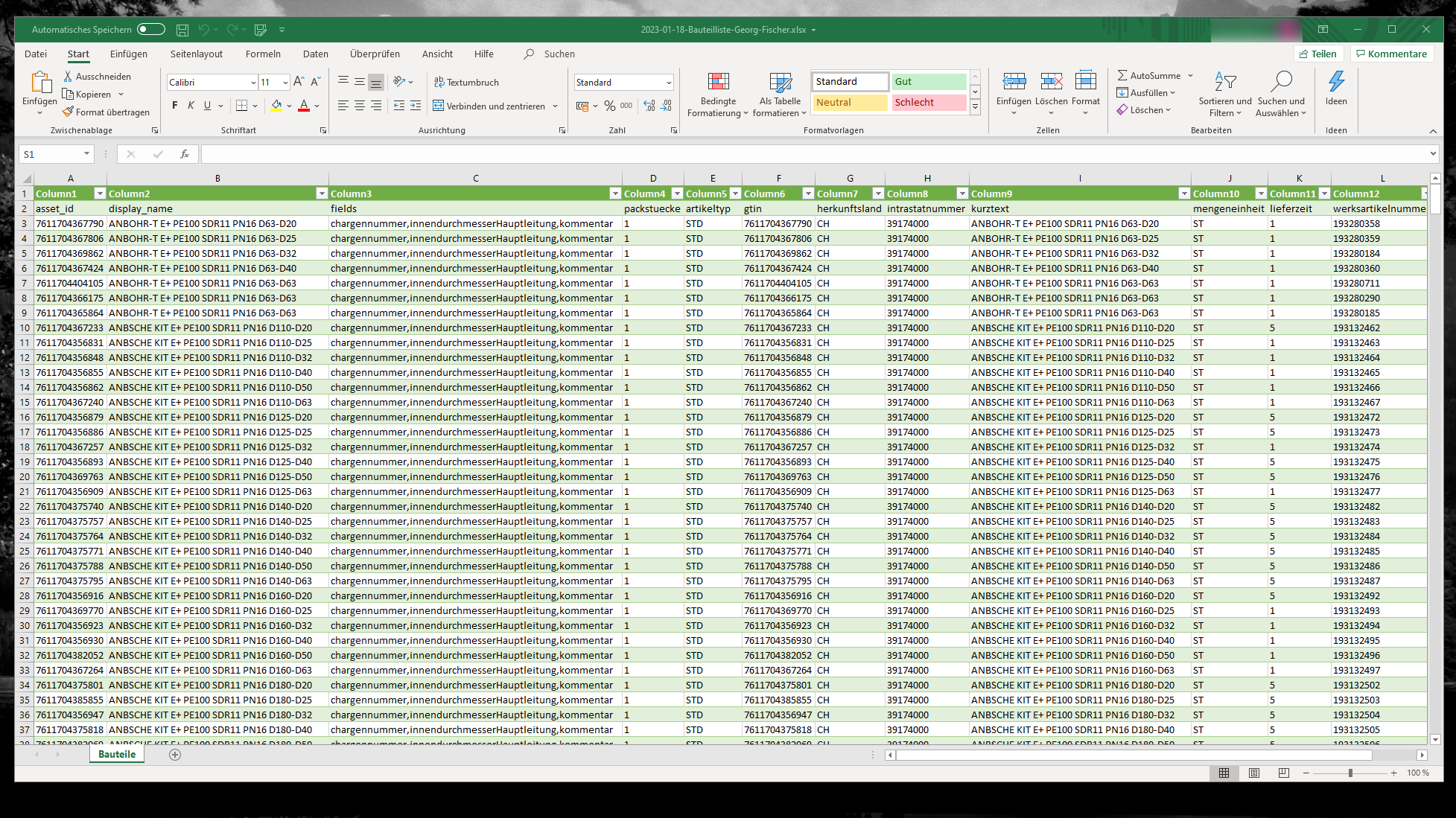
Those who work with data frequently encounter the same problem: Excel incorrectly displays special characters when opening CSV files generated in UTF-8. This is a common issue, especially when dealing with multilingual names, surnames, or descriptions that include accented letters, ñ, cedillas, or even Cyrillic or Greek alphabets. Instead of displaying accents and symbols correctly, strange characters, question marks, or blank boxes appear, which can lead to misinterpretations and poor data presentation.
This problem affects not only advanced users or those working in technical environments, but also any individual or team that needs to import or view data from applications, web platforms, or management systems that export CSV files in UTF-8 format. The main issue is that Excel, by default, does not interpret UTF-8 encoding in CSV files except in very specific circumstances. While it may seem like a minor issue, enforcing the correct encoding is essential to avoid confusion and ensure data integrity.
The source of the problem: Why doesn't Excel interpret UTF-8 CSV files correctly?
Excel, especially in its earlier versions, automatically uses the operating system's regional settings to determine the encoding when you open a CSV file by double-clicking or selecting 'File > Open'. This means that, unless the regional settings are set to UTF-8 (which is not common by default on Windows systems ), characters outside the ASCII range may appear incorrectly.
The main cause of the errors is that the CSV format, although simple and universal, does not include information about its encoding . Therefore, while other applications like Google Sheets assume UTF-8, Excel assumes local encodings such as ANSI, Windows-1252, or ISO-8859, which leads to problems with accented characters, tildes, and other special characters.
Practical solutions for opening CSV in UTF-8 in Excel
Several methods exist to force the correct interpretation of UTF-8 CSV files from within Excel without resorting to external solutions or manual file editing. Below are the most practical and reliable options, as tested by users and experts.
Open CSV files in UTF-8 using Excel's Text Import Wizard
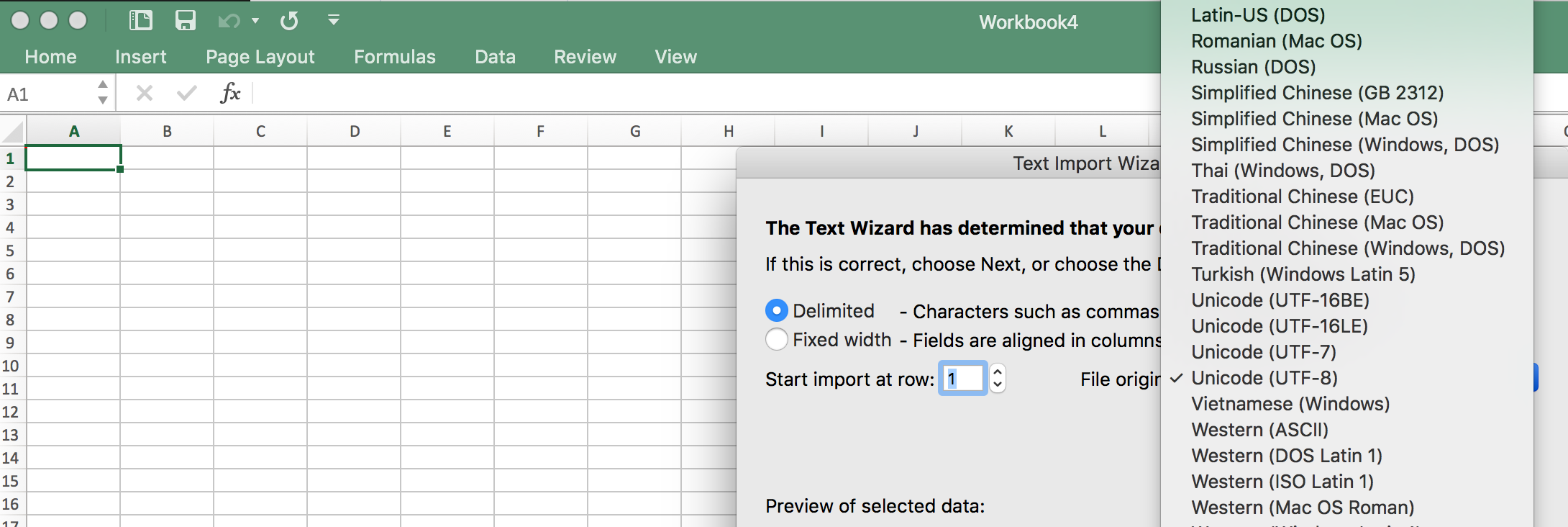
The most accessible option offered by Excel is the Text Import Wizard , which allows you to manually specify the encoding when opening the file.
- Open Excel and select a blank sheet.
- Go to the "Data" tab and click "Get data from text/CSV" or "From text" according to your version.
- Navigate to the CSV file and select it.
- In the window that appears, look for the option to choose the encoding (in modern versions it usually appears as "File Source"). Here select “65001: Unicode (UTF-8)”.
- Please check the preview to make sure the special characters are displayed correctly before accepting.
This method prevents the appearance of strange characters and allows for direct and simple import, ensuring the correct display of accents, ñ's, and other symbols.
Import CSV files in UTF-8 using Power Query
Another effective technique endorsed by Microsoft itself is to use Power Query , a tool integrated into Excel since version 2016 and available as a free add-in in earlier versions.
- In Excel, go to the Data tab and select Get and Transform Data..
- Choose “Get Data from File” > “From Text/CSV”.
- Select the file and, if necessary, adjust the encoding in the advanced options to UTF-8.
- Click “Upload” to import the content into a new sheet without any coding issues.
Power Query also makes it easy to clean and transform data before importing it into the workbook , which is especially useful if the files come from heterogeneous sources or contain non-standardized information.
Solutions if you can't save as UTF-8 CSV directly in Excel
One of the limitations reported by users is that Excel, depending on the version and operating system, does not always allow saving CSV files directly in UTF-8 . In those cases, system tools can be used to convert the file.
Use Windows Notepad to force UTF-8 encoding
- Open the original CSV file in Excel and select “Save As” type “Unicode Text (*.txt)”.
- Open the resulting .txt file in Notepad.
- You will see that the data is separated by tabs.. Use the “Replace” function (Ctrl+H) to change all tabs to commas.
- In “File > Save As”, enter the name with the .csv extension and select UTF-8 encoding in the encoding type drop-down menu..
- Save the file and open it with Excel using the import wizard or Power Query as described above..
This method is useful if your Excel doesn't offer the "CSV UTF-8 (comma delimited)" saving option, and it's also fast and doesn't require any additional applications . However, avoid modifying the resulting CSV file in Excel, as it could lose the UTF-8 encoding again.
Advanced Solutions: Automate UTF-8 CSV Conversion and Import
If you manage large volumes of CSV files or want to automate the entire process to avoid human error, there are several options available using scripts and macros . These alternatives are ideal for both technical users and those who need efficiency in their workflows.
Convert CSV to Excel using Python and Pandas
Python, along with the Pandas library, is one of the most robust and flexible ways to manipulate data and ensure correct conversion of UTF-8 CSV to Excel :
import pandas as pd
# Leer archivo CSV con codificación UTF-8
df = pd.read_csv('archivo.csv', encoding='utf-8')
# Guardar como archivo Excel conservando todos los caracteres
df.to_excel('archivo.xlsx', index=False)
This ensures that all columns and characters remain intact when converted to Excel format. Furthermore, automation allows you to handle multiple files or integrate it into a larger process.
Import UTF-8 CSV using VBA macros in Excel
Excel allows you to create macros in Visual Basic for Applications (VBA) to automate the import process while preserving the code . A simple example would be:
Sub ImportCSV()
 Dim ws As Worksheet
 Dim filePath As String
 filePath = "C:\ruta\a\tu\archivo.csv"
 Set ws = ThisWorkbook.Sheets("Hoja1")
 With ws.QueryTables.Add(Connection:="TEXT;" & filePath, Destination:=ws.Range("A1"))
 .TextFilePlatform = 65001 'UTF-8
 .TextFileStartRow = 1
 .TextFileParseType = xlDelimited
 .TextFileTextQualifier = xlTextQualifierDoubleQuote
 .TextFileCommaDelimiter = True
 .TextFileColumnDataTypes = Array(1)
 .Refresh BackgroundQuery:=False
 End With
End Sub
This allows you to define the encoding, the delimiters, and obtain the clean content directly in the spreadsheet.
Automate with PowerShell on Windows
PowerShell is another very practical tool for Windows users who need to process and transform files using scripts . An example of a script sequence could be:
$csvPath = "C:\ruta\a\archivo.csv"
$excelPath = "C:\ruta\a\archivo.xlsx"
$csv = Import-Csv -Path $csvPath -Delimiter ','
$excel = New-Object -ComObject Excel.Application
$excel.Visible = $false
$workbook = $excel.Workbooks.Add()
$worksheet = $workbook.Worksheets.Item(1)
$row = 1
$csv | ForEach-Object {
 $col = 1
 $_.PSObject.Properties | ForEach-Object {
   $worksheet.Cells.Item($row, $col) = $_.Value
   $col++
 }
 $row++
}
$workbook.SaveAs($excelPath)
$workbook.Close()
$excel.Quit()
This is extremely useful for automating batch processing of files or integrating it into administrative tasks.
Using external tools and online converters for CSV UTF-8
If you don't want to deal with scripts or macros, there are third-party tools and online converters that make it easy to convert CSV files from UTF-8 to Excel-compatible formats . Examples include applications like "Excel CSV Importer" or web services like convertcsv.com , which allow you to upload your files, select the encoding, and download the result ready to open in Excel.
These tools typically have simple visual interfaces and allow you to adjust parameters such as delimiters, text formatting, and encoding , making them ideal for those who need a quick solution without advanced technical knowledge. Furthermore, some allow batch processing to save time if you have dozens or hundreds of files.

Passionate writer about the world of bytes and technology in general. I love sharing my knowledge through writing, and that's what I'll do on this blog, show you all the most interesting things about gadgets, software, hardware, tech trends, and more. My goal is to help you navigate the digital world in a simple and entertaining way.