- Macros in Office are blocked by default for security reasons.
- Activation depends on the version and source of the file; it requires unlocking and adjusting the Trust Center.
- Digitally signing macros and allowing access to the VBA model improves compatibility and reduces warnings.
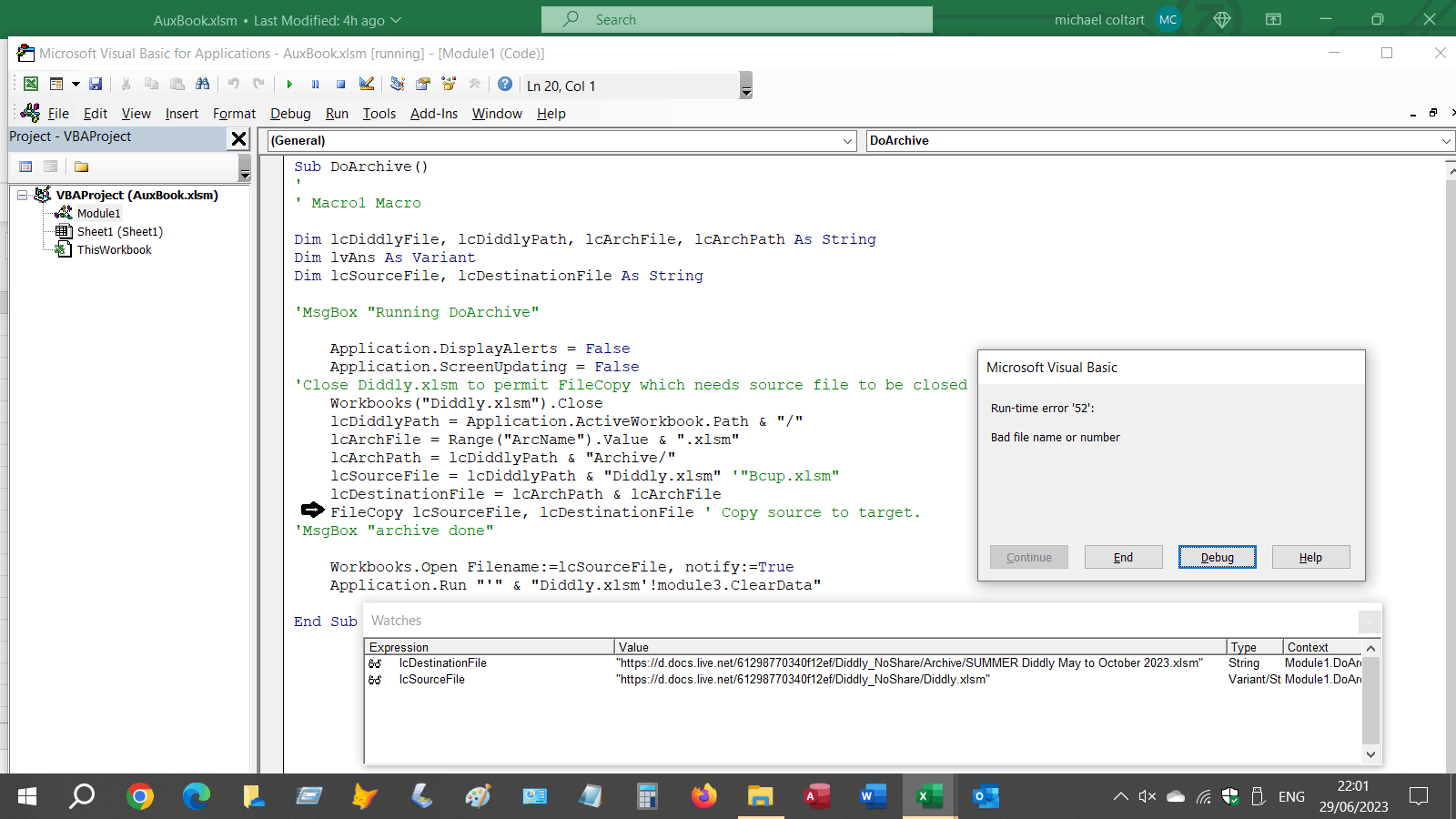
If you've ever tried to run a macro in Office and encountered an error message or the inability to activate macros, you've probably wondered why this happens and how to fix it. VBA and macro compatibility management in Microsoft Office , especially in recent versions like Microsoft 365 , has become increasingly strict for security reasons. This article is designed to help you understand the reasons behind these blocks, the options for making your older macros work, and all the tricks for restoring compatibility, explained in a practical and comprehensive way.
In recent Office updates, Microsoft has significantly strengthened protection against malicious macros, blocking their execution by default, especially in files from the internet or external sources. This has caused many users to encounter difficulties working with templates, automations, or older files that previously functioned without issue. Here, we'll show you in detail how to overcome these restrictions, enable compatibility with older VBA versions, understand the risks, and work securely.
What is a macro and why does Office block them?
A macro is a sequence of instructions recorded in VBA (Visual Basic for Applications) that automates repetitive tasks and saves time in Excel, Word , or any other Office program. However, macros can pose a security risk : if the file comes from an unknown source, it could contain malicious code designed to harm your computer or steal information.
Because of this, Microsoft Office adopts a restrictive policy and disables macro execution by default , especially in files downloaded from the internet or received via email. This results in warning messages and crashes that can be frustrating for anyone who needs to run legitimate macros.
How to know if your macros are blocked and what to do
It's common for a warning to appear in the top area (Message Bar) of Excel or Word when you open a file containing macros, indicating that "macros have been disabled ." Depending on the Office version and the file's source, the messages may vary, but the idea is the same: the program will not run the macros unless you allow it.
In Office 365 and newer versions (since 2022), downloaded files display a yellow bar with a warning and buttons to enable the content . If the file comes from the internet, you may also be required to unlock it through the file properties in Windows Explorer.
General steps to enable support for legacy macros and VBA
Let's review how you can restore macro compatibility, both in modern and older versions, and adapt to Microsoft's security changes:
1. Unlock downloaded files (Windows and Office 365)
- Right click on the downloaded file (for example, on an Excel with macros).
- Select "Properties".
- In the "General" tab, check the “Unlock” box if it appears (this step removes security restrictions).
- Click “OK” and reopen the file.
This step is essential in Office 365 and recent versions in order for macros to be activated.
2. Enable macros from the Message Bar
When you open a file with macros, you'll see a "Security Warning" warning at the top of the document. Depending on your version of Office, the message may include a shield or warning icon. To allow macros to run:
- Click on “Enable content”.
- In some cases (Excel 2007, for example), you'll need to click Options and select Enable this content or Enable all macros.
3. Change settings in the Office Trust Center
To control the overall behavior of all macros, you need to access the Office Trust Center . Follow these steps (applicable to Excel, Word, and other apps ):
- Open any document in Excel or Word.
- Click on Archive > Options.
- Look for the section Trust Center and click Trust Center Settings.
- Access the section Macro Settings.
Within the macro settings menu, you'll find several options. It's important to understand each one:
- Disable all macros without notification: Blocks any macro and does not notify the user.
- Disable all macros with notification: Macros are disabled, but you can choose to enable them for specific files whenever you want (recommended if you work with macros occasionally).
- Disable all macros except digitally signed ones: Only allow macros to run from publishers you trust and who have digitally signed the code.
- Enable all macros (not recommended)Any macro, even a malicious one, can be executed without restrictions. Use it only with completely trusted files.
- Enable excel macros 4.0 (XLM)In recent versions, you can choose to also run Excel 4.0 macros if VBA macros are allowed. If you don't check the box, older XLM macros will be blocked.
- Trust access to the VBA project object model: If your macro needs to interact with the VBA code itself (for example, writing code or manipulating the editor from within a macro), you must check this box to allow programmatic access to the VBA object.
4. Older Versions: How to Enable Macros in Excel 2000, 2003, and 2007
If you're using older versions, the menus may be different. Here are the methods for activating macros depending on your version:
- Excel 2000 and 2003:
- Open the Excel file.
- Tools > Macros > Security menu.
- Select the "Low" setting and accept the changes. It's recommended to change it back to a safer setting after running the desired macros.
- Close and reopen Excel for the changes to take effect.
- Excel 2007:
- Click the Office Button (top left corner) > Excel Options.
- Trust Center > Macro Settings.
- Check “Enable all macros” and accept.
- Restart Excel if necessary.
5. Enable macros in Office 2010, 2013, 2016, 2019, and Microsoft 365
In these modern versions, the path to enable macros is fairly consistent:
- Open the file in Excel, go to Archive > Options.
- Trust Center > Trust Center Settings.
- Macro Settings > select “Enable all macros” and confirm.
- You may need to close and reopen Excel for the changes to take effect.
Remember that enabling all macros involves security risks ; only do so if the file comes from a trusted source.

Macro Security: Digital Signatures and Certificates
To protect yourself against malicious macros and improve compatibility, Microsoft recommends digitally signing your macros. This works as follows: the developer signs the macro project with a digital certificate, allowing the user to identify its origin and determine if the code has been tampered with.
How can you obtain a digital certificate?
- Request it from a recognized commercial certifying entity.
- Request a certificate from your IT administrator or internal security department.
- Use the tool Selfcert.exe to create a personal certificate if you only need internal use.
Once you have the certificate, you can sign the macro project in the VBA editor. Office will detect the signature, and if you trust the issuer, you can enable the macro without needing to modify the security settings.

Legacy macro compatibility (VBA and Excel 4.0 XLM)
The Office ecosystem isn't the only one facing problems with legacy macros. For example, LibreOffice and Collabora Office have implemented VBA support, although it's not complete. If you need to open an older file with VBA macros in these suites:
- Accede to Tools > Options > Load/Save > VBA Properties.
- Check the box Executable code to allow the execution of VBA macros.
- You can also edit VBA macros using the LibreOffice BASIC editor, although there may be compatibility limitations.
In Excel 4.0 (XLM) , older workbooks can contain macros in that format. Be sure to enable XLM macros in the Trust Center if you need them. By default, they are usually blocked.

Common errors when running macros and how to fix them
Even after enabling macros, execution errors often appear, such as the dreaded "Macro Error." The reasons can vary:
- References to objects that do not exist (for example, trying to access a workbook that is not open).
- Errors in methods that require certain data or a specific context (for example, operations on empty ranges).
- Problems accessing the VBA object model blocked by security settings.
- External errors, such as attempts to read or write to locked files.
To enable trusted access to the VBA object model (necessary if your macros manipulate code or the VBA environment):
- Activate the tab Developer on the ribbon (File > Options > Customize Ribbon).
- Go to the tab Developer and enters Macro security.
- En Setting up developer macros, check the box “Trust access to the VBA project object model.”
This way, advanced macros will have permission to modify or access other VBA projects in the document.


Passionate writer about the world of bytes and technology in general. I love sharing my knowledge through writing, and that's what I'll do on this blog, show you all the most interesting things about gadgets, software, hardware, tech trends, and more. My goal is to help you navigate the digital world in a simple and entertaining way.