- Check in Windows 11 the Memory Channels field: must indicate Dual.
- CPU‑Z confirms with Channel # as Dual or read 2 x 64‑bit.
- Dual Channel does not increase MHz: it increases bandwidth and effective MT/s.
- Uses A2/B2 slots and XMP/DOCP/EXPO profiles for stability and performance.

If you're unsure whether your computer is taking advantage of Dual Channel RAM, the best way to check is from within Windows 11 using a couple of simple steps and a reliable tool. The goal is to confirm whether your two RAM modules are working in parallel to provide more bandwidth and, at the same time, determine if your configuration is performing as it should.
Beyond mere curiosity, knowing this has real impact: Dual Channel can make a difference in bandwidth-intensive workloads such as integrated graphics, some creative tasks, virtualization, or intensive multitasking. Below you'll find a complete guide in Spanish (Spain) with all the methods, explanations, and tips based on what Windows 11, CPU-Z, and the BIOS/UEFI show, as well as important nuances about DDR4 and DDR5.
What is Dual Channel in RAM?
In a dual-channel configuration, two RAM modules of the same capacity operate simultaneously on a 128-bit bus , instead of a single 64-bit channel. This increases the effective bandwidth compared to using a single module.
For it to work, the motherboard must support it and the modules must be installed in the correct slots . On motherboards with four slots, they are usually grouped by channel in alternating positions (A1/A2 and B1/B2), while on Mini-ITX motherboards or those with two slots, it is enough to occupy both.
It's common to buy kits already designed for Dual Channel. Ideally, both modules should have the same capacity and, preferably, the same speed and internal organization . Mixing brands can work, but it's not guaranteed; differences in chips, ranks, or organization can force Single Channel mode or cause instability.
How it influences performance
It's important to clear up a common misconception: Dual Channel doesn't double the MHz of your RAM . What it does double is the potential bandwidth by widening the effective bus, which translates to more megatransfers per second available to the system.
Most modern modules are DDR (Double Data Rate). By design, the frequency shown by tools like CPU-Z is half the commercially available figure : for example, a DDR4-3200 kit will appear as 1600 MHz in DRAM Frequency, but it's an effective 3200 MT/s.
In Windows, the Speed label can be misleading. The listed speed alone does not confirm the channel status . Some guides say that if you see more than 2133 MHz for DDR4 or more than 4800 MHz for DDR5, it implies Dual Channel; this is not a reliable indicator. What does matter is the Channels field in Task Manager and the Channel # reading in CPU-Z.
Is it really noticeable? It depends. With iGPU and memory-dependent workloads, the improvement can be significant . In games with a dedicated GPU and titles limited by the processor or graphics card, the difference may be barely perceptible. Even so, it's performance you've already paid for by installing the second module, and it's worth taking advantage of it.
How to know if you are in Dual Channel in Windows 11
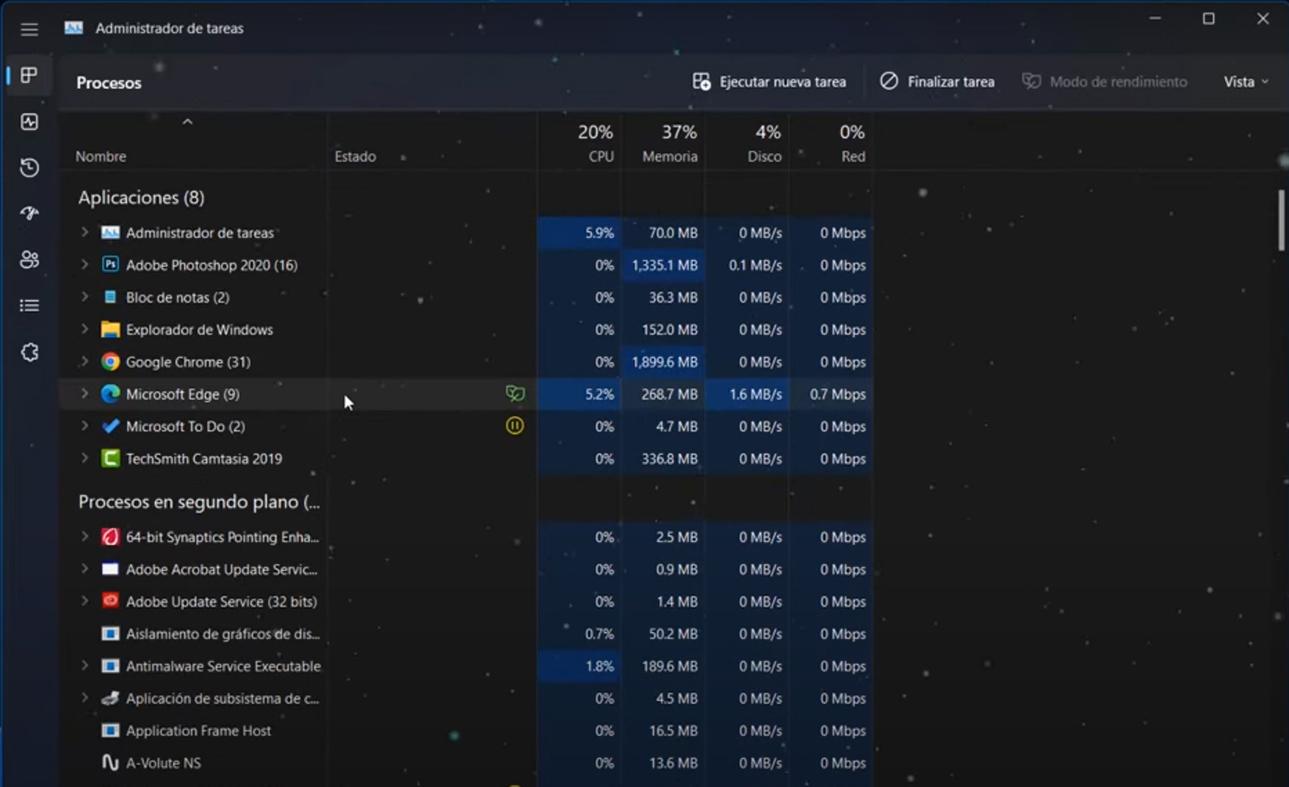
Windows 11 provides direct confirmation from the Task Manager. It's the first place you should check because it doesn't require any installation and shows the status at a glance.
Quick steps: Open Task Manager with Ctrl + Shift + Esc, go to Performance, and select Memory. Look at the Channels and Slots Used lines . Channels should say Dual; if it says Single, you're in single-channel mode. Slots Used only indicates how many slots are in use; it doesn't guarantee the mode.
- Outdated: Must be set to Dual when active. If set to Single, check placement and compatibility.
- Used slots: Useful to know if the system detects both modules; it does not confirm the channel by itself.
- Speed: Displays the effective memory speed; does not determine the channel mode.
- Form factor and location: provide context about module type and slots.
If you see "Dual" under "Channels," you're all set. If it says "Single," you need to check the slots, module configuration, and BIOS/UEFI settings . It's normal for the computer to boot with safe values and disable fast profiles after hardware changes until you configure them.
Check with CPU-Z and other utilities
CPU-Z is a lightweight and portable tool. Open the Memory tab and check Channel # . There you'll see Single, Dual, or even Quad on specific platforms. On some computers, CPU-Z displays the reading as 2 x 64-bit, which is equivalent to active Dual Channel.
In the same Memory tab, DRAM Frequency shows half the effective speed : 1600 MHz represents 3200 MT/s in DDR4, 3000 MHz represents 6000 MT/s in DDR5, etc. This is normal in DDR due to its double data rate nature.
Alternatives like HWiNFO also indicate the channel mode and detail internal organization, ranks, and timings. These utilities are very useful for diagnosing module mixes and potential bottlenecks in the configuration.
Check and adjust from BIOS/UEFI on motherboards
One key point: there's no magic switch in the BIOS to enable or disable Dual Channel . The mode is primarily determined by the placement and compatibility of the memory modules. However, you can configure memory profiles (XMP, DOCP, or EXPO) and other parameters in the BIOS/UEFI.
How to enter BIOS from Windows 11 if you don't remember the key: Go to Settings > System > Recovery > Advanced startup > Restart now. Then, under Troubleshoot, choose UEFI Firmware Setup to reboot directly into the motherboard firmware.
Once inside, look for memory information: this usually includes the frequency, the loaded profile, and the channel status. Activate the XMP/DOCP/EXPO profile if your kit supports it to ensure stable loading at the advertised speed.
- XMP on platforms Intel (many AMDs also read it as DOCP).
- DOCP on ASUS motherboards for Ryzen such as XMP mapping.
- EXPO in kits designed for the latest generation of AMD Ryzen.
If you see "Single Channel" in the BIOS, turn off your computer and reinstall the memory modules in the slots recommended by the manual (usually A2 and B2). On motherboards with two slots, simply use both . If the single-channel issue persists, check compatibility and try using automatic profiles or relaxed timings.
Correct placement of modules and compatibility
Physical placement matters. On motherboards with four slots, the banks in the same channel are usually alternated . Place the two modules in the second and fourth slots from the processor, which are labeled A2 and B2 in manuals. If the motherboard is Mini-ITX or only has two slots, simply use both.
Many manufacturers color-code the banks on the same channel. If there is no color coding, strictly follow the manual . A properly installed and recognized kit should automatically activate Dual Channel.
Regarding mixing modules: a paired kit is always best . Even so, two modules of equal capacity and JEDEC speed will usually work in Dual Channel, although the system may force the configuration to the most conservative setting. Internal differences such as single rank versus dual rank, chips, and organization can affect performance.
Key clarifications on DDR4, DDR5, MHz and MT/s
DDR stands for Double Data Rate, so tools may show you half the advertised frequency . This is confusing at first, but it's perfectly normal. 1600 in DRAM Frequency implies 3200 MT/s.
DDR5 also introduces two 32-bit subchannels per module, so its internal management is different; even so, for practical purposes, the verifiers still indicate Single or Dual depending on the number of modules and channels of the platform.
Don't rely on quick rules like "if it exceeds X MHz it's Dual." The reliable indicator in Windows 11 is "Channels: Dual ," and in CPU-Z, "Channel #: Dual" or "2 x 64-bit." Speed alone doesn't determine the mode.
Real-life cases: why performance sometimes doesn't improve
There are situations where, even with Dual Channel enabled, the user doesn't notice significant changes. If you're playing with a dedicated GPU and the game is limited by the card or processor, RAM bandwidth might not be the deciding factor . However, with AMD/Intel integrated GPUs (iGPUs), the gain can be substantial.
Another common reason: if the system was misconfigured and loading at very low speeds or with unstable timings , activating an XMP/DOCP/EXPO profile and stabilizing the system can offer a more tangible improvement than Dual Channel itself.
Diagnostics with CPU-Z: Typical readings and messages
In CPU-Z, the Memory tab is the key: Channel # should show Dual when everything is working correctly . If it shows Single, you're not using both channels. On some versions and systems, you'll see 2 x 64-bit, which indicates that Dual Channel is active.
On the SPD tab, inspect each slot to ensure both modules are detected with their JEDEC/XMP and reasonable matches . If a module is not listed, it may be improperly seated or have a physical fault.
Solve common problems
If Windows 11 shows Single or CPU-Z doesn't confirm Dual, try this quick list: these are non-destructive steps that usually fix most cases.
- Reseat the modules: Turn off, unplug, press the power button for a few seconds to discharge, remove and reinsert firmly.
- Correct slots: Use A2 and B2 on four-slot boards as per the manual; on two-slot boards, use both.
- Update BIOS/UEFI: Memory compatibility improvements are common in new releases.
- Enable XMP/DOCP/EXPO and if there is instability, try default times and voltages.
- Test modules separately to rule out a defective stick.
- Clean contacts with a soft eraser and compressed air (be careful with static electricity).
- Check memory mapping and advanced options if the BIOS allows it.
If you're still stuck in Single mode, it's possible that the mix of modules or their internal organization is preventing dual mode. In that case, a paired kit is usually the most straightforward solution.
Compatibility and practical examples
With motherboards like the ASUS PRIME A320M-K and first-generation Ryzen processors, memory compatibility improved significantly with BIOS updates . Mixing 8GB 2133MHz modules from different brands may work in dual channel, but it's not guaranteed.
If the BIOS recognizes both modules but the system is only using 8 GB, check the following: that the operating system is 64-bit, that there is no unusual hardware memory allocation , that there isn't a defective module , and that the memory remapping option is disabled. On platforms without an integrated GPU (iGPU), memory allocations for graphics are usually zero.
In other scenarios, CPU-Z may display the mode dimmed or not clearly indicate Dual. The reading 2 x 64-bit is equivalent to Dual . Also verify that the DRAM Frequency corresponds to half the expected commercial value and that both SPDs load correctly.
What if I want to use four modules? Quad Channel?
Installing four memory modules in a standard desktop motherboard doesn't magically activate Quad Channel. Most mainstream platforms remain dual-channel even if you fill all four slots. Quad Channel is only available on HEDT platforms or workstations with memory controllers designed for it.
The performance gains of Quad Channel in real-world scenarios outside of HEDT environments are not dramatic if the load doesn't saturate memory. For most users, two identical modules in Dual Channel is the sweet spot in terms of cost, compatibility, and performance.
Mini ITX and Dual Channel?
Mini-ITX motherboards typically have two slots and support dual-channel memory without issue. Even if the slots are close together, dual-channel mode is activated when using two compatible modules . Some special compact motherboards may use SO-DIMMs and less common configurations, but the general principle remains the same.
Fine tips to squeeze your memory
To ensure the best results: choose a kit paired with the correct profile for your platform and install the modules in the recommended slots. Enable XMP/DOCP/EXPO, monitor temperatures and stability, and validate with a MemTest or OCCT run if you make any manual adjustments.
If latency is as important to you as bandwidth, consider that tighter timings and synchronization with the Infinity Fabric bus on Ryzen can be more effective than simply chasing high MHz. Every platform has its sweet spot.
As a rule of thumb, always check two sources : Task Manager in Windows 11 (Channels field) and CPU-Z (Channel #). If both agree, there's no room for doubt.
Confirming Dual Channel in Windows 11 takes seconds and avoids guesswork. Open Task Manager, look at Channels, and cross-reference the data with CPU-Z . If there are discrepancies, check the slots, XMP/DOCP/EXPO profiles, and module compatibility. When everything is properly configured, the combination of two identical sticks, correct slots, and appropriate profiles ensures you get the bandwidth you paid for and a faster system where it really matters.


Passionate writer about the world of bytes and technology in general. I love sharing my knowledge through writing, and that's what I'll do on this blog, show you all the most interesting things about gadgets, software, hardware, tech trends, and more. My goal is to help you navigate the digital world in a simple and entertaining way.
Table of Contents
- 1 What is Dual Channel in RAM?
- 2 How it influences performance
- 3 How to know if you are in Dual Channel in Windows 11
- 4 Check with CPU-Z and other utilities
- 5 Check and adjust from BIOS/UEFI on motherboards
- 6 Correct placement of modules and compatibility
- 7 Key clarifications on DDR4, DDR5, MHz and MT/s
- 8 Real-life cases: why performance sometimes doesn't improve
- 9 Diagnostics with CPU-Z: Typical readings and messages
- 10 Solve common problems
- 11 Compatibility and practical examples
- 12 What if I want to use four modules? Quad Channel?
- 13 Mini ITX and Dual Channel?
- 14 Fine tips to squeeze your memory