- Use of specialized managers to avoid corruption of original game files.
- Importance of making backups before any system modification.
- Verification of compatibility between different versions of mods to avoid technical conflicts.
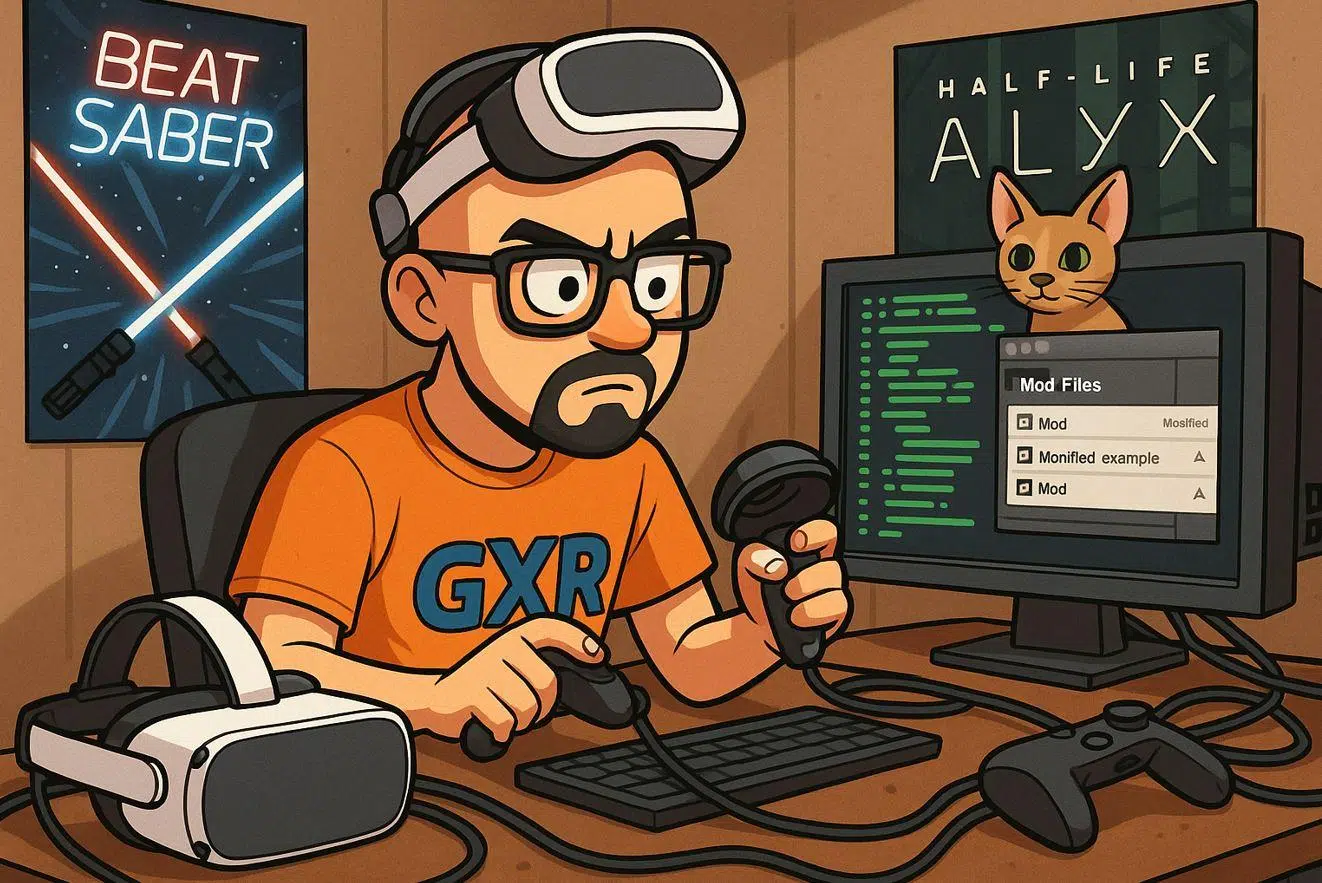
Messing with a video game's files might seem like a treacherous undertaking if you don't have much experience, but the reality is that
The most important thing to keep in mind is that not all mods are installed the same way. While some require you to manually copy and paste folders , nowadays there are automated management tools that do all the dirty work for you, ensuring that the original files remain intact and that you can revert changes in a snap.

Using mod managers: The safest option
If you want to avoid complications and prevent the game from crashing, the best solution is to use a mod manager. For example, in games like REPO, Thunderstore Mod Manager is the go-to tool. These programs create a kind of intermediary layer that allows you to load mods without permanently modifying the game's executable files.
The main advantage is that you can enable and disable add-ons with a single click. If you suddenly notice the game is lagging or that a mod is conflicting with another, you don't have to reinstall the entire game from scratch; you simply disable the problematic tool and you're done.

Essential steps for a successful installation
Before you dive in, there's one step you absolutely cannot skip: making a backup. Backing up your save folder and base files will save your skin if something goes wrong during the installation of a particularly complex mod.
- Download the recommended management tool for your specific game.
- Look for mods that have good reviews and recent updates to avoid bugs.
- Install the add-ons one by one instead of all at once to identify which one fails if an error occurs.
- Always check the prerequisites, as many mods require other mods called "frameworks" or base libraries to work.
Once you have the mod manager installed, simply browse the mod library, select the mod you want, and click the install button. The program will then place the files in the correct location and configure the game to recognize them upon login, similar to installing mods in Minecraft.

How to prevent mods from breaking the game
The most common problem is incompatibility. You can't mix mods that modify the same game function because they'll end up conflicting with each other, causing the system to crash or freeze . It's crucial to read the creator's description to find out if the mod is compatible with your current software version.
Another key point is maintaining order. If you start installing dozens of mods haphazardly, you'll eventually lose track of what's going on. Keeping your mod profile organized within the mod manager will allow you to experiment with different combinations without the risk of corrupting your main save file.


Passionate writer about the world of bytes and technology in general. I love sharing my knowledge through writing, and that's what I'll do on this blog, show you all the most interesting things about gadgets, software, hardware, tech trends, and more. My goal is to help you navigate the digital world in a simple and entertaining way.