
HP laptops are powerful and suitable for both personal and business use. Often, if you buy a new laptop online, you may need to manually install the Windows operating system . Sometimes, you need to reinstall Windows due to malfunctions, frequent system crashes, or occasional errors. You might also want to upgrade the Windows operating system on your older HP laptop.
Also check:
HP VS Dell Laptop Comparison
The best laptops you can buy!
The best laptop brands
In this guide, we'll help you install Windows from a USB drive on HP laptops. The article will explain how to boot an HP laptop from a USB drive, or how to install Windows on a laptop using a USB flash drive.
How to install Windows 11 or Windows 10 on HP laptops from Pendrive?
In the early days, we had to use floppy disks, CDs, and DVDs to install the Windows operating system on our computers. But now, most of the modern PCs do not have CD, DVD, or Blu-ray drives.
Today, you can use a bootable USB drive to install the Windows operating system on your HP laptop. You'll need to install or reinstall the Windows operating system on your HP laptop if it's a new laptop, or if it's lagging, running slowly, or experiencing performance issues. Your HP laptop will be like new after the boot process.
You can install Windows 11 , Windows 10, or any other newer version of Windows on your laptop. Don't forget to back up your important data to an external hard drive or online cloud storage .
What do you need to install Windows from a USB or Pendrive on an HP laptop?
There are some requirements to install the Windows operating system on your HP laptop.
- Windows Installation Media .ISO
- USB flash drive with at least 16 GB of free space. We recommend a 32 GB USB flash drive. This drive will be formatted, so make sure it does not have any important data on it.
- Windows laptop or computer with a good internet connection (to download the Windows .ISO file)
- We recommend obtaining a license to run the Windows operating system.
- HP laptop that you want to boot.
Let's see step by step how to install Windows on an HP laptop. You can use this method to install Windows 11 , Windows 10, or any newer version of Windows on your laptop.
1. Create a bootable Windows 11/10 USB drive
- Connect the bootable USB flash drive/Pendrive to your Windows laptop or computer.
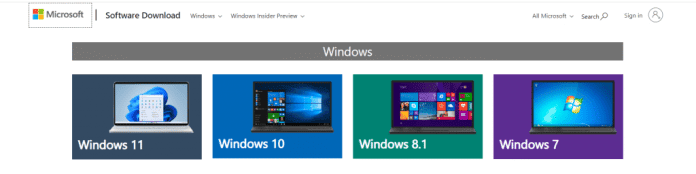
- Now open a browser and go to Microsoft Official Website and download the Windows Media Creation Tool. Here you can choose the versions of Windows 11, Windows 10, Windows 8, and Windows 7 you want to install on your laptop. Download the Windows disk image (ISO file).
- If you purchase the product, you will get a product key. We need to enter this product key during the Windows installation process.
- Open the downloaded file to start installing the software.
- “Accept” the terms and conditions, then you can manually choose the language, edition and architecture (32-bit, 64-bit). Or you can click “Use recommended options for this PC”.
- Now select the “USB Flash Drive” media device and click Next. From the list of devices, select the USB drive/Pendrive that you have connected to the PC.
- After selection, the Windows 10 operating system will start downloading to your USB device.
- You will receive the message “Your USB flash drive is ready” once the download is complete.
2. Boot your HP laptop with the bootable USB flash drive/Pendrive
- Turn on your HP laptop. Keep your laptop charging. Now restart the laptop from settings.
- Now that you have a bootable USB drive/Pendrive, connect it to the HP laptop you want to boot.
- Turn off the HP laptop you want to boot. After connecting the USB flash drive, turn it on and press F9 to open the Boot Manager in the BIOS.
- Select the “USB Flash/Hard Drive” option
3. Install Windows on HP laptop using USB drive/bootable disk drive:
- Once you have completed the steps above, select your language, time and currency format, keyboard, and input. Then click “Next” and “Install Now.”
- Enter the product key you received after purchasing the Windows operating system. You can click on the “I don’t have a product key” option and use a 30-day trial.
- Now select the version of the Windows operating system you want to install. Accept the Terms and Conditions and click “Next.”
- Now choose the “Custom: Install Windows only (Advanced)” option. Then choose the “C drive” to install Windows 11/Windows 10.
- After all these steps, the Windows installation process will begin on your HP laptop.
Once Windows is installed on your HP laptop
After completing the Windows OS installation, restart your HP laptop. Install the compatible graphics drivers. The laptop will update all the system drivers. So give it 15-20 minutes to complete the updates.
The USB flash drive must be formatted as FAT32.
A blank USB flash drive with at least 16 GB of space.
No, you will need a license to use the Windows operating system.
Press F9 to open the Boot Device Options menu after your HP laptop boots. Use the up or down arrow key to select the USB flash drive, and then press Enter.
Yes, you can safely install Windows 11 or Windows 10 on an HP laptop. Follow our step-by-step guide.
Yes, you can install any version of Windows on your DOS laptop. You will need a bootable USB flash drive to install the Windows operating system.
No products found.

My name is Javier Chirinos and I am passionate about technology. Ever since I can remember, I have been interested in computers and video games, and that passion has turned into a job.
I have been publishing about technology and gadgets on the Internet for over 15 years, especially in mundobytes.com
I am also an expert in online marketing and communication and have knowledge in WordPress development.
Comments are closed.