- Using GNOME Shell and GNOME Tweak Tool to enable deep customization of the Ubuntu desktop.
- Installing a macOS-style GTK theme and the La Capitaine icon set to achieve a cohesive look.
- Configure fonts similar to those in macOS and use the Dash to Dock to complete the visual experience.
- The entire process is free, reversible, and leaves Ubuntu's stability and functionality intact.
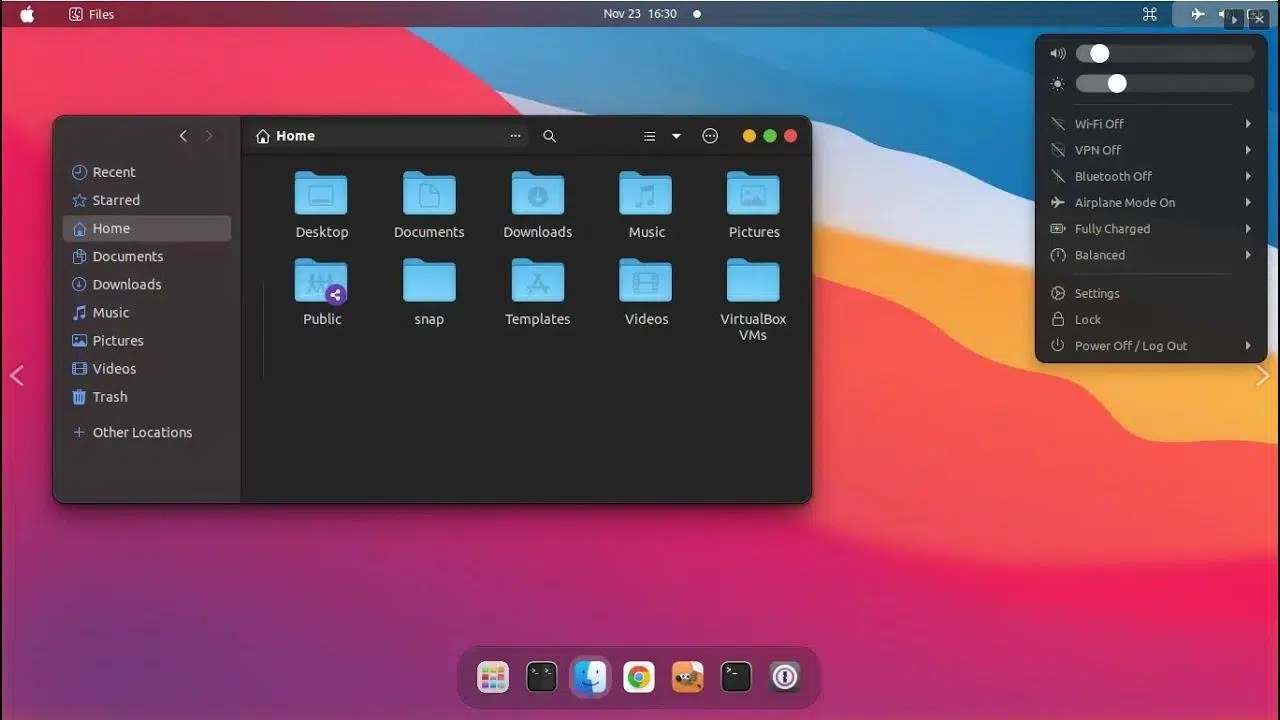
If you use Ubuntu daily but are drawn to the polished, minimalist design of Apple computers, you're in luck: it's possible to give your Ubuntu a look very similar to macOS without paying for licenses, switching operating systems , or going crazy with complicated configurations. With a few well-chosen tools, themes, and extensions, you can achieve a desktop very similar to that of a modern Mac.
The idea isn't to clone Apple's system pixel by pixel, because that's neither necessary nor always possible, but rather to leverage Linux's enormous customization capabilities to mimic the visual and user experience of macOS . You'll change the desktop environment, install a Mac-style GTK theme, add a macOS-inspired icon pack, adjust the fonts, and complete the package with a dock very similar to Apple's. We'll go step by step, but with all the details so you don't miss a thing.
Choosing the right desktop environment: GNOME Shell
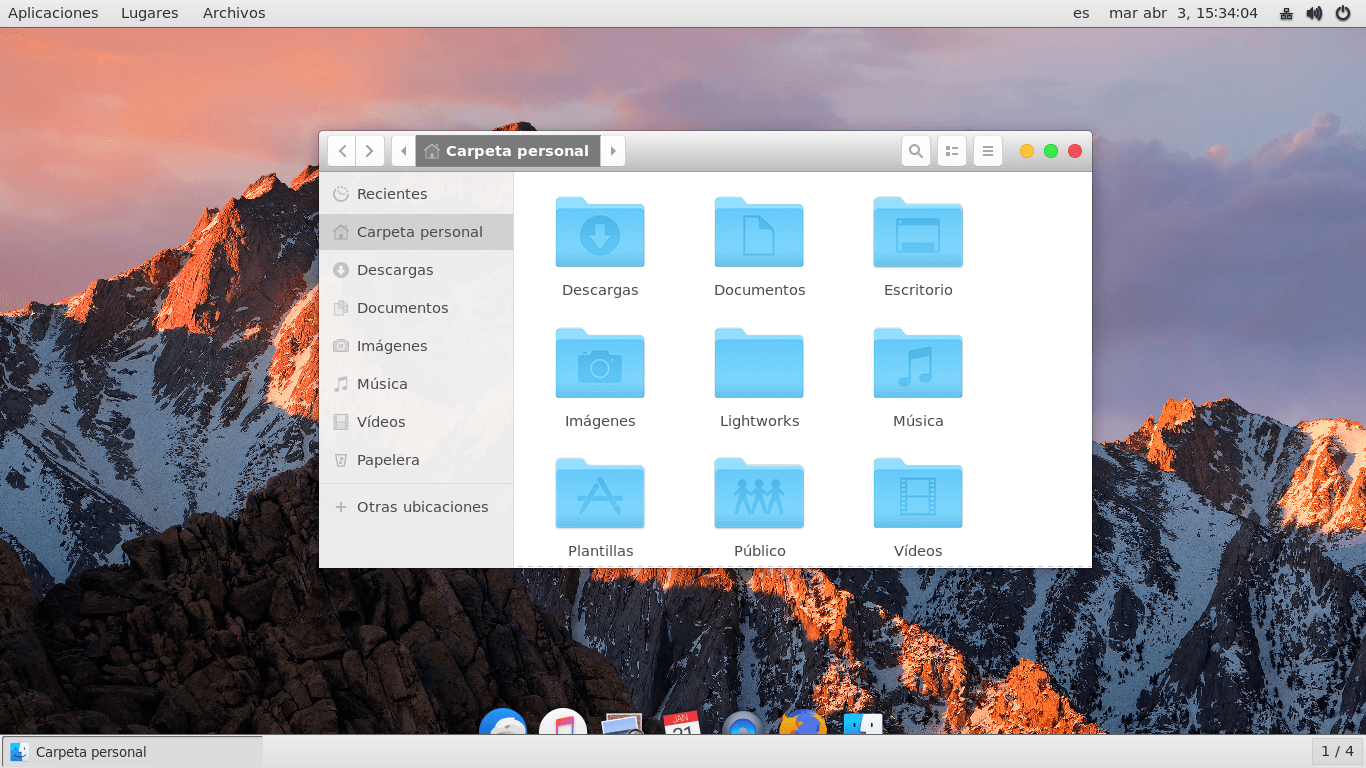
The first thing you need to understand is that not all Linux desktops are equally customizable. To achieve a convincing macOS look, GNOME Shell is the best option because it supports advanced GTK themes, powerful extensions, and a very clean visual integration. Other environments like Unity, MATE, or Cinnamon allow for some level of customization, but they are more limited and, above all, not fully compatible with some of the skins we'll be using.
GNOME Shell stands out because it lets you rearrange panels, menus, extensions, and shortcuts more easily than other desktop environments. It's more minimalist by default, which fits perfectly with macOS's design philosophy. If you're still using a version of Ubuntu with a different default environment, it's worth installing GNOME to fully explore its aesthetic options.
To get everything ready, you need two basic components: GNOME Shell itself and the GNOME Tweak Tool utility (sometimes simply called "Tweaks" or "GNOME Tuning") . This tool allows you to easily apply GTK themes, change icons, modify fonts, and activate extensions without having to manually edit files.
In modern versions of Ubuntu that come with GNOME pre-installed, you'll usually only need to install the GNOME Tweak Tool from the repositories . On older systems, such as Ubuntu 16.04, you might need to switch from Unity to GNOME or even log in to a new session with GNOME Shell as your desktop environment. Once you're logged in with your username and password, you'll be working in Ubuntu with GNOME, ready to start transforming it into something very similar to macOS.
Whichever version you choose, remember that the most current themes are designed for GNOME 3.20 or higher . This means that if you want to use certain Mac-style themes, you'll need at least Ubuntu 16.10 or later versions that include GNOME in that branch or a newer version.
Install and apply a GTK theme with a macOS look and feel
Once you have GNOME Shell and GNOME Tweak Tool up and running, the next big step is to change the system's GTK theme to one that mimics the macOS aesthetic . This is where the desktop really starts to feel like a Mac: windows with soft edges, clear menus, similar colors, and controls with a very familiar look.
Among the GTK themes inspired by macOS, one of the best known and most polished is GNOME OS X II GTK . It's not an exact replica of every pixel of Apple's system, nor does it pretend to be, but it is one of the best-integrated and most carefully crafted designs for giving your Ubuntu a very "Mac-like" look. It respects the light color palette, the buttons, and the overall feel of the Apple desktop.
Before you begin, keep in mind one technical detail: this theme is designed to work correctly with GNOME 3.20 or later . Again, this means you should be using Ubuntu 16.10 or later. If you're still using Ubuntu 16.04 with Unity or an older version of GNOME, it's best to update your system or install a more recent version to avoid visual issues or minor glitches.
The general process is usually the same for any GTK theme: first, download the theme's compressed file from its official website or repository , extract it, and then copy the resulting folder to the appropriate directory in your home directory. For themes installed only for your user, the standard location is ~/.themes (that is, the hidden ".themes" folder within your home directory). If it doesn't exist, you can easily create it.
Once you've copied the theme, it's time to activate it: open GNOME Tweak Tool, go to the "Appearance" section, and select the newly installed GTK theme . Applying it will instantly change the look of the windows, menus, buttons, and much of the interface. At that point, Ubuntu will start to look very different, with a style clearly inspired by macOS, but we're still missing some key elements.
Mac-style icon set: installing La Capitaine
The GTK theme changes the desktop's foundation, but the icons are crucial for the overall look to truly resemble macOS . Folders, application launchers, system shortcuts—all of these contribute to visual coherence, as your brain associates them with Apple's design. Fortunately, there are also well-designed icon packs specifically for this purpose.
One of the most highly recommended options currently available is La Capitaine , a set of icons for Linux inspired by macOS but designed specifically for the GNU/Linux application ecosystem. It doesn't simply port Apple's icons directly, but rather creates versions adapted to commonly used Linux programs , while maintaining the clean, colorful, and recognizable style of macOS icons.
Unlike other icon packs that only cover a few applications, La Capitaine offers fairly broad coverage , which is appreciated because it prevents outdated icons or strange mixes of styles. Furthermore, the project is completely open source, so you can review it, modify it, or even contribute your own icons if you'd like.
To install it, the process is very similar to that of GTK themes: download La Capitaine, extract the archive, and copy the icon folder to your ~/.icons directory . If you don't have a ".icons" folder in your home directory, create it first. This is where GNOME will look for custom icon sets for your user.
With the files in place, reopen GNOME Tweak Tool, go to the Appearance section, and in the Icons section, choose the La Capitaine set as your default icon theme . Once you apply it, you'll see how the icons in the application menu, your dock, the desktop, and many system utilities change, achieving an appearance very similar to what you see on a Mac.
Adjust the system typography to more closely resemble macOS
The aesthetics of macOS aren't just about themes and icons; typography is a key part of the "Mac user" feeling . Apple has always been very careful with its system fonts: for years it used Lucida Grande as its base typeface, and in more recent versions of macOS, it has switched to the San Francisco font, designed specifically for its platforms.
Ubuntu doesn't include those fonts by default, but it does offer very similar alternatives that fit well with the Mac-like interface . One of them is the Garuda font, which closely resembles the typefaces used by Apple in terms of proportions and legibility. By switching to a font like this, menus, window titles, and system text take on a look much more like macOS.
Changing fonts follows the same logic: open GNOME Tweak Tool and go to the "Fonts" section . From there, you can configure the system font used for windows, documents, monospace applications (such as code editors), and the overall interface. Select Garuda (or a similar, clean-design font if it's not available) and apply the changes.
You'll notice that the GTK theme, icons, and font start to blend together much better . The text looks smoother, the letters have a very comfortable thickness for reading, and visually, the experience is much closer to what you'd find using a real Mac. While it might seem like a minor detail, paying attention to this aspect clearly makes a difference in the final result.
Add a Mac-style dock with Dash to Dock
If there's one iconic element of macOS that everyone instantly recognizes, it's the bottom dock with its application shortcuts. To complete the transformation of Ubuntu into something very similar to macOS, you need a powerful and flexible dock . In GNOME, the most practical way to achieve this is by using an extension called Dash to Dock.
Dash to Dock takes the original GNOME "dash" (the side panel where your favorite applications are grouped) and turns it into a fully customizable dock . You can place it at the bottom of the screen, adjust its size, decide whether it hides automatically, change the background colors, opacity, and how open applications are displayed, among many other options.
To install this extension, you have several options depending on your version of Ubuntu and GNOME, but the goal is for Dash to Dock to appear in the GNOME extensions section . Once it's available, simply activate it, and the Dash will automatically transform into a dock very similar to macOS's, especially if you place it at the bottom and customize its appearance.
The next step is to customize it: open GNOME Tweak Tool, go to “Extensions,” and search for Dash to Dock . From there, you can access all its options. In the appearance section, you can modify the background color, transparency, icon size, and hover behavior. By fine-tuning these parameters, you can achieve a discreet, elegant dock that closely resembles the one you see on Mac desktops.
When you combine the dock with the macOS-style GTK theme, the La Capitaine icon set, and the customized typography, your desktop will become almost unrecognizable compared to a standard Ubuntu . You'll have a functional, lightweight environment with the stability of Linux and the aesthetics that many users associate with Apple computers.
Other tools and customization options in Ubuntu
In addition to the main steps, you can always go a little further if you enjoy fine-tuning every detail. Ubuntu and GNOME offer tons of additional possibilities to further refine the "Mac-like" look , while maintaining stability and without overcomplicating things.
If you're coming from other desktop environments or enjoy experimenting, you might be interested to know that it's also possible to install and try other desktops like KDE Plasma on Ubuntu . Although the guide we've followed focuses on GNOME Shell due to its excellent compatibility with macOS-style themes, KDE is another very powerful environment that supports deep customizations, dock-style panels, light and dark themes, and a multitude of widgets. It won't be exactly the same as the GNOME workflow, but it opens the door to very creative configurations; for example, there are derivative distributions like Pop!_OS that facilitate this kind of experimentation.
In any case, to achieve the specific macOS aesthetic we're aiming for, the most direct route remains the one we've already seen: GNOME Shell + Mac-style GTK theme + La Capitaine icons + appropriate font + Dash to Dock . From there, you can experiment with minor adjustments such as window button positions, keyboard shortcuts, or even animations, if your hardware allows it without sacrificing smoothness.
An interesting aspect of this whole process is that you're not changing your system internally, only the visual layer . Ubuntu is still Ubuntu: the packages, software manager, updates, and tools you've always known will continue to work the same. This means that if you ever tire of the Mac-like look, you can easily revert to the default theme or try different variations.
If you're concerned about performance, especially on older machines like some still running Ubuntu 16.04 or similar versions, it's best to be moderate with extensions and visual effects . The GTK theme and icons add very little extra load, but it's a good idea to avoid overusing demanding animations or transparencies. On most relatively modern machines, however, the experience with GNOME and these settings will be perfectly smooth.
Ultimately, the most interesting aspect of this type of customization is that it allows you to experience the macOS user experience for free, legally, and completely reversibly . If you've always been drawn to the Apple environment but don't want to buy a Mac, or simply fancy a change of pace without giving up Ubuntu, it's an excellent way to explore other aesthetics.
At the end of this process, you'll have an Ubuntu desktop with GNOME that boasts a macOS-style GTK theme, La Capitaine icons, Apple-like fonts, and a dock very similar to the original Mac dock thanks to Dash to Dock. This combination creates a visually elegant, coherent, and modern work environment that maintains the robustness of Linux while sporting the look so many people associate with macOS . And you do it with simple, free tools that are easy to revert whenever you want a change of look.


Passionate writer about the world of bytes and technology in general. I love sharing my knowledge through writing, and that's what I'll do on this blog, show you all the most interesting things about gadgets, software, hardware, tech trends, and more. My goal is to help you navigate the digital world in a simple and entertaining way.