- Read-only mode acts as a protection system to prevent data loss in the event of critical errors.
- The solution ranges from using technical commands like fsck in Linux and DiskPart in Windows to adjusting permissions.
- The failure can originate from logical causes such as incorrect shutdowns or physical failures such as defective blocks on the disk.
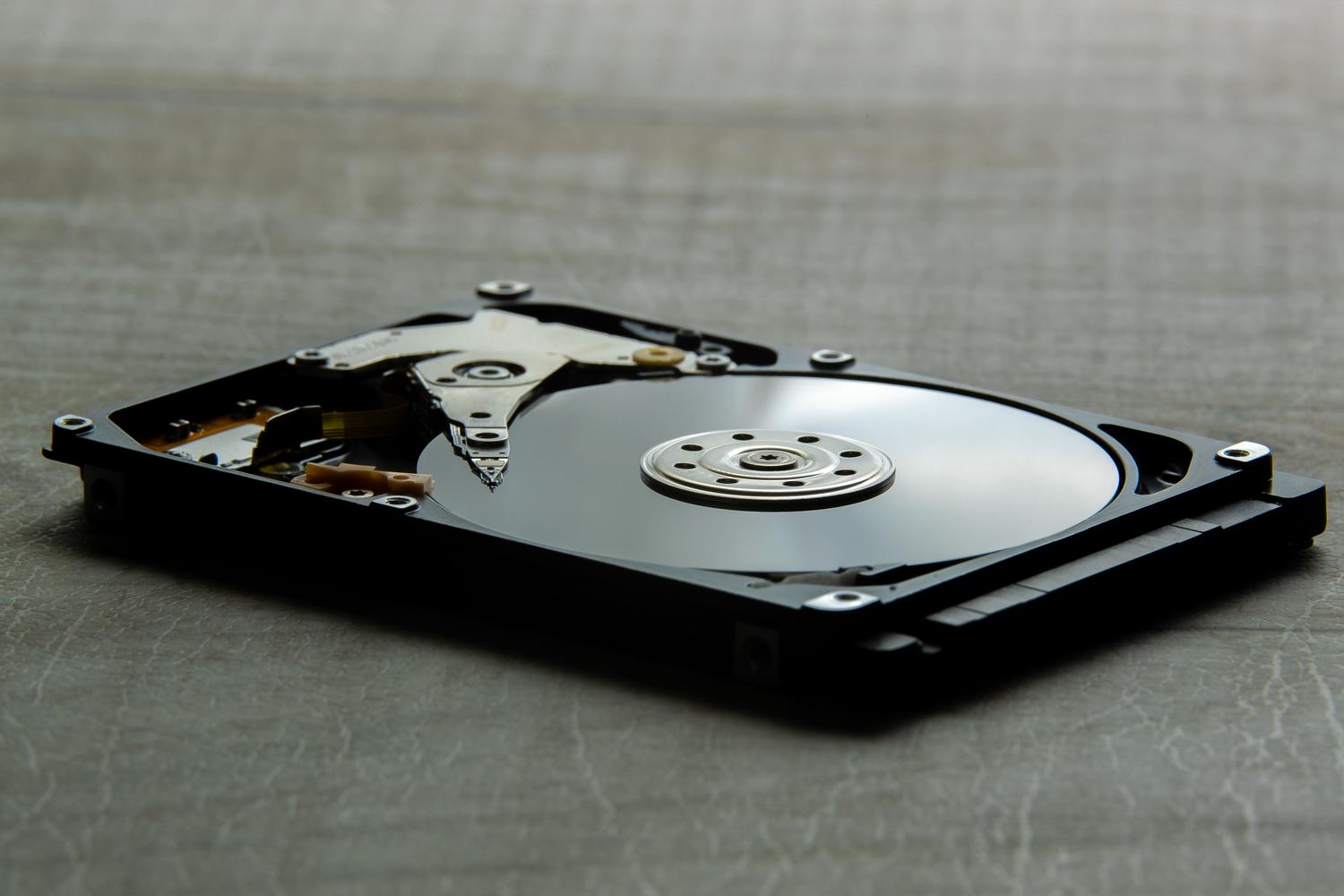
Imagine you're working peacefully on your computer or playing your favorite game, and suddenly you run into the wall of a read-only file system . It's a frustrating situation where you can see your documents and folders, but you're unable to save changes, create new folders, or delete any files. Essentially, your disk has gone into "look but don't touch" mode, leaving you completely stuck in the middle of your tasks.
This phenomenon isn't a software quirk; it's usually a defense mechanism activated by the operating system. When Linux or Windows detects a hardware problem or data corruption, they mount the drive in read-only mode to prevent the problem from spreading and causing permanent data loss. It's as if the computer puts the disk in "quarantine" so we can recover the information before the damage becomes irreversible.

Common causes of this problem

There are several reasons why a drive might become restricted. First, improper shutdowns or power outages can leave the file system in an inconsistent state. It's also very common for this to be due to incorrect configuration in critical files such as fstab in Linux, which specifies that in case of any error, the drive should be restarted as read-only.
In the case of removable devices, such as SD cards or USB drives, the cause can be as simple as the physical write-protection switch being on. On the other hand, in Windows environments, it could be because the user lacks the necessary administrator privileges or because antivirus software is blocking write access to protect the computer from malware originating from the internet.
Solutions for Linux systems
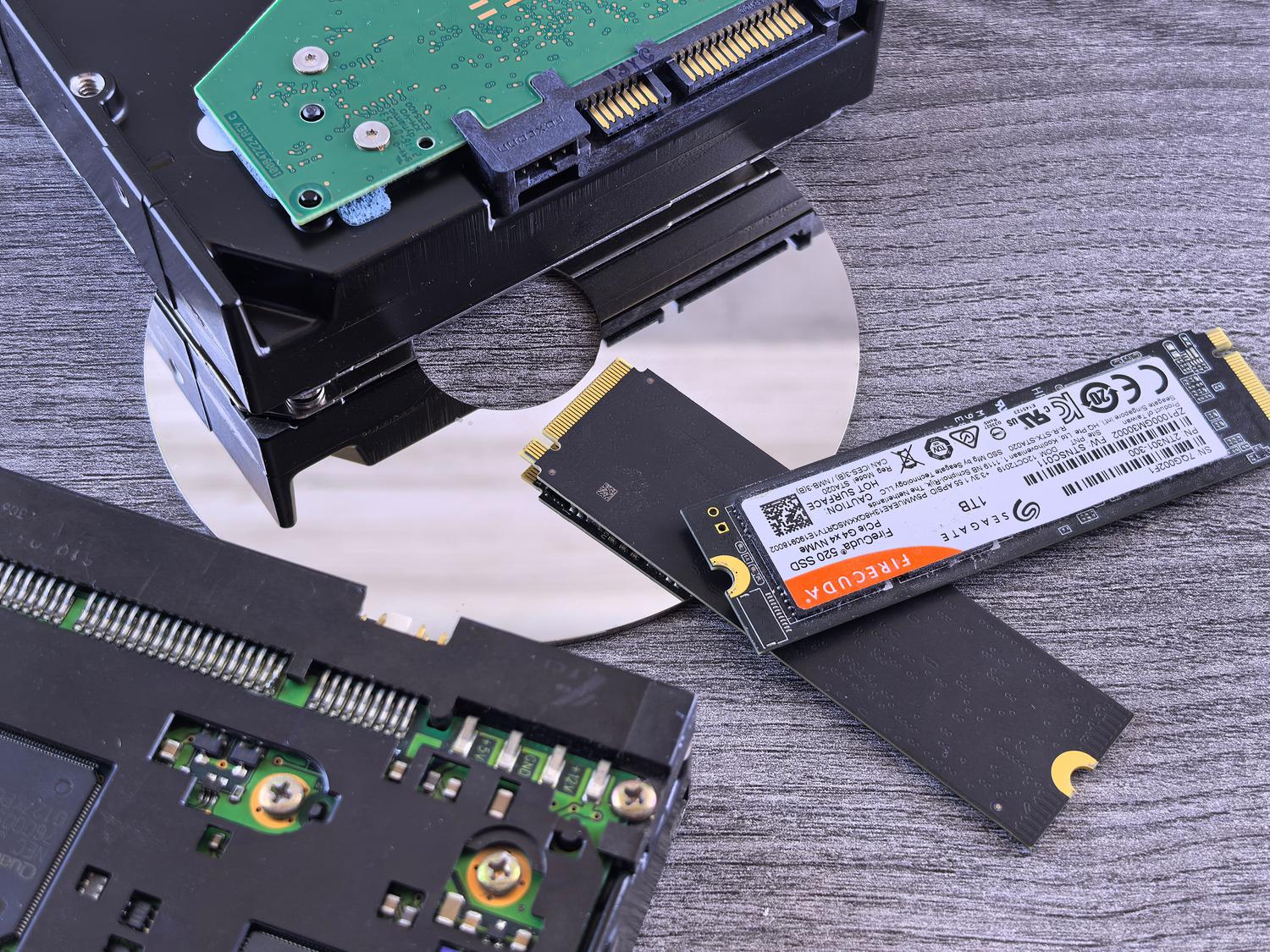
If you're in a Linux environment and your disk has become unreliable, the first thing to do is run a diagnostic. You can use the command fdisk -l to identify exactly which partitions you have. If you suspect a drive, the command fsck -n is ideal for analyze the disk status without making changes, allowing you to see if the file system is "clean" or if it has superblock errors.
When actual failures are detected, the solution involves executing sudo fsck -f /dev/sdX (replacing sdX with your drive) for repair the damaged areasIf the disk is the system disk and you can't unmount it, a quick trick is to try the command mount -o remount,rw /, which tries to force the remount in read and write modeHowever, this only works if the error isn't critical. To avoid these problems, you can learn How to configure automatic mounting of disks and partitions in Linux.

How to fix the error in Windows

In Windows, the process varies depending on where the problem lies. If it's a specific file, simply right-click, go to Properties, and uncheck the box. Read onlyIf the problem is with the entire drive, a powerful tool is Command Prompt in administrator mode using DiskpartAfter executing list disk and select the affected disk, the command attributes disk clear readonly This is usually the key to removing the restriction, preventing it from appearing. The error parameter is incorrect on the hard drive..
If the problem persists, you may need to take ownership of the folder or drive. This is done from the Security tab in Advanced Properties, by changing the owner to the Administrators group and applying the changes to all subcontainers. In more severe cases of incompatibility, formatting the drive to a recognized file system (such as NTFS or FAT32) using a partition manager may be the only solution, although this will erase all data.
Hardware problems and data recovery
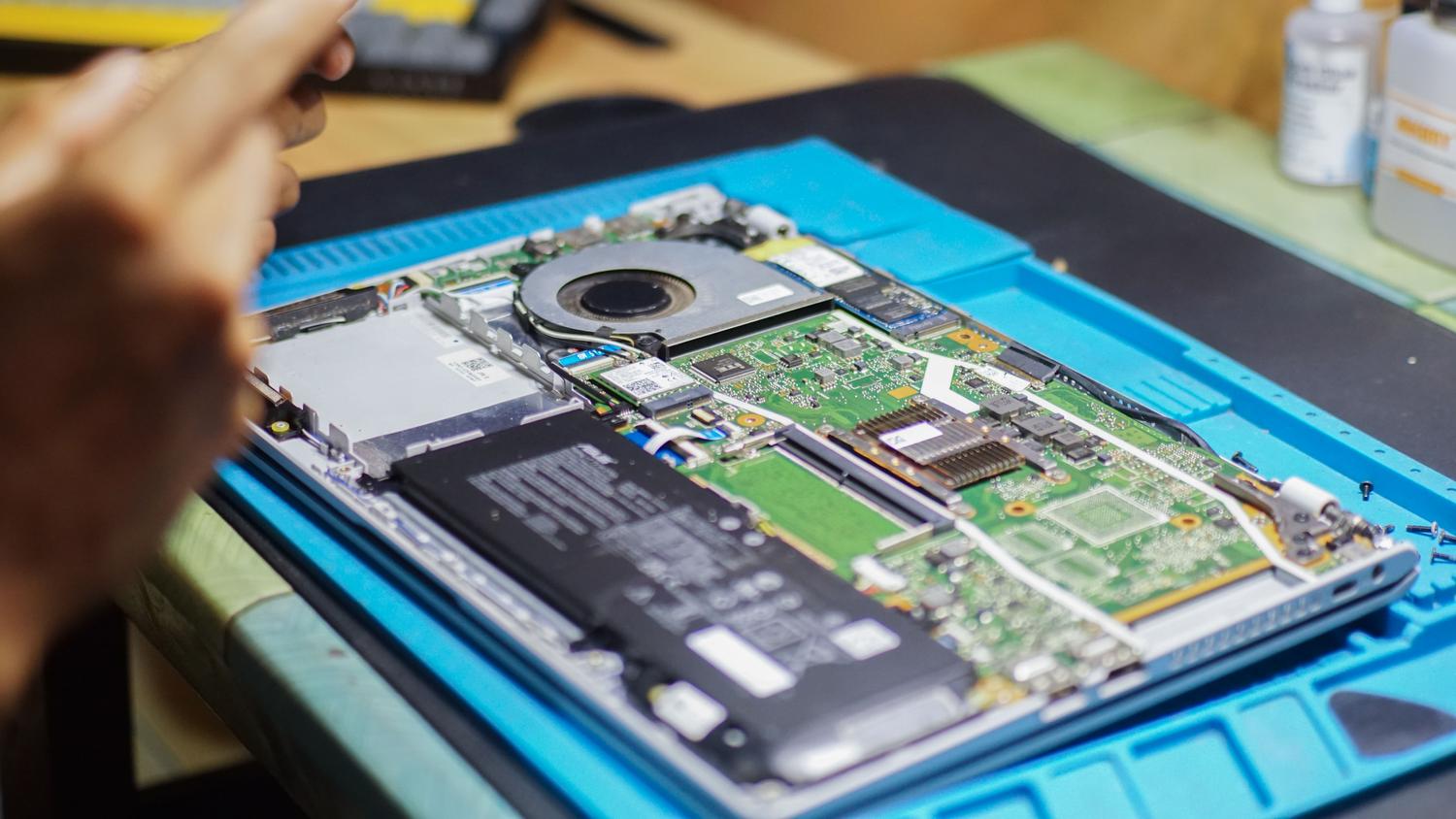
It's not all software-related. Sometimes, read-only mode is a sign that an SSD or HDD is failing. In SSDs, bad blocks can cause the controller to flag the drive as damaged. In some cases, removing the corrupted files residing in those blocks and performing a new error check can restore the drive to normal, provided the physical damage is minimal.
If you notice the drive making strange noises, disconnecting on its own, or folders disappearing, the absolute priority is to stop using the drive . Any attempt at logical repair on a physically damaged drive could destroy the data, or you might discover that the disk image file is corrupted . The wisest course of action is to use data recovery software like Disk Drill or EaseUS to extract the information to another healthy drive before attempting any formatting or aggressive repairs.

Additional considerations regarding storage and cloud
We mustn't forget that sometimes the problem isn't with the physical disk. If you work with OneDrive or similar services, a full drive can prevent you from saving changes, simulating a read-only state. Similarly, using Protected View in Office for files downloaded from the network is a common security measure that requires the user to manually enable editing before they can write to the document.
Dealing with this problem requires patience and a methodical approach, starting with the simplest things like permissions and physical switches, moving on to command-line tools like fsck or DiskPart, and finally resorting to professional recovery if the hardware fails. The key is to prioritize data security through external backups, because once a disk starts exhibiting this behavior, confidence in its integrity drops dramatically, and the wisest course of action is usually to replace the drive with a new one.


Passionate writer about the world of bytes and technology in general. I love sharing my knowledge through writing, and that's what I'll do on this blog, show you all the most interesting things about gadgets, software, hardware, tech trends, and more. My goal is to help you navigate the digital world in a simple and entertaining way.