- The beach ball cursor appears when the window server detects that an application is unresponsive for a few seconds.
- Blockages can originate from communication failures with external hardware or programming errors in the software.
- Putting the computer to sleep temporarily can help interrupt the blocked process and prevent data loss.
- Erratic pointer movement on other systems can be resolved by disconnecting peripherals to perform a clean test.

Have you ever been swamped with work and suddenly your Mac's pointer transforms into that dreaded spinning beach ball ? It's a moment of absolute panic, as that icon is a clear sign that something is wrong with the system and your computer has frozen.
This phenomenon, technically known as the Spinning Wait Cursor , is essentially a warning from the window server. When an application becomes overloaded and cannot process incoming events for two to four seconds , the system automatically launches this cursor to indicate that the software is unresponsive.

Why does the dreaded beach ball appear?
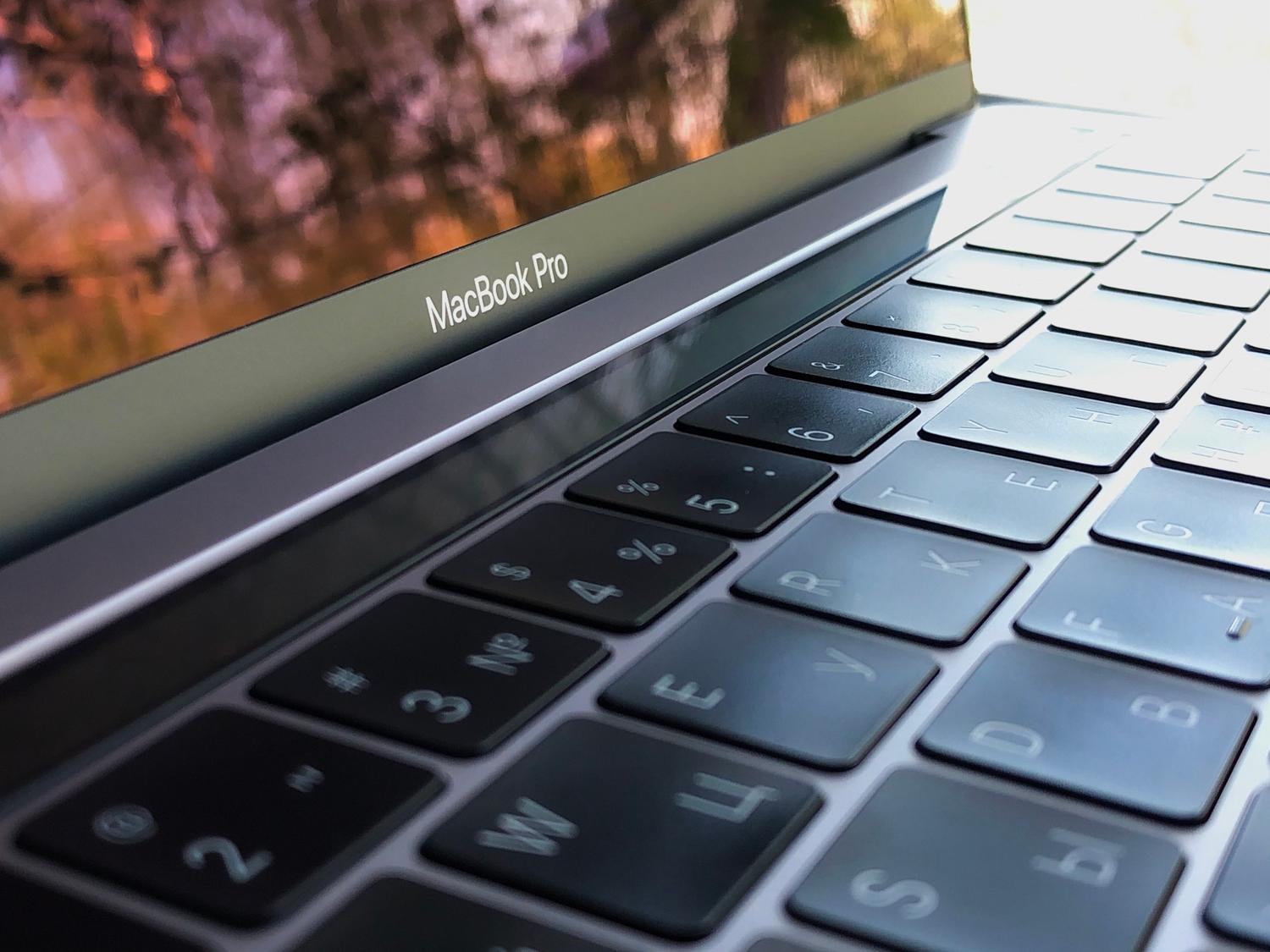
In most cases, the problem can originate from two main sources. On the one hand, there are hardware access failures . This occurs when the system attempts to communicate with a component, whether internal or external, and it doesn't respond. A very common example is when you have an external hard drive in sleep mode and the Mac takes a few seconds to "wake it up," causing the cursor to spin while the connection is established.
On the other hand, there are software problems . This is where infinite scripts come into play, programming errors that create endless loops, or situations where the processor gets stuck waiting for a response that never arrives. In the most severe cases, this becomes the infamous "ball of death ," where the waiting time becomes infinite and the computer becomes completely unresponsive.

Solutions to regain control of your team
When you find yourself in this predicament, the first thing that comes to mind is to force quit the application . The problem is that by doing this, you'll lose any unsaved data . However, there's a less drastic trick to try and salvage your work: putting your Mac to sleep . You can do this by closing the laptop lid or using the Apple menu.
If you wait about five minutes before waking your computer, the system will most likely interrupt the frozen process and allow you to save your data , or display a dialog box indicating that a script has failed. While not foolproof and with an approximate success rate of 50%, it's a much safer alternative to deleting everything at once.

Other common cursor problems in Windows

This doesn't only happen on Macs; strange behavior can also occur in Windows environments. For example, some users report that the pointer moves on its own or changes shape to a hand without human intervention. In these cases, it's vital to analyze whether remote control software, such as TeamViewer , is installed, which could allow external access, or if it's a hardware problem.
To diagnose whether the problem stems from a faulty peripheral, the best strategy is to disconnect all external devices (such as USB laser mice) and restart the system . Performing a clean test without any accessories connected helps rule out whether the erratic cursor movement is caused by a physical mouse failure or a driver conflict in the operating system.
Whether you're dealing with a beach ball crash on macOS or a rogue cursor on Windows, the key is to identify whether the source is a software crash , a hardware malfunction, or interference from external peripherals in order to apply the most appropriate solution without losing data.


Passionate writer about the world of bytes and technology in general. I love sharing my knowledge through writing, and that's what I'll do on this blog, show you all the most interesting things about gadgets, software, hardware, tech trends, and more. My goal is to help you navigate the digital world in a simple and entertaining way.