- BOOTMGR and the BCD are the core of the Boot; its corruption triggers error.
- Causes are usually boot order, corrupted MBR/sector, or disk failure.
- Win, Bootrec and BCDBoot allow you to repair the loader and restore the boot.
- Prevent and mitigate: backups, BIOS up to date and data recovery if necessary.
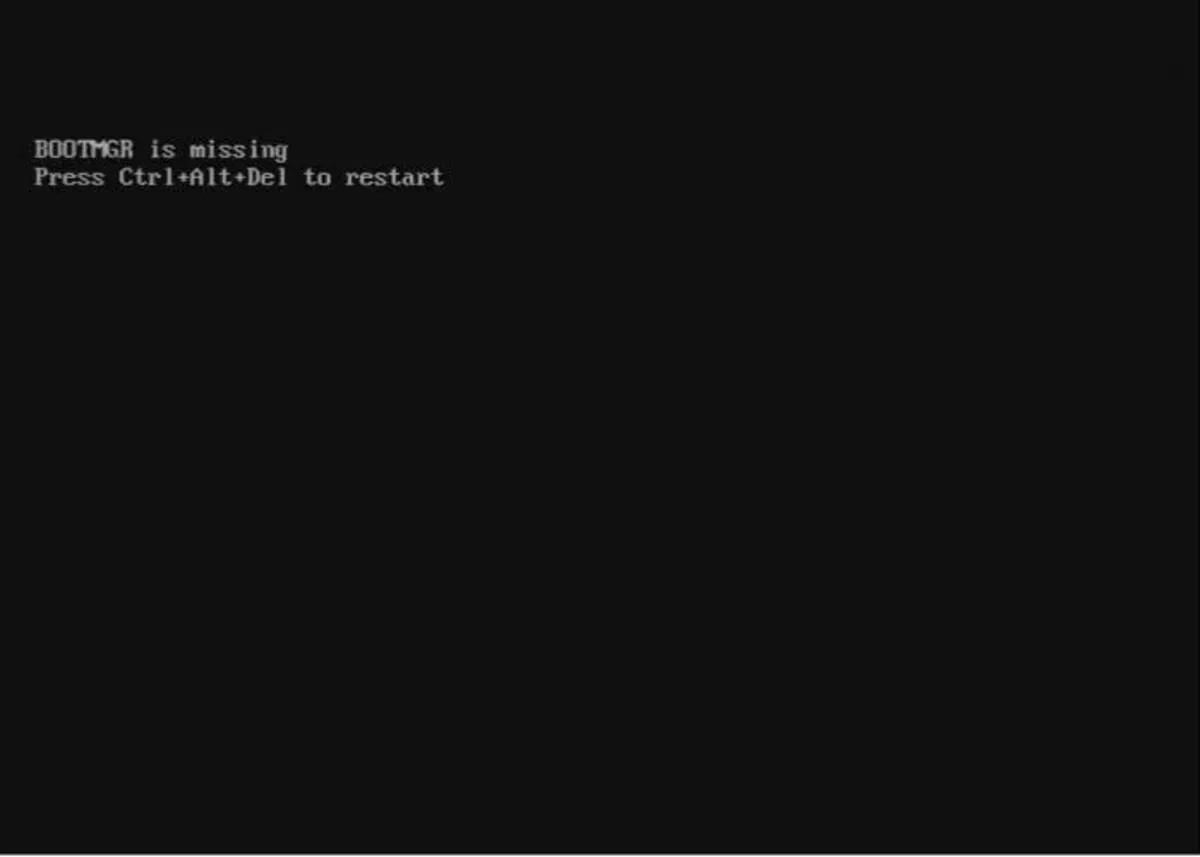
BOOTMGR ( Windows Boot Manager ) is the Windows boot loader : a hidden, read-only file typically located on the System Reserved partition (the active partition, without a drive letter). From there, it loads the boot code from the volume and starts Windows by executing winload.exe and the other necessary components.
If Windows cannot read or locate that manager , you will see messages like:
- "BOOTMGR is missing. Press Ctrl+Alt+Del to reboot."
- "BOOTMGR is missing. Press any key to reboot."
- "The BOOTMGR image is corrupted. The system cannot boot."
- "BooTMGR could not be found"
These warnings appear after the POST and before Windows starts , and can be due to software, hardware , or configuration.
Common causes of the "BOOTMGR is missing" error
The origin can be varied , but the most common causes are these:
- BCD/BOOTMGR damaged or misconfigured (corrupt boot configuration data).
- Boot sector or MBR defective or non-existent.
- Incorrect boot order in BIOS/UEFI, or the PC tries to boot from non-bootable media (USB, CD/DVD, floppy disk).
- Disk with bad sectors, file system errors, or corruption.
- Loose or damaged SATA/power cables and disk hardware problems.
- Problematic Windows Updates o human errors (deleting system files, partition changes).
- Outdated BIOS or misconfigured.
- Power outages or voltage spikes during boot that damage the boot sector.
- Malware which affects the MBR/boot sector.
Quick checks you should do first
Before we get into advanced tools, try these basics and check after each one if the computer starts up:
- Restart the computer with Ctrl+Alt+Del or by holding down the power button for a few seconds; sometimes the warning is just a one-off.
- Remove all external devices (USB, cards, disks, DVDs) to prevent it from trying to boot from non-bootable media.
- Reset and reconnect the SATA and power cables of the internal drives with the PC off; a loose connector can cause the error.
- Hear strange noises in mechanical records (clicks, buzzing sounds); if they appear, stop using them and consider data recovery services.
Adjust boot priority in BIOS/UEFI
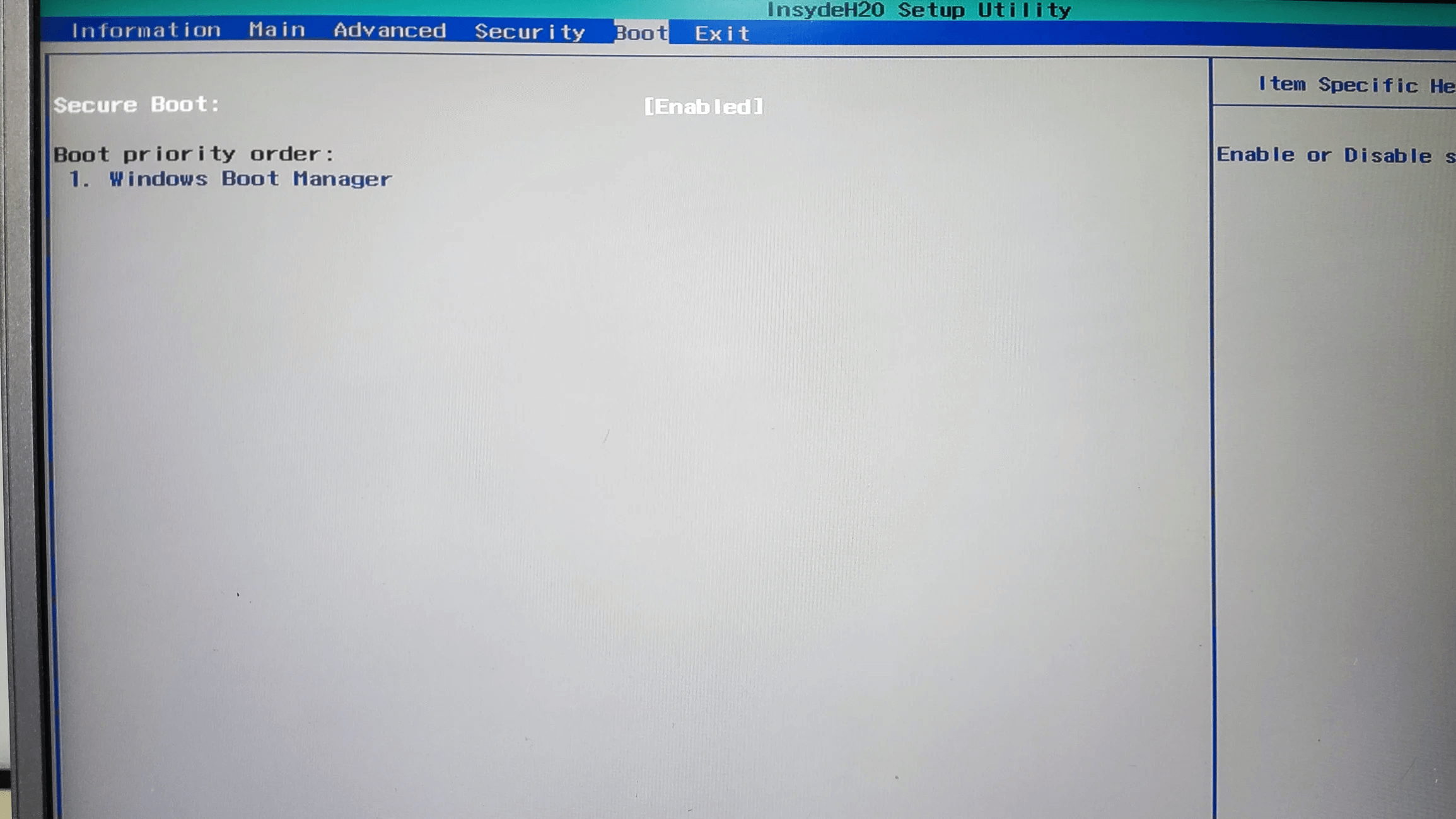
An incorrect boot order causes the computer to search for the operating system in the wrong location . Make sure the Windows disk is first:
- Turn on your PC and enter BIOS/UEFI. by pressing the indicated key (usually Del, F2, F10, F12 or ESC).
- Go to the Boot menu and locate Boot Order/Boot Sequence.
- Place as first device the drive where Windows is installed.
- Save and exit (usually F10) and try rebooting.
If the order was the problem, this should make the message disappear . If it persists, continue.
Automatic Repair from Windows Recovery Environment (WinRE)
Startup Repair detects and corrects common boot failures . In Windows 8/10/11, the system usually enters WinRE after several failed attempts; in Windows 7 , you typically need installation media or a repair disk/USB drive.
- Boot into WinREIf the “Choose an option” screen doesn’t appear, boot from the Windows USB/DVD and click “Repair your computer” on the first screen.
- Go to Troubleshoot > Advanced options > Startup Repair.
- Select your Windows installation and let the tool do its work; it may restart automatically.
Note: If automatic repair indicates that it cannot repair , or if it does but the error returns upon restarting, proceed to console methods.
Repair MBR, boot sector and BCD with Bootrec
Bootrec.exe is the Swiss Army knife for fixing the MBR, the boot sector, and rebuilding the BCD . Run the commands in this order from WinRE:
- Enter WinRE from the installation media if necessary and choose Troubleshoot > Advanced options > Symbol of the system.
- Identify your system drive (often C:, but may vary in WinRE). Replace with C: and press Enter if appropriate.
- Write and execute, one by one:
- bootrec / fixmbr (writes a Windows-compatible MBR)
- bootrec / fixboot (writes a new boot sector)
- bootrec / RebuildBcd (scans systems and rebuilds the BCD store)
- chkdsk / f (optional but recommended to fix file system errors)
- Type exit and reboot to test the boot.
These commands resolve most boot corruptions . If no installations are found or the BCD is empty, add the detected system when prompted.
Regenerate the boot environment with BCDBoot
BCDBoot copies the boot files again and creates a clean BCD from the existing Windows installation. It's very useful when the BCD is corrupted or BOOTMGR is missing.
- From WinRE > Command Prompt, go to the drive where Windows is (for example, C:).
- Run: BCDBoot C:\Windows
What it does exactly : BCDBoot (located in %WINDIR%\System32) uses the %WINDIR%\System32\Config\BCD-Template template to create a new BCD store and copy a minimal set of boot files to the system partition. It is compatible with Windows Vista/7/8/8.1/10/Server 2008/2008 R2 images.
Using a bootable USB and partitioning software to repair the MBR
If you don't have the installation disk or prefer an alternative method , there are partitioning tools that allow you to create a WinPE USB drive with boot repair utilities.
- On another working PC Create the media: Open the utility, choose “Boot Media” and generate the WinPE USB.
- Boot the affected computer from that USB, access the disk tools and run the function Rebuild/Fix MBR.
Advantage : You can repair MBR/BCD even without the Windows installer. If you get stuck , many of these suites offer assistance to guide you.
Enter the pre-installed recovery options (without external media)
Some computers include pre-installed recovery accessible with F8 in Windows 7 or from the manufacturer's own menus.
- Remove any USB, CD or DVD and restart the PC.
- Press F8 repeatedly before the Windows logo appears to open “Advanced startup options.”
- Choose "Repair your computer", select the keyboard language and, if prompted, log in with your user.
- In "Options of system recovery», opens Startup repair or if it doesn't work, go to Symbol of the system to use Bootrec/BCDBoot.
Important : If "Repair your device" does not appear, your model may not include these options or they may be disabled by the administrator.
Restore the boot sector and try System Restore
If the problem arises after recent changes or updates , restoring from a restore point can be a lifesaver.
- Enter WinRE and go to Troubleshoot > Advanced Options > System Restore.
- Select a previous point when the error appears and follow the wizard until it finishes.
Additionally, rewriting the boot sector with `bootrec /fixboot` from the console may be sufficient if it was corrupted on its own. After the message "The operation completed successfully," turn off and then turn back on.
Reset the BIOS to default values and update its firmware
A misconfigured or outdated BIOS can prevent booting . Two helpful actions:
- Reset the BIOS to factory settings from its mode (Load Setup Defaults) and reset the boot order.
- Update the BIOS/UEFI to the latest version from the manufacturer: download the firmware to a USB, enter the update menu (often shown as “Flash”), and follow the process indicated by your board.
Warning : An improperly performed BIOS update can render your computer inoperable; follow the manufacturer's instructions exactly.
OEM Options: Factory Restore on Branded Equipment
Some manufacturers (e.g., VAIO) integrate recovery utilities to return the C: drive to its factory state from their Recovery Center.
- Access the manufacturer's recovery environment and locate the option restore C drive: to its original condition.
- Follow the wizard specific to your model (refer to the manufacturer's manual and support website).
WARNING : This option erases apps, settings, and data from the restored drive. Use it as a last resort or after creating a backup.
When nothing works: Clean install of Windows
If the error persists after trying all of the above, reinstalling Windows may be the quickest solution . Use the installation media, select the system partition, and proceed. The partition will be formatted, but a quick format allows you to recover data with specialized tools if you act quickly.
Recover files after fixing the boot (or before reinstalling)
If the problem stemmed from bad sectors or system corruption , you may have lost files. And if you reinstall, you'll also want to recover data. To do this, use a third-party recovery tool with a deep scan engine and preview capabilities.
- Install the recovery software on a different disk than the affected one (so as not to overwrite).
- Scan the drive/partition with the option “Search for lost data” or equivalent.
- Check the items found, use filters by type (images, videos, documents) and the preview to verify.
- Select and retrieve to a different drive. Some programs allow you to recover up to 500 MB free on Windows.
Tip : If the disk is making noise or physically failing, avoid forcing reads; consider professional services to maximize the chance of success.
Quick Start Guide: Repair with Windows Installation Disc/USB
If you have the installation media, here are the quick access links to the key options we've covered:
- Boot from CD/DVD or USB and press a key when you see “Press any key to boot from CD or DVD.”
- Select language, keyboard and press Next, then click Repair equipment.
- Choose your Windows installation and enters Startup repair or open the Symbol of the system to run:
- bootrec / fixmbr
- bootrec / fixboot
- bootrec / RebuildBcd
- BCDBoot C:\Windows
- chkdsk / f (if there are disk errors)
- Exit with exit and restart to try.
If the PC does not automatically detect the media , enter the BIOS/UEFI, adjust the boot order to put the USB/DVD first, save (F10) and try again.
Notes and good practices to prevent it from happening again
A couple of habits greatly reduce the likelihood of seeing BOOTMGR is missing again :
- Regular backups in the cloud and on a local drive.
- UPS and updated antivirus to mitigate power surges and malware.
- Keep BIOS/UEFI and Windows up to date and avoid randomly disconnecting drives.
With this comprehensive guide—from checking cables and boot order to repairing with Bootrec/BCDBoot, using automatic repair, resorting to OEM options, or, if necessary, reinstalling and recovering data—you should be able to revive your Windows system when you see "BOOTMGR is missing ." Take your time, try the simplest solutions first, and verify after each one; usually, one of these actions will resolve the boot issue.

Passionate writer about the world of bytes and technology in general. I love sharing my knowledge through writing, and that's what I'll do on this blog, show you all the most interesting things about gadgets, software, hardware, tech trends, and more. My goal is to help you navigate the digital world in a simple and entertaining way.