- Verification of peripheral detection through Device Manager and Windows Control Panel.
- Advanced compatibility settings via Steam Input for generic and console controllers.
- Managing software conflicts between different launch platforms such as Epic Games and GOG.
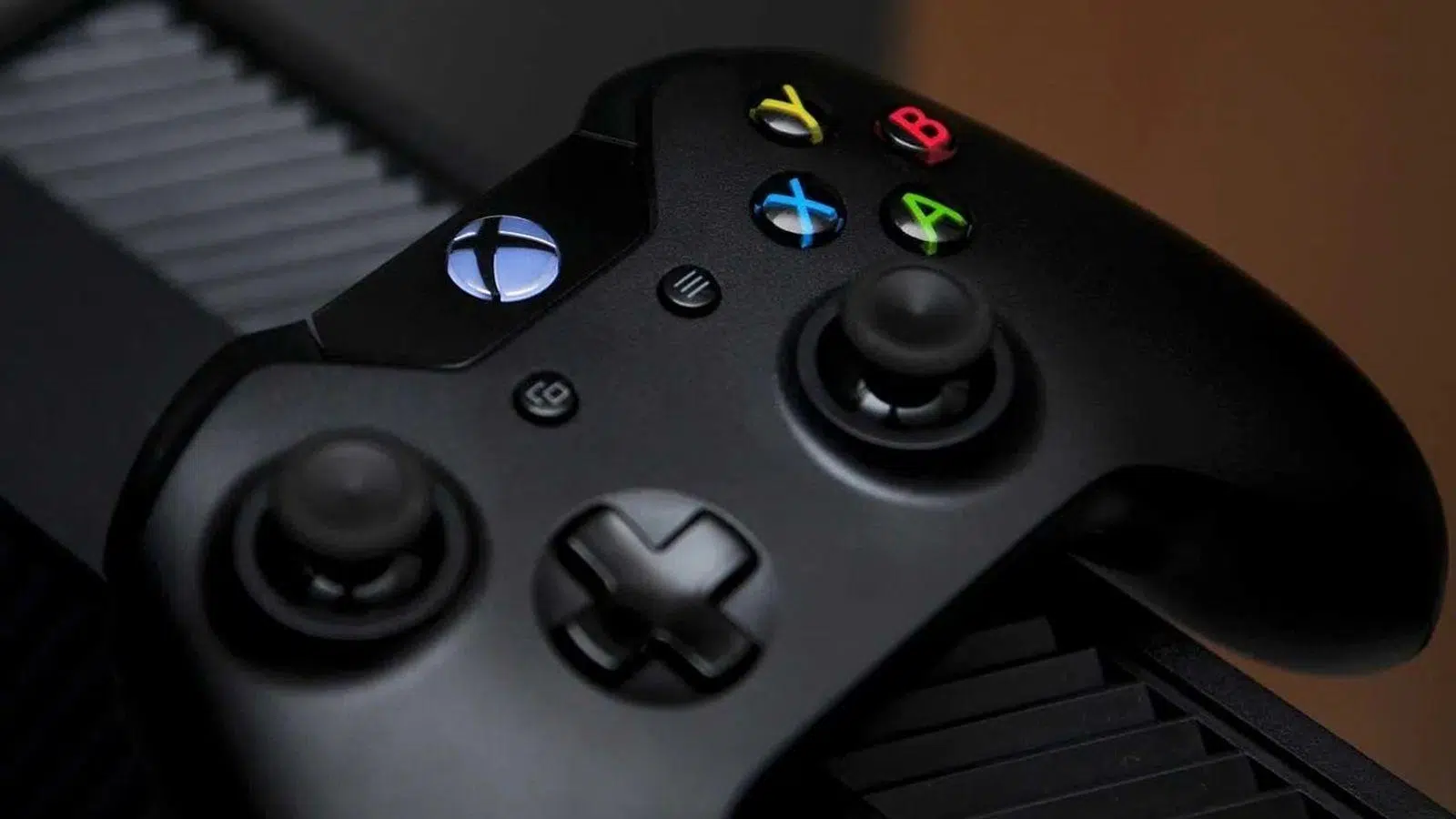
There's nothing more frustrating than sitting down to play after a long day and realizing your USB controller isn't responding or that Windows doesn't even know it's connected. While most peripherals are practically plug and play these days, the reality is that sometimes the system can be temperamental and force us to wrestle with the drivers.
In this regard, whether you have a state-of-the-art controller or one of those cheaper generic ones, there are several ways to solve the problem . From deep adjustments to the driver registry to tricks on platforms like Steam, we'll analyze step by step how to fix unresponsive gaming controllers on PC so you can get back to the game without further hassle.

First steps: Does Windows actually detect the hardware?
Before you drive yourself crazy looking for software, the first thing to do is determine if the problem is electrical or software-related. Try changing the USB port where the cable is plugged in; sometimes a front port on the tower fails while the rear one works perfectly. If the controller is wireless, check that it's in pairing mode and that your computer's Bluetooth is enabled.
To be sure, open Device Manager . Go to the Universal Serial Bus controllers section and check for a yellow triangle. If you see one, right-click it and select Update driver . If that doesn't work, uninstalling the device and restarting your PC usually forces Windows to reinstall the correct driver from scratch.
Another useful tool is the Control Panel. If you search for "Configure USB game controllers ," you'll see a list of detected peripherals. If your controller appears there but doesn't work in the game, the problem isn't with the connection, but with compatibility with the specific game.

Configuring console controllers on PC
Each brand has its own "trick" to prevent Windows from getting confused. If you're using a PlayStation controller (PS4 or PS5) , remember that Bluetooth pairing mode is activated by pressing Share and the PS button simultaneously. To get the most out of the PS5 DualSense controller, including features like adaptive triggers, it's recommended to connect the controller via cable and, in Steam, disable PlayStation settings so the game manages the hardware natively.
For Xbox Series X/S or Xbox One controllers , integration is almost seamless since they use the X-Input standard. If you don't have Bluetooth, the official Microsoft adapter is the most stable option. Don't forget to use the Xbox Accessories app to keep your firmware updated, which prevents many detection errors.
For Nintendo users, the Switch Pro Controller requires pressing the sync button next to the charging port to become discoverable via Bluetooth. As with the other controllers, the USB-C cable is the most reliable option for optimizing the radio signal and improving range to avoid signal drops or latency.

The power of Steam to rescue generic controllers
When you have a generic or "Chinese" controller, Windows usually recognizes it, but games don't know which buttons to press. This is where Steam becomes the ultimate tool. By going to Settings > Controller , you can enable Generic Controller Support , allowing Steam to "translate" the controller's signal into a format that any game can understand.
If the controller still doesn't appear, you can use the Register Controller option to manually associate it with your account. Additionally, Steam allows key mapping , which means you can assign any button on the controller to a key on your keyboard. This is essential for playing games that don't even have official controller support.
Platform conflicts and common errors
A very common problem occurs when you try to play on Epic Games or GOG while Steam is running in the background . Steam tends to "hijack" the controller through its Steam Input system, preventing other launchers from detecting it. The solution is simple: close Steam completely before launching games from other stores.
If you prefer not to close the application, you can add the external game to your Steam library using the "Add a non-Steam product" option . This way, you launch the game from within Steam and take advantage of all its mapping and driver settings.
It's also common for the controller to stop responding after the computer goes to sleep . This happens because the USB port enters power-saving mode. To prevent this, the quickest solution is to unplug and replug the Bluetooth controller, or restart the game client to refresh the list of peripherals.

Using USB Hubs and Receivers
If you have multiple wireless controllers with their own dongles, you might consider using a USB hub or dock . This is a viable option, provided the hub has its own power supply if you connect too many devices, as the increased power consumption could cause some controllers to disconnect intermittently.
To complete the picture, remember that wired stability will always be superior to Bluetooth in terms of latency and battery life. If you notice your controller disconnecting on its own or experiencing input lag in competitive PC games , a USB cable is your best bet for a smooth experience.
To resolve a controller not being recognized, it's essential to rule out physical issues by testing ports, updating drivers through Device Manager, and using tools like Steam to map generic controllers. Additionally, avoiding conflicts by closing background applications and keeping the firmware up to date ensures a stable connection and compatibility with any gaming platform.

