- The Compatibility Checker detects potential conflicts and suggests solutions.
- “Compatibility Mode” prevents you from using modern features. Word in old files.
- Setting up modern save format avoids most of the issues.
Working with Microsoft Word documents can be quite a challenge when you encounter those classic version conflicts. Who hasn't received a file that, upon opening, displays warnings that some functions are unavailable, certain graphics cannot be edited, or the document is simply displayed in "Compatibility Mode"? These situations often lead to confusion and, sometimes, frustration. Fortunately, most of these problems have solutions, and there are also tools and tricks that allow you to prevent and resolve compatibility issues between different versions of Word.
In this article, I explain in detail why these problems arise, what the famous "Compatibility Mode" is, how to use the compatibility checker, and what settings you can apply to ensure your files open correctly in almost any version of Word. We also provide a series of useful recommendations to help you anticipate these issues and get the most out of Word's features, regardless of the version you use.
Why do compatibility issues occur in Word?
One of the main reasons these problems arise is the constant evolution of Microsoft Word . Each new version introduces new features, file formats, or improvements that don't exist in previous versions. When you share a file created in a modern version (for example, Word 2019 or Microsoft 365 ) with someone using Word 2010 or an earlier edition, certain features may not be recognized or may be disabled altogether.
Compatibility Mode appears when you open a document created or saved in an older version of Word . This mode allows you to work with the file without losing information, although it limits access to the more advanced features of newer versions. The document behaves as if it were being edited in its original version, preventing serious formatting problems or data loss.
Additionally, it's important to note that if your Word installation is set to save files directly in an older format (e.g., .doc instead of .docx), all new documents you create will use that older standard and open in compatibility mode , which may limit your editing and layout options.
What is Word Compatibility Mode?
Compatibility Mode is a feature that disables options and tools exclusive to newer versions of Word . This ensures you can edit, view, or print your document without unpleasant surprises in older versions. However, this means that certain features, such as new styles, SmartArt graphics, editable equations, or enhanced content controls, will not be available while in this mode.
This mode was introduced starting with Office 2007 to support older documents and ensure collaboration between users with different versions of the program. When you see "Compatibility Mode" in the title bar, it means the file was created or saved with an older version, and some modern features are disabled to prevent errors.
Main consequences of compatibility mode
- Limitation of modern functions: You won't be able to use new or enhanced features, such as advanced graphics editing, certain styles, or new effects.
- Restrictions on editing and formatting: The document's layout and formatting will be adapted to the old version's standard, which may affect the final appearance if you reopen it in a modern edition.
- Loss of automatic update: Certain elements such as citations, bibliographies or equations can become static text or images, losing the ability to update automatically.
- Loss of specific information: Some content, such as building blocks, advanced graphics, SmartArt, or alternative text in tables, may be completely or partially lost when you save your document in an older format.
How to identify and fix compatibility issues in Word
Use the Compatibility Checker
Microsoft Word has a specific tool called "Compatibility Checker ," designed to analyze and detect problematic elements in your document when you share it or save it in another format. This allows you to obtain a detailed list of functions, formats, graphics, or structures that might not work correctly in older versions.
To perform this analysis, follow these steps:
- Open the file you want to review in Word.
- Click on the tab Archive and select Information.
- Click on Check for problems and then in Check compatibility.
- Word will generate a list of potential conflicts, indicating which features may be lost, converted, or become unavailable. if the file is opened in an older version.
- If you need more details about a specific problem, you can search for the extended explanation by clicking on Help, if available.
- When you're done reviewing the notifications, press Accept to return to the document and make the necessary changes.
Common errors detected by the Compatibility Checker
- Charts, diagrams or images that lose editing when opened in older versions.
- Citations and bibliographies that are transformed into static text, losing dynamic updating.
- Content controls that are converted to plain text, removing advanced properties and functionality.
- Equations transformed into images, making subsequent editing impossible.
- SmartArt and shapes with disappearing or simplified effects.
Practical solutions to resolve compatibility issues
Change the default save format
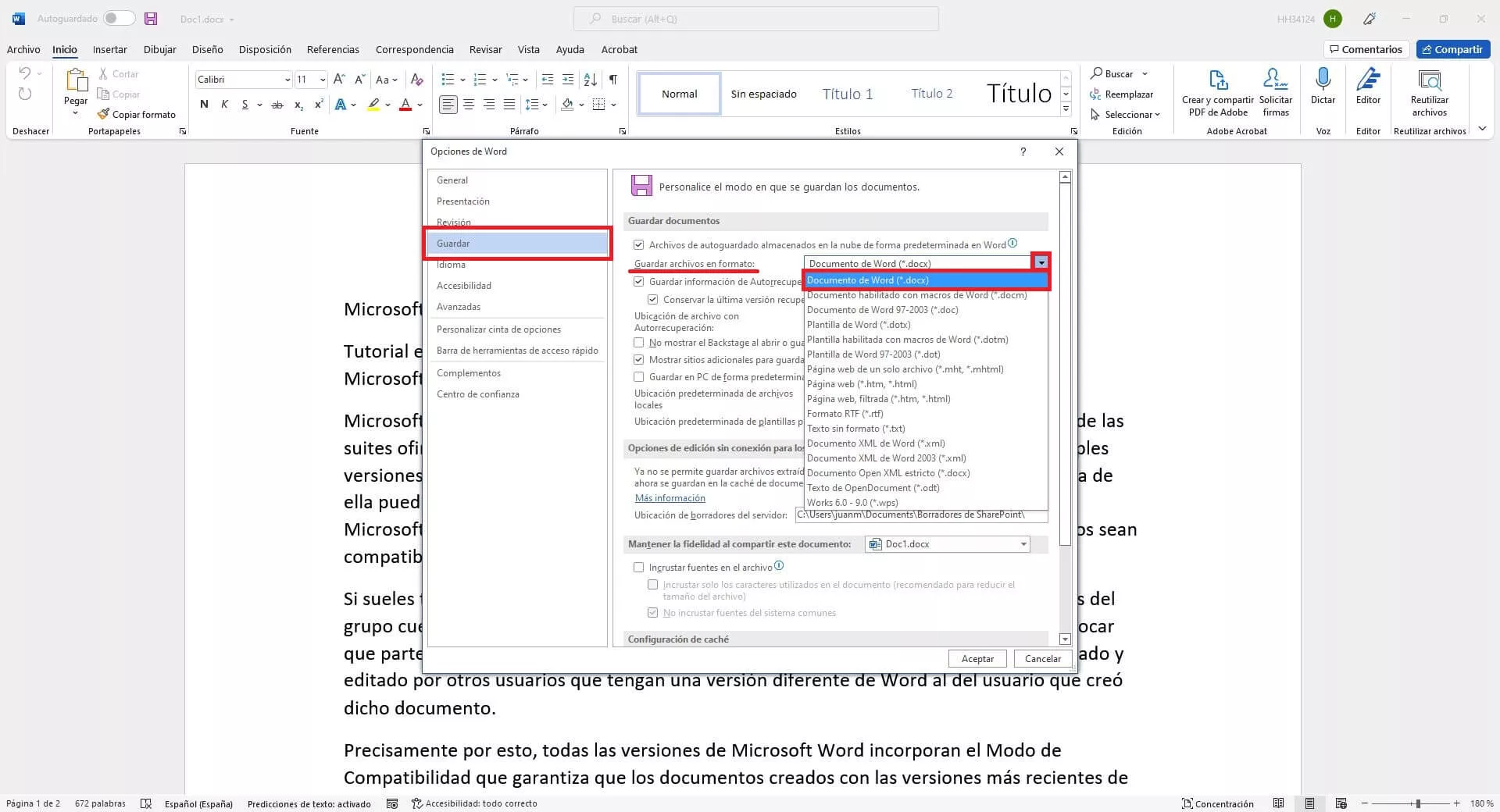
Make sure your documents are saved in the latest supported format (for example, .docx) . Often, compatibility mode is activated because Word is set to save files in the older .doc format. To correct this, you should:
- Click on Archive > Options > Save.
- Locate the “Save files in this format” option and select Word document (.docx) in the box.
- Save your changes, and from that point forward, all new documents will use the modern format, with all features enabled.
Convert old files to modern format
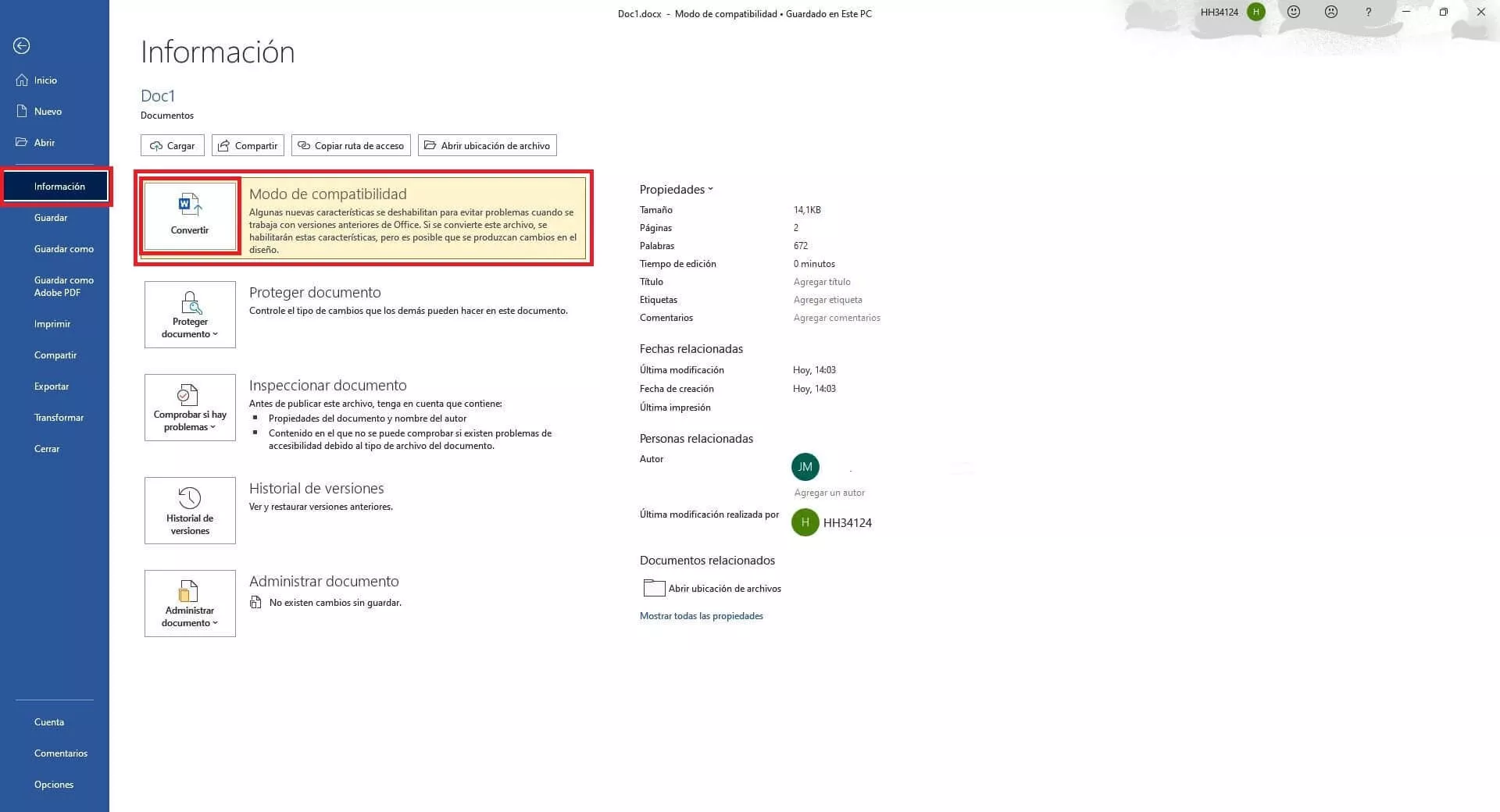
If you have documents that are still displaying in compatibility mode, you can easily convert them to take full advantage of Word's features . Simply open the file, click File > Info > Convert . This will convert the file to the current format and allow you to use all the features of the modern version of Word.
Fixes specific issues with embedded objects and graphics
Some embedded objects, such as Excel spreadsheets, PowerPoint slides, equations, or charts, may require additional conversion to be editable in older versions of Office. If you receive warnings that certain objects cannot be edited:
- Right-click on the embedded object (for example, an Excel table within Word).
- Choose Spreadsheet object > Convert.
- In the dialog box select the previous format, such as Spreadsheet of Microsoft Excel 97-2003, and press Accept.
- Repeat the process for PowerPoint or Word objects as appropriate.
Consequences of saving documents in older versions
When saving files in an older format (for example, to share with users of Word 2003 or earlier), Word itself warns you which elements will be changed . The effects vary depending on the document's content:
- Comments and reviews: Comments are displayed, but replies lose their advanced formatting. Revision marks are converted to simple insertions and deletions.
- Building Blocks and AutoText: They become static entries, and cannot be transformed back into building blocks even if the file is updated again.
- Bibliographies and citations: They become plain text, losing the connection with the sources.
- SmartArt and graphics: They are transformed into images that cannot be edited.
- Tables and text boxes: : They may lose alignment information, effects, or alternative text.
- WordArt and text effects: They become static texts, and the effects are removed.
- New numbering formats: Change to standard Arabic numbering.
Advanced techniques and tweaks to bypass compatibility mode
In addition to the basic steps, there are some additional strategies that can help you prevent documents from opening in compatibility mode, especially in business or educational environments where files are frequently shared.
- Review your Trust Center settings: Accede to Archive > Options > Trust Center > Trust Center SettingsHere you can adjust Protected View and Trusted Document Management to ensure files always open in full mode. How to remove compatibility mode in Word in all versions.
- Disable problematic plugins: Run Word as administrator, go to Options > Accessories, select “COM Add-ins” and disable any that aren't essential. Sometimes, an add-in can cause compatibility issues.
- Temporarily disable your antivirus if you suspect it is interfering with Word, as some protection features may block certain features.
- Repair the installation of Microsoft Office: From the Control panel Or from Settings> Applications, locate Microsoft Office, select “Modify” and choose the quick repair option. This may resolve compatibility issues arising from corrupt files or incorrect installations.
How to set the default compatibility mode for all new files
In professional environments, such as companies that use macros or specific plugins, it may be necessary to create all new documents directly in a specific compatibility mode. If you have access to Group Policy, there is an option to specify the default mode for creating Word files:
- Configure the “Set default compatibility mode on file creation” policy from the Office Administrative Templates.
- Select between Word 2003, Word 2007, Word 2010 o Full functionality mode, depending on the standard you need to work with. How to enable support for legacy macros and VBA in Office.
- This ensures that new files will be fully editable in the selected version, even if you miss out on the new features of newer versions.


Passionate writer about the world of bytes and technology in general. I love sharing my knowledge through writing, and that's what I'll do on this blog, show you all the most interesting things about gadgets, software, hardware, tech trends, and more. My goal is to help you navigate the digital world in a simple and entertaining way.