- El Clipboard Universal relies on Continuity, the same Apple ID, and a stable connection with Wi-Fi, Bluetooth, and Handoff active on all devices.
- Most errors occur when copying and pasting between iPhone, iPad and Mac These issues are resolved by restarting, checking iCloud settings, and reactivating Handoff and Connections.
- If the error is only on the Mac, restart processes like pboard or WindowServer and boot into Safe Mode helps detect conflicts with apps Of third parties.
- When compatibility between versions of iOS And if macOS fails, it's advisable to use note-taking apps, clipboard managers, and cloud syncing as alternatives.
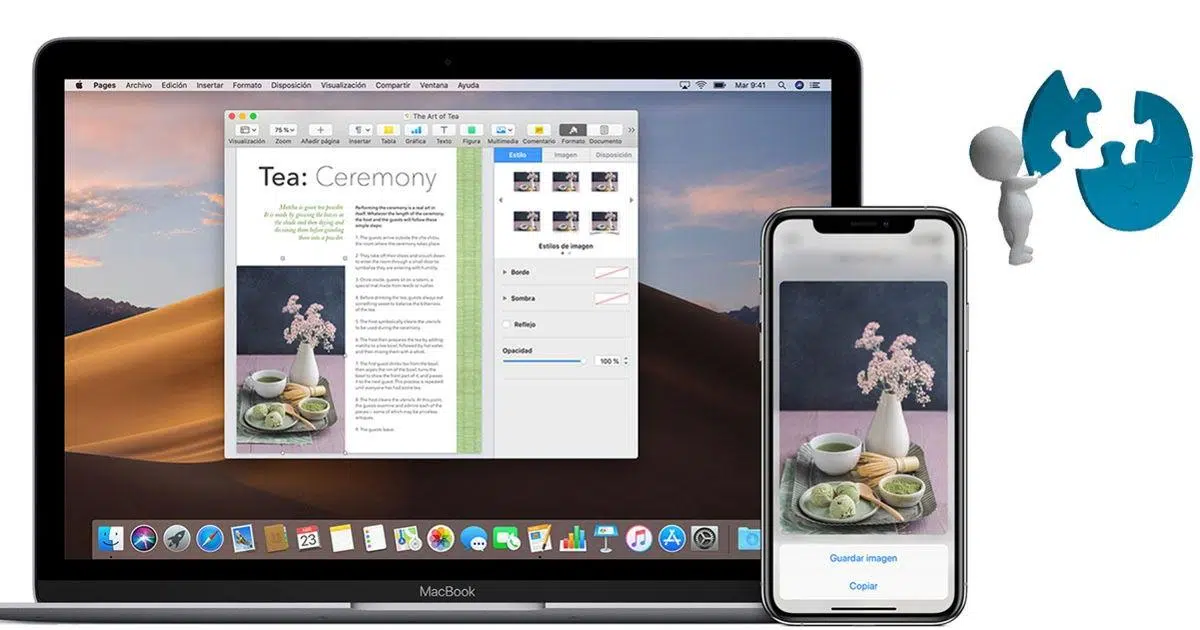
If you suddenly find that copying something from your iPhone to your Mac has stopped working , don't worry: you're not alone, and it's almost never a serious problem. The so-called Universal Clipboard usually breaks due to minor configuration or connection errors that can be fixed in a few minutes if you know where to look.
This article provides a comprehensive guide to diagnosing and troubleshooting copy and paste issues between iPhone, iPad, and Mac , as well as tips for fixing copy and paste problems only on your Mac, understanding Continuity requirements, and alternatives when your Mac no longer supports the latest version of macOS. Everything is explained in simple language, but with the highest level of technical detail so you won't miss a thing.
What is the Universal Clipboard and how should it work?
The Universal Clipboard is part of Apple's Continuity and Handoff features . It allows you to copy text, images, photos, videos, and even some files on one device and paste them onto another almost instantly, provided certain hardware , software, and configuration conditions are met.
In practice, when everything works correctly, you copy content to your iPhone or iPad using the "Copy" option or by swiping on the content, and within seconds you can use "Paste" on your Mac (or vice versa). In many cases, a small notification even appears on your Mac indicating that content has been recently copied to another nearby device.
This feature integrates seamlessly: it behaves just like the local clipboard in macOS or iOS , except that the content is wirelessly synced via Bluetooth, Wi-Fi, and iCloud between devices that meet Continuity requirements.
It's important to understand that copied content has a limited lifespan : it's only available for about 2 minutes to paste onto another device. If you wait longer or copy something else, the system will delete that item from the Universal Clipboard.
Continuity functions related to copy and paste
Starting with iOS 8 and macOS Yosemite, Apple began rolling out a whole series of features grouped under the umbrella of Continuity and Handoff , designed so that you can start a task on one device and continue it on another without complications.
Within this set we find several capabilities: App Handoff (Safari, Mail, Notes, etc.), calls and SMS on Mac, clipboard transfer between computers , AirDrop, and even the use of the iPhone as a camera or scanner for the Mac in more recent versions.
Of all of them, the one that interests us for this topic is precisely the Universal Clipboard . Its mission is simple: to copy content on one Apple device and paste it on another, wirelessly, without having to email yourself or use WhatsApp as a "bridge" between screens.
The important thing is that all these Continuity features share certain basic requirements: the same Apple ID on all devices, active Bluetooth and Wi-Fi, and hardware and operating system compatibility . If any of these components fail, the shared clipboard will almost certainly stop working.
Hardware, software, and configuration requirements
For Universal Clipboard to work properly, your devices must meet certain conditions regarding both model and operating system version. It's not enough for it to be a "relatively new" iPhone and Mac ; there are specific minimum requirements.
Regarding software, you'll typically need at least iOS or iPadOS 10-12 on your iPhone or iPad (in practice, any current model will run better) and macOS Sierra 10.12 or later on your Mac . Modern iPhone, iPad, and Mac models support Continuity out of the box, but if you have older devices, it's a good idea to check Apple's official list.
In terms of account and connectivity, it's essential that all devices are connected to the same Apple ID in iCloud . If one of them is connected to a different account, the system assumes they belong to different people and doesn't share the clipboard for privacy and security reasons.
It's also critical that you have both Wi-Fi and Bluetooth enabled on all your devices . The Universal Clipboard uses a combination of both technologies to discover nearby devices and securely transfer copied content locally.
Finally, enabling Handoff is mandatory. On iPhone or iPad, go to Settings > General > AirPlay & Handoff and enable the corresponding option. On Mac, go to System Preferences or System Settings > General and check the box next to "Allow Handoff between this Mac and your iCloud devices." Without this switch, the feature will not work.
How to use the Universal Clipboard correctly
Once you meet all the requirements and have Handoff active, using the Universal Clipboard is very simple: there's no need to manually "turn it on" or install extra apps , it's integrated into the system and runs in the background.
On the source device—iPhone, iPad, or Mac— select the content you want to copy as you normally would . On iOS or iPadOS, tap and hold the text, photo, or item, adjust the selectors, and tap “Copy.” On macOS, use the shortcut Command + C or the Edit > Copy menu. You can also copy links from multiple tabs, as explained in Copying all tab links.
Next, go to the target device and open the app where you want to paste the content . On iPhone or iPad, touch and hold in the text field or editing area and choose “Paste.” On Mac, select the insertion point and use Command + V or the Edit > Paste menu.
If everything is working correctly, the system will have invisibly moved the copied content to the clipboard of the other device, so it will paste as if you had copied it locally. Sometimes you'll see a notification indicating that the content is available to paste from "X's iPhone" or "Y's iPad . "
Keep in mind that the Universal Clipboard works especially well with Apple's native apps (Safari, Notes, Messages, Mail, Pages, etc.). Many third-party apps also benefit from it, but some may have limitations with certain formats or complex data types.
Typical problems when copying on iPhone and pasting on Mac
One of the most common scenarios is that until recently you could copy on your iPhone and paste on your Mac without any problem , and then suddenly one day it stops working without you apparently having touched anything. Don't panic, it's usually due to a setting that has been disabled or a temporary connection problem.
Before you panic, check the basics: verify that both devices are still using the same Apple ID in iCloud settings, on both your iPhone/iPad and your Mac. Sometimes a password change, a closed session, or a second user can break that connection.
Next, check that Wi-Fi and Bluetooth are turned on on both devices and that they are within 10 meters of each other . Distance and potential interference (walls, congested networks, etc.) can prevent the Continuity signal from reaching the device properly.
Don't forget to check Handoff: On your iPhone or iPad, go to Settings > General > AirPlay & Handoff, and on your Mac, go to System Settings > General and confirm that Handoff is still enabled . A system version change or a system restore may have disabled it without you noticing.
If after checking all this you still can't paste what you copy on your iPhone onto your Mac, it's time to take slightly more drastic but equally accessible actions: restart both devices, turn Wi-Fi and Bluetooth off and on, and even sign out and sign back in to iCloud on each of them.
Quick steps to recover the Universal Clipboard
When the clipboard between devices suddenly stops working, a few quick maintenance actions that don't require advanced knowledge and that you can do at home in a few minutes are usually all it takes.
The first thing to do, and although it sounds basic, is to restart your iPhone, iPad, and Mac . A simple restart clears background processes, resets Bluetooth and Wi-Fi connections, and often revives Continuity features that had become stuck.
If that doesn't work, try turning Bluetooth off and then back on on all devices . You can do this from Control Center on iOS/iPadOS and from the menu bar or System Settings on macOS. Do the same with Wi-Fi, and make sure both devices are connected to the same wireless network.
In some cases, toggling Handoff also helps: On your iPhone or iPad, go to Settings > General > AirPlay & Handoff, turn Handoff off for a few seconds, and then turn it back on . On your Mac, do the same in System Configuration > General. This forces the system to rebuild the Continuity relationship.
If the problem persists after all of this, you can resort to a slightly more drastic measure: sign out of iCloud on both devices and sign back in . Back up your data first, just in case, and remember that the first sync after signing in may take a while.
When the problem is only on the Mac: Copy and paste are unresponsive
Sometimes the problem isn't with Continuity, but rather that copying and pasting stops working correctly on the Mac , even within the same application. In these cases, the culprit is usually the internal process that manages the macOS local clipboard: the well-known pboard.
A very effective solution is to restart the pboard process from Terminal . Open Finder > Applications > Utilities > Terminal, type the command `killall pboard`, press Enter, and close the window. The system will automatically relaunch pboard, and hopefully, your copy/paste will return to normal.
If you prefer to avoid the command line , you can do something similar from Activity Monitor. Open Activity Monitor, search for “pboard” in the search box , select it, and click the close button (X) to force it to quit. The system will recreate it, and you can try again.
In cases where you also notice graphical glitches, frozen menus, or windows that don't update properly, restarting the WindowServer process from Activity Monitor can be helpful. Keep in mind that doing so will log you out and you'll have to log back in, but it can resolve visual issues affecting shortcuts and copy/paste menus.
If the errors are recurring, you can use maintenance utilities like CleanMyMac to clean up system errors, caches, and background processes that might be interfering with the clipboard. It's not essential, but it can save time if you don't want to delve into more advanced macOS settings.
Safe Mode and conflicts with third-party apps
If restarting pboard or WindowServer doesn't resolve the issue, check if any third-party apps are interfering with the Command + C and Command + V shortcuts or with the clipboard itself. Custom keyboard shortcuts , accessibility tools, or automation apps can cause conflicts.
A very effective way to diagnose this is to start your Mac in Safe Mode . When you boot up in Safe Mode, the system only loads essential components, disables third-party extensions, and performs a basic disk and cache check.
To enter Safe Mode on a Mac with an Apple Silicon chip, shut down the computer, press and hold the power button until you see the startup options , select the startup disk , hold down the Shift key, and click "Continue in Safe Mode." On Intel models , the process is different, but the idea is the same: to boot with the fewest possible extensions.
Once in Safe Mode, try copying and pasting into various native apps like Notes, Safari, or TextEdit. If everything works fine in this environment , the problem is most likely caused by an application or extension that loads at normal startup.
In that case, it is advisable to review the most recently installed apps, keyboard utilities, clipboard managers or "all-in-one" tools and uninstall the suspicious ones, or disable startup items one by one until you locate the culprit.
Common reasons why copy and paste doesn't work
Although it may seem like a basic function from the outside, copying and pasting depends on several internal system processes , keyboard shortcuts, and permissions that, if they fail, can leave you stranded just when you need it most.
Among the most common causes are temporary macOS or iOS errors , small memory bugs, or processes that get stuck and stop correctly registering copy and paste commands until they are restarted.
It's also quite common for third-party applications to interfere with the Command + C and Command + V keyboard shortcuts , either by reassigning them or by adding extra layers of clipboard management that don't play well with the system.
We must not forget human error: sometimes the problem is as simple as typing too fast, a key that doesn't press properly, or a poorly configured keyboard (incorrect layout, language, etc.), which causes the commands not to be interpreted as you think.
In rarer scenarios, malware or unauthorized tools can alter system permissions or block basic functions, also affecting the clipboard. And, of course, attempting to copy from media or apps that don't allow it (for example, certain read-only disks or protected documents) will cause the operation to fail or appear as if nothing is happening.
When iOS and macOS versions no longer speak well to each other
In recent years, there have been cases of users who, after updating their iPhone or iPad to a new version of iOS , have seen their older Mac, stuck on the latest compatible version of macOS, stop communicating correctly with the Universal Clipboard.
The curious thing is that, in many of these cases, the feature continues to work perfectly between iPhone and iPad , but breaks completely between iPhone and Mac or iPad and Mac. Everything points to internal changes in the Continuity implementation that exclude older versions of macOS, even though, in theory, they still meet the "minimum version" documented by Apple.
It's difficult to know from the outside whether it's a bug that Apple could fix with a future update or a deliberate compatibility decision, but the feeling for the user is the same: overnight, a function they depended on for studying, working, or taking notes disappears.
In these scenarios, the options are limited: if your Mac no longer receives major updates but your iPhone or iPad does, the Universal Clipboard may become unreliable between them . Without a fix from Apple, you'll have to look for alternatives.
Among the most practical solutions are using note-taking apps synced with iCloud, cloud-based clipboard managers, or services like AirDrop, email, or messaging . They aren't as immediate as the built-in clipboard, but they allow you to continue moving text and images between screens without too much hassle.


Passionate writer about the world of bytes and technology in general. I love sharing my knowledge through writing, and that's what I'll do on this blog, show you all the most interesting things about gadgets, software, hardware, tech trends, and more. My goal is to help you navigate the digital world in a simple and entertaining way.