- Windows 11 It offers local, cloud-based voice recognition and voice access as a complete control system.
- Privacy is managed from the voice settings, dictation, and handwriting and keyboard customization.
- Voice access can be activated with shortcuts, from Settings or the login screen.
- Microsoft's voice technologies allow you to dictate, control apps and use keywords, adjusting what data is shared.
Controlling how Windows 11 listens to and understands your voice has become essential, both for convenience and privacy. The system offers several different features (local speech recognition, cloud services, voice dictation, voice access, and wake words), and each has its own settings and effects on the data collected.
In addition, Windows 11 integrates handwriting and input customization options that also influence how your words are used to improve suggestions and recognition. All of this might sound a bit confusing at first, but if you know where to look in Settings, it's very easy to turn what you want on or off and customize your computer exactly the way you like it.
Privacy and speech recognition in Windows 11
The foundation of the entire Windows 11 voice system is respect for your privacy . Microsoft offers clear controls so you can decide whether you want to use local speech recognition (on your device), cloud-based speech recognition, or a combination of both. The idea is that you always have the final say on how your recordings are processed.
When you use cloud-based voice technologies , your words are converted to text on Microsoft's servers to provide more accurate transcription and advanced services (such as enhanced dictation or some assistants). In these cases, the company may collect voice clips, but states that it will not store, generate additional samples, or listen to recordings without your explicit consent.
If you prefer to keep your voice data on your device , you can rely solely on on-device speech recognition. This method still allows for practical features like Narrator and some voice control options, but without sending the audio to the cloud. However, the recognition may be slightly less accurate than that which relies on Microsoft's servers.
Windows collects voice and typing data to improve its ability to understand you better over time: tailoring suggestions, understanding your speech patterns, proper names, and writing style. However, you can adjust or disable all these options at any time in Settings, without losing control.
Types of speech recognition in Windows: local and cloud-based
Windows supports two main speech recognition models : on-device recognition and online (cloud-based) speech recognition. Understanding the difference helps you decide what to enable or disable in each case.
Local speech recognition works directly on your computer, without needing an internet connection to process speech. This is the type of speech recognition used, for example, in applications like Narrator or the older Windows Speech Recognition (WSR) in versions where it's still available. The main advantage is that the audio isn't sent to Microsoft servers.
Cloud-based speech recognition leverages Microsoft's infrastructure to deliver faster and more accurate transcription. This technology is used for many modern features, including voice dictation in Windows 11 and some advanced voice experiences. By sending speech data to the cloud, the system can learn more complex patterns and better recognize different accents and intonations.
When you turn off online speech recognition , cloud-based services stop using your recordings, but device-based features continue to work. This means you can still use tools like Narrator or certain voice apps without sharing audio with Microsoft.
In work or shared environments, it can be interesting to combine both options: take advantage of cloud recognition for intensive dictation when high precision is needed and, at the same time, limit voice activation of certain apps or disable the sending of training clips if you are concerned about privacy.
Voice dictation in Windows 11: how it works and how to control it
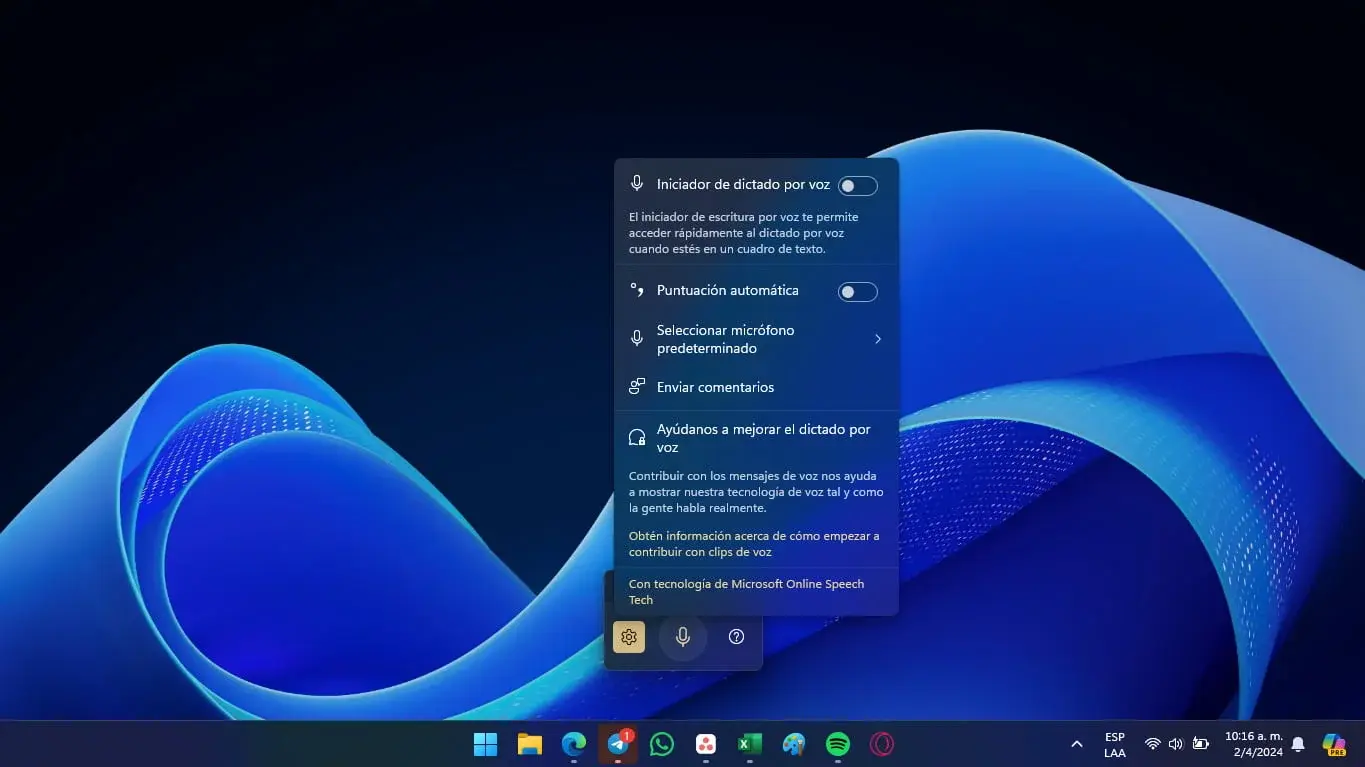
In Windows 11, the old "Dictation" feature has been revamped and is now called Voice Dictation . Although the name has changed, the idea is simple: you speak into the microphone and the system transforms your words into text in any application where you can type ( Word , browser, email apps, etc.).
Voice dictation in Windows 11 uses online recognition technology , meaning it relies on the Microsoft cloud to process your voice . The improvement over older systems is noticeable in the accuracy and speed of transcription, especially if you have a good microphone and a stable internet connection.
To start using voice dictation, you can do it in two very quick ways:
- By pressing the Windows logo key + H on your physical keyboard.
- Selecting the microphone button on the touch keyboard if you are on a device with a touch screen.
When you open the voice dictation panel, you'll see a microphone button . Clicking it starts Windows listening, and anything you say will be converted into text in the field or document where your cursor is located. Simply click the button again or close the panel to stop dictating.
If you don't want your voice clips used to improve the service , you can change that preference in the specific voice dictation settings. In those settings, you can also control options related to the handling of recordings and the privacy of your dictation. This choice doesn't affect your ability to continue using dictation: you can still dictate, you'll just be opting out of having your recordings used as training material for the recognition models.
Enable or disable voice clip contributions in dictation
Windows 11 lets you decide whether or not to contribute voice clips to improve the accuracy of voice dictation. This is a key aspect of privacy: you decide whether your audio is used not only for transcription but also as an anonymous sample for training the models.
If you are using a hardware keyboard , you can adjust this option as follows:
- Open voice dictation with the Windows + H keys.
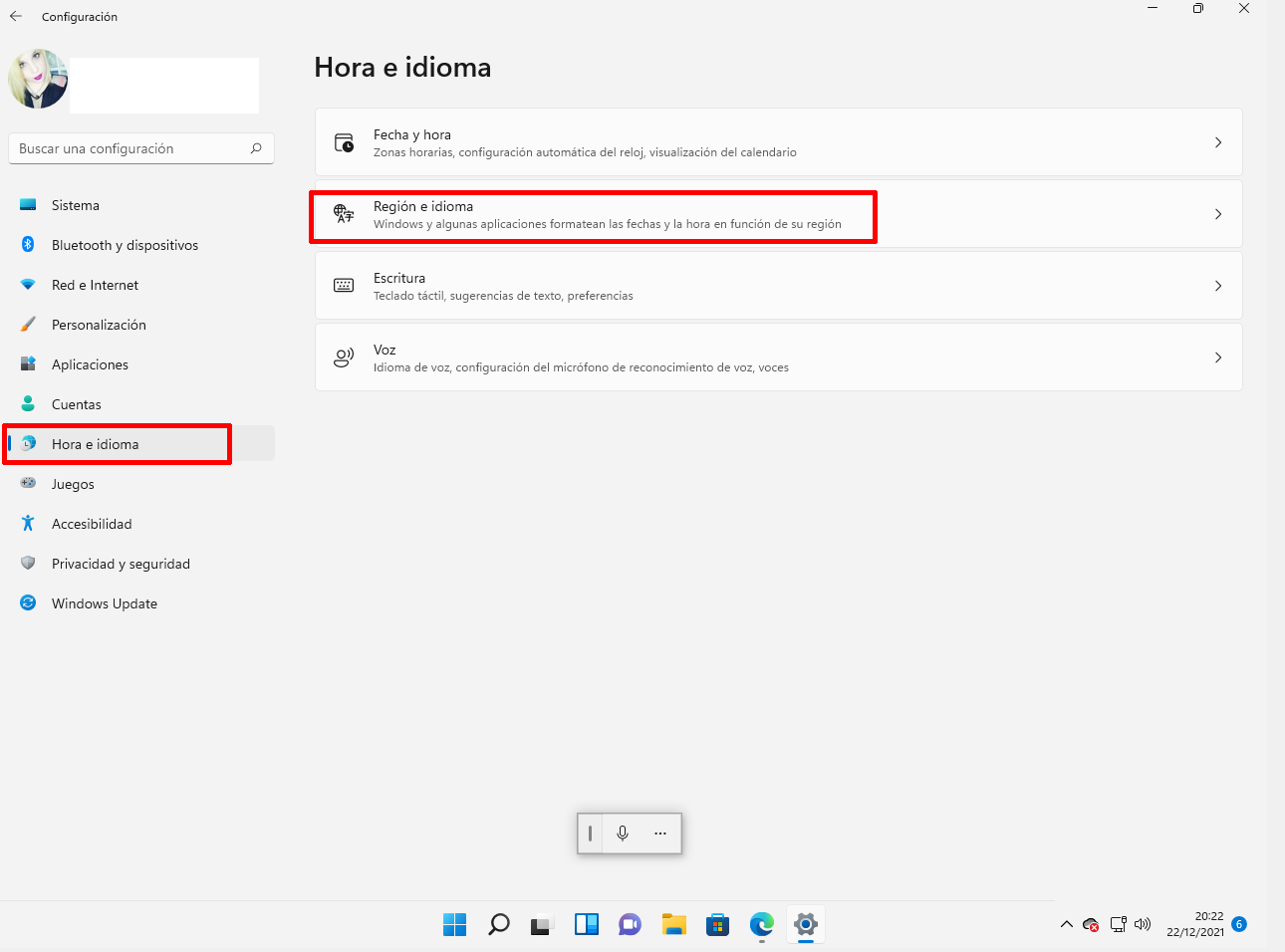
- In the panel that appears, select Configuration.
- Inside, choose if you want Start contributing voice clips o stop contributing, following the instructions shown on the screen.
If you work with the touch keyboard , the process is very similar:
- On the touch keyboard, tap the microphone button to open voice dictation.
- Press on Configuration.
- Under the "Help us improve voice dictation" option, select if you wish Get Started o stop contributing with voice clips.
Changing these settings doesn't mean you lose access to the dictation function ; it simply defines whether your recordings are collected for that additional training purpose. It's a way to balance service improvement with the protection of personal data, something highly valued in professional and educational settings.
Keep in mind that these settings are reversible . If at any point you decide you'd like to contribute to improving recognition in your language or accent , you can enable clip contributions. And if you change your mind, simply disable the option again from the same panel.
Voice activation: keywords and assistants in Windows 11
Beyond dictation, Windows 11 includes voice activation , a feature that allows certain applications to wake up and act upon recognizing a specific keyword. Think of assistants like Cortana or third-party solutions like Alexa : when you say the wake word, the system reacts.
When you authorize an app to use voice activation , Windows continuously listens to the microphone for that specific keyword (for example, the assistant's name). As soon as it detects it, the app gains access to the audio you've spoken from that point onward to process the command and respond.
These apps can send voice recordings to their own cloud services , primarily to recognize complex commands or interact with external services (reminders, home automation, calendar, etc.). Each app must ask for permission to use the microphone, and if you don't grant it, voice activation won't work for that app.
Microsoft makes it clear that it does not collect voice recordings on behalf of third-party apps . If an assistant developed by another company uses your recordings to improve its service, that data collection is governed by the developer's own privacy policy, not Windows'. That's why it's important to review the privacy statement of every assistant you install.
In Windows 11, you'll see a microphone icon in the taskbar when an assistant is ready to be activated by a keyword. When the assistant is activated and actively listening to respond, the information in the taskbar will change to indicate which voice app is currently running (for example, showing that Cortana is active).
Voice activation with the device locked and behavior according to the sleep mode
Voice activation isn't limited to when you're using your PC with the screen on . Depending on your sleep settings and the type of device (laptop, tablet, or all-in-one), the voice assistant can continue to respond even with the screen off or the computer locked.
When you enable voice activation even when the device is locked , anyone near the device can say the keyword to activate the assistant, provided they have access to the same set of features and information as you do. This can be useful in home environments, but it might not be ideal in shared offices.
On laptops and tablets, if the device is set to go to sleep after a period of inactivity and voice activation is available "when the screen is on" (typical setting), the assistant will stop responding as soon as the device goes to sleep. In other words, it won't listen while the device is in sleep mode.
If your laptop or tablet never goes to sleep and you have voice wake set to "when plugged in," the voice assistant will continue to respond as long as the device is connected to a power source. In this case, even if the screen turns off, the assistant can still listen for the keyword.
On all-in-one computers, the behavior is similar, with some nuances. When the system is configured to go to sleep after a certain time and voice activation only works "when the screen is on," the assistant will deactivate when the computer goes to sleep. If the all-in-one is configured never to go to sleep and voice activation is available "when plugged in" (usually the default setting), the assistant will always respond while the computer is plugged in.
There are some important exceptions to these general behaviors:
- If your laptop or tablet is in battery saving mode, the voice assistant will not respond, even if voice activation is enabled.
- If the device includes a built-in assistant with hardware keyword detection (like some models with Alexa or Cortana), the assistant may always be able to respond and even wake the device from sleep, whether it's on battery or plugged in.
Voice access in Windows 11 and WSR replacement
In the most recent versions of Windows 11 (22H2 and later) , the classic Windows Speech Recognition (WSR) feature has been replaced by a more comprehensive experience called Voice Access. WSR is still available in earlier versions of the system, but in modern editions, Voice Access is the recommended option.
Voice access goes beyond simply converting speech to text : it's designed to let you control virtually your entire computer using voice commands , from opening applications to navigating windows, selecting text, or activating buttons. It's an especially useful tool for accessibility and for those who prefer to minimize their use of the keyboard and mouse.
Microsoft provides specific documentation on how to use voice access to control your PC and compose text using only your voice. This guide will show you the available commands, tricks for moving the cursor, ways to select and edit, and advanced interaction modes with applications.
If you were used to the old WSR , the change may require a short period of adjustment, but in the medium term voice access offers more possibilities and deeper integration with Windows 11, taking advantage of all the recognition and interface improvements of the latest versions of the operating system.
Enable or disable voice access in Windows 11
To fully control when voice access is active , Windows 11 offers several ways to turn it on and off as you see fit: with keyboard shortcuts , from Settings, directly in the voice access toolbar, or even on the login screen.
One of the quickest ways to activate or deactivate voice access is with a keyboard shortcut. Depending on your keyboard layout and configuration, you can use shortcuts like Windows + Ctrl + S or other shortcuts defined in the dedicated voice access guide. These shortcuts allow you to activate or pause voice listening in a matter of seconds without having to open menus.
You can also control it from Windows 11 Settings . You'll usually need to navigate to:
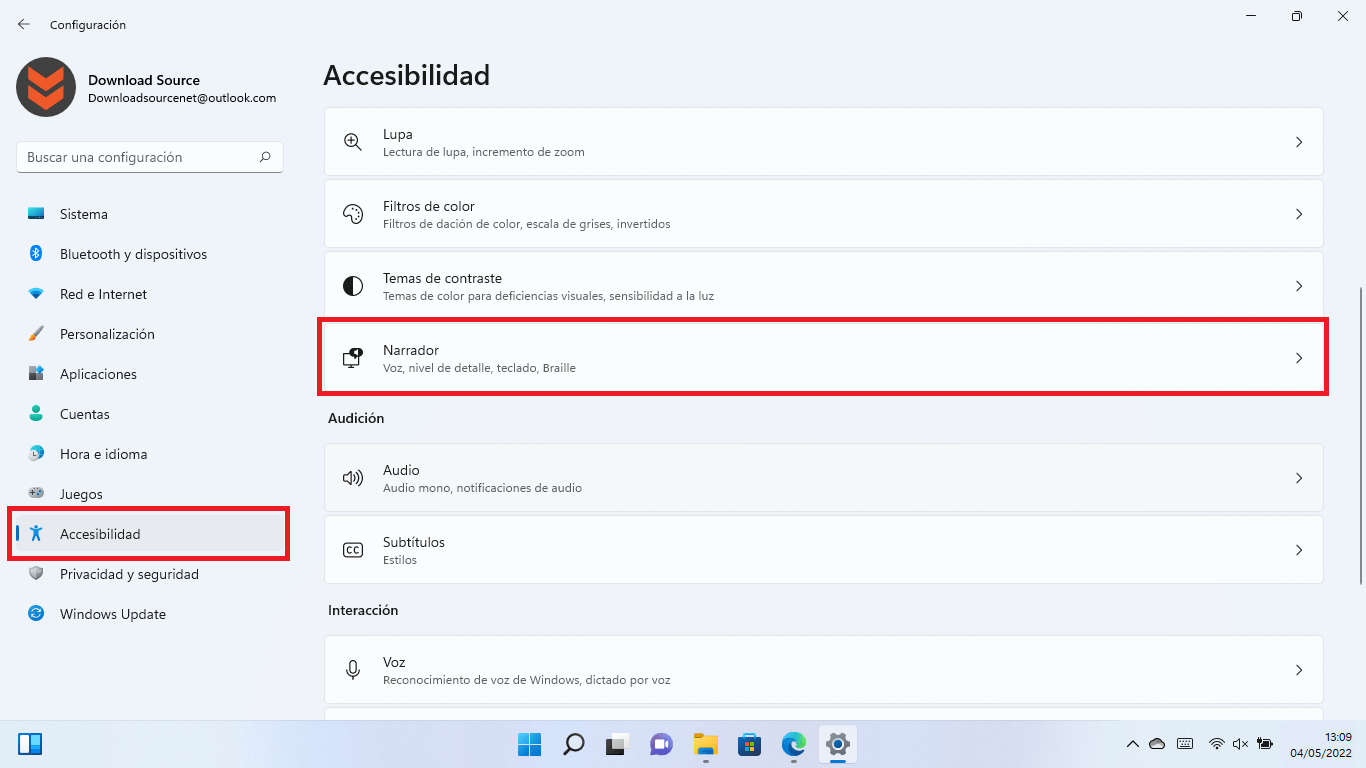
- Home > Settings > Accessibility > Voice
Once inside, you will find the option to activate or deactivate voice access , as well as other parameters related to the voice control experience.
On the login screen (before entering your password or PIN), you can also enable or disable voice access. This option is useful if you want to control your PC with your voice from the moment you turn it on, or if you prefer to keep it locked until after you log in for security reasons.
Finally, the voice access toolbar itself gives you direct control over its status. From this small floating interface, you can turn off voice access with a click when you don't need it, adjust certain quick settings, and turn it back on in seconds when you want to continue controlling your computer with your voice.
Microphone and volume settings for better recognition
For any voice recognition system to work properly , if you don't hear any sound after installing Windows 11, the first step is to ensure your microphone is correctly configured. Windows 11 includes a wizard to add, test, and adjust your microphone, so that dictation, voice access, and keyword activation services can hear you clearly.
Modern computers often feature "Microsoft Array" or other microphone arrays , designed to capture sound from multiple directions and reduce background noise. Adjusting the volume of these arrays is crucial: if the level is too low, the system won't understand your commands; if it's too high, it will pick up a lot of ambient noise.
From Windows Sound Settings, you can select your primary microphone, check the input levels while speaking, and adjust the sensitivity until you find the point where your voice is heard clearly without distortion. Experimenting for a few minutes with different levels makes a big difference in subsequent recognition.
If you frequently use voice access or dictation , it's a good idea to invest in a headset microphone or noise-canceling headphones. These devices reduce ambient noise, resulting in fewer errors when transcribing or recognizing commands, especially if you work in noisy environments.
Customization of handwriting input and keyboard typing
In addition to voice input, Windows 11 learns from your typing and pen input to provide more accurate suggestions. The system builds a personalized word list of uncommon terms you use (such as proper nouns, work acronyms, brand names, etc.), associated with your user account.
This personalized list syncs with other Microsoft products when you sign in with your account, ensuring consistent suggestions and recognition across devices. For example, if you frequently use the same term on your laptop, it's more likely to appear as a suggestion on your tablet.
If you don't want Windows to continue learning your typing style , or if you'd prefer to completely delete that word list, you can disable personalization and clear the stored data. The procedure is very similar in Windows 10 and Windows 11, although the menu paths are slightly different.
In Windows 10 , to disable inking and typing customization, you need to go to:
- Home > Settings > Privacy > Handwriting and typing customization
Within that section, find the "Get Familiarized" option and change it to Off . This will stop the system from collecting new words, and you can delete any that have already been stored.
In Windows 11 , the path has changed slightly. You should go to:
- Home > Settings > Privacy and security > Customize handwriting and keyboard input
There you'll see an option called something like " Custom Handwriting and Keyboard Input Word List" . If you disable it, the system will stop using and updating that custom list, and you can delete it if you want to start fresh.
Setting up and using Classic Voice Recognition (WSR)
Although voice access has replaced Windows Speech Recognition (WSR) in modern versions , you may still find WSR available on computers with older operating systems. This component allowed you to control the PC with specific commands and dictate text using an initial setup wizard.
The WSR setup wizard guided you step-by-step through preparing the microphone, adjusting the voice recognition, and completing a short training session. During the process, after selecting the initial options, you had to click Next and follow the on-screen instructions.
Once the initial setup was complete , the system offered you the option of a more extensive tutorial. From the wizard window, you could click " Start Tutorial" to practice commands and see interactive examples, or choose "Skip Tutorial" if you preferred to explore the features on your own. From that point on, you could begin using classic voice recognition.
In addition to basic recognition , WSR had a long list of commands for navigating documents, selecting text, deleting phrases and paragraphs, and changing uppercase and lowercase letters. Many of these commands still exist conceptually in modern voice access and functions, although in some cases with different syntax or names.


Passionate writer about the world of bytes and technology in general. I love sharing my knowledge through writing, and that's what I'll do on this blog, show you all the most interesting things about gadgets, software, hardware, tech trends, and more. My goal is to help you navigate the digital world in a simple and entertaining way.