- PowerPoint allows you to embed mini-applications, thumbnails, and smart components to make presentations more interactive and visual.
- Advanced add-ins like PPT Productivity add over 200 features for inserting shapes, mini slides, and time-saving shortcuts.
- Copilot can be combined with SmartArt and components such as timelines to generate and paste structured content directly into PowerPoint.
- Organizing thumbnails, shapes, and embedded elements into grids and consistent layouts improves navigation and understanding of your presentations.
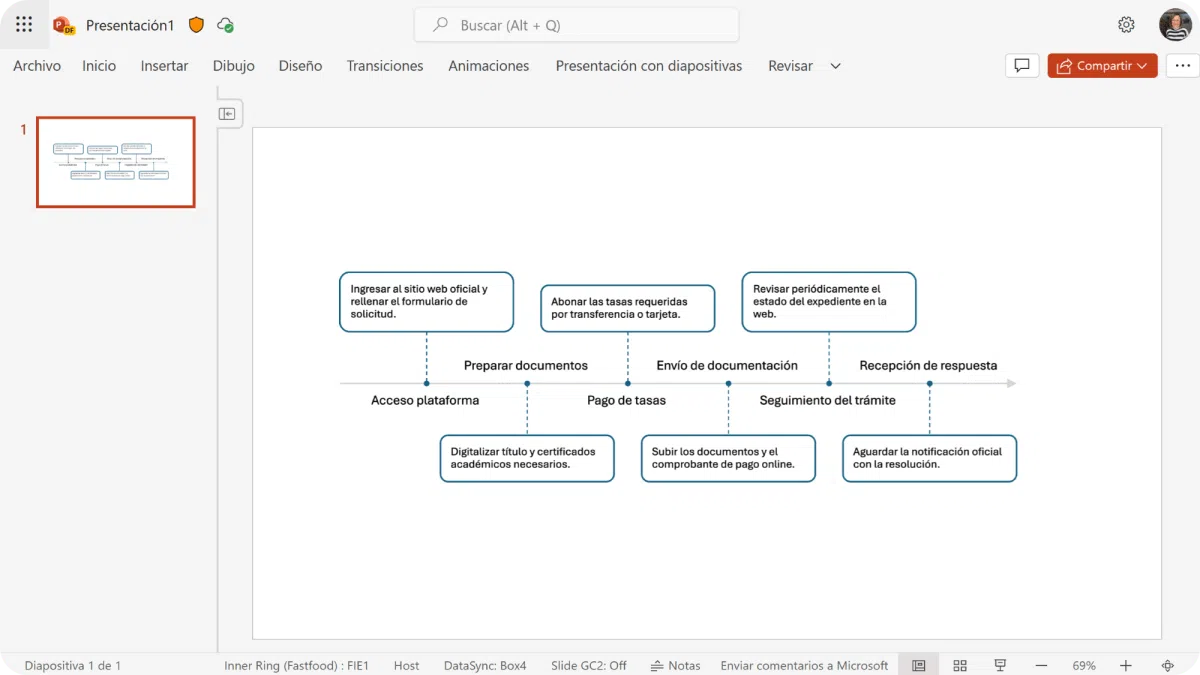
If you use PowerPoint daily, you've probably thought at some point that you'd like to go beyond static slides and make your presentations much more interactive (for example, presentations with Gemini ), visual, and easy to navigate. That's where mini-apps, slide thumbnails, smart components, and productivity add-ins come in, allowing you to create veritable "control panels" within your presentations.
In this article, we'll explore in detail how to embed mini-applications, thumbnails, and dynamic elements in PowerPoint by combining the program's native tools, specialized add-ins like PPT Productivity, and AI solutions such as Copilot and Microsoft Designer . We'll explain everything in an accessible way, with clear examples and helpful tips to save you time and create much more professional presentations without overwhelming you.
What does it mean to embed mini-applications and interactive elements in PowerPoint?
When we talk about embedding mini-apps in PowerPoint, we're not just referring to complex external apps, but to small, interactive modules within a slide : thumbnails that function as buttons, SmartArt components that act as content navigators, panels that summarize other parts of the presentation, and even combinations with artificial intelligence to generate content that adapts to those structures. You can also use smart placeholders to automate parts of the design.
The idea is for your presentation to move beyond a simple linear sequence and become more like an interface where the user can navigate : choosing paths (like in a "choose your own adventure"), returning to a main slide at a glance, jumping between phases of a project, or reviewing summarized sections using well-organized thumbnails; for example, using techniques such as zooming in on slides to navigate visually.
To achieve all this, PowerPoint offers native features such as hyperlinks, SmartArt, thumbnail views, and text boxes , but the real productivity leap comes when you combine them with advanced add-ins and AI tools like Copilot that allow you to generate pre-structured content to paste directly into your charts; in addition, in scenarios that require dynamic data, you can take advantage of dynamic links between Excel and PowerPoint to keep the information up to date.
Another key element is slide thumbnails, which act as a visual summary or index. When used effectively, they function as a kind of mini control panel within a single slide, allowing you to link to the rest of your presentation's content without getting lost. These thumbnails can also display real-time data in PowerPoint if you integrate external sources correctly.
Insert advanced shapes and visuals with PPT Productivity
One of the most powerful add-ins for speeding up PowerPoint is PPT Productivity , an add-in that adds over 200 time-saving features. Among these features, a specific set called "Insert Shapes" stands out, taking working with shapes far beyond what PowerPoint offers by default.
Within the "Insert Shapes" section, you can instantly create elements like chevrons, Harvey Balls, slide thumbnails, and shortcuts to frequently used shapes. Instead of searching for each shape repeatedly on the standard PowerPoint ribbon, they're just a click away, ready to be arranged with the look and format you prefer.
These functions are primarily found in the PPT Productivity Formatting Toolbar , which is specifically designed for users of the Power Tools version of the add-in. Plus Tools and Basic Tools users also have access to several of these options through the dedicated ribbon added by PPT Productivity, making the workflow much more efficient than with the standard interface.
The Formatting Toolbar is completely flexible: you can dock it at the top, bottom, or any side of the screen , resize it, and choose which groups of functions to show or hide. This is very useful if you often work with two monitors or if you want to clear the central part of your workspace to focus on the slide.
Thanks to all these features, PPT Productivity aims to free you up time from struggling with formatting to building the story, narrative flow, and logic of your presentation. In other words, the tool takes care of the technical details, allowing you to focus on the content.
Creating slide thumbnails: visual navigation and choose-your-own-adventure projects
One of the most interesting features when you want to embed mini-applications or interactive experiences in PowerPoint is the ability to create slide thumbnails that function as buttons or links . This is especially useful in complex projects, such as non-linear presentations or interactive "choose your own adventure" stories.
Imagine you have a presentation where the user chooses different paths based on their decisions. In that case, it's very useful to be able to generate a thumbnail of slide A and paste it onto slide B so that clicking on it takes you directly back to the original slide. This turns the thumbnail into a button that completes the navigation loop.
In recent versions of PowerPoint, there are keyboard shortcuts and specific functions that allow you to create images from one slide and reuse them in others with an associated hyperlink. While it can be easy to forget the specific shortcut, the important thing to understand is that the tool lets you visually clone a slide and use that clone as a return or jump point.
This type of use is perfect for a storyboard or graphical interface within the presentation itself: you can have an initial slide displaying all the thumbnails corresponding to the different scenes or sections, each linking to the expanded content. From these scenes, you can then place a thumbnail back to the main map, keeping the user oriented. Furthermore, you can enhance the experience with transitions like Morph in PowerPoint for smoother transitions.
With add-ons like PPT Productivity, things go a step further, because they facilitate the automatic generation and arrangement of these thumbnails, without having to manually copy and paste slide by slide.
Mini PowerPoint slides with PPT Productivity: how they work and what they offer
The mini slide creation feature in PPT Productivity is designed to save you the process of capturing, cropping, and aligning images from your own slides. Essentially, it allows you to take the slides from your clipboard and paste them as miniaturized images within a specific slide.
Instead of exporting slides as images or taking screenshots, the tool automatically creates thumbnail images of the selected slides and inserts them into your destination slide. This is ideal for quickly reviewing previous work, showing a summary of a longer presentation, or including an overview of future project phases without having to upload all the details.
A key advantage is that these mini-slides are placed in a self-adjusting grid layout upon insertion. PPT Productivity analyzes how many slides you have in your clipboard and arranges the thumbnails in a grid that automatically fits within the text area of the slide layout you're using, respecting the selected slide size .
If you prefer a more dynamic style, you can use the cascading layout option by clicking while holding down the CTRL key. This way, the thumbnails overlap with a slight offset, like cards fanned out, which can be very visually striking when you want to highlight a specific sequence of slides.
Another interesting feature is that when you insert multiple mini-slides at once, the tool automatically aligns and adjusts them to fit within the usual content margins. This saves you a lot of time that would otherwise be required to reposition and resize them one by one, which is what you would normally have to do if you were working only with PowerPoint's standard functions.
With all this, the mini slides become a kind of navigable mosaic or visual summary within your presentation, perfect both for reviewing live with your audience and for delivering a file that others can explore on their own.
Copilot and PowerPoint: Generating Content for Intelligent Components
If you want to take the idea of mini-applications in PowerPoint a step further, it's worth looking at how you can combine Copilot with PowerPoint's smart components , especially SmartArt and, within it, timeline-type charts.
The workflow begins by accessing Copilot from the web , by going to copilot.microsoft.com. You can do this with your personal account, your corporate account, or even without logging in, although if you are in a business environment with a Copilot for Microsoft 365 license, it is usually best to access it in web mode to take advantage of the integration with your Office tools.
Once inside, the next step is to go to Copilot's Notepad . From there, you choose your preferred conversation style (more creative, more precise, etc.) and focus on writing a good prompt. The key is to ask Copilot to generate the content with a structure specifically designed to be pasted into a PowerPoint component, such as a timeline.
The beauty of this approach is that you can prepare a semi-standard prompt that serves as a template. In that prompt, you specify that you want output formatted by points, with clear levels and sublevels, aligned with the structure that the SmartArt graphic will later use. For example, for a timeline, you could request a list of major milestones with brief descriptions for the sublevels.
When Copilot finishes generating the response, simply copy the result using the copy button next to the output. This way, you get the text organized exactly as you need it, ready to paste into PowerPoint without having to format it manually.
Paste the Copilot content into a SmartArt timeline
The next step is to switch from Copilot to PowerPoint Online (or the desktop version, depending on your workflow) and embed the appropriate SmartArt component . To do this, open your presentation, go to the "Insert" menu, and select the "SmartArt" option to open the gallery of available graphics.
Within that gallery, you look for the timelines or processes section , which is usually in the lower area, and choose the timescale design that best fits what you want to tell (for example, a sequence of project phases, a timeline of milestones, a product roadmap, etc.).
This type of component has levels and sublevels , meaning you can have a main text (the milestone or phase) and a secondary one (the explanation or detail). When you insert the graphic, you'll see a panel on the left or a box that says something like "Type the text here"; that's where you'll paste the content.
The first step is to remove the default content from the SmartArt, as these are just filler examples. Select everything that appears pre-configured and delete it, leaving the fields blank so they don't interfere with what you're going to paste from Copilot.
Next, paste the output generated by Copilot directly into that text panel . If you've written the prompt correctly, you'll see that the content adapts to the component: each line will become a point on the timeline, and if there are nested levels, they will be structured as sub-levels within each main milestone.
The result is a fully populated visual component without you having to type or manually reorganize the information. In a matter of seconds, you'll have gone from an idea to a mini visual application within PowerPoint , where the data is displayed neatly organized and ready for you to customize with colors, styles, or icons if you wish.
Practical uses: summaries, quick references, and interactive workflows
By combining all of the above (mini slides, SmartArt, Copilot, and add-ons like PPT Productivity), you can build powerful scenarios that, in practice, behave like small applications within your presentation . They aren't external apps, but rather modules with clear logic, inputs, and outputs.
For example, mini slides allow you to summarize complex work on a single slide that functions as an executive summary: each thumbnail represents a key section, and by adding hyperlinks, you can jump to the original slide for more details. Then, you can add another thumbnail that takes you back to the summary.
Another very useful case is quickly referencing related presentations . Imagine you're presenting phase 2 of a project, but you want your audience to be aware of what was done in phase 1 and what's coming in phase 3. You can create a slide with thumbnails of the previous and upcoming presentations, each linking to its file or key slides; furthermore, to control the presentation during the session, you can use your mobile phone as a remote control.
Add to that a timeline generated with Copilot in SmartArt, and you get a very clear overview: at the top, the chronology of phases with their descriptions; at the bottom, thumbnails of the slides that develop each milestone. All of this is also easily editable if deadlines or deliverables change.
In more creative contexts, such as training sessions, serious games, or team-building activities, you can use mini-slides as decision points in a choose-your-own-adventure game . Each thumbnail functions as a button that leads to a different branch of the story. When combined with shortcuts back to the main slide, the user experience is very similar to navigating a small, custom-built application.
Finally, the flexibility of the PPT Productivity Formatting Bar makes inserting all these shapes, boxes, icons, and connectors a matter of just a few clicks, without having to constantly switch tabs on the PowerPoint ribbon or manually adjust each object.
This entire set of tools helps you transform linear presentations into interactive and navigable environments , where the user not only looks at slides, but explores paths, goes back, jumps between sections and better understands the content as a whole.
With a little planning and by leveraging features like PPT Productivity's mini slides, SmartArt components, and structured content generation with Copilot, PowerPoint transforms from a mere canvas of text and images into a platform where you can build authentic mini-applications, visual summaries, and interactive experiences that streamline your work and make your presentations much clearer and more impactful.


Passionate writer about the world of bytes and technology in general. I love sharing my knowledge through writing, and that's what I'll do on this blog, show you all the most interesting things about gadgets, software, hardware, tech trends, and more. My goal is to help you navigate the digital world in a simple and entertaining way.