- There are wired, wireless, and remote control solutions for managing PowerPoint and Slides from your mobile device.
- Office Remote, Remote Desktop and apps such as ApowerMirror or PPTControl, which allow you to control PowerPoint presentations on your PC.
- Google Slides can be controlled from your mobile device using Chromecast or extensions like Remote for Slides.
- It is key to test the chosen method beforehand to avoid network, Bluetooth, or compatibility problems.
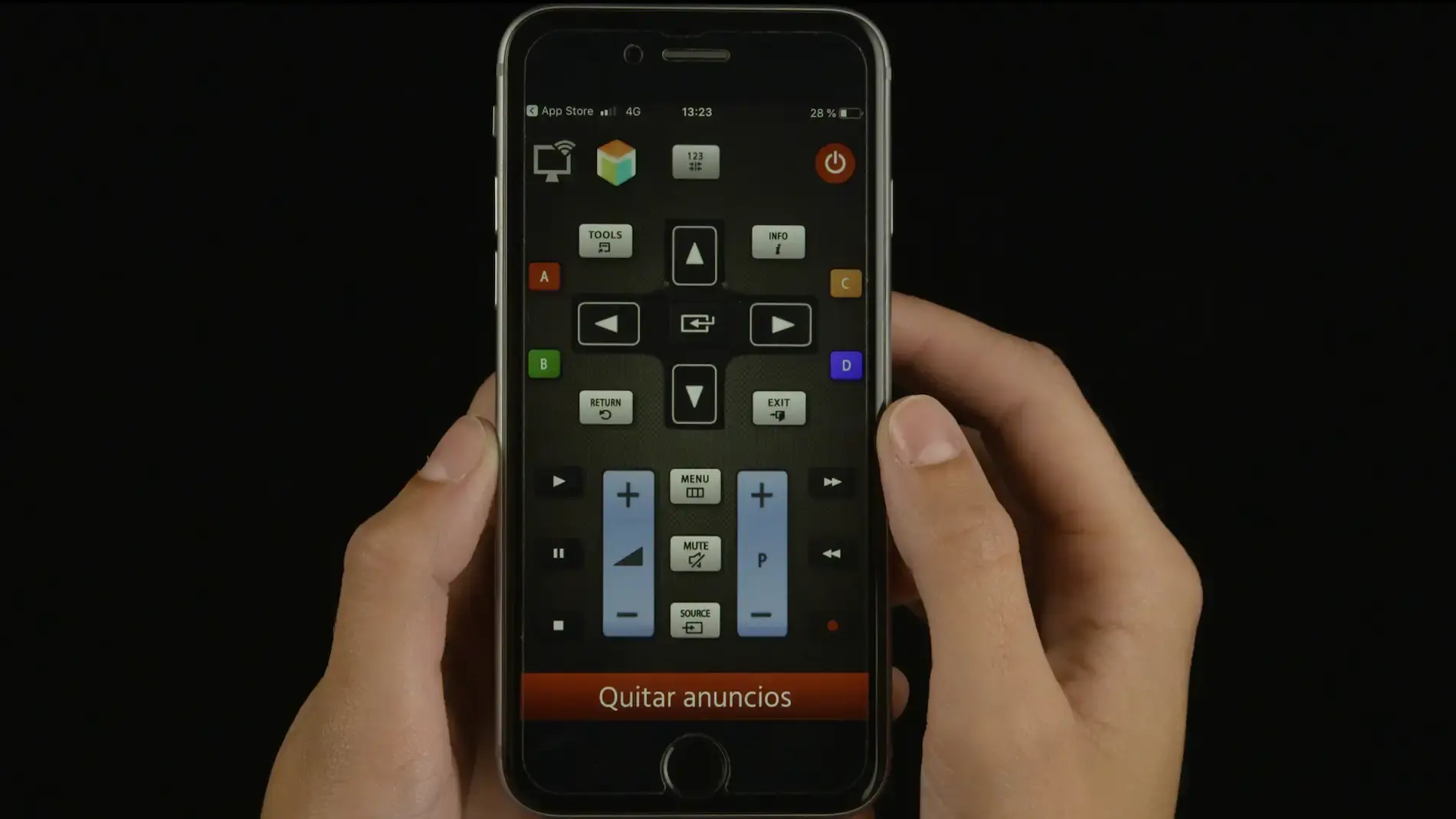
Giving a presentation while moving freely around the room, without being glued to your computer keyboard, makes all the difference. Using your phone as a remote control for PowerPoint lets you advance and go back through slides, view notes, and even use a virtual laser pointer without relying on anyone else to change slides.
Today, there are many ways to achieve this: from solutions integrated into PowerPoint or Google Slides, to remote control apps using Bluetooth, Wi-Fi, or even browser extensions. The goal of this guide is to compile and organize all these options , explain what you need in each case, what limitations they have (because some features have disappeared in recent versions), and which one might be the best fit for your everyday presentations.
Basic options: connect the mobile phone to the screen and display directly
Before we delve into more advanced remote controls, there's a very simple approach: connect your smartphone directly to the projector or TV and launch the presentation from there. In this scenario, the phone doesn't control a PowerPoint presentation running on the PC; instead, it plays the presentation itself.
If the room has a projector or screen with an HDMI input, you can use an HDMI adapter compatible with your mobile device (for example, a USB-C to HDMI adapter or an adapter with DisplayPort/HDMI output, depending on your device). Connect the adapter to your phone, the HDMI cable to the projector, select the correct source on the screen, and open your presentation.
Another widespread alternative is to use a wireless connection. Many projectors, televisions, and external devices support technologies like AirPlay, Chromecast, or Miracast . In this case, your mobile phone sends the video signal via Wi-Fi, and you control the slides from the PowerPoint or Slides app installed on your phone.
In modern mobile applications, when you start presentation view, you can even turn your smartphone screen into a virtual laser pointer : simply hold your finger on the screen and move it; the red dot will appear on the projected slide, following the movement of your finger.
On some mobile phones and tablets, especially more advanced tablets, the pointer can also be controlled using the gyroscope sensors . In these cases, instead of sliding your finger across the screen, you tilt and rotate the device to move the laser across the projection, which is quite convenient if you're standing and don't want to be constantly touching the touchpad.
Controlling PowerPoint on your PC from your mobile phone: real-life situations and common problems
The most typical scenario in businesses, classrooms, and conference rooms is different: a desktop PC connected to the projector , with the presentations already loaded. You want to move around the classroom or room and control PowerPoint from an Android phone , without having to ask someone to advance the slides or constantly turning around to look at the computer screen.
This is where things get interesting, because not all solutions work equally well in every environment. There are network limitations, applications that are no longer being updated, and features that Microsoft or Google have been removing , which creates quite a bit of confusion (and outdated responses from some AI , by the way).
For example, a very common problem is that the room's Wi-Fi allows both the PC and the phone to connect to the internet, but not to each other . This happens frequently in guest networks or corporate networks with client isolation, where the router prevents one device from seeing another. Under these conditions, many apps that rely solely on the local network stop working or require complicated configurations.
Another common obstacle is that some older guides claim PowerPoint for Android or Google Slides included native remote control features for the PC version of PowerPoint . These options did exist at one time, but they have since been removed or changed; therefore, even if you follow an old tutorial exactly, it may no longer work as described.
There are also users who have tried older remote control applications, such as certain "Remote for Slides" apps, and have found that they haven't been updated for years and don't display slide thumbnails on their mobile devices , or that they stop connecting correctly with the latest versions of Windows or Office.
Using Office (PowerPoint) on your mobile device: Office Remote and Microsoft alternatives
If you work with the Office suite, it makes sense to try to control PowerPoint with Microsoft tools , which usually offer more direct integration with Word, Excel, and PowerPoint documents on the desktop.
For quite some time, the leading application in this area was Office Remote . This app, originally designed for Windows Phone and Android, allowed you to transform your mobile phone into a smart remote for Office programs installed on your PC (especially powerful with PowerPoint, but also useful with Word and Excel).
In PowerPoint, Office Remote offered very comprehensive features: you could jump to the first or last slide instantly, visually navigate through thumbnails, consult speaker notes, see the slide number and presentation timer, or use a virtual laser pointer from your phone to point to key elements on the screen.
The integration with Excel and Word was equally impressive. In Excel, Office Remote let you move between sheets, interact with filters, slicers, and pivot tables , zoom, and scroll vertically with ease. In Word, you could jump directly between headings, view comments, navigate pages, or scroll line by line, all from the mobile app.
To make it work, however, there were several technical requirements. On the PC, you needed Office 2013 (or later) along with the Office Remote add-in installed, which Microsoft still offers in its download center . In addition, the connection between the computer and mobile device is made via Bluetooth, so both devices must have this technology and be properly paired.
The setup process was roughly as follows: First, you install the Office Remote add-in on your computer, pair your PC and mobile device via Bluetooth , open the PowerPoint file you're going to present, and a new tab called "OFFICE REMOTE" appears in the ribbon. From there, you activate the feature with the "Turn On" option. Next, you open the Office Remote app on your phone, select your PC, and if everything is properly connected, you'll see the presentation and be able to control it from your mobile device.
The good news is that Office Remote remains compatible with modern versions of Office 365 and Office 2021 , even though the original documentation mentions Office 2013. The downside is that the app is no longer officially available on Google Play, so you have to resort to trusted APK repositories, such as APKMirror , to install it manually on Android.
Another point to consider is that if your PC doesn't have built-in Bluetooth, you'll need a USB Bluetooth adapter that's compatible with Windows. There are many affordable models available on sites like Amazon that work perfectly and, once connected, allow you to pair your phone with your computer without any problems.
Microsoft hasn't updated Office Remote in a while, and some users report that with certain combinations of Windows 11 and the latest versions of Office , the connection isn't always stable or the add-in can be problematic. In these cases, an official alternative from Microsoft is to use the Remote Desktop app for Android.
Remote Desktop is designed for something more general: controlling your entire Windows desktop remotely as if you were sitting in front of your PC. It's not a dedicated PowerPoint remote, but by setting up a Workspace, you can directly access certain applications, including the entire Office suite. It's a slightly more technical approach, but very versatile if you're looking to control more than just your slides.
Control Google Slides with your mobile phone
If your workflow revolves around Google Workspace, you'll likely prepare your presentations in Google Slides . In this case, there are several ways your mobile device can act as a "controller" or control center, although it's important to distinguish between projecting from your phone itself and using your phone as a remote control for a presentation running on another device.
To display your slides on a compatible TV, monitor, or projector, Chromecast is the most straightforward option . If the device you're sending the signal to supports Chromecast (or has a Chromecast connected), simply ensure both your phone and the screen are on the same Wi-Fi network and open the presentation from the Slides app or Chrome.
On Android, the process is very simple: open the presentation in Google Slides , tap the present button, and choose the Chromecast device as the target. From that moment on, your phone becomes a remote control, allowing you to advance or go back through the slides and, in some cases, view the presenter's notes while the audience only sees the slides.
On iPhone or iPad, the process is similar, but you must ensure the app has permission to access the local network . If you don't find the Chromecast device in the list, the restriction most likely originates there. On iOS, this is controlled from Settings > Privacy > Local Network (or from the app's specific permissions), where you must enable access for Google Slides or the corresponding Google app.
One important detail: Google Slides cannot be displayed in Chromecast's "guest mode ." Both your phone and screen need to be on the same network, and the Chromecast cannot be running in guest mode; otherwise, the option to cast the presentation will not appear as expected.
If you don't want to broadcast from your mobile device, but rather control a Slides presentation running on a computer , you can find complementary solutions such as browser extensions, for example, Remote for Slides, which we'll discuss later. Keep in mind, however, that several of these tools are no longer updated or no longer display thumbnails on phones, so it's advisable to test them well in advance of an important presentation.
Remote for Slides: Turn your mobile phone into a remote control for Google Slides
Remote for Slides is a very interesting solution that allows you to control Google Slides presentations from your mobile browser , simulating quite well what a professional clicker with a laser pointer would be, but without having to buy additional hardware .
The system works using a Google Chrome extension . First, you install the add-on in the browser of the computer where you'll be projecting. Then, you open your Google Slides presentation in Google Drive and, instead of clicking "Present" as usual, you click the "Present with remote" button added by the extension.
When you activate this option, at the bottom of the screen you'll see a unique presentation ID next to a web address like "http://s.limhenry.xyz". This code tells your phone which presentation to control. Next, open that address in your phone's browser, enter the ID displayed on your PC, and once both devices are synchronized, your phone will show buttons to advance, rewind, and control the presentation.
Many people make life easier by creating a shortcut to that website on their phone's home screen , so they can open the remote control in seconds without having to remember the full URL. There was also a dedicated app on Google Play for a while, but it's no longer available, so if you find a working APK, it's usually shared among users.
While Remote for Slides is very practical, it's not without its limitations: the extension isn't updated as frequently as Google services , which means that slide previews sometimes fail, and certain features don't appear on all devices. It's a low-cost and simple solution, but it's advisable to test and master it before an important event.
Third-party apps to control PowerPoint from Android
Beyond Microsoft and Google tools, there's a whole ecosystem of third-party apps for controlling PowerPoint from your mobile device . Some focus exclusively on presentations, while others are universal remotes for all kinds of PC programs.
One popular option is PPTControl , an app that turns your phone or tablet into a remote control for presentations. To use it, you need to install a server program called PPTControl Desktop on your PC, which you can download from its official website, and then pair it with the mobile app.
The typical setup involves installing and running PPTControl Desktop on your computer (granting the necessary permissions in Windows), opening the PPTControl app on your Android device, and selecting your computer from the list. The system will prompt you to accept the connection on your PC, and once accepted, your mobile device will begin functioning as a PowerPoint remote with navigation and highlighting capabilities.
One important detail is that PPTControl relies on a Bluetooth connection between the computer and the phone , so both devices must have Bluetooth and be within range. This approach has the advantage of not depending on the room's Wi-Fi network (which, as we mentioned, can sometimes isolate clients from each other), but it does require you to verify hardware compatibility.
Another very comprehensive solution is ApowerMirror , known primarily for its screen mirroring capabilities. With this program, you can project your mobile phone screen onto your PC or vice versa, share photos, videos, and all kinds of content on a larger screen, and even control one device from the other.
In the context of presentations, ApowerMirror allows you to control PowerPoint running on your computer from your Android device . The process is usually as follows: install the ApowerMirror app on both your PC and your phone, launch the program on both, and connect them to the same Wi-Fi network. Then, on your phone, tap the blue "M" button to detect devices, select your PC (it will appear under a name starting with "Apowersoft"), and activate the PowerPoint remote control function from the Tools menu.
Once set up, your phone will have dedicated controls for advancing and going back through slides while PowerPoint runs on your PC. This app also continues to receive updates, making it more reliable than older options.
There's also AIO Remote (All In One Remote) , which is defined as an "all-in-one" remote for controlling any PC application via Wi-Fi or Bluetooth. It's compatible with Windows, Linux , and Mac , and offers pre-built controls for presentations, mouse, keyboard, and media players, though it also allows you to create custom designs.
With AIO Remote, you need to install a server on your computer (which requires Java Runtime to function), note the IP address and listening port , and then add that connection from the mobile app, specifying whether the communication will be via Wi-Fi or Bluetooth. Once linked, you choose the PowerPoint profile to start remotely controlling the presentation.
The AIO Remote's biggest weakness is that, despite allowing you to customize controls, it sometimes fails to save new key assignments correctly and reverts to default values, which can be frustrating if you haven't finalized everything beforehand. Even so, it's an interesting option if you want a general-purpose remote for multiple applications.
Use of video call platforms as a “bridge” (Google Meet and similar)
Another idea that many users try is to use video conferencing tools like Google Meet to view the presentation on their mobile device while it's being projected from their PC. While this can work in certain situations, it has several drawbacks that are worth being aware of.
One option is to run the presentation on your mobile device, share your phone's screen in Meet, and display the video call window on your PC. The problem is that, in this case, the Meet controls appear superimposed on the presentation on the large screen , even in full screen, which looks unprofessional in a room with a live audience.
The alternative is to launch the presentation on your PC and share that screen via Meet , so you can view it on your mobile device as an additional participant. The drawback is that Google Meet, unlike other platforms, doesn't easily allow you to request and obtain remote control of another person's desktop to use as a remote, so you're still dependent on whoever is at the computer or a traditional physical clicker.
Using a video call system as a remote control solution can be a workaround combined with a physical pointer , but it usually involves more steps, more latency, and more chances of technical failure than directly resorting to a remote control app or specific presentation tools.
Practical tips for choosing a method and avoiding problems in your presentations
With so many options, the important thing is to choose the method that best suits your team and the room where you'll be presenting , and not to improvise on the day of the event. A few minutes of preparation can save you a lot of nerves in front of an audience.
If the room has good connectivity and you control the environment, WiFi solutions with modern apps like ApowerMirror or AIO Remote are very convenient, because they allow you to move freely and, in some cases, see speaker notes or even the next slide on your mobile phone.
When the network is limited or you're in a company with very restrictive policies, using Bluetooth with Office Remote or PPTControl is usually more reliable. You don't depend on the devices being able to see each other on the local network, and the configuration is more manageable, although you do need to verify Bluetooth compatibility on your PC.
If you already work primarily with Google Slides, it's worth trying Remote for Slides or using Chromecast directly from your mobile device : these are simple solutions that integrate quite well with the Google ecosystem, provided you have access to Chrome and a Chromecast or compatible device.
In any case, it's advisable to do a real test in the same room before an important presentation : bring your laptop or use the room's PC, connect the projector or TV, pair your mobile phone, check that the virtual laser pointer works, and verify that there are no noticeable delays when advancing the slides.
With all this variety of methods — from connecting your mobile phone via HDMI or Chromecast to using Office Remote, Remote Desktop, ApowerMirror, AIO Remote, PPTControl or extensions like Remote for Slides — it is perfectly possible to present your PowerPoint or Google Slides while moving around the room naturally , setting the pace of the presentation with your own phone and without depending on remotes with dead batteries or colleagues acting as slide "flip-floppers".

Passionate writer about the world of bytes and technology in general. I love sharing my knowledge through writing, and that's what I'll do on this blog, show you all the most interesting things about gadgets, software, hardware, tech trends, and more. My goal is to help you navigate the digital world in a simple and entertaining way.