- Methods for loading external subtitle files by renaming files or manually uploading.
- Real-time time adjustment techniques using keyboard shortcuts and configuration menus.
- Differences between temporary player settings and permanent editing of SRT files.
- Recommended external tools for professional and bulk synchronization correction.

There's nothing more annoying than settling down to enjoy a good movie and realizing that the subtitles appear before or after the actors speak. It's a fairly common problem, especially when you download subtitles from sources other than the video source, causing the timing of the subtitles to not sync with the audio track.
Fortunately, VLC player is a multimedia Swiss Army knife, offering several tools to solve this problem. From quick keyboard adjustments to more precise menu settings, we'll see how to get everything working perfectly so you don't miss a single detail of the plot.
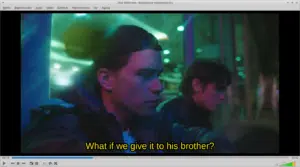
Ways to add subtitles to your videos
Before we get into synchronization, the first thing to do is ensure the player recognizes the file. The easiest and most automatic way to do this is by renaming it. For VLC to load them instantly, you need to make sure the subtitle file has the exact same name as the video file, differing only in the extension (for example, .mkv and .srt). Simply right-click on the text file, rename it, and place both in the same folder.
If you'd rather not change the names or if your files are scattered across your hard drive, you can add them manually during playback . Simply go to the top menu, select the "Subtitles" tab, and choose "Add subtitle file." This will open your file explorer so you can locate and select the desired file.
Sometimes, a single file may contain multiple translations. If this is the case, you can manage which language you want to see by going back to the Subtitles menu and choosing the Tracks option , where you will see the list of available languages to switch between according to your preference.

Real-time synchronization adjustment
When you notice that the subtitles are out of sync, VLC lets you correct them without pausing the video. The most intuitive way is using the keyboard. If the text appears too late, you can press the H key to advance it , while if it's too far ahead, the G key will delay it. Each press adjusts the timing by about 50 milliseconds, allowing you to fine-tune the timing while listening to the actor's voice.
If you're looking for something more precise than just guessing with the keyboard, you can access the advanced settings. Go to the Tools menu and select Track Sync . This will take you to an Effects and Filters window where you'll find the Sync tab.
In this section, you'll find a specific field for Subtitle Track Sync . Here, you can enter a numerical value in seconds: if the text arrives late, use a negative value; if it arrives early, use a positive value. Additionally, if the problem isn't just at the beginning but the subtitles are gradually falling out of sync, you can adjust the FPS setting so that the text's timing matches the video's.

How to make synchronization permanent
This is where many people get frustrated. All the settings mentioned above (both the G and H keys and the tools menu) are volatile. This means that the settings are lost when you close the video , and you'll have to repeat the process every time you play the movie again. To avoid this hassle, we need a permanent solution.
To make the change permanent, we can't rely on the player; we need to modify the original .SRT file . Ideally, we should use specialized subtitle editing software . A highly recommended tool is Subtitle Edit, which allows you to shift the entire timing of the file in bulk and save the result.
If you're looking for something more advanced, or even geared towards creating karaoke tracks or complex subtitles, Aegisub is a fantastic option. This program is very comprehensive and allows you to resynchronize entire series by loading the video and adjusting the timings "on the fly," consuming very few system resources and offering a user-friendly interface for managing input and output times.
For those looking for a playback alternative that saves these settings without complications, there are other software options such as Elmedia Player, which allows you to save synchronization settings so that you don't have to repeat the task in each session, as well as facilitating the download of new files directly from the application.
In short, while VLC allows you to quickly correct text misalignment using its tool menus or keyboard shortcuts like G and H, these changes are temporary. To solve the problem permanently, the best option is to use external editors like Subtitle Edit or Aegisub, which allow you to modify the subtitle file permanently and ensure a smooth viewing experience no matter how many times you restart the movie.

