
As you may have noticed, the Safari browser on your iPhone always starts with a website open first. Below are the steps to prevent Safari from opening the last browsing session on your iPhone.
Prevent Safari from opening the last search session on iPhone
When you open websites in the Safari browser on your iPhone during your entire browsing session, the websites open in their own search tabs and never in the browser window.
This “Tabbed Browsing” feature in the Safari browser is designed to allow customers to open as many websites as they want in the same browser window, without cluttering the browser with multiple home windows.
Since this feature relies on keeping Safari search tabs open in the background, it often causes Safari to open at the same time as your last search session.
However, you can prevent Safari from opening your last search session by closing all Safari tabs before exiting the browser.
Ways to close open site tabs in Safari on iPhone
Open the Safari browser on your iPhone and go to any website you need to browse. Once you're on the site, tap the Tab button located in the back menu.
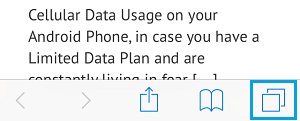
When you click the “Tabs” button, you will see a thumbnail preview of the final website(s) you just accessed in your previous search session.
To close a website (tab), click the small X button located in the upper right ( iOS 15 or later) or upper left (iOS 14 and earlier) of the website thumbnail and tap Run.
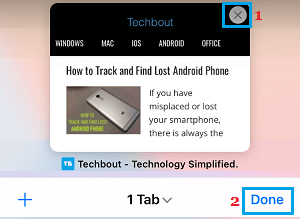
If you discover a lot of website tabs, you will have to close them manually, to prevent Safari from launching them, when you open the Safari browser on your iPhone the next time.
Ways to close multiple Safari tabs at once
When you have multiple Safari tabs open (any number), there is a way to close them all at once, instead of having to close them one after the other.
To do this, press and hold the Tabs icon button and choose Close all tabs from the context menu.
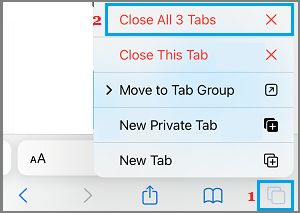
In the confirmation window, select the Close All Tabs option to confirm and this will cause Safari to stop opening your previous browsing session.
- Delete regularly visited websites in iPhone Safari browser
- Ways to bookmark web pages in the iPhone's Safari browser

My name is Javier Chirinos and I am passionate about technology. Ever since I can remember, I have been interested in computers and video games, and that passion has turned into a job.
I have been publishing about technology and gadgets on the Internet for over 15 years, especially in mundobytes.com
I am also an expert in online marketing and communication and have knowledge in WordPress development.