- A zombie process is a terminated child process that remains in the process table because its parent has not called wait().
- They are detected with commands such as ps and top, where they appear with a Z status or labeled as .
- They don't consume CPU, but many zombies can fill up the process table and cause serious problems.
- Proper cleanup involves forcing the parent process to collect the child's state, using signals such as SIGHUP or SIGCHLD.
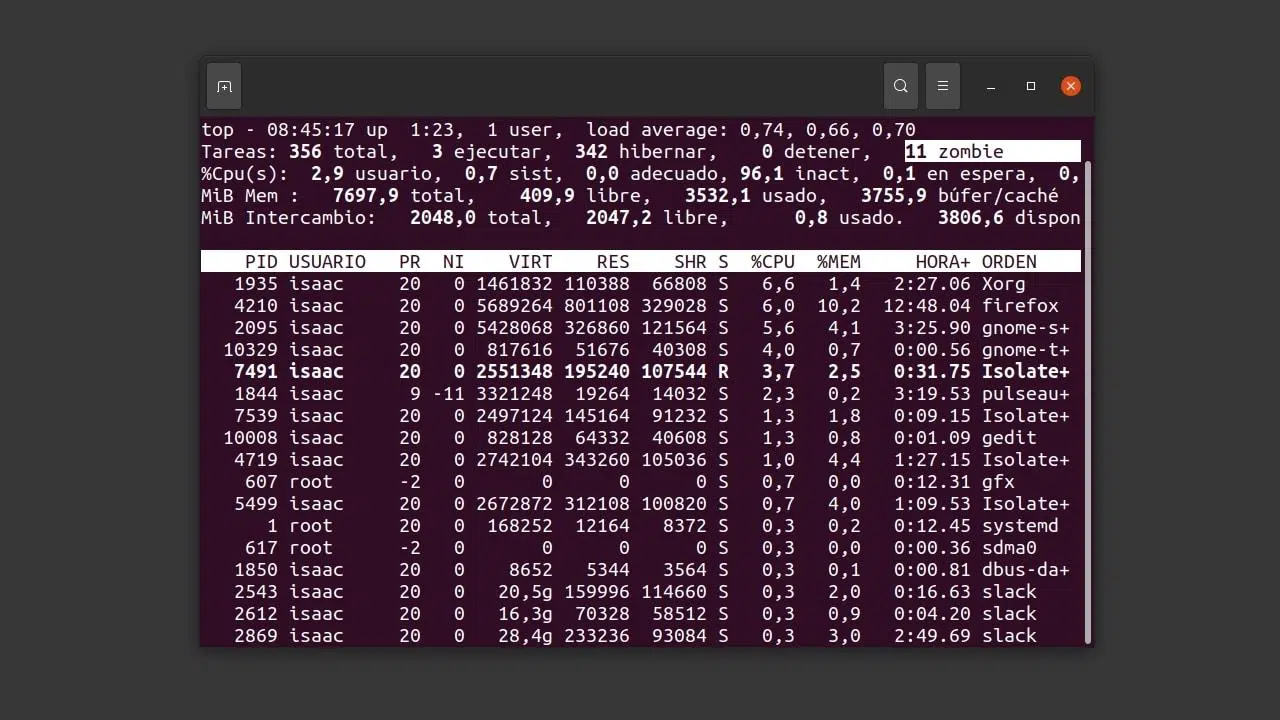
In the world of GNU/Linux and other UNIX systems, talking about zombie processes has nothing to do with TV series or horror movies, even though the name is quite fitting. They are those half-dead, half-alive processes that linger in the process table and, if they accumulate, can cause more than a few headaches for the system administrator.
It's important to understand what zombie processes are, how they're created, how to detect them in Linux (and macOS ), and, most importantly, how to eliminate them without damaging anything important. Below you'll find a detailed explanation, combining system theory, practical examples with commands like `ps` and ` top` , several methods for killing these dead processes, and even a small C program to generate a test zombie.
What exactly is a zombie process in Linux?
A zombie (or defunct) process is a child process that has finished executing but still retains an entry in the system's process table. This entry remains so that its parent process can query the child's exit code using calls like `wait()` or `waitpid()` . Until the parent performs this query, the child does not completely disappear.
From a metaphorical point of view, the child has died, but their "soul" remains registered in the system. That's why they're called zombies or dead processes: they're no longer executing code, consuming CPU or user memory, but they do occupy a small space in the process table. One or two are fine, but if a poorly programmed application generates many, we can run into problems.
In Unix and Linux systems, when a process terminates, the kernel releases its resources (memory, file descriptors, etc.) but retains a minimal record of its exit state. If the parent process never calls `wait()` , this record is not cleared, and the process remains marked as a zombie. This is almost always a programming or design issue in the software acting as the parent process.
These processes are easily recognized because in tools like ps they appear with the status Z (for zombie) or with the label <defunct> , and in monitors like top there are specific counters that show how many zombies we have active in the system at any given time.
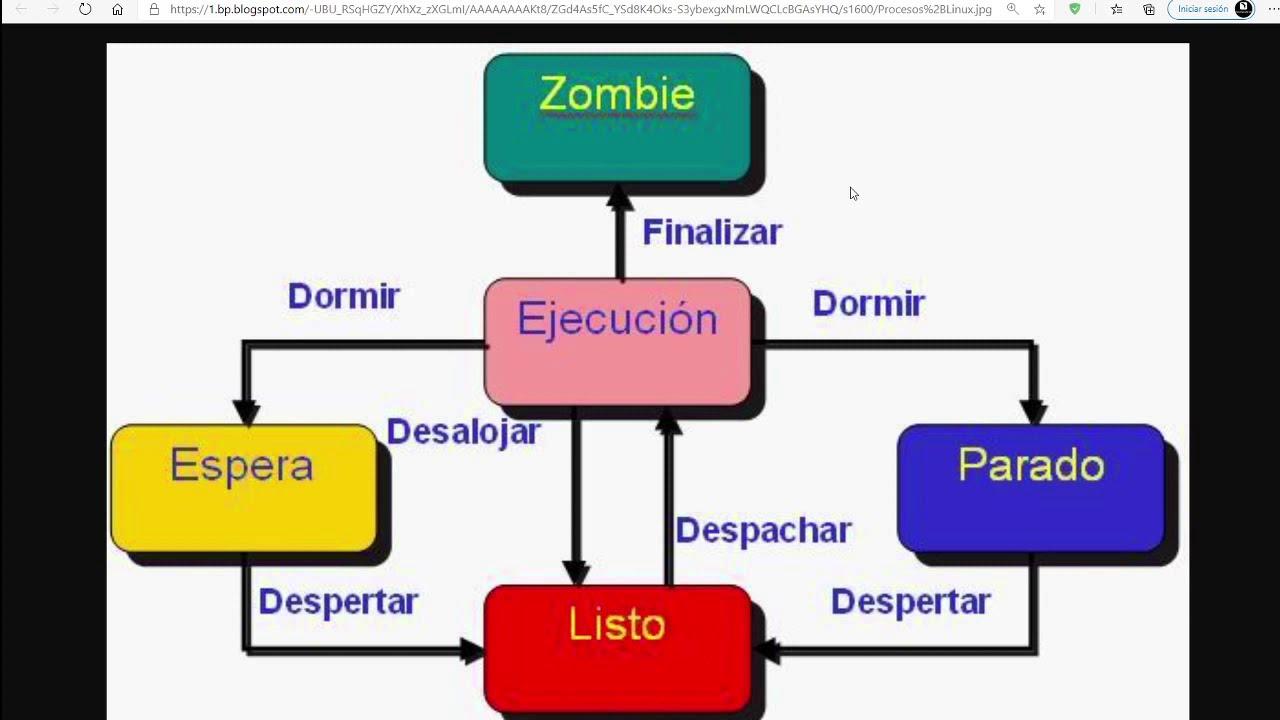
Process states in Linux
To understand the role of zombies, it's helpful to review the most common process states in Linux. When we list processes with `ps` or `top` , a letter is used to indicate the state:
- Sleeping: processes sleeping, waiting for their turn to execute or for some event to occur.
- Running(R): processes that are running on CPU or ready to run.
- Waiting(D): blocked processes waiting for the completion of an input/output operation (uninterruptible wait).
- Stopped (T): processes stopped, for example, by signals such as SIGSTOP or because they are in debug mode.
- Zombie (Z): processes that have finished, but continue to appear in the process table waiting for their parent to read their exit status.
Each line in `ps` shows a process with its PID, PPID (parent PID), user, status, and other data. The status field can be named S , STAT , or something similar, depending on the `ps` parameters. A process with status Z is, officially, a zombie. In many cases, the process name or command will be displayed as <defunct> , making it clear that it is deceased.
How to detect zombie processes in Linux from the terminal
The most direct way to locate zombie processes is to use classic monitoring commands: ps and top . Combining them with tools like grep , awk , or xargs allows you to filter and prepare lists of PIDs with considerable accuracy.
One of the most used commands to see zombies is:
ps -el | grep 'Z'
The `-el` parameter causes `ps` to display extended output, where the second column typically indicates the process status. In that column, we can find, among other things:
- S: sleeping.
- R: running.
- D: waiting (uninterrupted wait).
- T: stopped or gestopt (suspended).
- Z: zombie (defunct).
For a more detailed example, on a machine with problematic processes we might get something like:
ps -el | grep 'Z'
FS UID PID PPID C PRI NI ADDR SZ WCHAN TTY TIME CMD
1 Z 0 1213 589 0 75 0 – 0 funct> ? 00:00:00 dovecot-auth
Here we see that the dovecot-auth process is marked with state Z, so it's a zombie. Also, look at the PPID column , because that's the PID of the parent process, which we'll discuss later in order to properly clean up the zombie.
Another very common way to list zombies is to use the combination:
ps -A -ostat,ppid,pid,cmd | grep -e '^'
In this case, the -A option lists all processes, and the -o option allows us to define exactly which columns we want: status (stat), PPID, PID, and the command. The grep -e '^' filter only includes lines whose status begins with Z oz, that is, zombie processes.
Another, somewhat more minimalist, option would be:
ps axo pid=,stat= | awk '$2~/^Z/ { print $1 }'
In this version, we only request the PID and the status, without headers (using `pid=,stat=` ), and then with `awk` we filter the rows whose status field starts with Z, printing only the PID of the zombie process. It's an elegant way to generate a list of zombie PIDs for later use with `kill` or other pipelines.
Using top to locate zombie processes
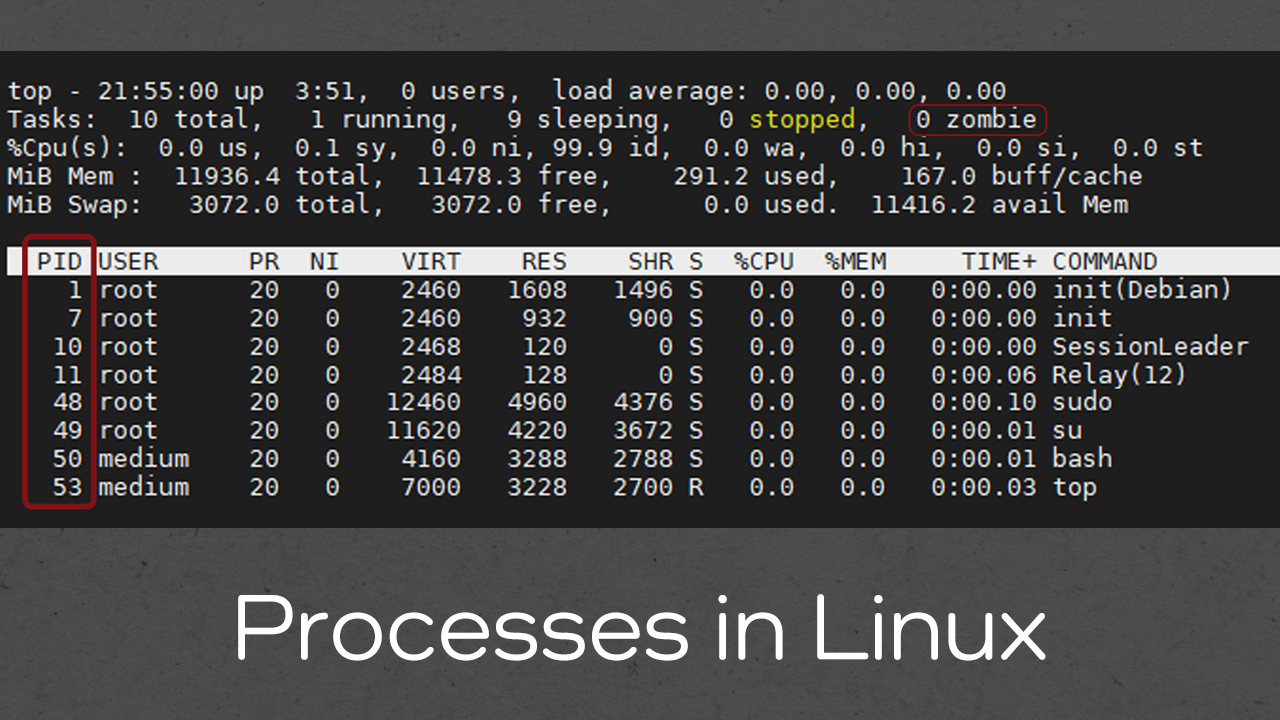
The `top` command is a very convenient interactive tool for viewing what's happening on the system in real time. The ` top` header displays a summary showing the total number of tasks and how many are in each state, including the number of active zombies .
To use it, simply run:
top
In the first or second line, you'll see something like: Tasks: 150 total, 1 running, 149 sleeping, 0 stopped, 1 zombie . This zombie counter tells you if there are dead processes still hanging off the system. Furthermore, as you scroll down the process list, in the S (state) column , you can easily locate those marked with a Z.
One limitation of `top` is that, while it indicates the number of zombies, it's not always as convenient as `ps` for extracting only those processes. Therefore, it's very common to combine them: first, `top` checks for zombies, and then `ps` is used with the filters we've seen to identify them in detail and prepare the commands to eliminate them.
Some articles also suggest another specific command to view defunct processes with more information:
ps axo stat,ppid,pid,comm | grep -w defunct
This command focuses on processes whose command is marked as defunct ; again you will see the status, the parent PID, the child PID and the associated command, which makes it much easier to trace the problem back to the parent process.
What happens in the kernel with a zombie process
At the internal level of the Linux kernel, each process is represented by a data structure called `struct task_struct` . Within this structure are fields that indicate the state of the process, including `exit_state` , which is where the exit state is stored when the process terminates.
When a process terminates, the kernel marks that process with a value such as EXIT_ZOMBIE (defined in the kernel headers) within the `exit_state` field . This means that the process has already finished, but is still waiting for its parent process to retrieve the exit information. Until the parent executes `wait()` , the kernel does not change this state or completely remove the entry from the process table.
The interesting detail is that, although a zombie doesn't consume significant CPU or working memory, it does occupy a slot in the process table . And that table has a finite size. If an application is creating child processes in a loop that are never cleaned up (because the parent doesn't call wait()), we could end up with hundreds or thousands of zombies, exhausting the table's capacity and causing failures when creating new processes.
How to terminate zombie processes in Linux
Once we've detected zombie processes, we need to think about how to effectively "kill" them. Here's a key point: the zombie process is already dead , in the sense that it's no longer running. Therefore, sending signals like SIGKILL (kill -9) directly to the zombie is pointless; there's no code to respond to that signal.
What really needs to be done is to get the parent process to read the child's exit state . This can be achieved in several ways: sending appropriate signals to the parent, forcing the parent to terminate (so that init or systemd can adopt the zombie and clean it up), or using combinations of commands that automate this task.
First option: send SIGHUP to the parent
A widely used solution involves finding the PPID of the zombie processes and sending a signal to the parent process to execute `wait()` and collect the states of its children. A typical command is:
kill -HUP `ps -A -ostat,ppid,pid,cmd | grep -e '^' | awk '{print $2}'`
Here's what happens: first, all processes are listed with their status, PPID, PID, and command; then, those whose status starts with Z are filtered out; finally, the second column, which is the PPID (the parent process identifier), is extracted using `awk '{print $2}'` . This list of parent PIDs is then passed to `kill -HUP` , which sends the SIGHUP signal to each one.
In many applications, this signal causes the parent process to reload its configuration or perform some cleanup. In this context, the idea is for the parent to execute an appropriate wait() function and get rid of the zombie processes . It's a rather aggressive but practical method, especially when there are many accumulated zombie processes that are known to share the same parent process.
Second option: use SIGCHLD
Another approach is to send the SIGCHLD signal to the problematic parent process. This signal tells a process that one of its children has changed state (for example, terminated). Typically, when a child process terminates, the kernel sends SIGCHLD to the parent; if the parent has a signal handler configured, it usually calls wait() within that handler.
If you detect that several zombies have the same PPID, you can try:
kill -s SIGCHLD
For example:
kill -s SIGCHLD 2201
This reminds the parent process that it has undead child processes. If the parent process is properly programmed to react to SIGCHLD, it will clean up its zombies using wait(). This method is less abrupt than terminating the parent and, if the program is well-written, is the most natural way to resolve the problem.
Third option: kill the parent process
If the parent process is blocked, unresponsive to signals like SIGHUP or SIGCHLD, or clearly hung, another option is to terminate it forcefully. In this case, the classic method is used:
kill -9
For example:
kill-9 2201
By doing this, the kernel terminates the parent process. In most modern systems, systemd or the init process takes over the orphans (including zombies) and calls wait() on them, thus clearing their entry in the process table. It's not the most elegant approach, but sometimes it's the only way to get rid of a collection of zombies originating from a faulty program.
Other advanced combinations with ps, awk and kill
In addition to the examples above, there are many one-liners that automate the search for zombies and the sending of signals to their parent processes. Some representative examples are:
ps axo state,pid | awk '$1==»2″ {print $2}' | xargs kill -s SIGKILL
This command selects processes based on the numerical value of their status; however, it is used less frequently because it is less readable than working with the letter Z. Other common commands for dealing with zombies are:
ps -xaw -o state,ppid | grep Z | grep -v PID | awk '{ print $2 }' | xargs kill -9
O well:
kill -9 `ps xawo state=,pid= | sed -n 's/Z //p'`
or even:
kill -9 `ps -xaw -o state -o ppid | grep Z | grep -v PID | awk '{print $2}'`
In all cases, the idea is similar: locate processes in state Z, extract their PIDs or corresponding PPIDs, and apply the kill command with the appropriate signal (SIGHUP, SIGCHLD, SIGKILL, etc.). However, these methods must be used with caution, because killing important parent processes without considering the consequences can cause services to crash or the system to become unstable.
Practical example: creating a zombie process with C
To run tests without damaging anything, a classic technique is to create a zombie process in a controlled manner using a small C program. This way, we can see exactly how it appears in ps, how it's marked as <defunct>, and practice the commands to remove it.
A very simple program that generates a zombie could be this:
#include
#include
#include
int main ()
{
pid_t child_pid;
child_pid = fork();
if (child_pid > 0) {
sleep (60);
}
else {
exit (0);
}
0 return;
}
In this code, the parent process performs a fork() . The child process terminates immediately with exit(0) , while the parent remains dormant for 60 seconds . During that time, the child process is dead, but the parent has not yet called wait() , so the child remains in a zombie state in the process table.
To compile this program you can use gcc as follows:
gcc -o zombie1 zombie.c
And to run it in the background, simply:
./zombie1 &
While the parent process is still asleep, you can run `ps -el | grep 'Z'` or any of the commands above and you'll see your zombie process in action. After a few seconds, when the parent process finishes and the system cleans up, the zombie process will disappear.
Impact of zombie processes and common causes
A single, isolated zombie process is usually not a cause for concern . It doesn't consume CPU, the memory associated with the process has already been freed, and the direct impact on performance is minimal. The problem arises when many zombies accumulate, typically because the software is poorly designed or has bugs in its child process management.
The most frequent causes of zombies are:
- Poor programmingThe parent process creates child processes but does not correctly implement SIGCHLD management or call wait() or waitpid() to collect the state of the children.
- Configuration errorsSome services may create child processes in a loop under certain configurations not foreseen by the developer, generating a cascade of zombies.
- Parent process crashes or freezesIf the parent gets stuck in an I/O operation or in an infinite loop, it can leave dead children uncleaned up.
When there are many zombie processes, the process table can become filled with dead entries , making it difficult to create new processes and generating symptoms such as slowness, errors when launching applications, or strange behavior in critical services (for example, web servers like Apache generating hundreds of dead processes).
Therefore, it's important to check from time to time with `top` or `ps` for zombies, especially on production servers, and above all, correct the root cause: update the problematic software, fix the code that manages child processes, or adjust configurations that are causing the uncontrolled creation of child processes.
Graphical alternatives for desktop users
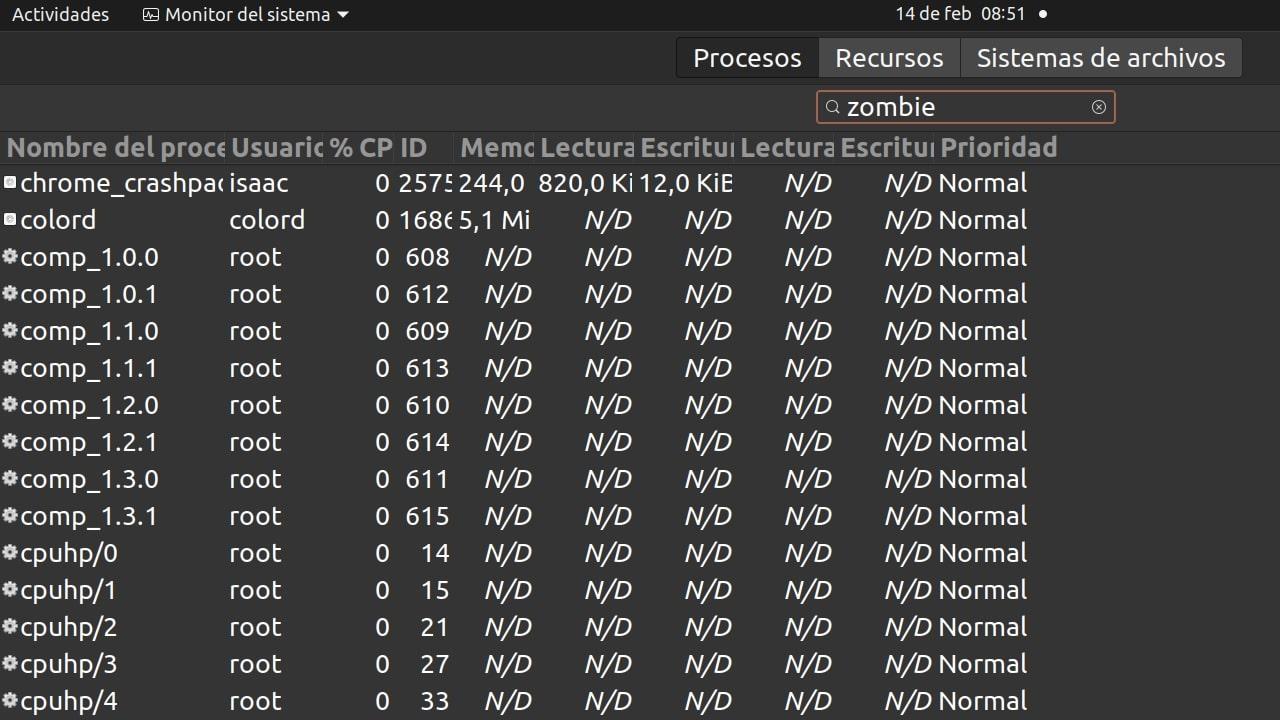
If you are not comfortable using the terminal or simply prefer a visual solution, in many Linux graphical environments you can use the System Monitor or equivalent tools that offer a graphical view of the processes.
The general procedure would be something like this:
- Open the app System Monitor from your desktop menu.
- Go to the tab Processes, where all active processes are listed.
- Use the search tool (usually a magnifying glass icon) to search for terms like zombie or look at the status column to locate processes marked as or Z.
- Select the problematic process, right-click, and choose the option to "Kill" or “End process”.
For this to work correctly, it's crucial to ensure the monitor is displaying all system processes , not just those of the current user. There's usually a checkbox or option in the settings that allows you to "Show processes from all users" or something similar.
Good practices to prevent the proliferation of zombies
Beyond the tricks for killing zombies once they have appeared, it is worth applying some good practices to minimize the occurrence of these processes in production systems.
Among the most important recommendations are:
- Keep the system and software up to dateOften, zombie processes come from bugs that have already been fixed in later versions of a server or application.
- Review the scheduling of child processesIf you develop software that uses fork(), make sure you handle SIGCHLD correctly and call wait() or waitpid() for each child that terminates.
- Monitor periodicallyIncorporating commands like ps -el, ps axo stat,ppid,pid,comm or top into monitoring scripts or observability tools helps to immediately detect zombie spikes.
- Investigate the origin when recurring zombies appearIf they are always children of a specific service (for example, a mail server or a specific daemon), it may be necessary to review its configuration or version.
On occasion, specific scripts (for example, called zombi.sh ) have even been published that automate all this logic: they locate zombies, identify their parent processes, send the appropriate signals, and attempt to clear the process table. They are useful as a last resort when manual methods fail, but it's always important to know what they are doing behind the scenes to avoid surprises.
In short, understanding what a zombie process is, how to view it with `ps` and `top` , how the `SIGHUP` , `SIGCHLD` , and `SIGKILL` signals affect parent processes, and what programming patterns lead to this state allows you to easily diagnose and resolve virtually any problem related to dead processes in Linux, keeping your systems cleaner, more stable, and with the process table under control.


Passionate writer about the world of bytes and technology in general. I love sharing my knowledge through writing, and that's what I'll do on this blog, show you all the most interesting things about gadgets, software, hardware, tech trends, and more. My goal is to help you navigate the digital world in a simple and entertaining way.