- FancyZones of power toys It allows you to define fully customized window designs, ideal for making the most of ultrawide monitors.
- It is possible to create advanced layouts (for example, a centered 2560 x 1440 zone and four side 1280 x 720 zones) by editing the FancyZones JSON file.
- The combination of mouse and keyboard window capture, configurable shortcuts, and multiple zones makes window management much more efficient.
- Tools like Windows Borderless Gaming, DisplayFusion or Virtual Display Manager complement FancyZones for gaming, streaming and settings multi-monitor complex.
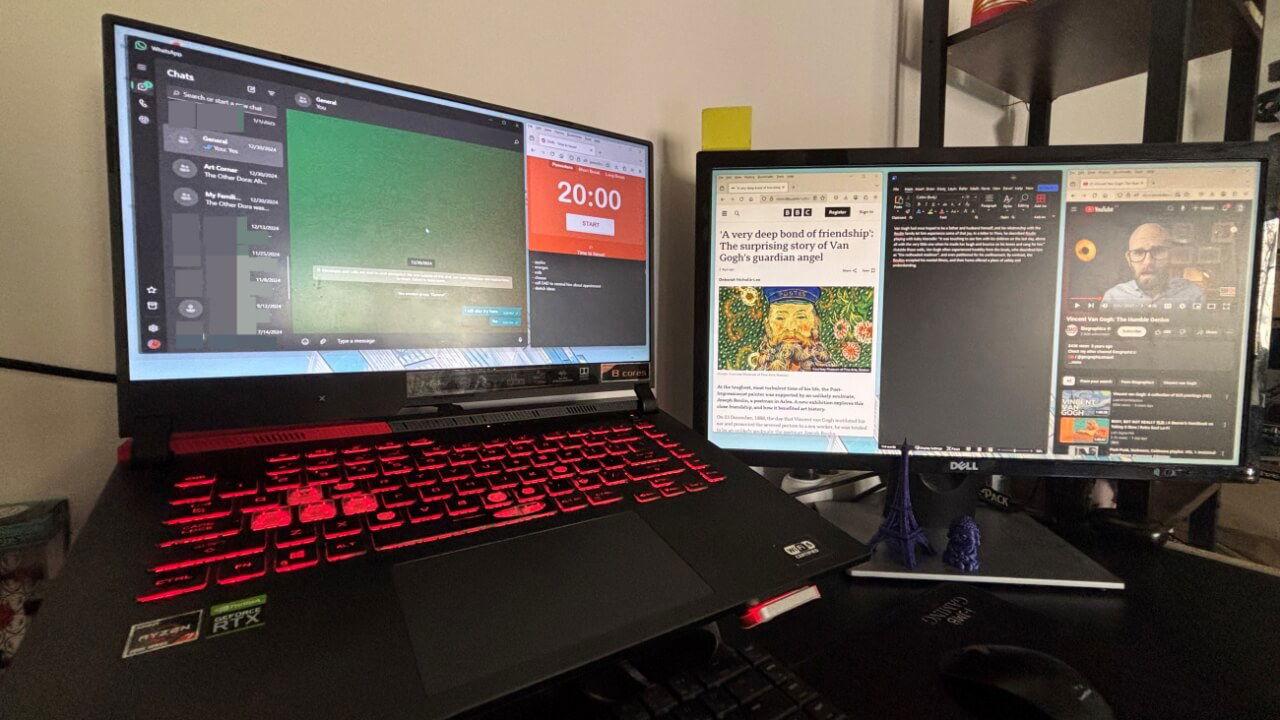
Having an ultrawide monitor is wonderful … as long as you can manage all that width. If you don't organize your windows properly, you end up with a chaotic mess of open applications, poorly centered games, and videos floating everywhere. With FancyZones, Microsoft PowerToys ' window management tool , you can transform that gigantic screen into a perfectly organized workspace (or gaming setup).
In this article, you'll learn step-by-step how to create custom window layouts for ultrawide monitors with FancyZones, how to take advantage of real-world configurations like a 16:9 zone matrix on a 5120 x 1440 screen, and how to combine it with tools like Windows Borderless Gaming and picture-in-picture browser extensions to get the most out of your monitor. Everything is explained in clear, accessible Spanish, without unnecessary technical jargon, but with plenty of detail.
What is FancyZones and why is it ideal for ultrawide monitors?
FancyZones is a window management utility included in Microsoft PowerToys that lets you define "zones" on your desktop: predefined areas where windows automatically snap into place when you drag them or use keyboard shortcuts . It's like taking Windows window snapping to the next level, but designed for real productivity.
On an ultrawide monitor like a 5120 x 1440 , relying solely on the standard Windows docking feature (two or four windows) is insufficient. FancyZones lets you create fully customized layouts: you can have three columns, five windows of varying sizes, priority zones, or a complete mosaic to your liking. All of this is managed with templates and layouts that you can change in seconds.
PowerToys is free and open source , developed by Microsoft itself, which means it integrates seamlessly with Windows 10 and Windows 11. Besides FancyZones, it includes other utilities (quick file search, image resizing, advanced keyboard shortcuts, etc.), but here we'll focus on the window organization feature.
For ultrawide monitors, FancyZones stands out from other tools because it offers pinpoint control over window layout, which is key if you work with 4 or 5 applications at once, if you stream, develop software, trade, or simply want everything neatly arranged without constantly dragging edges by hand.
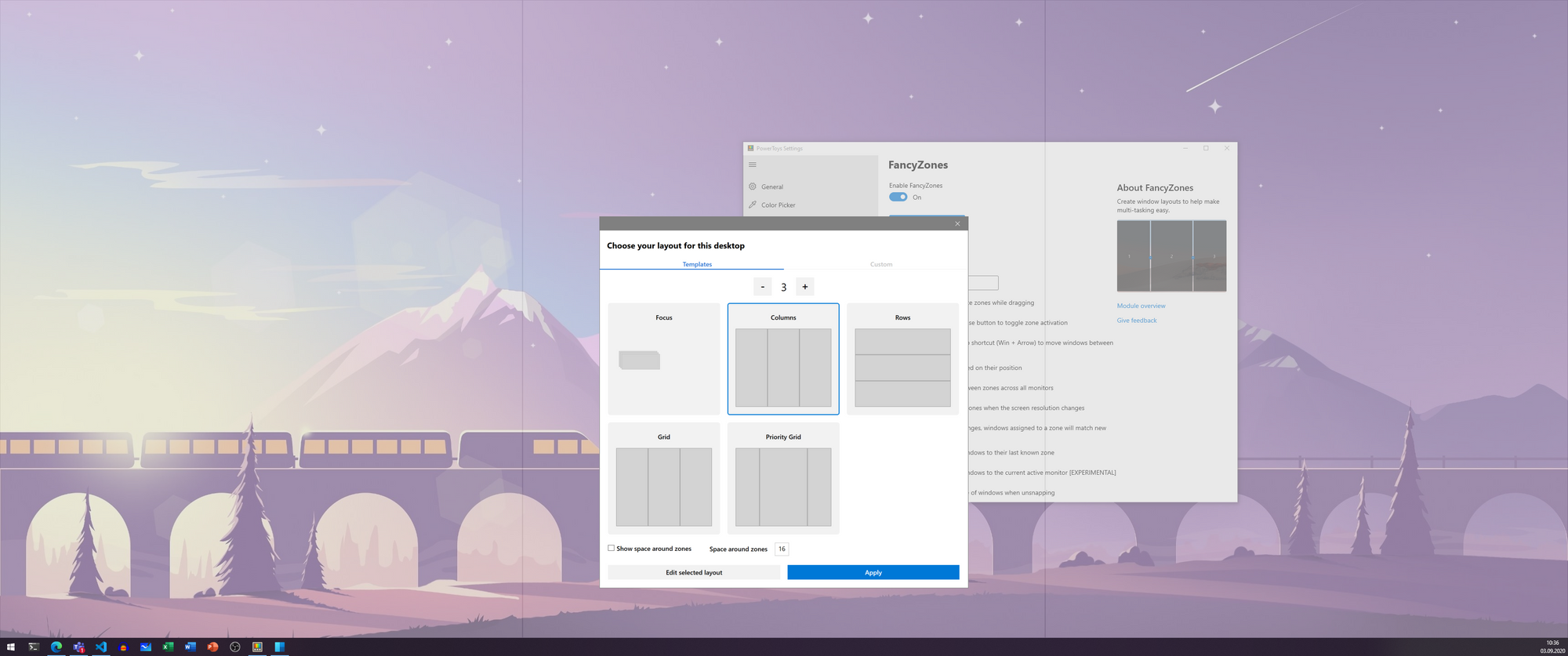
Install PowerToys and activate FancyZones on Windows
The first step is to install Microsoft PowerToys on your computer. You can download it from the Microsoft Store or from the official Microsoft PowerToys GitHub repository. It's a lightweight program (around 80-90 MB), works on Windows 10 and Windows 11, and is updated quite frequently.
Once PowerToys is installed , open the app (you'll see the icon in the notification area, next to the clock) and go to the FancyZones section . Make sure the feature is enabled; there's usually a toggle switch to turn it on or off.
The basic way to use FancyZones is very simple : drag a window and, while moving it, hold down the Shift key . The defined zones will be displayed on your monitor, and if you release the mouse button over one of them, the window will automatically adjust to the size of that zone.
If you prefer not to use Shift , in FancyZones' options you can uncheck "Hold down Shift to activate zones while dragging". In that case, the zones will appear as soon as you start moving a window, without needing any modifier.
In addition to the mouse, FancyZones integrates with keyboard shortcuts typical Windows features. If you enable the option “Replace Windows Docking”, you will be able to use Win + arrow keys to move windows between zones instead of the standard behavior of splitting the screen into halves or quadrants.
Create custom designs for ultrawide monitors
The magic of FancyZones lies in its layout editorwhich allows you to create fully customized layouts. To access the editor, you have two options: from the FancyZones settings in PowerToys by clicking on “Open layout editor”, or by using the default keyboard shortcut Win + Shift + ` (backtick key or grave accent).
When you open the editor, you'll see several predefined templates : column layouts, row layouts, grids, column priority, and more. You can specify how many windows you want to accommodate, and the layout will adapt to the chosen number. Selecting a layout displays a preview and automatically applies it to the active monitor; double-clicking applies it and closes the editor.
For ultrawide monitors, "Grid" or "Priority Grid" layouts are usually the most useful. For example, a 3-column grid with a wider center column works great if you want a main window in the center (browser, IDE, game) and other auxiliary windows on the sides (chat, media player, notes, etc.).
If none of the templates appeal to you, you can create your own design from scratch. In the design editor itself, at the very bottom, you'll find the "Create new design" option. There you can choose between two modes: Grid and Canvas . Each has its own logic and editing method.
Real example: 5120 x 1440 configuration with 5 zones 16:9
A very interesting use case for 32:9 ultrawide monitors (5120 x 1440) is to create a design that simulates multiple 16:9 screens within the same monitor. This allows you to play games, work, and stream with areas that behave like "normal" monitors.
A very practical layout consists of 3 columns and 2 rows , creating 5 zones in total: a large central zone of 2560 x 1440 (full 16:9 aspect ratio) and four side zones of 1280 x 720 (two on the left and two on the right, stacked vertically). This layout is perfect if you want to have a main game or application in the center and auxiliary windows (chat, OBS, browser, music, etc.) on either side.
To set something like this up from the editor , you first create a Grid layout with 3 columns. Visually, you don't need to adjust it perfectly, because you can fine-tune the percentages later in the FancyZones JSON configuration file. In the GUI, you define the three columns, save the layout, and apply it.
FancyZones saves your custom layouts in a JSON file called zones-settings.jsonIt is usually found on a route similar to: C:\Users\TU_USUARIO\AppData\Local\Microsoft\PowerToys\FancyZones\zones-settings.jsonTo edit it without problems, it is recommended to completely close PowerToys from the notification area before touching the file.
Within that JSON you will find a “custom-zone-sets” block where your designs are stored. Each one has a uuid, an name, an type and a section "info" with the technical details: number of rows and columns, percentages, cell layout, spacing, etc. For the example discussed, the key part of the design could have this conceptual structure:
– 2 rows and 3 columns
rows-percentage: to divide the height by 50% (two equal rows)
columns-percentage: for left and right columns of 25% and a central one of 50%
cell-child-map by combining the central cell in both rows (for the 2560 x 1440 zone) and defining the four independent side zones.
In a practical example, the cell map could be something similar to: , ]where index 1 represents the large central zone spanning two rows, and indices 0, 2, 3, and 4 represent the four individual side zones. The important thing here is to respect the uuid and the name of your layout and replace only the content of "info" if you are copying a configuration that has already been tested.
After saving the JSON file and restarting PowerToys , your custom layout will appear in the FancyZones editor, and you can select it as the primary layout for your ultrawide monitor. From there, dragging windows with Shift or using keyboard shortcuts will precisely fit the 16:9 zones you've defined.
Adjustment modes: mouse, keyboard, and multiple zones
FancyZones isn't limited to fitting windows into a single zone ; it also lets you span multiple zones at once and move between them in very flexible ways. This is especially useful on ultrawide monitors, where you sometimes want a window to occupy two or more adjacent areas.
Using the mouse, the basic method is to drag the window (with or without holding Shift, depending on your settings) until the zones appear. When the cursor hovers over one of them, it is highlighted. If you have enabled the option to use a non-primary mouse button, that button can also be used to toggle the display of zones.
To fit two adjacent zones , simply move the mouse near the shared border. FancyZones can simultaneously highlight both adjacent zones, and the window will adjust to the sum of both (i.e., the smallest rectangle that contains them). This allows you to achieve intermediate sizes without changing the layout.
If you want to cover several areas with more controlYou can drag the window to an area and, while moving it, hold down the key CtrlThis allows you to select multiple areas and have the window fill the entire set.
You can also do all of this using only the keyboard.If you enable “Replace Windows Docking” and select “Relative Position” under “Move Windows By,” you can use Win + Ctrl + Alt + arrow keys to expand the window to multiple zones depending on its position in the layout.
In addition, FancyZones adds a very useful shortcut To switch between windows that share the same area: Win + Pgup / PgdnIf you have several apps docked in the same area, this shortcut lets you switch between them without moving anything else.
FancyZones keyboard shortcuts and advanced settings
The power of FancyZones multiplies when you master its shortcutsThe most important one we have already mentioned: Win + Shift + ` Open the layout editor (although you can change this combination in the PowerToys settings).
To quickly move windows between zonesIf you have enabled the option to replace Windows docking shortcuts, you can use:
Win + Left y Win + Right to jump between zones according to their index, or
Win + any of the arrow keys (up, down, left, right) if you choose “Relative position” in “Move windows according”.
On the other hand, you can assign direct shortcuts to your custom layoutsIn the design editing box, you can define a number; then, when you press Win + Ctrl + Alt +, you'll apply that layout all at once to the active monitor. This is very useful if you switch between a layout for work and another for gaming or streaming.
FancyZones includes a fairly extensive list of customization options in its settings panel: the editor's location, the margin between zones, how the resolution changes, background colors, border colors, zone numbers, the opacity of active and inactive zones, and more. All of this helps you tailor the visual behavior to your preferences or make the zones look better on your monitor.
There are particularly interesting options for multi-monitor setups , such as allowing zones to span across screens (provided they all have the same DPI scaling factor) or displaying zones on all monitors when dragging a window. You can also specify whether opening a new application should open it in the last known zone or simply on the current monitor.
Grid vs Canvas: two ways to design your zones
When you create a new custom layout , FancyZones offers two design "templates": Grid and Canvas . Each is better suited to certain uses, especially on ultrawide screens.
The Grid model works with a flexible grid . It starts with three columns and allows you to divide and combine areas using the mouse or keyboard. It's a relative design: the proportions are maintained when you change the resolution or use the same layout on a different-sized monitor.
Using the mouse, splitting and merging areas in Grid is very intuitive : click on an area to split it, hold Shift if you want to change the orientation of the divider (horizontal or vertical), and drag the edges to redistribute the space. To merge areas, hold down the left mouse button and drag to select multiple areas; then, choose the merge option.
You can also easily edit a Grid layout using the keyboard.You use Ctrl + Tab to focus the design, Tab to navigate between zones and dividers, S o Shift + S to divide an area, and the arrows to move the dividers. If you delete a divider with Delete, adjacent zones are automatically combined.
The Canvas model, on the other hand, works more like a free-form canvas . You start with a single area and add more, which you can move and resize freely, even overlapping them. It's ideal if you want very irregular layouts or layouts with overlapping elements, for example, to play short videos over other applications.
In Canvas, the keyboard also allows you to move and resize with precision: arrows to move 10 pixels, Ctrl + arrows for 1 pixel displacements, Shift + arrows to change the size in 10 pixel increments and Ctrl + Shift + arrows for fine adjustments in 2-pixel increments. With Ctrl + Tab alternate between the editor and the properties dialog box.
Key options to improve your FancyZones experience
In addition to layouts, there are fine-tuning options that make a big difference when using FancyZones daily. One of the most noticeable is "Spacing around zones," which lets you define a margin between windows. If you find it overwhelming to have them close together, increasing this value creates some breathing room between applications.
You can also configure how zones behave when they overlap , the highlight color when dragging a window, the inactive background color, the border and zone number, as well as the opacity of each state. This isn't just for aesthetics; it also helps you better recognize which zones you're using.
In the section on behavior when changing resolution or layout , you'll find options to keep windows in their zones when the screen settings change or when you modify the layout. FancyZones can automatically reposition and resize windows to maintain their "logical position" in the new layout.
If you work with applications that require elevated permissions (for example, Windows Terminal as administrator or Task Manager ), you might notice that they don't fit correctly into the zones. To fix this, it's best to run PowerToys as administrator as well; this will give FancyZones the necessary permissions to manage those windows.
Finally, there's a section to exclude apps from zone settings.You can write the name or part of the name of the executables, one per line (for example, Notepad o Notepad.exeThis is useful if there are programs you'd prefer never to automatically dock, such as certain system tools or annoying pop-up windows.
Combine FancyZones with Windows Borderless Gaming and Picture-in-Picture in the browser
For gaming and streaming on ultrawide monitors , FancyZones becomes even more powerful when combined with dedicated gaming and video tools. One of the most practical is Windows Borderless Gaming , which allows you to run games in borderless windowed mode at a specific resolution, but visually as if they were full screen.
With Windows Borderless Gaming, you can force your games to 2560 x 1440 (16:9) centered on a 5120 x 1440 screen, which works perfectly with the main 2560 x 1440 area we mentioned earlier. This is very useful when the game's FOV doesn't perform well in 32:9 or when you want to stream in a standard 16:9 format without any unusual cropping.
The advantage of using borderless window mode is that FancyZones can manage these windows like any other. If the game is in "fullscreen only" mode, it often can't be moved or resized properly, but in borderless mode it can, and then you can center it in your main area without problems.
For watching multimedia content in your browser ( Netflix , Prime Video, YouTube, etc.), there are extensions that create picture-in-picture floating windows. Some add a button to open the video in a separate window, which you can then maximize within a specific area of FancyZones.
This approach is ideal for ultrawide monitors : you can have the video player occupying one side area while you work or play in the center, and reserve another area for chat, social media, or anything else. This way, you take full advantage of the screen's horizontal space without having to constantly minimize or rearrange windows.
Alternatives and accessories for managing an ultrawide monitor
Although FancyZones is the top recommendation because it is free, lightweight, and developed by Microsoft, there are other useful tools for those who want even more control or advanced features.
DisplayFusion is a powerful alternative designed for advanced multi-monitor setups. It offers sophisticated keyboard shortcuts, the creation of virtual monitors (as if you had multiple logical monitors within a single physical screen, each with its own taskbar), and an event system that allows you to automate actions in response to certain triggers.
The major drawback of DisplayFusion is that its most complete version is paid. A free version is available, but it generally falls short if you want to fully utilize its capabilities. In many cases, PowerToys with FancyZones more than adequately covers the typical productivity and organizational needs of an ultrawide monitor.
If you're looking for truly virtual monitors , where each area behaves like an independent screen at the system level, iShadow's Virtual Display Manager is an interesting option . This tool allows you to physically divide your monitor into several "logical displays," although its system of templates and custom resolutions is somewhat more limited and less flexible when it comes to defining exact resolutions.
On the other hand, there are also browser extensions designed for ultrawide video , such as Ultrawideo for Chrome or Firefox, which expand the content to fill very wide monitors by eliminating black bars. They work quite well on 21:9 monitors, although in extreme formats like 32:9, some information may be lost on the sides.
Practical uses: work, study, programming and leisure
Once you master FancyZones, your ultrawide monitor transforms into a kind of "control panel" where you can have everything you need in view. For example, to study or follow online courses, you can place the class video in one area, your browser for searching information in another, your code editor in the center, and a digital notepad on the side.
Programmers can take advantage of layouts with 4 or 5 windows : Windows console and Linux terminal on the left, development environment in the center, and messaging application, browser, or documentation on the right. With a good FancyZones design, everything fits together without having to manually resize each time.
If you stream or create content , having an ultrawide monitor organized with FancyZones lets you place OBS, chat, control panels, and your main game or application in fixed zones. Combined with Windows Borderless Gaming and the use of 16:9 templates, it's much easier to maintain a clean and professional setup.
Even for more relaxed use, like watching series or browsing , a well-designed zone layout lets you have Spotify , your browser, a picture-in-picture player, and a communication tool all in view, without anything overlapping. The key is to spend some initial time creating two or three layouts that fit your daily routines and then switch between them using shortcuts.
FancyZones turns the "excess" screen real estate of an ultrawide monitor into an asset rather than a hindrance. A well-designed layout, combined with multi-zone snapping, keyboard shortcuts, and complementary tools, makes managing multiple windows simultaneously a natural and comfortable experience.


Passionate writer about the world of bytes and technology in general. I love sharing my knowledge through writing, and that's what I'll do on this blog, show you all the most interesting things about gadgets, software, hardware, tech trends, and more. My goal is to help you navigate the digital world in a simple and entertaining way.