- The Photos app Windows 11 displays multiple images in mosaic with selection from carousel.
- Pic Collage and Collage Maker in the Microsoft Store allow you to export collages with templates.
- There are apps mobile and online with autofill, filters, stickers and video options.
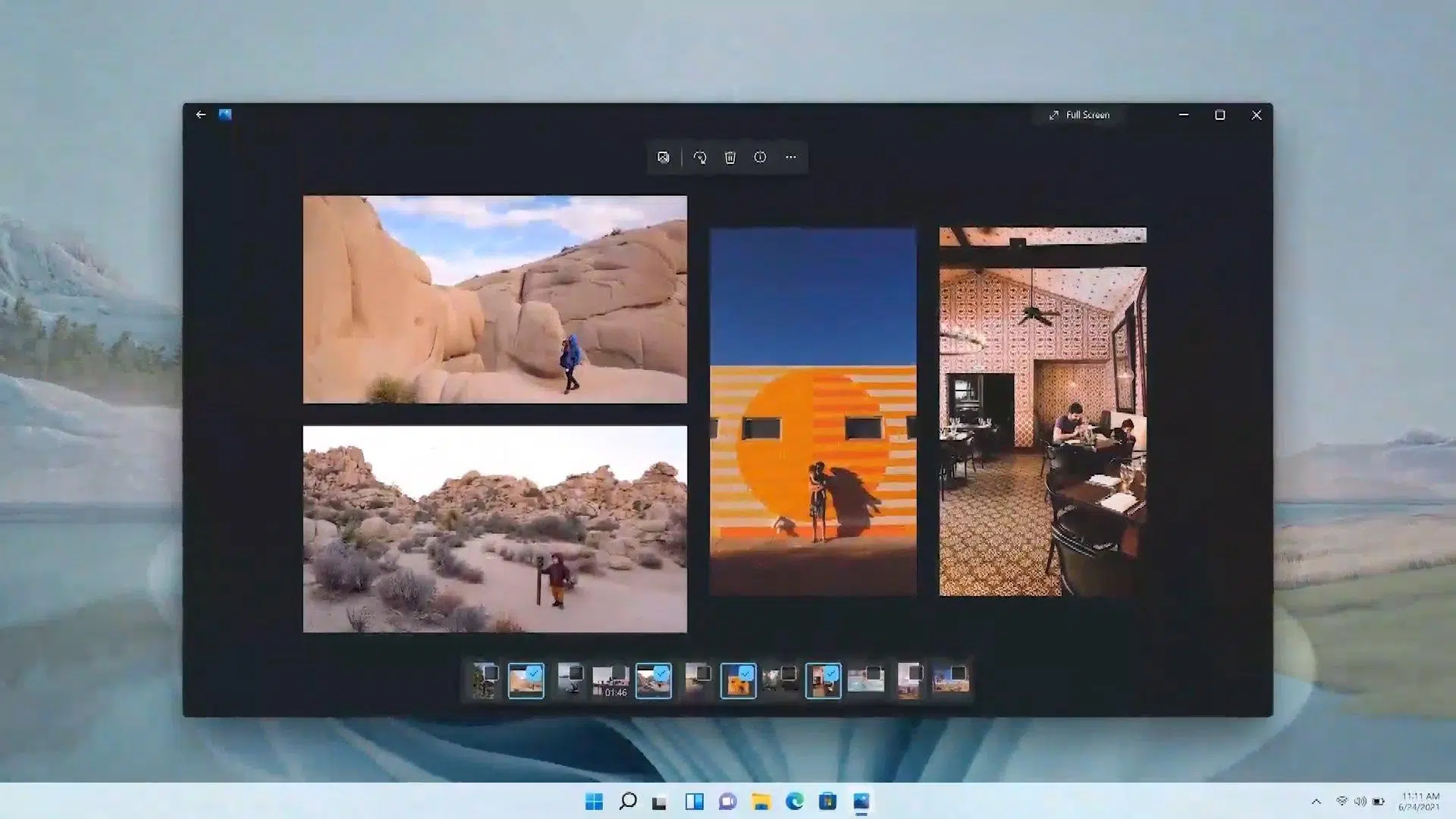
Creating image montages has become a wildcard resource for both social media and for presenting memories without complications, and Windows 11 brings a very interesting advantage: the Photos app itself allows you to view several images at once in a collage-like mosaic directly and quickly. This experience, combined with free alternatives from the Microsoft Store and online tools, leaves you with everything you need so you don't have to resort to heavy-duty programs.
In this guide, you'll find out how the native app's quick mosaic/collage works, what its limitations are, and how to complement it with tools from the Microsoft Store and other popular collage makers. You'll see everything explained clearly, with Design tips, FAQs, and a well-reviewed selection of apps so you can choose the one that best suits you.
What does "auto collage" mean in the Windows 11 Photos app?
The Photos app received a facelift in Windows 11 with a cleaner interface, centered controls that float above the window, and a revamped information panel. Featured within that experience is a bottom carousel that activates when you hover over the bottom of the window: from there you can Select multiple photos from the same folder and view them together in a mosaic within the app itself.
As you add images from the carousel, they automatically reorder to display a beautiful set. No templates or complex steps required: just choose several thumbnails and let Photos arrange the pieces as a collageIt's a super convenient way to compare and share group photos without leaving the app.
In addition to the tile, the redesign includes more shortcuts to photo information and basic controls. This interface tweak, shown by product managers during the development of Windows 11, was first rolled out to the Insider channel with the arrival of the final version of the system. planned for October 5While the focus here is on the multi-image mosaic, the set of changes makes the app more streamlined for managing and reviewing your library.
It is important to keep in mind that this collage of photos is above all a dynamic mosaic display within the app. If you're looking for a final image file with borders, frames, text, or stickers, you'll want to complement it with dedicated collage makers (there are several free and very simple options).
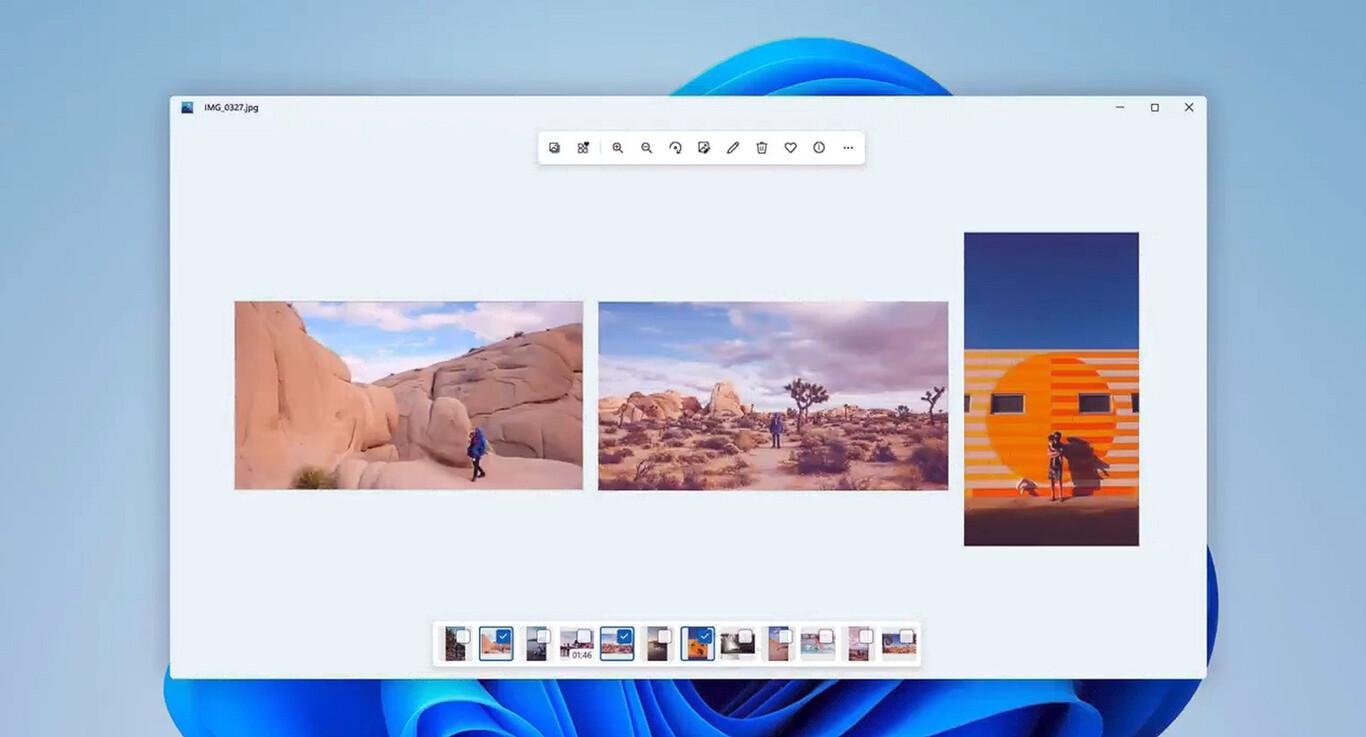
How to create a collage with Windows 11 Photos
The process is straightforward, and that's precisely why it's so useful in everyday life. To see it in action, open any image from a folder with more photos. Place your cursor at the bottom of the window to bring up the carousel, and from there, Check the photos you want to add to the viewIn the same window you will see the mosaic order itself.
- Open a photo in Photos within a folder with multiple images. Activate the bottom carousel by moving the mouse towards the bottom of the window.
- Click multiple thumbnails in the carousel to add them. The selected photos are displayed in the same window in mosaic format..
- As you add or remove images, the mosaic automatically rearranges itself for a balanced presentation. You don't need to configure templates.
This working mode is perfect for reviewing sessions, comparing shots, or showing a selection without wasting time. If you need to "break out" of that view and prepare a final downloadable collage, then switch to a dedicated tool with templates, borders, and filters or stickers for finishing.
As a bonus, remember that the app controls are now centered and float above the content, so you can access zoom, file information, and basic settings more quickly. This approach helps the tile look comfortable on the screen, without the interface getting in the way, and reinforces the idea of display multiple photos at once with zero friction.
Free options in the Microsoft Store to go a step further
If you need a final result in the form of a composite image, with the option to export frames or text, the Microsoft Store offers free alternatives with a very good ease-of-use/result ratio. For example, Pic Collage has a Windows version which you can download from the Store. Its philosophy is to offer a variety of templates and grid options; it allows you to manually place photos or let the app automatically arrange them in the frames.
Another well-received option is Collage Maker – Video, Photo Grid & MontageIn addition to photo grids, it's geared toward montages that combine video and images, useful if you want to create dynamic posts. It focuses on simplicity, allowing you to create quick grids, add touches like borders, and share them without any hassle.
These Store options give you exactly what the Photos tile view doesn't: file export, dedicated templates, and decorative elements. For many users, simply opening a pre-made template is enough. fill it with your images and adjust spacing, corners or backgrounds to have a collage ready in minutes.
If you prefer a more complete photo editing approach that also includes collage, there are classic desktop programs like PhotoPad (from NCH), which in addition to cropping and retouching includes a collage module with automatic grid, orientation adjustment and background selectionBelow we tell you the pros and cons of this approach.
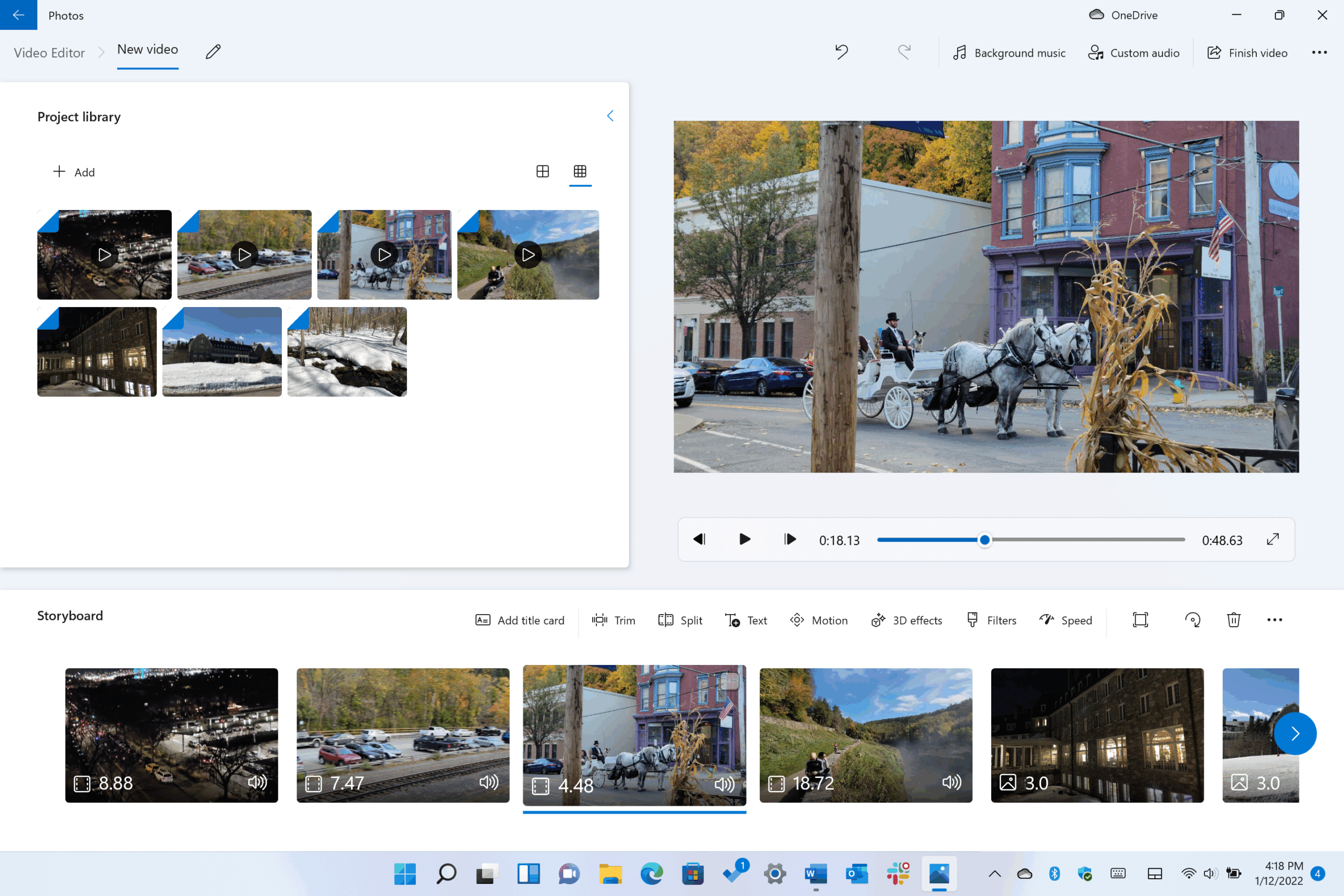
Windows desktop programs and utilities with collage module
If you prefer to work on a PC with installable tools and more precise control, there are some interesting options. PhotoPad (NCH) is a photo editor with a collage module that supports adding images manually and automatic grid with unlimited number of photos. Allows you to choose orientation, canvas size, background color or image, cell spacing, and rounding corners.
PhotoPad pros highlighted in the feedback received: ability to manual and automatic collage, background selection (color, image, or app options), space and corner adjustments between photos, and a small installation size. On the downside, it doesn't allow you to add stickers or filters to each image separately, nor does it allow you to choose a completely custom collage size.
Also worth mentioning is a free online tool created by Adobe, presented as Express It in the analyzed content. It works in a browser, with a wide library of resources (stickers, predefined graphics) and ready-to-fill collage templates. The “Free-style” mode helps you build unique designs, supporting you in customization options to enhance the result without previous experience.
Beyond specific tools, using a collage program on a PC offers clear advantages over traditional “manual” collage: you save physical materials and preparation time, you can Choose a base design and fill it with photos, videos, and even GIFs, and almost all apps let you add text, frames, and stickers to decorate to your liking.

Design tips to make your collage look great
Visual consistency is key: try to ensure that all images share a common mood in terms of color, lighting, or theme. Avoid applying multiple styles at once; a unified aesthetic tells the story better and is less overwhelming to the eye. For portraits, learn to remove shine from face with photoshop helps to unify the result.
Define a focal point: Choose one main photo and let the others surround it. This focus helps direct attention and gives the overall image a sense of hierarchy. use size or position to emphasize the key image.
Simplify when in doubt: opt for clean edges, neutral backgrounds, and clear photos. In mood boards or dense compositions, less is more. This way, you'll avoid the collage becoming too confusing. looks cluttered or messy.
The essential thing to remember
- Collage creation tools simplify the process and help you achieve eye-catching designs without complicating things.
- There are alternatives for Windows that can be downloaded quickly from the Store, and online and mobile options with good assortment of templates.
- If you need stock footage and creative assets, suites like editing and video include collections to enrich your collages.
With the Photos app's tile view for reviewing multiple images at a time, and collage makers from the Microsoft Store and mobile apps for finishing touches, you have everything you need to go from idea to result painlessly. With these options and tips, Creating powerful collages is faster and more accessible than it seems..


Passionate writer about the world of bytes and technology in general. I love sharing my knowledge through writing, and that's what I'll do on this blog, show you all the most interesting things about gadgets, software, hardware, tech trends, and more. My goal is to help you navigate the digital world in a simple and entertaining way.