
Method 1: How to create a 3D presentation with focusky
Now, let's see the steps you need to follow to create a 3D presentation with focusky:
You might also be interested in reading about: Enabling Presentation Settings in Windows 10
Part 1. Start with a 3D background
- Step 1:: Choose a 3D background template to start your presentation work. A vivid 3D background template is one of the secrets to creating a successful, high-quality stereoscopic presentation to attract your audience.
NOTE : In addition, it has more presentation background configuration options: 3D BG, Image Background, Video BG and Color BG.
- Step 2:: Select the 3D background, then edit and customize your own stylish 3D background template according to your needs.

Part 2. Customized with SWF and animation effects
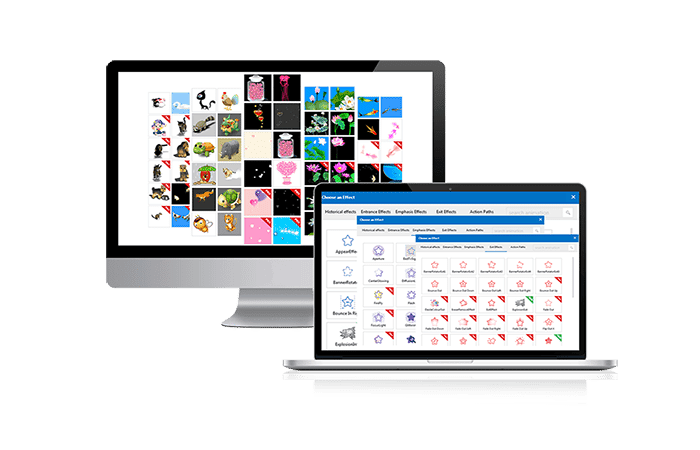
Make full use of abundant SWF material resources and add some wonderful ones to make your presentation more amazing and impressive. Especially in some educational presentations, dynamic SWF materials are vital to create an active presentation atmosphere.
Moreover, you can also apply professional animations to create an amazing 3D effect and make people understand it better. Whether you add multiple animations (entrance, emphasis, and exit) to a single object or apply an action path on text, you can easily combine both options to customize a distinct presentation.
Part 3. Create 3D transition effects
Make sure to create amazing 3D transition effects in your presentation if you want to enhance it into a professional piece of work.
Great 3D transition effects exactly help to break the traditional slide-to-slide transition effect and give your audience a 3D cinematic experience. Make the most of Focusky's 3D zoom, pan, and rotate effects, which will enable you to convey your message smoothly.


Part 4. Publish your presentations to the cloud
It will be better to publish your created 3D presentation online if you want to store the presentation in the free space of the cloud and make it accessible to more people.
- Step 1:: After creating your presentation, click on «Publish» and choose the type «Publish to the cloud«In a matter of minutes, your presentation will be displayed in the cloud and your readers will be able to view your work anytime, anywhere.
You can download it for Windows here
You can download it for Mac here
Method 2: How to create a 3D presentation with PowerPoint in a few steps in Windows 10 Fall Creators Update
Did you know that with the Windows 10 Fall Creators Update , you can now easily add 3D objects to your PowerPoint presentations, Word documents, and Excel spreadsheets? 3D in PowerPoint, Word, and Excel is now widely available to Windows users with O365 subscriptions and the Fall Creators Update, and it will completely revitalize and make your standard presentations stand out.
With the new 3D features, you can create presentations quickly and easily in just a few simple steps. In this part of the tutorial, we'll show you how to make your PowerPoint 3D presentation stand out!
Steps to create a 3D presentation with PowerPoint
- Step 1:: First, open a PowerPoint presentation.
NOTE : You don't need any extensions or fancy add-ins; the latest version of Office 365 is all you need. Inserting a 3D model is as easy as inserting a photo or video.
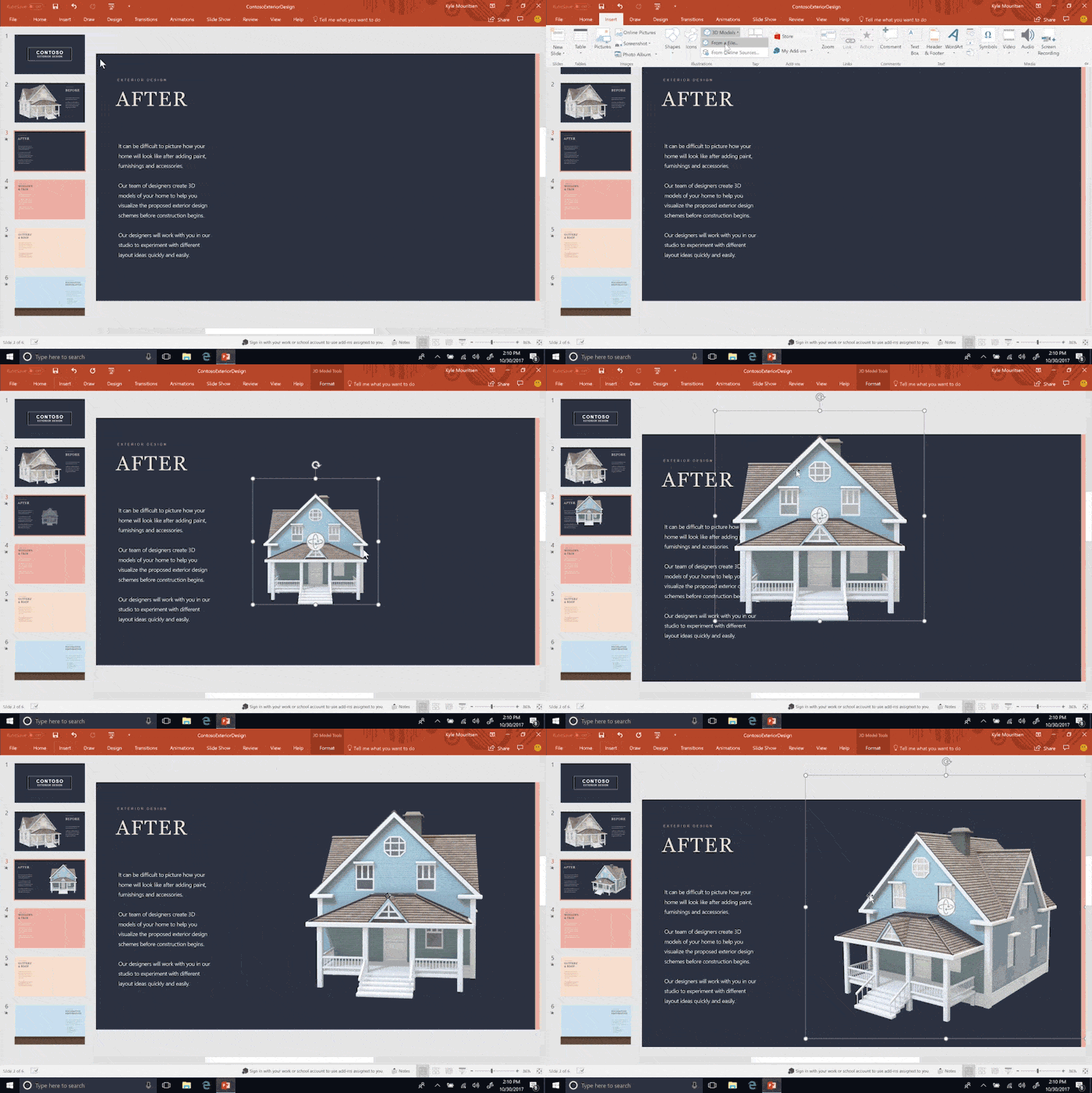
- Step 2:: In the tab Insert, you will find the 3D Models drop-down menu to add a model you have created in Paint 3D or take one from any image bank or from an online community that is related to 3D content catalogs.
- Step 3:: View, resize and rotate your 3D object.
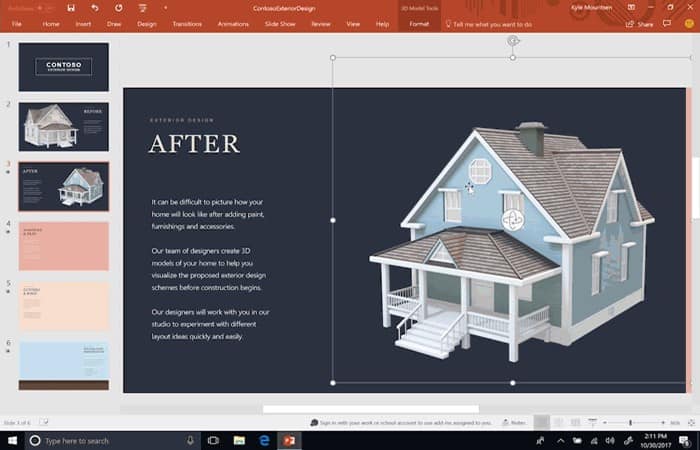
- Step 4:: Place it on the slide and use the controls to manipulate the model, rotating, sizing and positioning it until you like how it looks. A new contextual tab will appear 3D model tools, and you can use the Preset 3D model views to choose the specific targeting you want your audience to see.
- Step 5:: Duplicate your slide and reposition your model to the next view you would like to highlight.
NOTE : There's no need to search for different images to identify different perspectives. With 3D, you're in control!
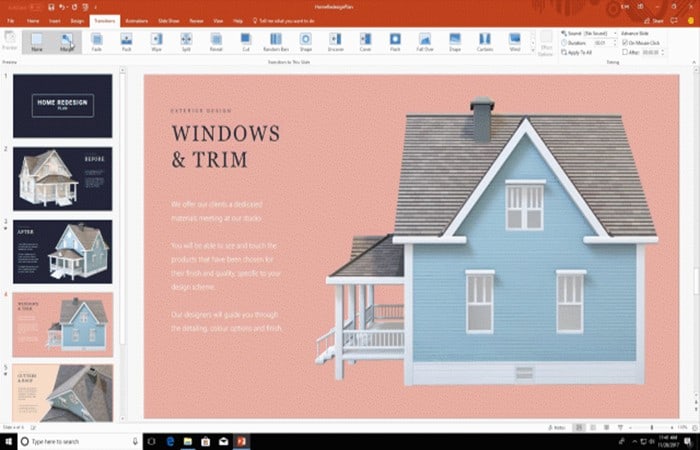
- Step 6:: Use a new transition type, Morph, with 3D models to create cinematic transitions between slides.

- Step 7:: The final step is to add the Morph transition so your 3D object will automatically animate and seamlessly change perspective across all your slides.
Method 3: How to Create a 3D Presentation with Images in PowerPoint (Step by Step)
In this part of the tutorial, you'll learn how to spice up your presentations by creating 3D images (also known as out-of-bounds images). And the great thing about this technique is that you can do it quickly and easily in PowerPoint (no Photoshop required). These background removal and image cropping techniques work in all versions of PowerPoint 2010 and later.
Steps to create a 3D presentation with PowerPoint
The general process for creating 3D images in PowerPoint can be broken down into three simple steps (all detailed below):
- Step 1 —: Find a good image to create the 3D effect with
- Step 2 —: Frame your image in PowerPoint
- Step 3 —: Create the 3D effect
Part #1: Find a good image to create a 3D presentation
When creating 3D images in PowerPoint, you want to start with good images and make sure that the parts you want to highlight (the 3D effect) meet two specific criteria.
Image Criterion #1. High Contrast
You want to make sure that your object stands out clearly from your background, rather than blending into your background.
- E.g., the top of the apple below has good contrast (and is great for the 3D effect), while the bottom of the apple with the shadow does not, as it blends in with the desktop.

Image Criterion #2. The Complete
You want to make sure your object is complete and not cut off.
- E.g.In the image below of the couple, the right side of the photo is good for creating the 3D image pop-out effect (since everything on that side of the photo is whole and complete) while the left side of the photo is not good for this effect as the photo is cropped.
NOTE : Your image doesn't have to be perfect. Keep in mind that only the object within your photo for which you want to create the 3D pop-up effect needs to meet the criteria above. The image itself doesn't need to be perfect.
Part #2: Frame your photo to create a 3D presentation
Now, let's see how to frame your photo to create a 3D presentation.
Step 1. Duplicate your photo
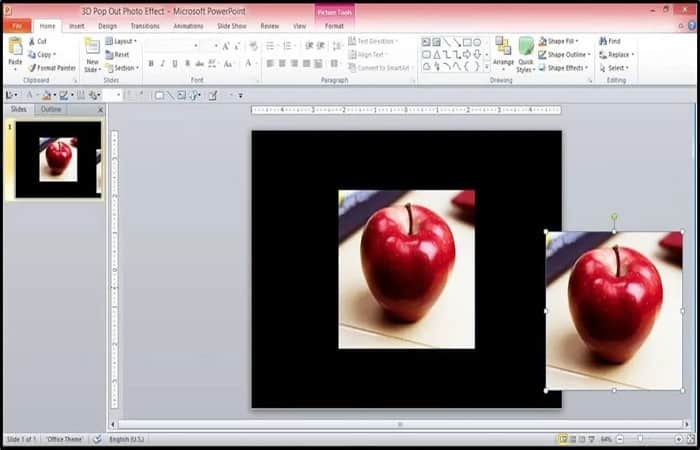
With your image selected in PowerPoint, copy and paste the image to make a copy (or press CTRL + D on your keyboard for PC users) and move it to the right side of the screen. We will use this copy in part 3 of this tutorial.
Step 2. Add a border to your image
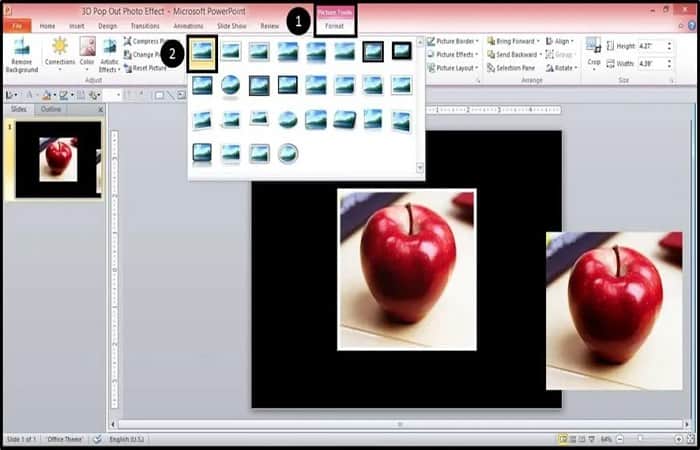
Select the original image in the center of the slide and, on the Picture Tools Format tab , select the simple white frame on the far left of the Picture Styles to make the image look more like a photo.
Step 3. Cut out your image in the shape of a trapezoid
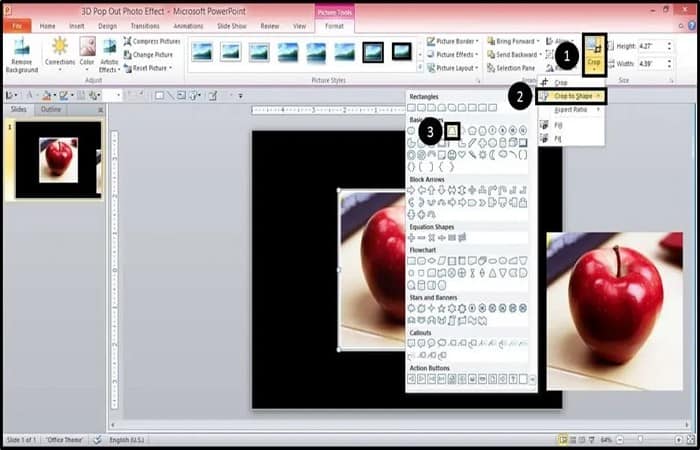
- With the image frame applied (and the image still selected), open the bottom part of the Crop menu, Choose Cut out to the shape and inside the Shapes Gallery, Select the trapezoid shape.
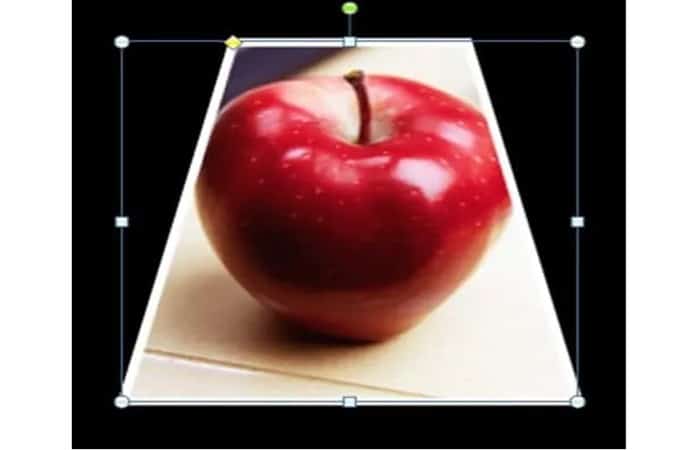
- The result is that your image is cropped into that specific shape. As a side note, you can use this technique Cut in shape to cut any of your images into any of the PowerPoint shapes for your presentations.
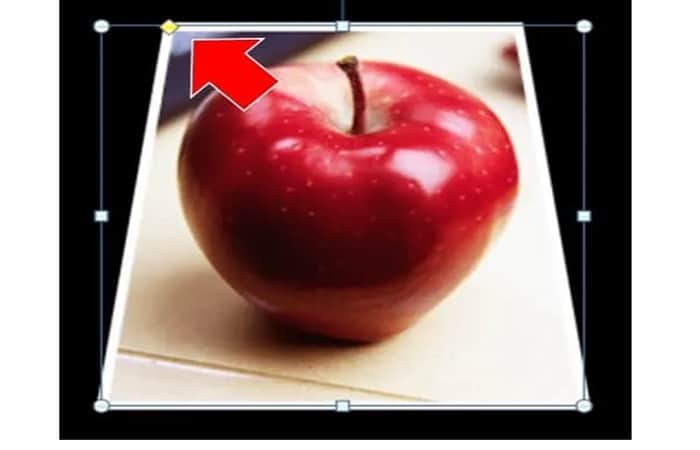
Step 4. Adjust the trapezoidal angle
- With your image cut into a trapezoid shape, adjust the angle of the trapezoid so that you can see the entire shape you want to pop out of your image (creating the 3D effect).
- To adjust the angle of the trapezoid, select the yellow diamond at the top of the shape with your mouse and manually adjust it to fit your image.
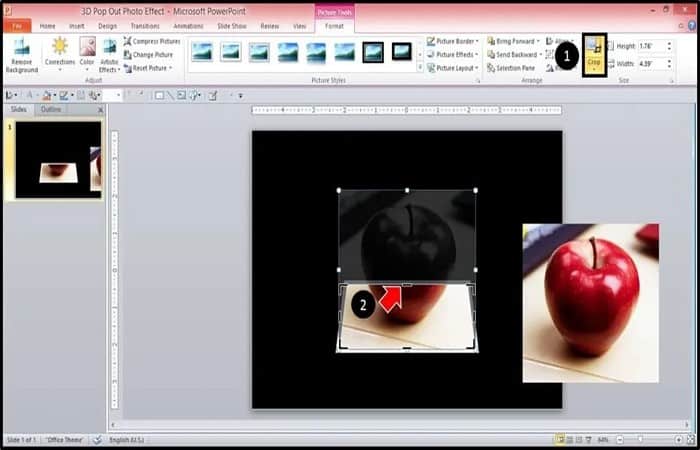
Step 5. Crop your image
- With the trapezoidal angle set, press the top of the Crop command (add black dashed lines around your image) and pull down the black lines (the center black line in this case) that frame your photo so that most of your image is cropped outside (this will make sense in a moment).
For this image of an apple, we've cropped it just below where it will appear (in the next step).
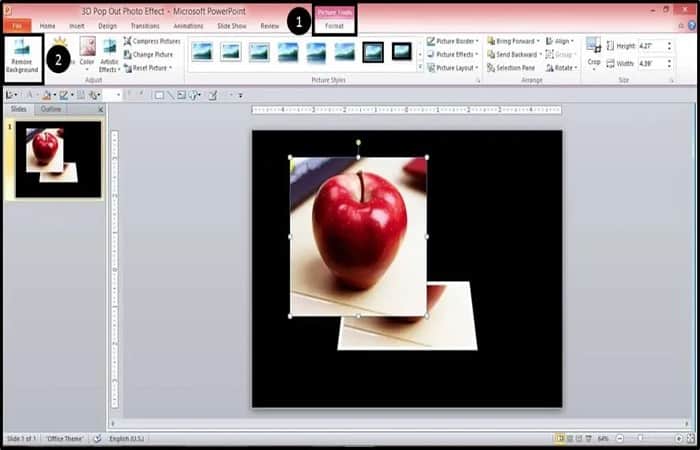
NOTE : You can experiment with how much of the photo you want to crop, depending on how much you want the image to stand out in the 3D effect. You can also adjust this manually later, so don't stress too much about this cropping step.
Part #3: Create your 3D effect
With the first image set up and cropped, we will now use the duplicate image we created in Step 1 of Part 2 to create the 3D image effect.
Step 1. Remove the background from your second image to create a 3D presentation
- Select the second duplicate image (we moved it back to the center of the slide) and from the tab Image Tools Format, on the far left, Select Remove background.
NOTE : The Remove Background feature is not available in PowerPoint 2007 and earlier versions. If you have an earlier version of PowerPoint, you can use Paint (pre-installed and free on most computers) to remove the background.
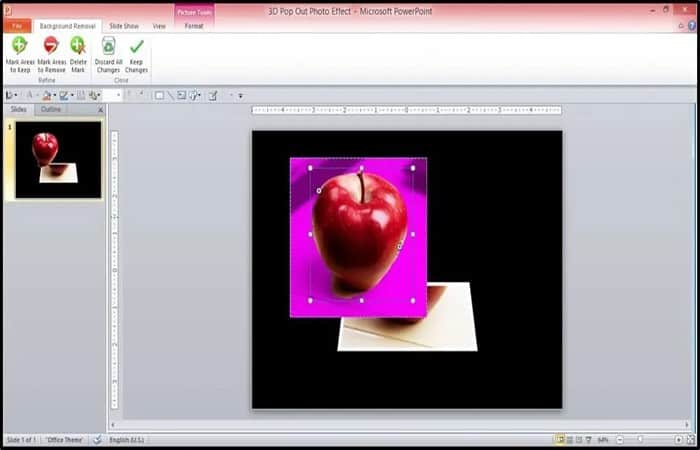
- Then, make adjustments to your photo using the commands Mark areas to maintain and Mark areas to delete on your tape, until you have your entire image framed and the background you want to remove in pink (see image below).
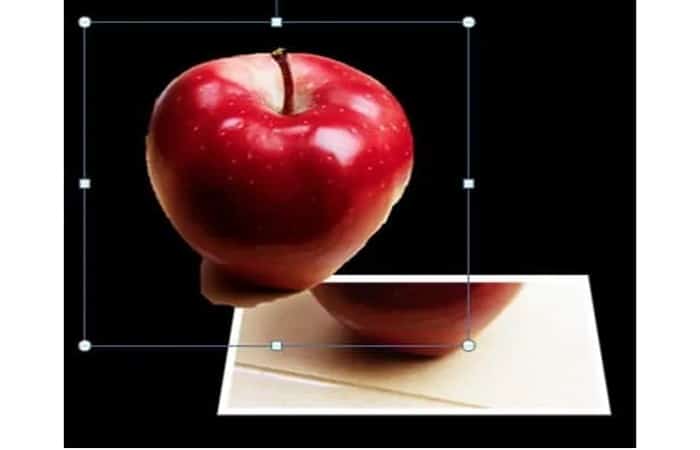
- Removing the background from an image can take some time, depending on the photo and how precise you want it. When you're done, tap Keep changes on tape.

Step 2. Place the image above tu cropped photo
- With the background removed from your image, simply place it over your other cropped image, aligning the two exactly, and you've created the 3D pop-out effect right here in PowerPoint!
- If you find that your image is too large in the end, you can reduce your file size by compressing your images.
NOTE : You can play with the trapezoidal background image (which we created in step 6 of part 2) to adjust the 3D pop-up effect
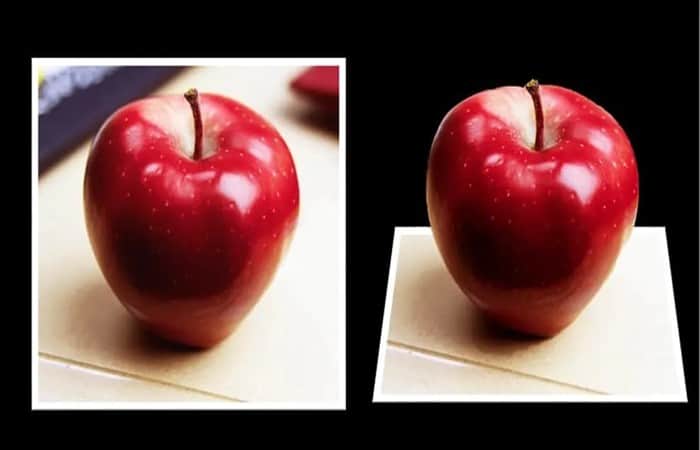
(Optional step) Switch from static photo to 3D pop-up photo in slideshow mode:
From here, if you want to create the same 3D pop-up effect with the following steps:
- Step 1:: Place the 2D image on top of your 3D image and use a PowerPoint animation as the animation Disappear, to go from the 2D image to the 3D image.
- Step 2:: Set up the images on two separate slides (in exactly the same position) and use one of PowerPoint's transitions (such as Fade or Wipe) to go from the 2D image to the 3D image.
Method 4: How to create an interactive 3D architectural presentation
Image: Upload large CAD and BIM files and easily view them in Model.
If you've ever wondered how to create an interactive 3D architectural presentation in just a few minutes, look no further. Presenting architectural designs is a necessity for both internal and external stakeholders.
However, the process of creating 3D architectural presentations before Modelo was time-consuming and frankly outdated. Up until this point, architects relied on screenshots, PowerPoint, GoToMeeting, and Dropbox to present complex designs to clients or colleagues. Arguably, engagement is lost in this static design process.
Naturally, 3D models are a big part of successfully communicating your vision to others, as you can immerse people in a realistic view, making 2D screenshots not as effective. So, the question is, how do you create a 3D architectural presentation and really engage your audience in a simple way? In this part, we'll explain:
Steps to create an architectural and interactive 3D presentation
Enter Modelo , a presentation platform that lets you seamlessly create interactive 3D CAD and BIM presentations, while storing your 2D assets and saving invaluable design time.
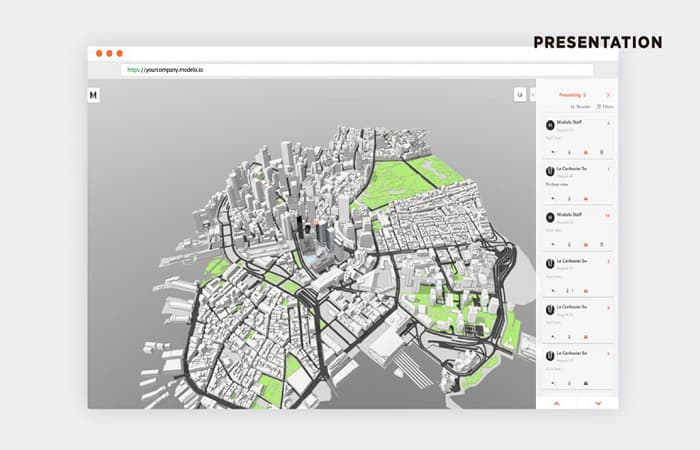
Creating 3D presentations with Modelo is easy because the platform is geared towards AEC professionals and is compatible with the file formats you already use, such as Revit, Rhino, 3ds Max, SketchUp, and Vectorworks.
Here is a breakdown of the 5 steps:
- Step 1:: Create a Model Account
- Step 2:: Upload your 3D design
- Step 3:: Update settings (such as lighting or material color, to show different design options to customers)
- Step 5:: Add 3D comments (these will guide the presentation)
- Step 6:: Press the button present
Why waste time presenting cumbersome BIM files? With Modelo, you can drag and drop BIM files and instantly view any part of your model. These large CAD and BIM files lose weight on the web, allowing you to quickly navigate and effortlessly explore any area of the model.
Here you can read about: Advantages of PowerPoint over other presentation tools
Conclusion
The goal is not only to communicate your ideas clearly, but also to truly immerse others in your vision and bring it to life with interactive, architectural 3D presentations. You can even take this a step further by presenting CAD and BIM designs in virtual reality with just one click. For example, bringing your SketchUp model into VR takes only seconds. All you need is a Google template , an internet connection, and a mobile device. We hope these methods have been helpful.

My name is Javier Chirinos and I am passionate about technology. Ever since I can remember, I have been interested in computers and video games, and that passion has turned into a job.
I have been publishing about technology and gadgets on the Internet for over 15 years, especially in mundobytes.com
I am also an expert in online marketing and communication and have knowledge in WordPress development.