- Startup Structure: Anchored, All apps and Recommended with clear customization guidelines.
- Quick access: activates user and system folders next to the power button.
- App folders: create groups by dragging icons, rename them, and organize the grid.
- Advanced: LayoutModification.json, export with PowerShell and deployment with DISM.
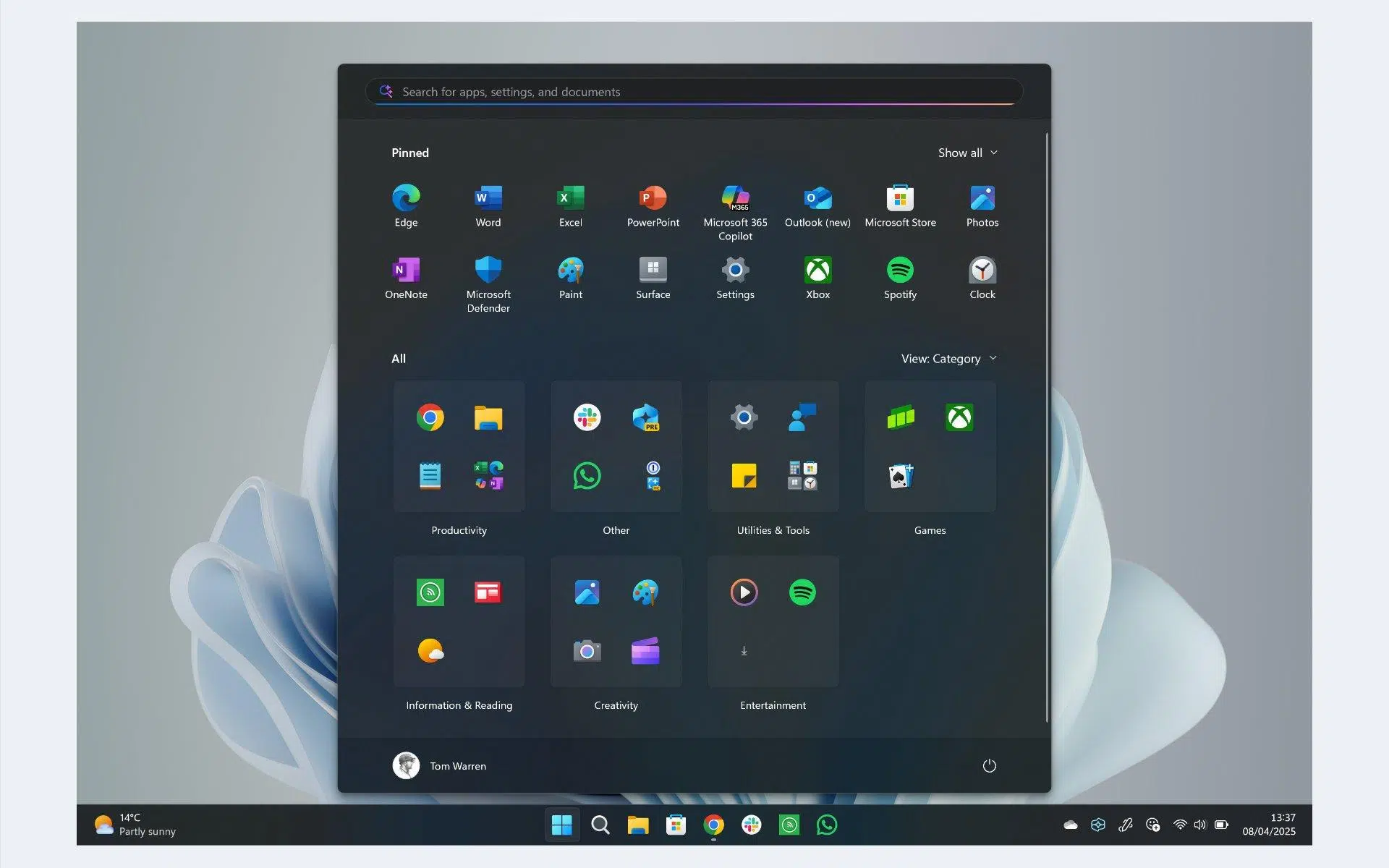
Customizing the Windows 11 Start menu is easier and more powerful than ever, for both home users and IT administrators. At a basic level, you can choose which folders appear next to the power button, create app folders, organize pinned items, and decide how much space to dedicate to recommendations and shortcuts. At an advanced level, professional options are available with LayoutModification.json to fine-tune what each user sees.
In this guide you will find everything you need: from quick settings to show shortcuts to Documents, Downloads , Music or Pictures directly on the Start menu, to the internal structure of the menu in Windows 11, pinning conflict rules, pinning websites with Edge, exporting the layout using PowerShell and incorporating that layout into Windows images with DISM.
Folders next to the Power button: quick access that saves clicks
Windows 11 lets you choose which folders appear to the left of the power button in the Start menu. This panel can include common locations like Documents, Downloads, Music, Pictures, Videos, Network, and your personal folder , which greatly streamlines your daily workflow.
To enable these folders, open Settings and go to Personalization > Start > Folders. Then, toggle the switches on for everything you want to display next to the Power button; this can include options like Settings or File Explorer in addition to your usual libraries.
If you prefer to access it through the menu itself, open Start, right-click on the bottom edge of the panel, and choose Startup Settings. From there, you'll have direct access to Folders and other settings.
This customization has a direct impact on productivity: by placing shortcuts to the most used locations, you reduce navigation and speed up your workflow , especially in shared or company teams.
Keep in mind that the changes are instantaneous. If you later decide you no longer need a folder, simply turn off its switch to remove it from the menu without affecting your files.
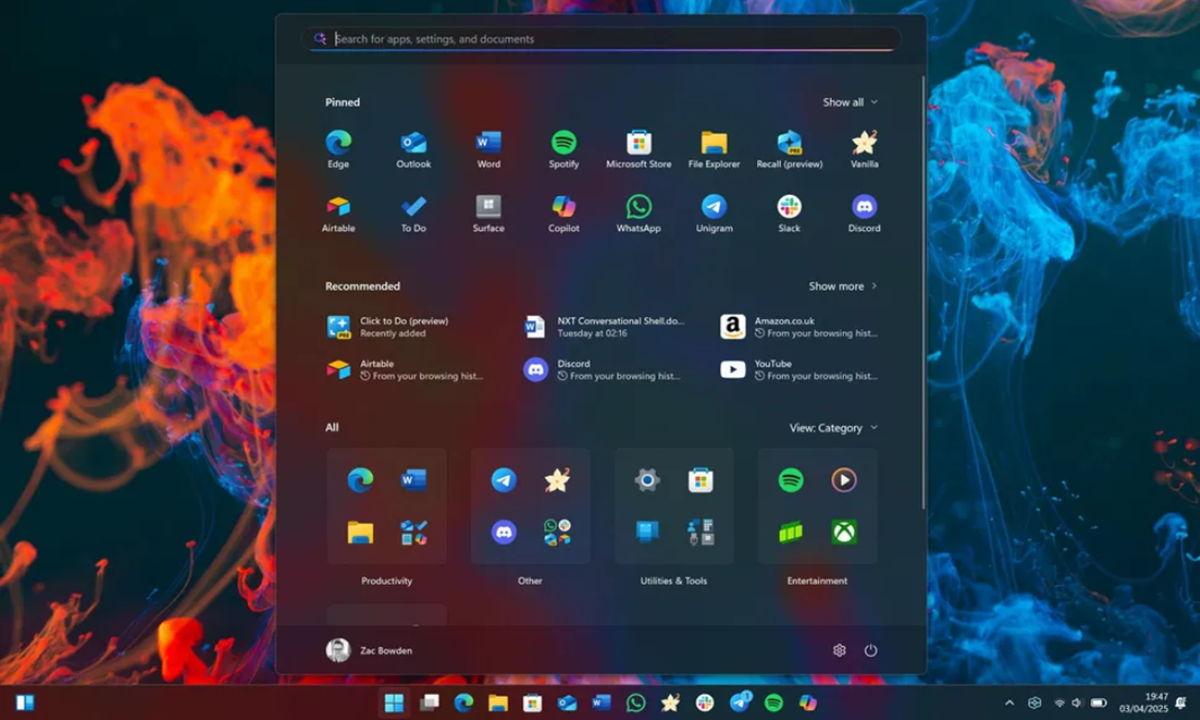
This is how the Windows 11 Start menu is organized: Pinned, All apps, and Recommended
The new Windows 11 Start menu changes location and behavior: it's now centered on the taskbar by default, and its panel appears in the lower center of the screen. The dynamic tiles are gone , replaced by a clean grid of pinned icons alongside a recommendations area.
At the top is the "Pinned" section, where you can pin your favorite apps. Below that, you'll see "Recommended," with recent documents and applications that the system thinks might be useful. In the upper left corner, you'll find "All Apps," which opens the complete alphabetical list of installed programs.
The search function is still integrated: press the Windows key and start typing to jump directly to the search for apps, files, or settings , without needing to open anything else.
If you prefer the classic layout, you can move the Start menu to the left: go to Settings > Personalization > Taskbar > Taskbar alignment and change it from center to left . This is the only location adjustment available at this time.
"Pinned" section (app grid)
The top section of the Start menu, "Pinned," is a uniform grid that displays your pinned shortcuts. The initial view typically shows up to 18 icons, with pagination if there are more. The visible items are a mix of Microsoft-defined apps, apps that may arrive dynamically, and apps configured by OEMs; users can then add, move, or remove items as they wish.
For enterprise and OEM deployments, there are clear rules: up to four icons can be configured on the first page using primaryOEMPins y up to four more at the end of the grid with secondaryOEMPinsIf fewer than four are defined, Windows fills in the blanks with its own apps. keep the orderAny element beyond the fourth is ignored.
"All applications" section
Clicking on "All apps" opens an alphabetical list of everything installed. This section doesn't allow customization by users or OEMs: it's a complete inventory, and Microsoft has indicated that app type categorization will be added later.
"Recommended" section
Below Ancladas is the "Recommended" area. In the first BootMicrosoft preloads the "Getting Started" app. Additionally, OEMs can prepopular, a welcome app or first run which remains fixed for up to seven days (unless the user removes it). This area allows a single customization through firstRunOEMPins.
Microsoft recommendation: For a clean experience, the app chosen for "Recommended" should not also be pinned to the taskbar or the first page of Pinned apps.
Quick Start Options in Settings
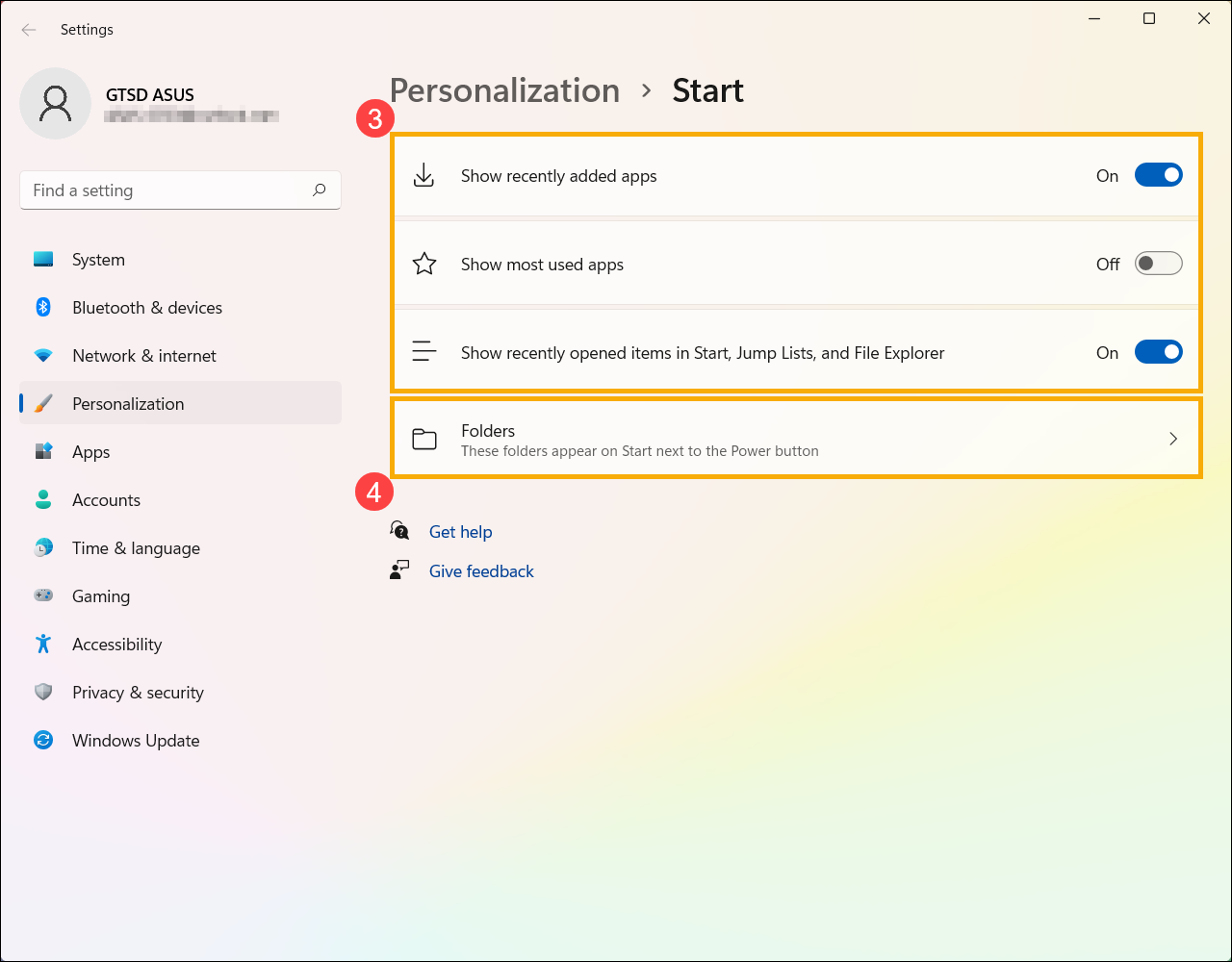
In Settings > Personalization > Home, you can choose the balance between shortcuts and suggestions with the "More pinned items," "Default," or "More recommendations" modes. You can also show or hide recently added apps, most used apps, and recently opened items (the latter are reflected in Home and Explorer).
Conflicts and anchoring rules
Before dynamically pinning a Microsoft or third-party app, Windows checks if the OEM has already pinned it to a page. If so, the OEM's pin is respected . Microsoft's own apps statically placed on page 1 (for example, Edge, Mail, or Microsoft Store) cannot be moved by the OEM; any attempt to duplicate them is ignored. Some Microsoft apps, such as Calculator or Camera, can be moved to page 1 if they are not already pinned or reserved by Microsoft.
Pin websites to Home with Microsoft Edge
To pin a website to the Home screen, open the page in Edge, go to the three-dot menu > More tools > Pin to StartIf you then export the design (explained below), you'll see that Windows represents that pin as a secondaryTile with a tileId unique, arguments with the URL and a small and large icon (base64 paths or images).
Office pre-installed and automatically anchored
On computers where Office Click-to-Run (C2R) comes pre-installed with the operating system, Windows automatically pins Word , Excel, and PowerPoint to the Start menu without needing to be declared in LayoutModification.json. If Office is not present, other pinned applications slide to fill those slots, preventing blank spaces.
Advanced customization for OEM and IT with LayoutModification.json
OEMs and administrators can define the default Startup layout by creating a LayoutModification.json and placing it in the Windows image. At the image level, Windows looks for the file in \Windows\Users\Default\Appdata\Local\Microsoft\Windows\Shell (Default profile). At the user level, the design lives in %localappdata%\Microsoft\Windows\ShellWith a single file, you can include any combination of top-level members.
Main members of JSON: primaryOEMPins (up to 4 items on page 1), secondaryOEMPins (up to 4 at the end of Ancladas) and firstRunOEMPins (a single item in Recommended). Each member accepts different types of keys:
packagedAppIdAUMID for UWP apps. It can also be used withinsecondaryTilefor a web pin.desktopAppId: AUMID of unpackaged Win32 applications.desktopAppLink: path to a .lnk shortcut for Win32 apps without AUMID.caption: only infirstRunOEMPinsIt supports localization by language tags and a value default as reserve.secondaryTileytileId: structure for anchoring a web link with Edge.
Illustrative example of structure (excerpt):
{
  "primaryOEMPins": [
    { "packagedAppId": "OEM.App1_1abc...!App" },
    { "desktopAppLink": "%ALLUSERSPROFILE%\Microsoft\Windows\Start Menu\Programs\MyWin32App.lnk" }
  ],
  "secondaryOEMPins": [
    { "packagedAppId": "Microsoft.MicrosoftEdge.Stable_8we...!App", "tileId": "MSEdge.XXXX" }
  ],
  "firstRunOEMPins": [
    {
      "desktopAppLink": "%ALLUSERSPROFILE%\...\PutMeInRecommended.lnk",
      "caption": { "en-US": "US English", "de": "Deutsch", "default": "Texto de reserva" }
    }
  ]
}
Location of caption: labels are case-sensitive (for example, en-US, es-ES, de-DEYou can define specific variants (en-US, en-GB) and a main tag (en) as a fallback for all other variants of that language. If a user's language is not on your list, Windows will display the text defined in default.
Export the design: In Windows 11, customize a reference PC, open PowerShell, and run Export-StartLayout -Path "C:\Layouts\LayoutModification.json"The result is a JSON object containing the list of PINs. On Windows 10, the cmdlet can generate XML with -UseDesktopApplicationID: Export-StartLayout -UseDesktopApplicationID -Path "C:\Layouts\LayoutModification.xml".
Add the design to an image: copy the JSON to the Default profile after mounting the WIM with DISM and confirm:
dism /mount-image /imagefile:E:\Sources\install.wim /mountdir:C:\mount /index:1
xcopy /s LayoutModification.json C:\Mount\Users\Default\Appdata\Local\Microsoft\Windows\Shell
dism /unmount-image /mountdir:C:\mount /commit
Pin from websites like secondaryTileWhen exporting the design with a pinned website from Edge, you'll see an entry similar to this, with Unique tileId, arguments with the URL and displayName:
{
  "secondaryTile": {
    "tileId": "MSEdge._pin_xxxxxxxxx",
    "arguments": " --pin-url=https://www.ejemplo.com --profile-directory=Default --launch-tile",
    "displayName": "Mi sitio corporativo",
    "packagedAppId": "Microsoft.MicrosoftEdge.Stable_8we...!App"
  }
}
Good packaging practices: place executables and scripts in %ProgramFiles% or where the installer places them; the shortcuts you pin to the Home page must reside in %ProgramData%\Microsoft\Windows\Start Menu\ProgramsIf you leave executables or scripts in that folder, They are not anchored Start.
Note for Windows 10 (XML)
In Windows 10, the layout is described in XML with elements such as LayoutOptions (full screen and group columns), RequiredStartGroups y AppendGroupUWP apps can be pinned with start:Tiledesktop apps with start:DesktopApplicationTile (through DesktopApplicationLinkPath to a .lnk or with AUMID) and Web links with Edge using start:SecondaryTile (requires AppUserModelID from Edge, TileID, Arguments with the URL and logos). The windows have size (1×1, 2×2, 4×2, 4×4) and row and column coordinates; No overlaps allowed.
App folders within Start: organize your grid like a pro
Since the Windows 11 22H2 update, you can group pinned shortcuts into folders, similar to how they're organized on mobile devices. It's as simple as dragging one icon onto another to automatically create a folder in the Pinned grid.
When you open the folder, you'll see all its shortcuts and can freely rearrange them by dragging with your mouse. You can also move the folder like any other icon and place it in any grid position you prefer.
To rename it, click the top label and type a name or add emojis ; many people find it more visually appealing to identify folders with a small icon before the text. Organizing by suites (e.g., grouping Word, Excel, PowerPoint, and Outlook) saves a lot of space.
This change isn't radical, but it is very practical. If you don't see the option , make sure you have Windows Update 22H2 or later installed: go to Settings > Windows Update and apply the latest updates.
As always, you can combine this idea with the Start modes: if you choose "More pinned items" you'll have more rows for apps and folders ; if you choose "More recommendations", recent files and apps will take precedence.
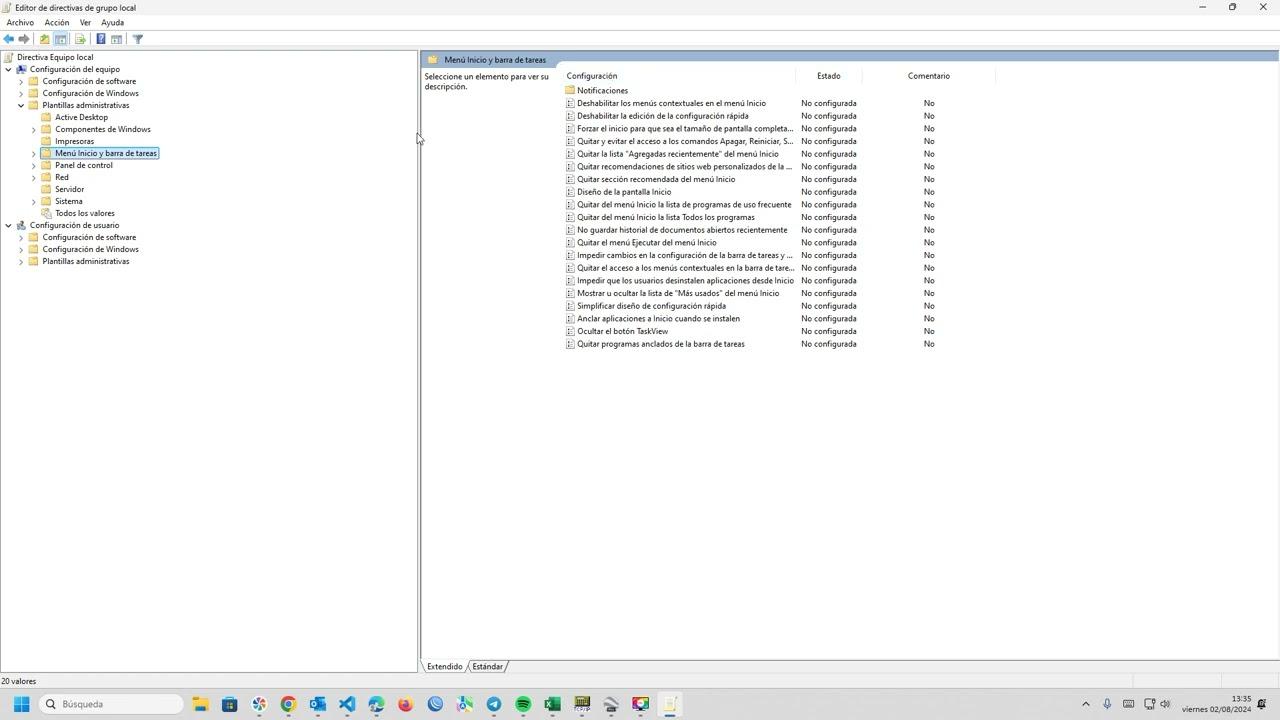
With these pieces in place, the Windows 11 Start menu can become a panel tailored to your needs: from library shortcuts next to the power button , to a perfectly organized Pinned grid with folders, to helpful and relevant recommendations. If you manage teams, LayoutModification.json, PowerShell exporting, and DISM image injection give you the control to standardize the experience , resolve pin conflicts, and, if appropriate, include a corporate web link or a first-run app with localization via language tags and fallback text.

Passionate writer about the world of bytes and technology in general. I love sharing my knowledge through writing, and that's what I'll do on this blog, show you all the most interesting things about gadgets, software, hardware, tech trends, and more. My goal is to help you navigate the digital world in a simple and entertaining way.