- Windows 11 It displays 3D style in panels and stickers, but the apps They mostly use 2D system emojis.
- Avoid replacing fonts or forcing the Registry: it does not guarantee 3D and may cause visual glitches.
- Get the 3D look with stickers, Fluent resources in PNG/SVG and ICO packs for shortcuts and folders.
- Adjust size and views (desktop and Explorer) so that the 3D icons look clear.
If you've ever wondered why, when you open the emoji panel with Windows + . (dot), you see designs with volume and shading, but they appear flat in apps, you're not alone. In Windows 11, there's a significant difference between what the system interface displays and what applications actually use, something that directly affects those who want 3D-style icons and emojis throughout their system.
The good news is that there are several ways to achieve that look, both for emojis and for shortcut and folder icons . The not-so-good news: as of today, in Windows 11 Version 23H2 (build 22631.4169), there's no magic switch to force 3D emojis globally across all apps, and some workarounds circulating in forums (like replacing system fonts) aren't recommended for stability and security reasons.
What's really going on with "3D icons" and emojis in Windows 11
When you open the emoji panel with Win + . , Windows 11 shows you elements that look 3D (the famous Fluent 3D). However, most applications insert regular text characters that depend on the system font, that is, Segoe UI Emoji , which in practice still displays stylized but flat emojis. That's why you see one thing in the panel and another when you paste or type in apps like browsers, messaging apps, or the text editor.
Many users have tried to install a 3D TTF font they found online to replace the emojis, but the system doesn't make it easy. The C:\Windows\Fonts folder protects key fonts, and even if you drag and drop a TTF file or use "Install for all users," the priority of Segoe UI Emoji and the behavior of apps mean you won't see the change consistently. Furthermore, some 3D emoji packs aren't compatible OpenType color fonts, but rather loose PNG/SVG files designed for graphics, not text.
Another common question is whether the Registry can force the use of a different font. There's a font substitution key in HKLM\SOFTWARE\Microsoft\Windows NT\CurrentVersion\FontSubstitutes where you can map one font family to another. However, replacing "Segoe UI Emoji" with another font doesn't guarantee 3D functionality: many apps explicitly choose the system's emoji font or rely on DirectWrite and fallback lists, and you'll end up with inconsistencies or, worse, glyphs that don't display correctly. It's not a reliable method and can break icons or text in the interface.
In summary: As of today, with Windows 11 23H2 (build 22631.4169), there is no official setting to enable 3D emojis system-wide. They appear as 3D on specific surfaces (the panel, stickers, some Microsoft apps) and as 2D in most applications that render regular text.
Safe options for enjoying a 3D style in emojis and visual elements
If you want the final result to have a three-dimensional look, there are alternatives that work today and don't compromise the system. The first is to use stickers or images instead of text characters: from the emoji panel, in addition to emojis and kaomojis, you have stickers that are pasted like images and maintain the 3D appearance in any app that accepts embedded graphics.
You can also use official or open-source packages from the Fluent Emoji 3D set (usually in SVG and PNG format) to insert graphics into documents, presentations, or designs. They don't replace emoji as text, but they will give your content a cohesive 3D look , which is what you're aiming for when sharing or publishing.
In specific apps, such as Microsoft Teams or some Microsoft 365 platforms , you'll see that the 3D style is already integrated into reactions or visual elements. Each application decides which style to use, so even if Windows displays the panel in 3D, the app might opt for 2D or its own style set. It's normal to find differences between environments, and there's little you can do from the system to unify it beyond sending feedback to the developers of each app.
Finally, if you're not interested in emojis but rather in shortcuts and folders with a three-dimensional aesthetic, you have thousands of ready-to-use 3D resources at your fingertips. Resource platforms like those offering illustrations and packages in PNG, BLEND, FBX, or glTF formats allow you to download 3D icons and apply them as images or convert them to ICO for Windows. This way, you achieve that modern, three-dimensional look on your desktop without affecting system fonts.
How to apply 3D icons to shortcuts, desktop, and folders
To give your system elements a 3D aesthetic, the first step is to gather suitable resources. Look for packs that include high-resolution PNGs (transparent if possible). If the pack offers 3D models (BLEND, FBX, glTF) , you can render them as PNGs with transparent backgrounds and then convert them to ICO using an editor (for example, IcoFX or any reliable converter).
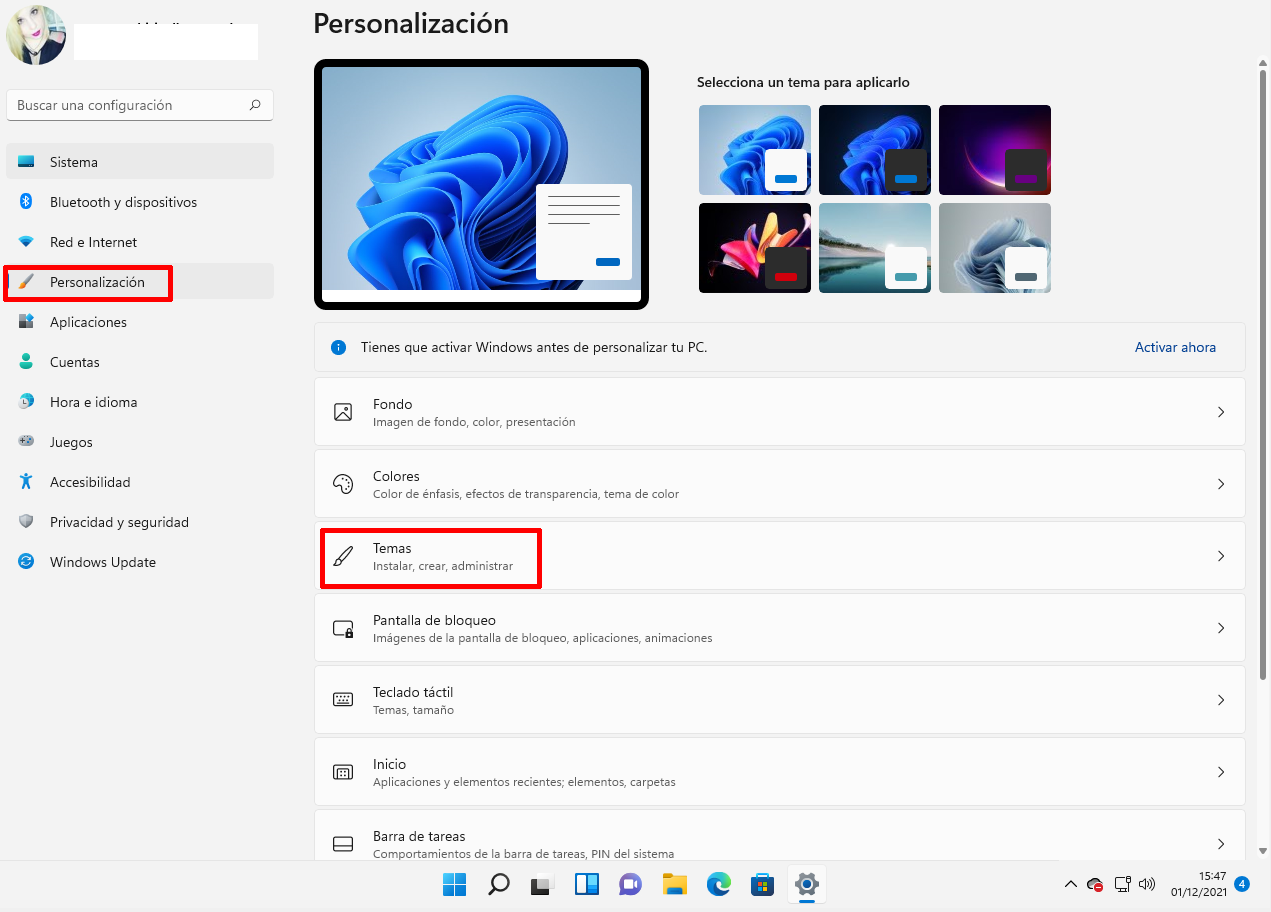
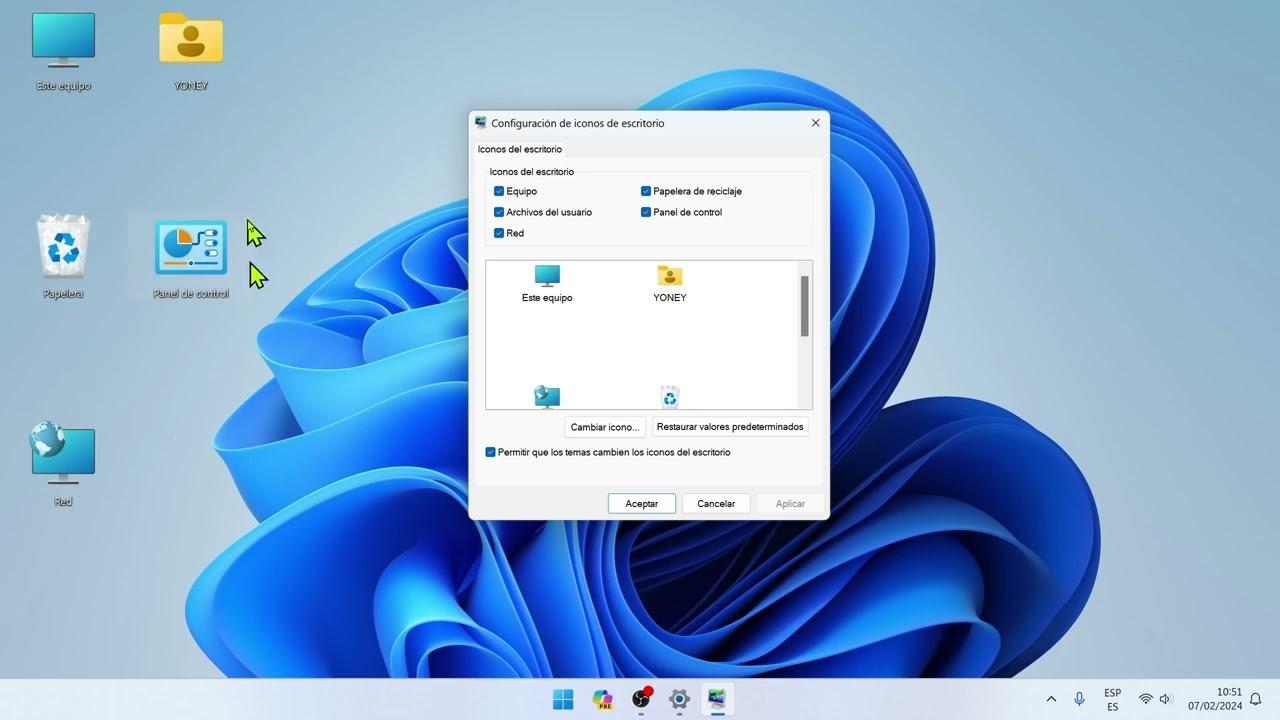
Once you have your ICO files, change your system desktop icons as follows: Open Settings, go to Personalization, and then to Themes. There you'll find the link to Desktop Icon Settings . From that window, you can show or hide shortcuts like This PC, User Files, Network, Recycle Bin, and Control Panel, and also click Change Icon to select your preferred 3D ICO file using the Browse button.
For specific shortcuts (applications, folders, or scripts), right-click, choose Properties , and then Change Icon. Select the desired icon and save. This way, you can create a desktop with consistent and dimensional icons without modifying any critical system settings, and with the advantage of being able to revert to previous changes whenever you want.
For folders, go to Properties → Customize → Change Icon . Windows lets you assign a different icon to each folder, so you can use a consistent color palette and size to distinguish between projects, multimedia, or work files. If you notice the icons look small, don't forget to adjust your desktop size (we explain all the options below) so your new 3D designs really shine .
Finally, enable or disable the " Allow themes to change desktop icons" option in the Desktop Icons window. If you're using a theme that automatically updates icons, it's best to leave it enabled; if you've customized your icons manually with your 3D icons, you might prefer to disable it to prevent any theme from overwriting your changes.
Change the size of icons on the Windows 11 desktop
The quickest way to adjust the size of desktop items is through the context menu. Right-click on an empty space, hover over View , and choose between Large icons, Medium icons, or Small icons. If you prefer shortcuts, you can also use Ctrl+Shift+2 (large), Ctrl+Shift+3 (medium), and Ctrl+Shift+4 (small).
Want to fine-tune things even further? Hold down Ctrl and scroll the mouse wheel to zoom in or out freely. This method applies a continuous zoom of the desktop, going beyond even the three sizes in the menu. It's especially useful when using detailed 3D icons and prefer to see them with more visual presence without changing the scale of the entire system.
If you notice that the overall interface is too small or too large, in addition to the icon size, you can adjust the scaling in Settings → System → Display → Scale . Scaling changes the size of text, apps, and other elements globally, and is key for 4K displays where icons can appear tiny if you keep the scaling at 100%.
An extra tip: if you enable automatic alignment and the desktop grid from the same "View" menu, your new 3D icons will always stay in order. This helps maintain a clean look when you switch between different sizes or add multiple custom shortcuts.
Remember that you can reorder icons by name, size, type, or date using the context menu. If you're trying out several 3D packs, sorting by date lets you quickly find the latest changes to compare styles and decide which ones you prefer.
How to change the size and view of icons in File Explorer
In File Explorer, open any folder and tap the View button in the top bar. You can choose Extra Large Icons, Large Icons, Medium Icons, List, Details, Tiles, or Content. Each option changes the size of the thumbnails and the information displayed, with Extra Large Icons being the best if you want to fully appreciate the textures and shading of your 3D assets.
The Details view is ideal when working with icon collections and you need data such as format, dimensions, or date. Switching between Details and Large Icons provides a very convenient workflow: first, you filter by metadata, and then you preview in high quality to decide what to include in your desktop set.
Just like on the desktop, you can hold down Ctrl while scrolling the mouse wheel to switch between views on the fly. This is great when you're browsing a folder with many variations of the same 3D icon and want to switch from a list view to a full thumbnail in just a couple of clicks.
If you work with dozens of custom icons, consider enabling helpful columns (such as Size and Date Modified ) in the Details view. This will help you identify icons that are too large for shortcuts or recent changes you want to review before applying them.
And don't forget that you can use the Explorer's built-in preview (preview panel) to see a larger image without opening it in another app. With your 3D assets in PNG format, this panel is perfect for evaluating the final result before converting to ICO and applying the changes to the properties.
Personalize even more: themes, backgrounds, cursor, and sounds
In addition to icons, Windows 11 lets you change themes with just a couple of clicks. In Settings → Personalization, you'll see several pre-configured themes; activating them changes the background, accent colors, and even some icons, if you've enabled the option to allow themes to override desktop icons. It's a quick way to refresh your computer before your 3D "restyling" session.
Wallpapers are the perfect complement to your new 3D icons. Look for wallpapers with a minimalist aesthetic or with depth and shadows so the icons stand out without clashing with the background. Good contrast and an accent color that matches your 3D icon pack make all the difference in the overall perceived quality.
If you want to take things a step further, change your cursor . Windows lets you use ICO files to customize the arrow, hand, and other pointer states. With a matching pack, your desktop will look completely cohesive, and you'll also improve visibility if you choose slightly bolder shapes or colors than the defaults.
You can also adjust system sounds from the Themes section. It's not related to the 3D icons, but it helps round out the experience. Choosing a smooth, modern sound scheme creates a premium desktop feel that complements the 3D aesthetic without being overwhelming.
A practical tip: save your custom icons and cursors in a folder outside of Downloads (for example, in Pictures\\3D_Icons ), this way you will avoid accidentally losing them and you can quickly back them up to transfer your setup to another PC in minutes.
What if I insist on using a TTF font or registry for 3D emojis?
It's understandable to want an "all or nothing" solution, but it's worth reviewing why it's not ideal. While the FontSubstitutes key exists for mapping font families, the reality is that changing "Segoe UI Emoji" to something else doesn't guarantee compatibility in either modern or classic apps. Many rely on DirectWrite rendering , maintain their own reservation lists, or even include an integrated emoji set. The result: you'll have style mixes, empty boxes, and, in the worst case, visual glitches in system controls.
Regarding installing a 3D TTF file, the problem is twofold: if the file isn't a compatible color font (COLRv1, CBDT, SBIX, SVG-in-OpenType), even if you manage to install it, it won't display in 3D ; and if it is compatible but doesn't replace Segoe due to internal priorities, it won't display in 3D either. Add to this the fact that Windows protects its key fonts and will revert changes with updates. Therefore, as a general rule, it's best to avoid these methods to prevent compromising stability and future support.
If you still want to experiment, do so in a virtual machine or a test environment, create a restore point , and document every change. But for daily use on your main computer, the wisest option is to use stickers, images, and 3D icon packs from ICO, which are safe and instantly reversible.
Best practices when creating and converting your own 3D icons
When generating your ICOs from PNGs or renders, export several embedded sizes (for example, 16, 32, 48, 64, 128, and 256 px ) so that Windows chooses the appropriate one based on the context. This will prevent pixelation or blurriness when using large views in Explorer or when zooming in on the desktop with Ctrl+wheel.
It's a good idea to maintain a consistent color palette . Choosing four or five main colors for your 3D icons helps prevent your desktop from looking cluttered. You can label files with names that include the dominant color (e.g., app-blue-256.ico ) and quickly find suitable alternatives when you refresh part of the icon pack.
Don't forget to test for performance: very large ICO icons (due to including multiple unoptimized sizes) can slow down thumbnails in Explorer when navigating through full folders. Compress the source PNGs without any visible loss and check the size of each ICO to maintain a balance between quality and smoothness.
If you share your 3D pack with others, add a short README file with usage instructions (where to change desktop icons, how to apply them to shortcuts and folders) and size recommendations. Making the process easier ensures your work looks exactly as you envisioned it on other computers.
By now you've probably seen that achieving a convincing 3D desktop look in Windows 11 is entirely possible without touching delicate parts of the system. While 3D emojis as text aren't yet universally available, with stickers, Fluent PNG/SVG assets, and ICO icon packs, you can build a modern, clean, and highly personalized visual experience in minutes, and easily maintain it with the size and view adjustments that Windows offers.


Passionate writer about the world of bytes and technology in general. I love sharing my knowledge through writing, and that's what I'll do on this blog, show you all the most interesting things about gadgets, software, hardware, tech trends, and more. My goal is to help you navigate the digital world in a simple and entertaining way.