- In Linux you can disable the webcam via software by downloading kernel modules and creating aliases in your shell to improve privacy.
- Tools like VLC, Cheese, XawTV, and WxCam allow you to test, view, and record with your webcam, each with different levels of complexity and features.
- For the webcam to work correctly, it is key to identify the chip, install the appropriate driver, and ensure you have permissions on the video device.
- In addition to video calls, you can integrate webcams and IP cams into your desktop for surveillance, monitoring, or simply for visual convenience.
If you use GNU/Linux daily, sooner or later you'll have to deal with your laptop's camera or an external USB webcam. Sometimes you want Disable webcam for privacyOthers simply want to check if it works or take advantage of its video, photo, and effects options. It's not complicated, but it's helpful to be clear about what tools are available and how they work together. system drivers.
In the following sections I will gather and reorganize everything that various guides and real experiences say about Configure, test, and use a webcam in LinuxYou'll learn how to block it via software, how to activate and view the signal from the terminal, which graphics programs you can install (Cheese, XawTV, WxCam, VLC, etc.), and what steps to take if the camera isn't detected initially. Everything is explained in an approachable style, taking full advantage of the GNU/Linux ecosystem.
Disable and enable your webcam in Linux to improve your privacy
Many people choose to put a sticker or physical cover over their laptop's camera, but on some desktop computers or certain webcams that solution is impractical; if you cover the lens with something rigid, it becomes difficult to access. Position the camera correctly so that you can be seen. when you really need it. That's why a very interesting alternative is to "turn it off" using software from within the operating system itself.
The basic idea is to disable the kernel module which manages video devices (most webcams are exposed as Video4Linux devices under /dev/videoX). Usually, simply downloading the corresponding module using the terminal is sufficient, so that the system stops recognizing the camera while that module is inactive.
This approach has one key advantage: you can completely block webcam use by any application, without relying on hidden menus or graphical permissions. When the module is downloaded, no video device is available, so no program can turn it on or capture an image.
To avoid having to always remember the command, it is very practical to define custom aliases in your shell, for example in the file .bashrc o .zshrcYou create an alias to "turn off" the camera and another to "turn it on," so that with two short commands you can activate or deactivate it depending on what interests you at any given time, without having to juggle stickers or improvised covers.
There are two important nuances: first, you can only Disable the webcam if no application is using it.If you have Zoom, Cheese, a browser with a video call, or any other program using the camera open, you'll need to close it first. Second, when you restart your computer, the kernel will automatically reload the standard modules, so the webcam will reactivate unless you've configured it to be permanently blocked in the system configuration files.
Check the webcam from the terminal using VLC
Beyond simply turning the camera on or off, a typical use is Check if the webcam works properly on LinuxWindows has the classic "Camera" application, but many distributions don't have such an obvious equivalent. One of the simplest ways to perform this check in GNU/Linux is to use VLC from the command line.
VLC is not just a media player; it can also open video capture devicessuch as webcams, USB cameras, or capture cards. If you have it installed, a single command in the terminal will open a window showing what the camera sees in real time, without needing to install any specific utilities.
The typical command uses the VLC console interface (cvlc) along with the Video4Linux2 (v4l2) backend and the corresponding video device. On most systems, the first webcam appears as / dev / video0So the command is based on telling VLC to open that path as a video source. If you have multiple cameras, or your laptop has a built-in camera and you also connect a USB camera, the primary source might be /dev/video1 or a higher number.
Usually the first usable device is /dev/video0, but if you don't see anything, you can try different ones. /dev/video1, /dev/video2, etc. until you find the one that corresponds to your webcam. On many systems, it doesn't go beyond /dev/video2 or /dev/video3, although some systems have more virtual devices. As soon as you find the correct number, VLC opens, showing your face—or whatever is in front of the camera—and you can check that the lighting, framing, and sharpness are correct.
This method is ideal when you want a Quick tool for testing the camera without installing extra applications. Furthermore, since it works directly from the terminal, it's very useful if you're configuring a remote computer or working in a minimal desktop environment where you don't want to load a whole graphical program just to do a quick check.
Options for accessing the webcam in Linux Mint and other distributions
If you're coming from Windows, you'll probably miss the built-in "Camera" app, which was used to check if everything was working properly with your webcam. In Linux Mint, Ubuntu, and most distributions, the idea is the same, but instead of a single official app, you have... several programs to choose fromdepending on what you want to do.
A very common question in Linux Mint is what to install for Check that the webcam is working and see yourself on screenThe short answer is that there are several options, with Cheese being one of the most user-friendly for newcomers. You can also use tools like XawTV or WxCam if you need more features, or even VLC, as we've seen, which works on virtually any distribution.
In the case of Mint (and also Ubuntu), the system usually already has basic webcam support integrated into the kernel, so when you connect a USB camera or use the laptop's built-in camera, a /dev/videoX device will appear. All you need is a graphical program that opens that device and show you the video signal, with or without effects, and with the possibility of recording clips or taking photos.
If you're looking for something simple and straightforward, Cheese is usually the first suggestion. It's lightweight, integrates well with GNOME and its derivatives, and allows you to both View the camera in real time, how to take photos or videos Without too much trouble. You can find and install it from the Linux Mint software manager itself with just a few clicks.
For users who prefer to get the most out of their webcam, for example for video recording, fine-tuning, or even more advanced uses, there are alternatives like XawTV and WxCam, which we will discuss in more detail below.
Graphics programs for using the webcam: Cheese, XawTV and WxCam
In the GNU/Linux world there are several applications designed specifically for take advantage of the webcamCheese, XawTV, and WxCam are three of the most frequently mentioned in classic guides and remain a reference point when you want more than just a simple image test.
Cheese It's probably the most popular option on GNOME desktops and derivative distributions. It was officially incorporated into the GNOME project in version 2.22 and uses the GStreamer multimedia system to apply effects and manage video streaming. With Cheese you can take photographs, record video clips and apply fun filters in real time, all from a very simple and intuitive interface.
Among its functions, the ability to do burst photosChange the resolution of your photos, select different effects, and easily share them. It includes options to export to photo managers or storage services, allowing for a fast workflow from capture to publication—useful if you want to upload material to social media or save it to your photo library.
To install Cheese on Ubuntu or many Debian-based distributions, simply open a terminal and run the corresponding package installation command. The program is available in the official repositories, so you don't need to look elsewhere. searching for rare binaries on the internetOnce installed, it will appear in the applications menu like any other desktop tool.
If your distribution doesn't include Cheese in its repositories, you can always use the source code available on the project's website, compile it, and add it to your system. This requires a bit more experience, but it guarantees you can use it in more exotic environments or on less mainstream Linux distributions.
XawTVFor its part, it was originally created as a tool for watch and record television using a tuner cardOver time, thanks to its reliance on Video4Linux and XVideo, it also became used for webcams and other video sources. Its interface is minimalist, with simple, uncluttered windows, but behind the scenes it hides a fairly extensive collection of utilities.
The XawTV package includes several applications: classic X11 applications like xawtv and motv, console tools, utilities such as streamer, fbtv, v4lctl, scantv, radio, webcam, alevtetc. Thanks to this set of programs, you can capture images, record video, tune into TV channels if you have compatible hardware, or even automate capture tasks using scripts and cron.
Like Cheese, XawTV is usually available in the repositories of many distributions, so its installation is as simple as launching the package manager, searching for the program name, and clicking install. Once installed, you can run it and select the appropriate video source. use your webcam as if it were a simple video monitor.
WxCam It is another classic alternative, especially interesting because of its compatibility with Video4Linux 1 and 2It covers a wide variety of cameras from different eras. It's a relatively comprehensive application that allows you to adjust image parameters and work with various capture and recording options.
Among its features are controls for modifying resolution, brightness, contrast and saturationIt also supports certain special settings on Philips cameras and allows you to take snapshots in common formats such as BMP, PNG, JPEG, TIF, PCX, and XPM. This makes it easy to save images in the quality and format that best suits your workflow.
WxCam also allows you to record video without audio in an uncompressed AVI file, which is very useful, for example, in astronomy or situations where you prefer to keep the audio to a minimum. avoid loss of image quality even though the file size will be larger. And if you're interested in saving space, it offers video recording with audio using the Xvid codec, which sacrifices some quality in exchange for much smaller files.
Another powerful feature of WxCam is its system of Motion detectionYou can leave the camera on and configure it to start recording only when it detects changes in its field of view. This option is very practical for basic surveillance, room monitoring, or even home experiments with sensors and automation.
The main difference compared to Cheese and XawTV is that, in many versions of Ubuntu, WxCam is not found in the official repositories. In those cases, you have to download the .deb package available for Debian-based distributions or use the source code to compile it on other distributions. Once that step is completed, It offers a very comprehensive set of features. which makes many users choose it when they want something more advanced than a simple viewer.
Installing and correctly recognizing a webcam in GNU/Linux
Before any program can use the webcam, the system has to recognize the device and have the suitable driverThis, which in many cases is automatic, in others may require a little research, especially with older cameras or uncommon models.
A very sensible first piece of advice is not to get obsessed with expensive or flashy models; not all webcams have good support on GNU/Linux and, to top it all off, some manufacturers sell different versions under the same trade nameby changing the internal chip without warning. This means that a model that works perfectly for someone else might give you problems if the hardware revision is different.
For this reason, many experienced users recommend buying the camera from a store where you can try out several models and have easy exchange or return options. A practical strategy is to get several webcams at once, test them all on your computer, Keep the one that works best on your Linux system. and pay the rest back. It's a bit more of a trip to the store, but in the long run it saves a lot of trouble.
Once you have the webcam in your possession, the first step on a GNU/Linux system is to connect it via USB and open a terminal to run lsusbThat command displays a list of USB devices detected by the system, including the manufacturer and product identifier. Something like 0ac8:305b for a Z-Star, for example.
If the camera is not USB but integrated into the laptop, it may not appear in lsusb. In that case, it's worth checking the output of dmesgwhich displays kernel messages. By filtering and reviewing that information, you can locate What chip does the integrated webcam use? and which kernel module attempts to manage it, if any.
With the identifiers in hand (like 0ac8:305b in the example), it's time to consult the documentation or search online for information about which driver you need. Many of the most common camera chips are supported by specific modules that are part of the kernel or installed as add-on packages, as is the case with the gspca drivers for certain Z-Star models.
In some Debian-based distributions, for example, you simply need to install the gspca module package appropriate for your kernel version using the package manager. Once that's done, disconnect and reconnect the camera so the correct module loads, and if everything goes well, A device /dev/video0 will appear (or /dev/video1, etc.) ready to be used by Cheese, VLC or any other application.
To access those devices, your user account must have permissions regarding the “video” groupIn many distributions, creating the main account automatically adds it to that group, but if that's not the case for you, you can check it with the corresponding command and add your user to the group to avoid permission problems when trying to open the webcam from a graphical application.
Once you've overcome this recognition and driver phase, all that remains is to choose the program that best suits your way of working: from simple tools to view the image and take a photo, to more complete solutions with filters, advanced recording or motion detection.
Webcams on the desktop: IP cameras and widgets in Ubuntu
Besides the classic use of a webcam connected to the computer, in Linux you can also play with IP cameras and remote video streamsThere are applications that allow you to "anchor" one or more cameras to your desktop, as if they were small miniature televisions that always show what is happening in a specific place.
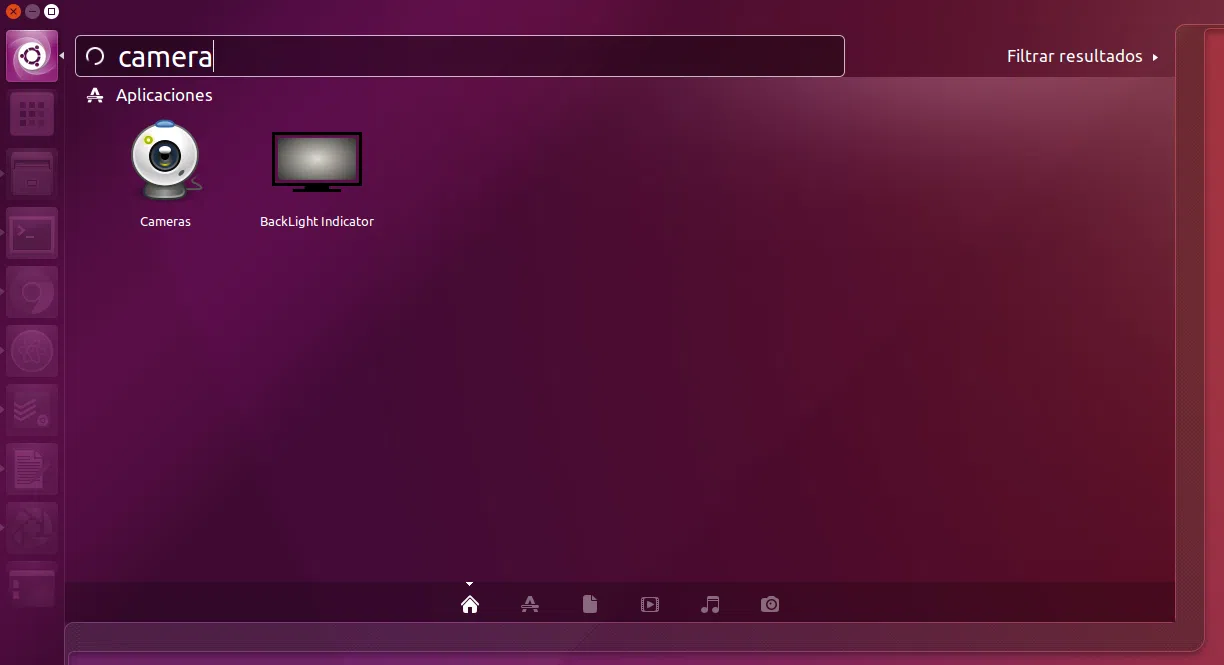
An interesting example is an application simply called “Cameras”, designed for Ubuntu, which originated as an adaptation of a similar tool that existed in Mac OS X. Its main function is very simple: Create desktop widgets that display a webcamYou can add as many as you want and place them as you like.
With a solution like this, you can, for example, use your home IP camera connected to a Synology-type NAS and see what's happening in the living room, entryway, or wherever the camera is located, right on your desktop. You can also use public webcams in your favorite city and always have a glimpse of your favorite scenery, purely for the sake of technological romance.
The application launches from the Ubuntu menu or other launchers like Plank or Synapse, and upon startup, it displays several pre-configured webcams. From there, you decide what you want to see: you can Remove the stock cameras and add your ownFor example, one for home, another for a public webcam, etc.
The settings are configured by right-clicking on any of the camera widgets, which opens a dialog box with several tabs. On the main tab, you can specify whether you want the application to start automatically with the system, and you can also manage the webcam list, adding new ones or removing those you no longer need.
Each camera has its own settings tab, where data such as the URL of the image or video stream, the scale at which it will be displayed on the desktop, or whether it should always appear on top of other windows. The latter can also be controlled with a small button in the upper left corner of the widget, which becomes visible when you hover your mouse over it.
Advanced options include features like the ability to give each camera its own icon in the application launcher, or to display the widget on all your configured virtual desktops. You can also adjust the image refresh rate, which is important to avoid screen tearing. wasting bandwidth unnecessarily if the IP camera offers a slower update rate.
Installing these types of tools is usually done through a terminal emulator, by running a few commands that download and install the necessary packages. From then on, simply search for the application by name in the menu to start experimenting with different webcams and adjusting their behavior to your liking.
In any case, it's worth remembering that these types of apps are personal or community projects and, especially in their early versions, may have some bugs. Their developers are usually open to suggestions and bug reports to refine them and add new features, so if you decide to use them, it's a good idea. participate with feedback and proposals.
With all of the above, it is clear that GNU/Linux offers a very wide range of possibilities when it comes to Configure and take advantage of your webcamFrom completely blocking it to reinforce your privacy, to using it as a video calling tool, capturing photos, or even for surveillance with motion detection. The key is knowing the available tools (Cheese, XawTV, WxCam, VLC, desktop applications like Cameras) and ensuring that the system correctly recognizes the device at the driver level, something that in most cases is plug and play, but can always be fine-tuned with a couple of commands if things get complicated.

Passionate writer about the world of bytes and technology in general. I love sharing my knowledge through writing, and that's what I'll do on this blog, show you all the most interesting things about gadgets, software, hardware, tech trends, and more. My goal is to help you navigate the digital world in a simple and entertaining way.