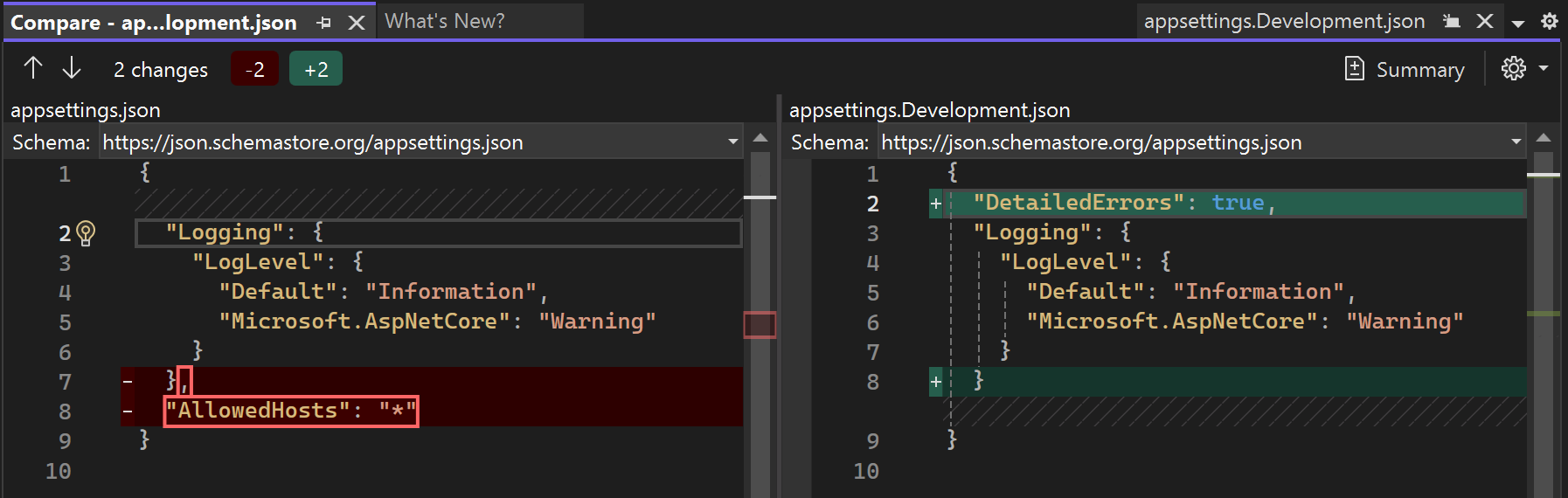
- The FC command allows you to compare one or more files in Windows in text, Unicode, or binary mode, accurately indicating their differences.
- Your options (/A, /B, /C, /L, /U, /W, /LBn, /nnnn, /N, /OFFLINE, /T) adjust how discrepancies are interpreted and displayed.
- FC returns exit codes (0, 1 or 2) that facilitate its integration into scripts and automations to verify changes.
- It supports paths, drives, and wildcards for comparing batches of files and can be used in both CMD and PowerShell by invoking fc.exe.
If you work with scripts, reports, code, or simply want to check if a file has been modified, the Windows command `fc` is one of those unassuming yet incredibly useful tools that almost no one knows much about. You don't need to install anything or use external programs: it's built into the operating system and ready to use from the command prompt or PowerShell—you can see how to compare text and files in PowerShell or CMD.
In the following lines, we'll see how to compare files using the FC command in Windows , what comparison modes it offers (ASCII, Unicode, and binary), what each parameter in the official Microsoft syntax means, how to interpret the output codes, and several practical examples for everyday use. Everything is explained step by step in clear language, without omitting any important technical details.
What is the FC command and what is it used for?
The File Compare (FC) command is a Windows command-line tool used to compare the contents of two files or two sets of files and display the differences between them. It is compatible with Windows 10, Windows 11, earlier versions, and server editions such as Windows Server 2019, 2022, and later.
When you run FC, the system analyzes both files and tells you if they are identical, if they differ, and where . Depending on the option chosen, it can work at the text level (line by line), Unicode text, or binary level (byte by byte), making it suitable for plain text files ( comparing files in Notepad ) as well as executables, images, and other binary formats.
Furthermore, FC allows you to fine-tune the comparison type thanks to several options: you can ignore uppercase and lowercase letters, disregard whitespace, display line numbers , limit the number of consecutive differences the internal buffer allows, compare files marked as offline, and more. It's much more flexible than it first appears.
It's important to note that, although it can be invoked from PowerShell, in this environment fc is an alias for the Format-Custom cmdlet . Therefore, if you want to use the classic file comparison tool, you must explicitly type fc.exe instead of just fc to ensure that the correct binary located in C:\WINDOWS\fc.exe is executed.
Complete syntax of the FC command
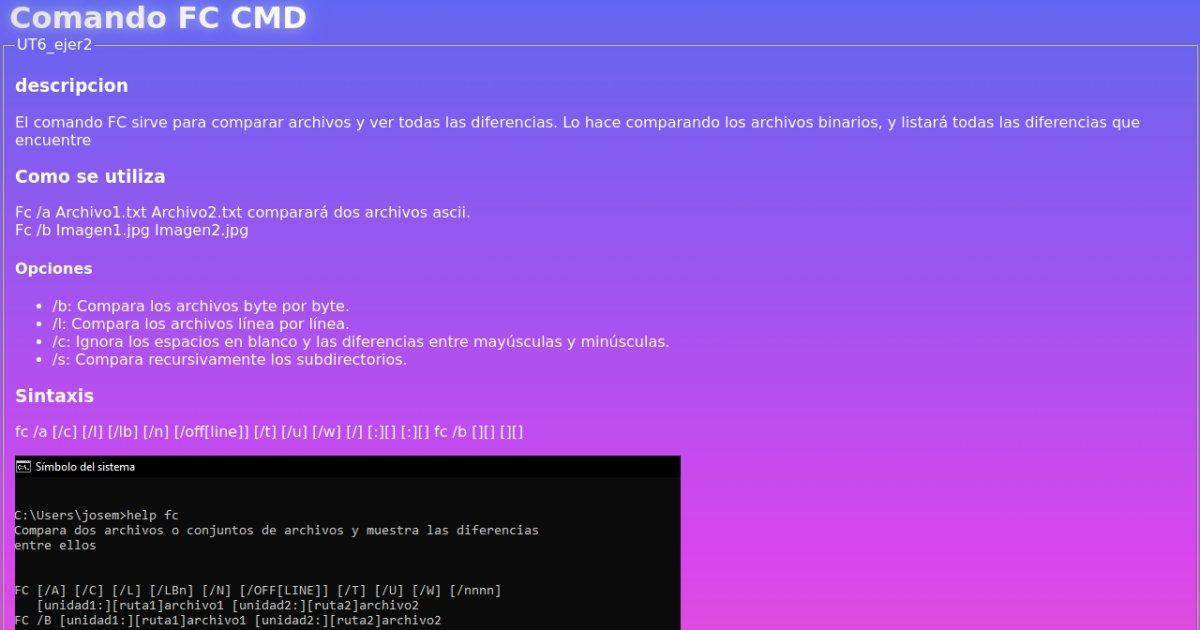
The official syntax of the command, according to Microsoft Windows help, includes two main modes of use: text comparison (ASCII or Unicode) and binary comparison . The general form is as follows:
fc /a ] <archivo1> <archivo2>
fc /b <archivo1> <archivo2>
In practice, this means you can add one or more modifiers before filenames to adjust FC's behavior. The path and drive parameters are optional, so you only need to specify the filename if it's in the current directory; otherwise, you'll also need to specify the path or drive.
The classic help that appears when you run fc /? in a Spanish command prompt summarizes the syntax like this (formatted for better understanding):
FC       ]
archivo1 archivo2
FC /B archivo1 archivo2
In all these variations, file1 and file2 represent the first and second files (or file patterns) to be compared. Wildcard characters are also supported, allowing entire groups of files to be compared in a single command.
Meaning of each parameter of the FC command
The true potential of the command becomes clear when you see what each option does. Below is a detailed description of all the parameters recognized by fc.exe, as they appear in Microsoft documentation and the built-in help.
Comparison modes
/A – Activates a shorthand output mode for ASCII text comparisons. Instead of listing all the lines that differ between the two files, FC only displays the first and last lines of each group of differences . This is very useful when there are large blocks of changes and you don't want the console to fill up with endless text.
/B – Forces a byte-by-byte binary comparison . In this mode, no attempt is made to resynchronize the data stream after finding a discrepancy; it simply proceeds and displays each detected difference. This is the default mode for files with typically binary extensions such as .exe, .com, .sys, .obj, .lib, or .bin, even if you don't explicitly specify the /B switch.
/L – Instructs FC to perform a line-by-line ASCII comparison , always attempting to resynchronize the files after detecting a difference. This is the default mode for all files that are not considered binary (i.e., those without the executable and similar extensions mentioned earlier).
/U – Changes the behavior of fc to treat files as Unicode text files . This option ensures that the specific encoding (such as UTF-16) is respected and that characters beyond basic ASCII are interpreted correctly.
Control of capitalization, spaces, and tabs
/C – Makes the command ignore case differences . If only the casing changes (for example, "Hola" versus "HOLA"), the lines will be considered equivalent and will not be marked as different. Note that this affects letters, but not other characters.
/W – Compresses and minimizes the importance of whitespace , i.e., tabs and spaces. When a line has a long sequence of consecutive spaces or tabs, FC will treat them as a single space. Additionally, if you use /W, the command ignores leading and trailing spaces during line comparison, which is great for scripts or text where indentation is irrelevant.
/T – Disables the automatic conversion of tabs to spaces. By default, FC usually treats tabs as spaces with breaks every eight characters, but with /T, tabs are treated as they are , which is useful when exact alignment is part of the important content.
Internal buffer management and synchronization
/LB<n> – Adjusts the size of the internal line buffer used by FC when comparing text files. By default, this buffer allows up to 100 consecutive lines of different lines. If the two files being compared have more than 100 consecutive lines without matches, the program considers the files too far apart and interrupts the comparison . This parameter allows you to increase or decrease this limit by specifying a particular number of lines instead of 100.
/<nnnn> – Specifies how many consecutive lines must match after a discrepancy for FC to consider that it has successfully resynchronized both files. The default value is 2. If, after a block of differences, it finds fewer than nnnn consecutive identical lines, those lines will still be displayed as part of the differences, because the program assumes that the files remain misaligned.
Offline viewing and archiving options
/N – Causes line numbers to be displayed when performing an ASCII comparison. You will see, next to the content, the actual line reference of each file, which is essential when you later need to manually edit the file in question.
/OFF – By default, FC skips files that have the "offline" attribute set. This option tells the program to also compare files marked as offline , which can be useful in environments where data is stored in remote locations or special file systems.
File specification and quick help
In addition to the options above, it's important to understand how to specify files on the command line. The `file1` and `file2` parts of the syntax define the first and second files that FC will compare. You can use full paths, relative paths, and, if needed, different drive letters.
The command also supports wildcard characters: * and ? . If you include an asterisk or a question mark in file1, FC will take all files that match that pattern and compare them to the file or pattern specified as file2. And if you use the wildcard in file2, the tool will apply the equivalent name from file1 to complete the remaining pattern and establish the pairs to compare.
Finally, the modifier /? It is not part of the comparisons as such, but rather serves to show the command's built-in help at the command prompt. Run fc /? It's the fastest way to review syntax on your own computer, always in the language of your Windows installation.
How FC displays differences between files
The output format offered by FC varies slightly depending on whether you're performing an ASCII/Unicode text comparison or a binary comparison . Understanding this format will help you read the results more quickly and locate the information you need.
In a standard ASCII comparison, after executing the command, FC typically displays the name of the first file first , followed by the lines in that file that differ from the second file. Next, the first line that matches in both files appears, acting as a resynchronization point. This structure is then repeated for the second file: its name, the different lines, and the first matching line thereafter.
When you activate binary mode with /BHowever, things change: each discrepancy is presented with a syntax of this type: \<XXXXXXXX: YY ZZ>. The value XXXXXXXX It is a relative hexadecimal address (starting with 00000000) that indicates the position where the distinct byte pair was found. Next to it are shown YY y ZZ, which are the hexadecimal values of the non-matching bytes belonging to file1 and file2 respectively.
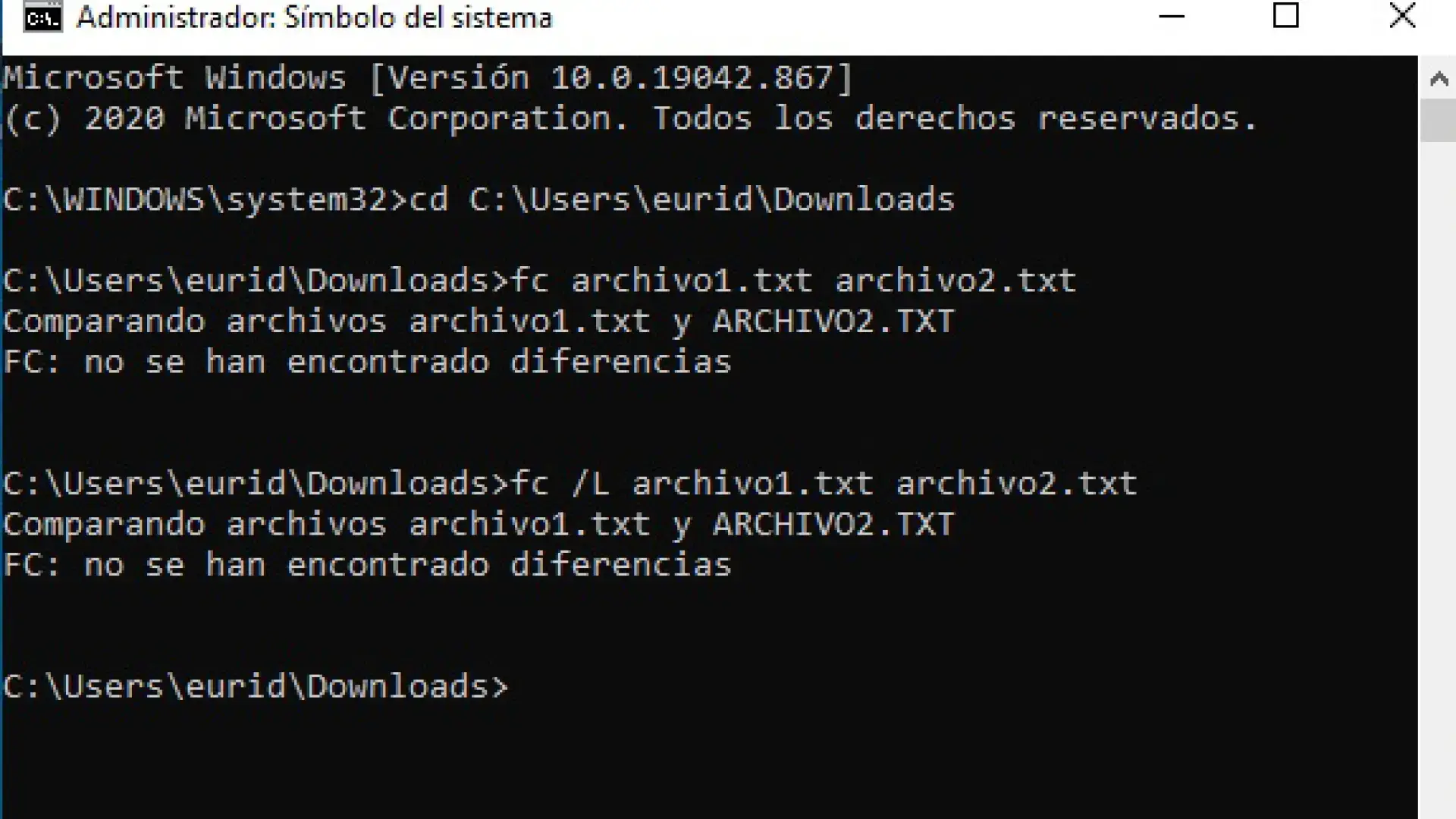
If the binary comparison reaches the end of one of the files and the other still contains data, FC will indicate that one of the files is longer than the otherHowever, if after analyzing all the content it does not detect any difference, a message like this will appear on the screen FC: no differences encountered, or its localized equivalent, making it clear that both files are identical.
In ASCII mode, FC relies on its internal 100-line buffer (unless you've modified it with /LBn) to read and match files block by block. If the files are so different that it can't find a match within that block, it will display the message "Resynch failed. Files are too different.", indicating that it was unable to realign the two text sequences in a reasonable way.
FC command exit codes
Beyond the text you see on the screen, the fc.exe executable returns an exit code to the operating system when it finishes. This code is crucial when using FC within batch scripts or automations, because it allows you to make decisions based on the comparison results without having to manually analyze the returned text.
The exit code table is very simple and remains constant:
- 0 – The files being compared are identicalNo difference in content was found.
- 1 – The files are There is at least one discrepancy between file1 and file2.
- 2 – A error during comparisonIt may be related to permissions, inaccessible files, read problems, or invalid parameters.
In a batch file that you want to check for changes, you can use these codes with commands like IF ERRORLEVEL or similar constructs, so that the script acts in one way or another depending on whether the files match or not.
Practical examples of FC usage
Once you understand the theory, the most useful thing is to look at specific commands you can use daily to compare files in Windows. These examples are based directly on the official documentation and Windows Help.
Compare two text files in ASCII mode
Imagine you have two reports, monthly.rpt and sales.rpt , and you want to see how they differ, but without overwhelming your screen with lines. You could use:
fc /a monthly.rpt sales.rpt
With the /A option, FC will display only the first and last line of each difference block , making the output much more readable when the changes are extensive.
Compare binary files (e.g., batch scripts)
If you're interested in verifying byte-level changes in two batch files, say profits.bat and earnings.bat , the best approach is to use binary mode:
fc /b profits.bat earnings.bat
If there are differences, you'll see something like several lines with different hexadecimal addresses and byte pairs. If, however, the two files match perfectly, FC will return a message indicating that no differences were found during the comparison.
Compare all .bat files to a reference file
Sometimes it's useful to compare several files at once against a new version that acts as a template. For example, if you want to compare each .bat file in the current directory with new.bat , you can use this command:
fc *.bat new.bat
FC will go through all the .bat files in the current directory that match the pattern and compare them one by one with the new.bat file, showing you the differences between each pair.
Compare files with the same name on different drives
Another fairly typical situation is checking if the files on drive C and drive D match, for example, when you're validating a backup. To compare all the .bat files in the root directory of C: with their equivalents on D:, you can type:
fc c:\*.bat d:\*.bat
In this case, FC will compare each batch file in the root of C: with the file of the same name in the root of D:. If you only want to compare a specific file, simply specify its name instead of the wildcard *.bat.
Using FC in the Windows console and in PowerShell
The classic Windows command prompt, known as CMD , offers an ideal environment for using the FC command, but you can also use it from PowerShell with a slight difference. In CMD, simply open a window (for example, by typing cmd in the Start menu) and run the commands exactly as shown in the previous examples.
In PowerShell, as already mentioned, fc is an alias of the Format-Custom cmdletTo avoid conflicts and ensure you are using the classic Windows file comparator, you must type fc.exe instead of simply fcFrom that point on, the parameter syntax remains the same as in CMD.
Many users combine FC with other common console environment commands, such as CD (to change folders), DIR (to list directory contents), TREE (to view the subfolder tree), MOVE or RENAME (to move or rename files), and utilities like FIND to search for text strings within one or more files.
It is entirely feasible to integrate FC into more complex scripts that perform backups, synchronize directories, or verify that configuration files have not been modified from an original template, taking advantage of both exit codes and specific comparison options.
Simplified FC usage variants and frequently used options
In some training materials or class notes, it is common to find a simplified version of the syntax, highlighting only the most frequently used options. For example, a very common abbreviation is:
fc archivo1 archivo2
In this representation, /b indicates a binary comparison , while omitting it assumes a text comparison (ASCII by default or Unicode if /U is specified). File1 and file2 are still the names of the files you want to compare.
Many summaries also list the following as key options: /b for byte-by-byte comparison, /l for line-by-line comparison, /c for case-insensitive comparison, and /s for recursively comparing subdirectories . It's worth noting that the /s option is not part of the official FC syntax in Windows (it usually belongs to other commands), but it is sometimes mentioned in generic file comparison diagrams or in notes that mix different commands.
In any case, always using the built-in help of fc /? and the official documentation will ensure you have the correct list of parameters for your version of Windows , without confusing options from other commands with those of FC.
Given all the above information, the FC command reveals itself as a surprisingly complete tool for anyone who needs to check for changes between files in Windows: it allows you to compare in text, Unicode or binary mode, adjust how spaces, uppercase letters and tabs are handled, manage files offline, control the buffer and re-synchronization, interpret exit codes in scripts and work with patterns and wildcards for entire batches of files, all without resorting to external applications and taking advantage of a utility integrated into the operating system itself.


Passionate writer about the world of bytes and technology in general. I love sharing my knowledge through writing, and that's what I'll do on this blog, show you all the most interesting things about gadgets, software, hardware, tech trends, and more. My goal is to help you navigate the digital world in a simple and entertaining way.