- Key differences between HDD, SSD, and NVMe to optimize server performance and capacity.
- Importance of choosing certified NAS drives versus conventional desktop drives.
- RAID configuration strategies and the use of hybrid systems to balance cost and speed.
- Selection criteria based on data volume, access frequency, and available budget.
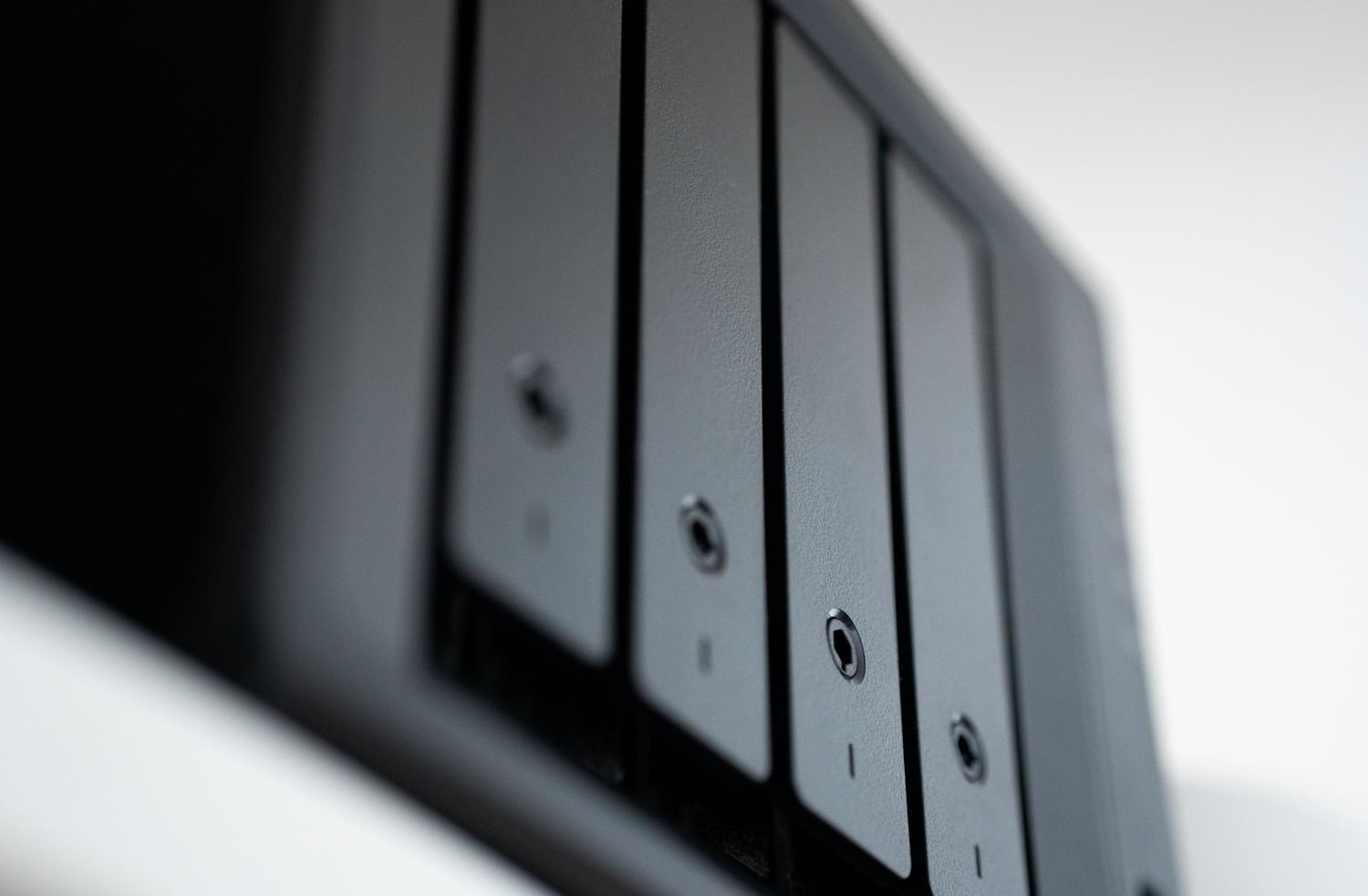
Setting up a network-attached storage (NAS) server is one of the best decisions you can make to organize your digital life. However, many people make the mistake of choosing the drives, thinking that any unit that fits in the bay will do. The reality is that the heart of your NAS is the hard drive, and storing a few family photos is not the same as setting up a multimedia center that runs 24/7.
To avoid making a mistake, it's important to understand that a NAS isn't a giant desktop computer; it's a device designed for constant availability and simultaneous access by multiple users. Choosing the wrong technology risks a sluggish system or, worse, losing your files because the drive couldn't handle the workload. Let's break down everything you need to know to make an informed purchase.
Storage technologies: HDD, SSD or NVMe?
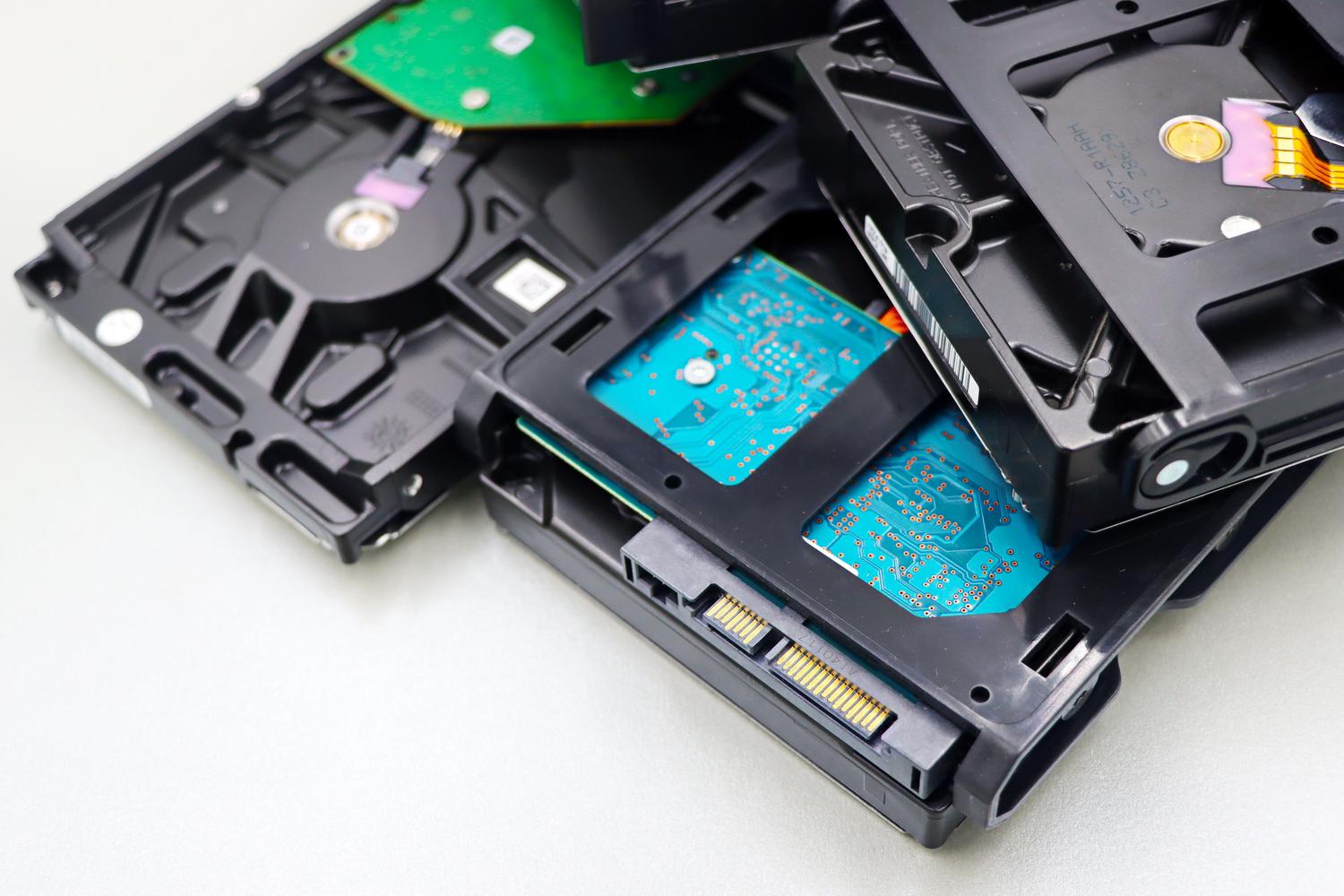
In today's market, we primarily use three technologies. HDDs, or mechanical hard drives, are the veterans. They operate with rotating platters and read/write heads, making them significantly cheaper per terabyte. They are the logical choice if you need to store enormous amounts of data, such as 4K movie libraries or massive backups, as they offer capacities exceeding 18 TB at reasonable prices.
On the other hand, we have SSDs, which, having no moving parts, are much faster and more resistant to shocks. They are ideal for running applications directly from the NAS or for managing small files that are constantly being opened and closed. Within this category are NVMe drives, which use the PCIe interface to achieve breathtaking speeds, making them the ultimate tool for video professionals or gaming enthusiasts who can't stand slow loading times.
The big difference: Desktop hard drives vs. NAS drives
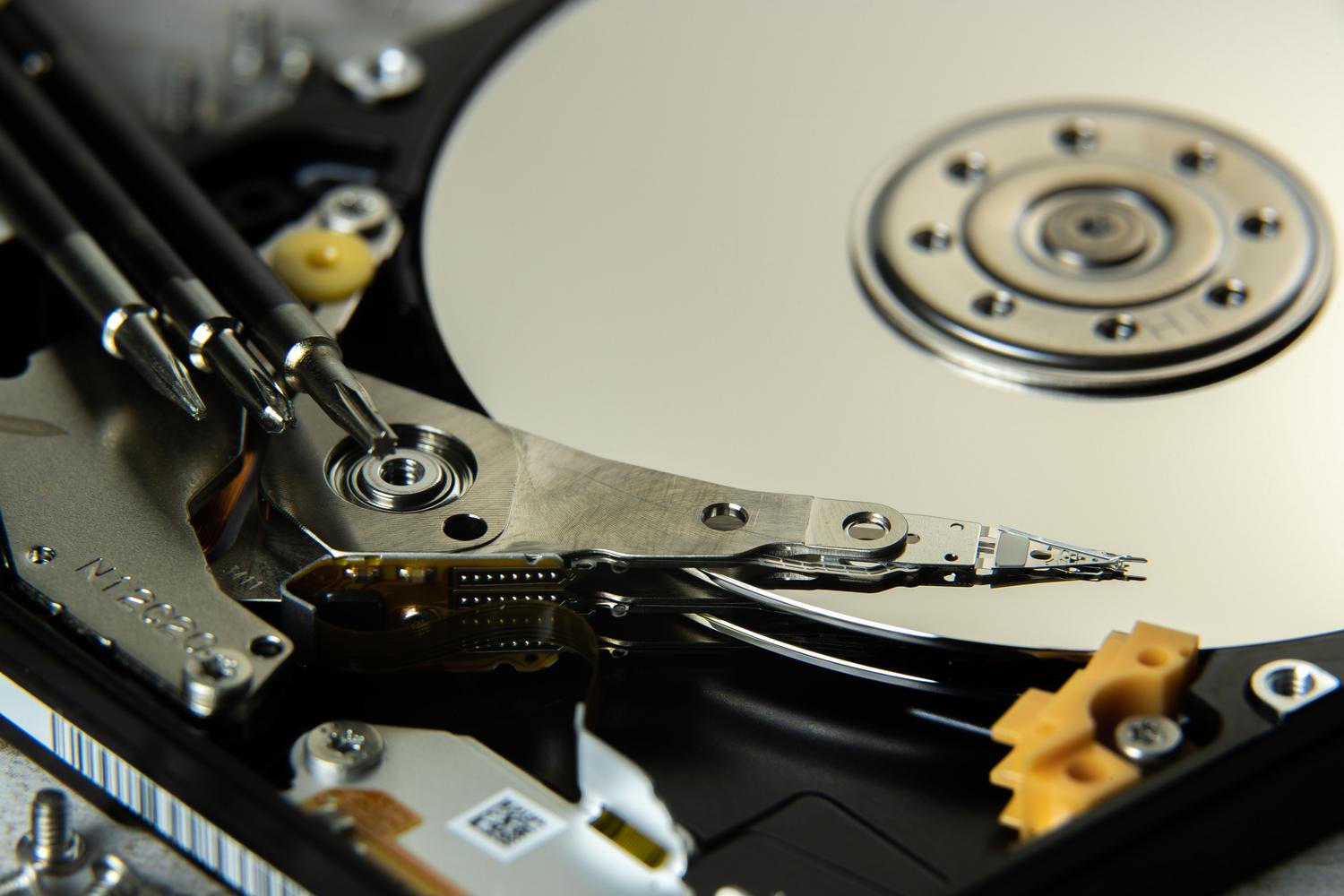
This is where most beginners go wrong. A standard PC hard drive is designed to be powered on and off once or twice a day. A NAS drive, on the other hand, is built to run continuously , handling indexing and diagnostic tasks in the background while you sleep. Furthermore, NAS-specific drives have firmware optimized for RAID environments, preventing the system from ejecting them due to response time errors.
Another key point is vibration. When you put four or five disks in a small enclosure, the movement of one affects the others. NAS drives include rotational vibration sensors that compensate for this effect, preventing the read/write head from shifting and the failure rate from skyrocketing. Using desktop hard drives in a NAS is like playing Russian roulette with your data.
Storage and data protection settings
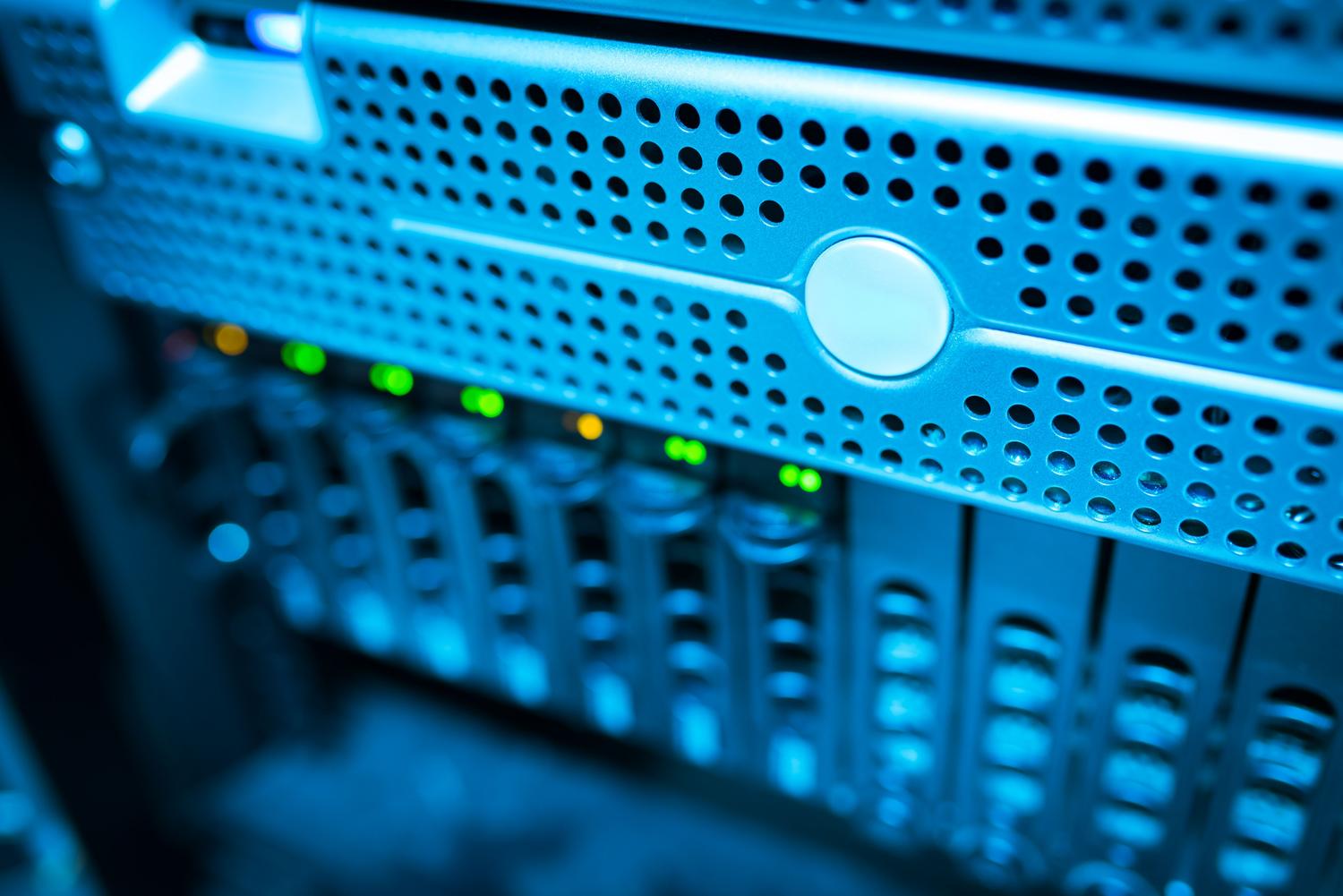
To make your NAS truly useful, you need to consider how to organize the disks. Using RAID (Redundant Array of Independent Disks) allows you to group multiple drives to increase capacity or security. For example, if you're looking for complete redundancy , you can configure the disks so that each one is an exact copy of the next; that way, if one fails, you don't lose a single byte. However, keep in mind that in these configurations, the total capacity isn't the sum of the disks' capacities; you're sacrificing space for peace of mind.
If you're on a tight budget but want speed, a hybrid setup is the way to go. It involves using an HDD for heavy storage and a small SSD as a cache. This way, the NAS stores frequently used files on the faster drive, giving you instant system response without the expense of filling the entire server with SSDs.
How to calculate capacity and performance based on usage
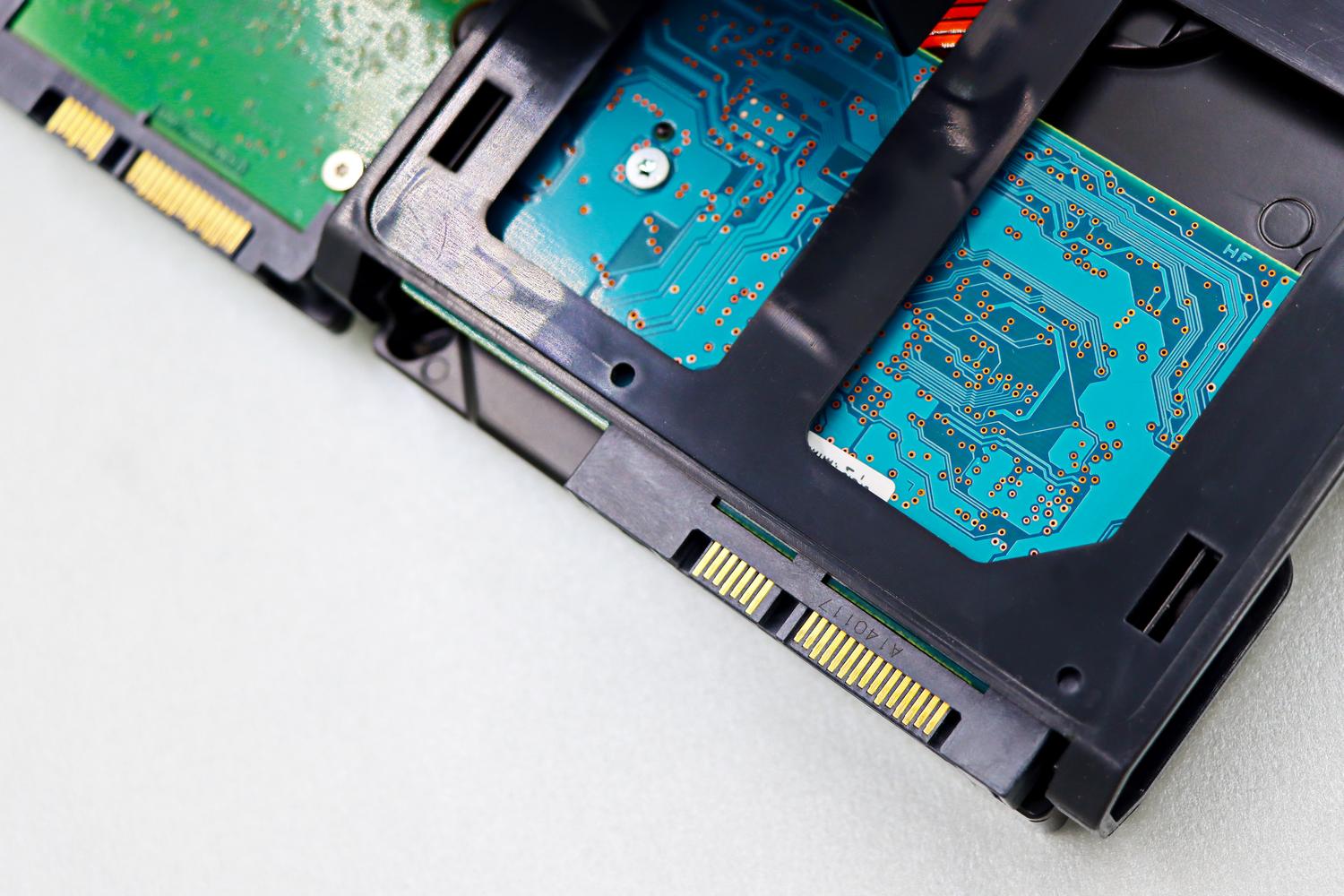
Don't buy storage space just for the sake of it. If you only store documents and a few photos, 1 or 2 TB will be more than enough. But if you've ventured into the world of 4K video production , be prepared to need 8 TB or much more. One trick is to calculate the size of your current files and add a 20% margin for future growth, since a 100% full drive becomes extremely slow and inefficient.
In terms of performance, look at the RPM (revolutions per minute). 5400 RPM drives are quieter and consume less power, perfect for a NAS in your living room. If you prioritize speed for frequent transfers of large files, go for 7200 RPM drives, even though they have a more noticeable mechanical noise.
Final tips for a lasting installation
Don't neglect the hardware surrounding your drives. Efficient airflow is vital; if the drives overheat, their lifespan is drastically reduced. Additionally, a UPS ( Uninterruptible Power Supply) is essential . A sudden power outage while the NAS is writing data can corrupt the file system or damage the RAID array, turning your expensive drives into highly sophisticated paperweights.
Remember that RAID is not a backup. Even with redundancy, if you accidentally delete a file or get a virus, the change will be replicated across all disks. Therefore, the golden rule is to always maintain a separate external copy , either on another hard drive connected via USB or in the cloud.
The key to a successful server lies in prioritizing reliability over immediate price, opting for NAS-certified units, planning space according to data growth, and ensuring system integrity with good cooling and electrical protection.

Passionate writer about the world of bytes and technology in general. I love sharing my knowledge through writing, and that's what I'll do on this blog, show you all the most interesting things about gadgets, software, hardware, tech trends, and more. My goal is to help you navigate the digital world in a simple and entertaining way.