- Copilot integrates AI into Word, Excel, Outlook, PowerPoint, and Teams to automate common tasks and speed up daily work.
- Power Automate, Process Mining, and Copilot Studio allow you to design complete flows, analyze processes, and create custom agents with minimal code.
- The different licensing options (Copilot Chat, Copilot Business and Microsoft 365 Copilot) determine the level of data access and the scope of automation.
- Successfully automating Office with Copilot requires careful attention to data quality, security, and user training to ensure the tool is used to its full potential.

If you work daily with Word, Excel, Outlook, PowerPoint, or Teams, you probably spend too many hours on routine, low-value tasks : answering emails, formatting documents, organizing data, or preparing nearly identical presentations. The arrival of Copilot in Microsoft 365 and Power Automate completely changes this landscape and opens the door to much smarter automation, as demonstrated by the creative uses of Copilot.
This AI-powered assistant doesn't just help you write better or generate reports faster; when used effectively, it can automate a significant portion of your Office work , from entire business workflows to small, repetitive tasks that steal minutes from your daily workflow. Let's take a step-by-step look, with practical examples, at how to use Copilot so that Office works for you, not the other way around.
The role of AI and hyperautomation in working with Office
The combination of artificial intelligence and automation is driving companies to seek new ways to simplify processes , increase efficiency, and foster creativity. It's no longer just about recording a macro in Excel or creating a rule in Outlook, but about building complete workflows that adapt to the context.
Thanks to integrated AI, Microsoft tools can go far beyond a fixed script : they learn from data, detect patterns, adjust their behavior when circumstances change, and allow you to react faster to unforeseen events. This translates into automations that not only execute commands but also help make decisions.
In this context, hyperautomation emerges , which consists of automating as much of an organization's work as possible by combining AI, RPA (robotic process automation), low-code platforms, and process and task mining. In the Microsoft ecosystem, this is particularly evident in Power Automate, Process Mining, and Copilot as an intelligence layer.
Low-code and no-code platforms democratize automation: they allow business users, without a technical background, to create workflows and bots that connect Office applications with other systems , including Office add-ins , reducing the burden on the IT department and accelerating the adoption of in-house solutions.
In addition, process and task mining tools help to see where time is really being wasted: they show bottlenecks in workflows, point out which steps should be automated first, and allow you to measure the impact of each improvement to continue refining processes continuously.

Copilot within the Power Automate ecosystem
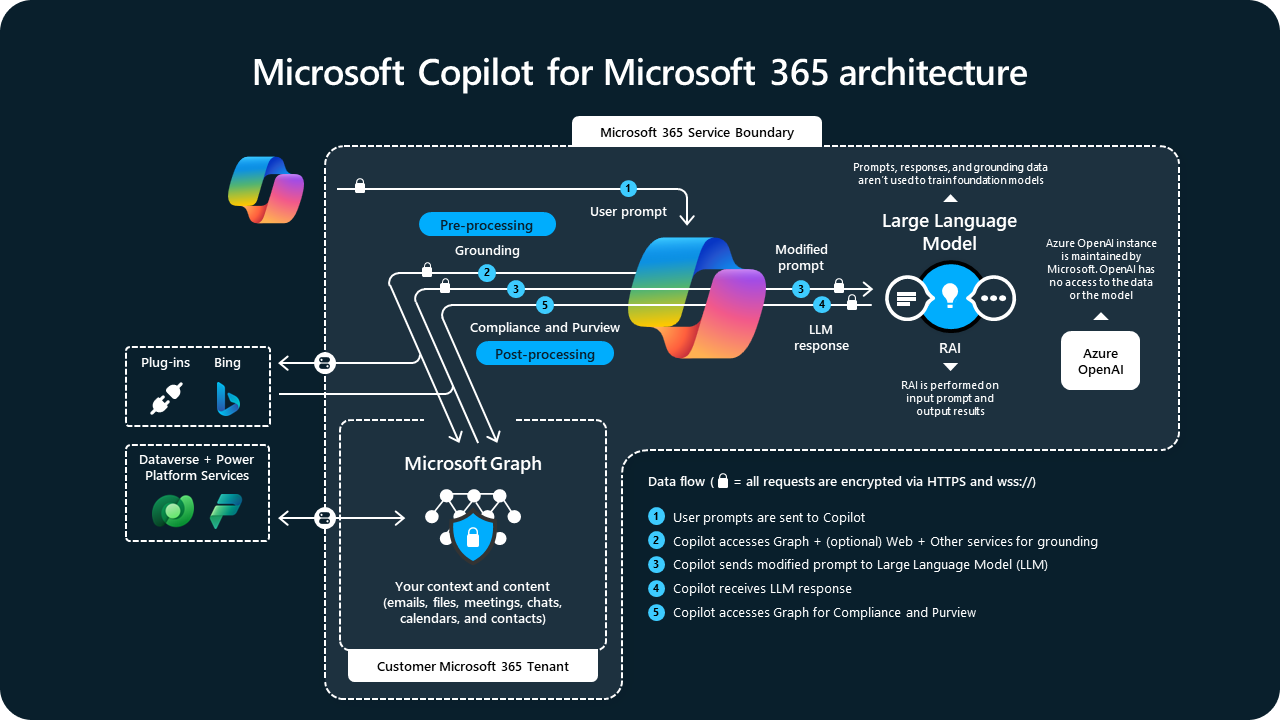
One of the key tools for automating Office tasks with AI is Power Automate, which now integrates a Copilot specializing in workflow creation . Here, AI doesn't just answer your questions: it guides you as you design and maintain automations.
In cloud-based workflows, you can describe in natural language what you want to achieve, for example: “When I receive an email with an invoice in Outlook, save it to OneDrive and notify the responsible party via Teams .” Copilot proposes a workflow with the appropriate connectors (Outlook, OneDrive, Teams), configures the triggers, and suggests actions at various conversational steps.
In the Process Mining section, Copilot guides you through ingesting process data and helps you analyze where tasks are actually getting stuck . It then summarizes quantitative and qualitative findings in natural language, so any business owner can see which activities should be automated first.
Desktop workflows also benefit from Copilot: AI can analyze executions, detect common errors, suggest how to fix them, and even create new desktop automation workflows from a description . This opens the door to automating legacy applications or tasks that aren't yet in the cloud.
Finally, in the Power Automate automation center, Copilot allows you to make natural language queries about overall performance: how many flows have failed, waiting times in work queues, usage statistics, etc., making it easier for the Center of Excellence teams to manage the entire environment.
How to enable or disable Copilot in Power Automate
The availability of Copilot in Power Automate depends, among other things, on the region and the GPU infrastructure available to Microsoft in that area. In regions such as the UK, Australia, the US, and India, where GPUs are available, the feature is enabled by default.
In such cases, if an organization wants to disable Copilot at the tenant level, the administrator must open a support case and run a PowerShell script . Currently, there is no fine-grained control to disable it only in specific environments; deactivation is performed globally across the tenant.
In regions without GPUs, Copilot is also enabled by default, but it relies on cross-region data sharing . To restrict this functionality, simply disable data sharing in the Power Platform admin center for the entire tenant.
It is always advisable to check Microsoft's official documentation regarding availability by region , as both Copilot coverage and technical dependencies may change over time.
What exactly is Microsoft 365 Copilot and who is it for?
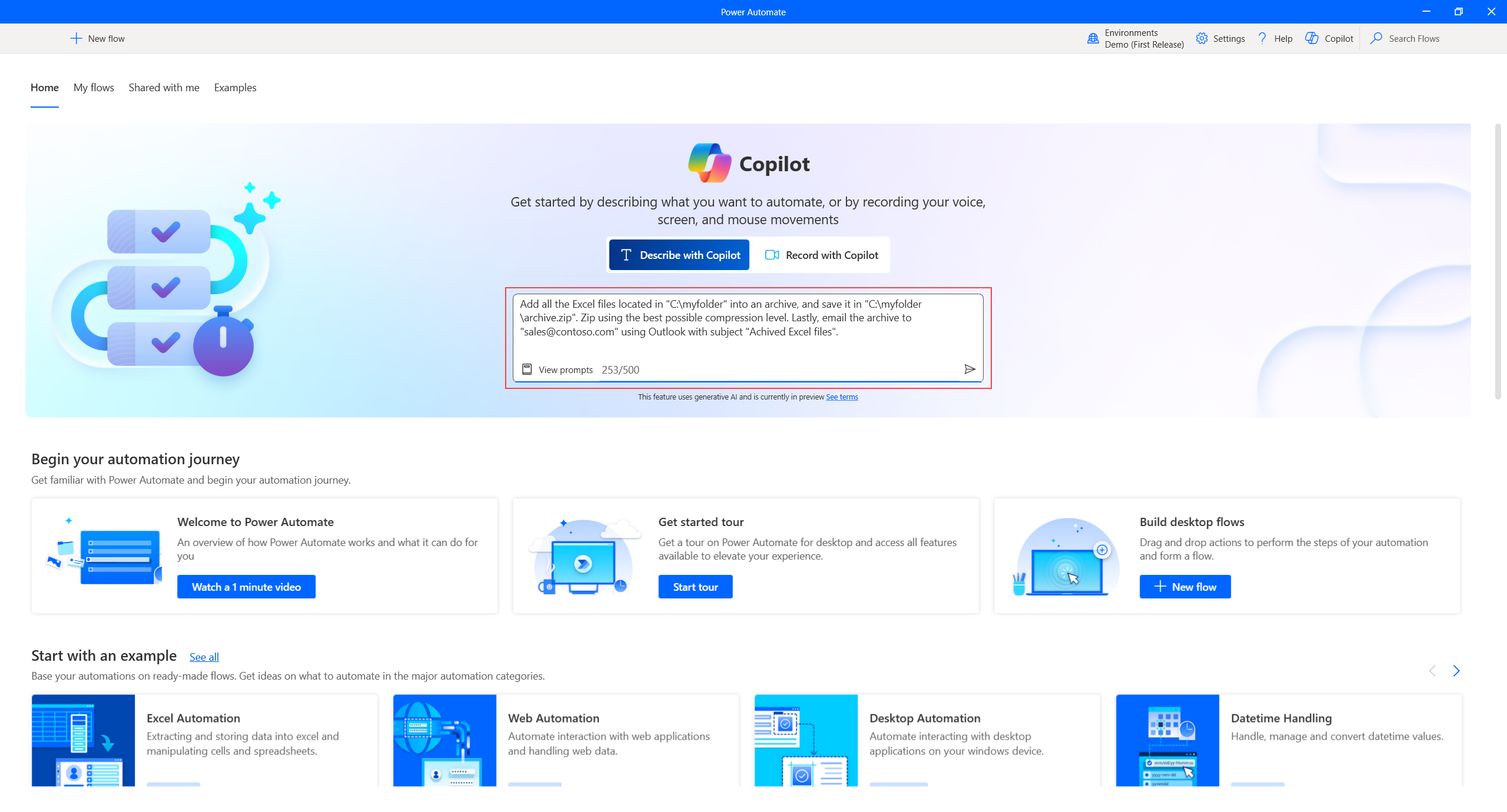
Microsoft 365 Copilot is the AI-powered productivity assistant that lives within the suite's applications: Word, Excel, Outlook, PowerPoint, Teams, OneNote, Whiteboard , and other tools connected to the Microsoft 365 Graph. Its goal is to help you produce better content faster, make data-driven decisions, and automate tasks without leaving the apps you already use.
The key difference compared to other assistants is that Copilot can take into account your organization's context: emails, documents, meetings, chats, and business data (always respecting configured permissions and security). This allows it to generate reports based on shared files, summarize email threads with clients, or prepare presentations from internal documents.
This Copilot is geared towards both business users, large corporations, and individual professionals. An office worker can use it to draft documents and emails, analyze data, and prepare presentations . In the corporate world, it's also used to automate more complex workflows, generate regular reports, and improve real-time collaboration.
Freelancers and individual users can also rely on Copilot to manage their day-to-day tasks: organizing tasks, creating proposals, preparing documentation, or understanding data much faster than with traditional tools.
Copilot Chat, Copilot Business and Microsoft 365 Copilot: what each one offers
For small and medium-sized businesses (SMBs) and small organizations, there are several entry points to the Copilot ecosystem within Microsoft 365, each with different scope and limitations . Understanding these helps in deciding where to begin automating.
On one hand, there's Copilot Chat, accessible to users with a compatible Microsoft 365 license . It's a web-based chat experience (also integrated into some apps like Word, Excel, PowerPoint, OneNote, and Outlook) that allows you to query AI in a secure environment. However, its capabilities are limited compared to the enterprise versions.
The main limitation of Copilot Chat is that, unless you manually upload files (so it's advisable to choose appropriate file formats ), it doesn't have automatic access to all your work data in Microsoft 365. It relies primarily on information available online or what you provide during the conversation. It's ideal as a first introduction to AI, but it doesn't fully leverage the potential for automation and integration with your corporate environment.
For small and medium-sized businesses, Microsoft has launched Microsoft 365 Copilot Business, designed for those with a Microsoft 365 Business subscription (Basic, Standard, Premium, or Enterprise Apps) . This option includes all the capabilities of Copilot Chat and adds access to user work data in Teams, Outlook, Word, PowerPoint, and Excel, as well as the creation and use of agents with Copilot Studio, basic Graph integration, advanced security and compliance features, and the ability to upload files without service capacity limits.
However, Copilot Business is limited to a maximum of 300 users per organization . For larger companies, the alternative is the full Microsoft 365 Copilot, which expands the range of compatible plans, offers scalable centralized management, advanced compliance controls, advanced Graph integration, and integration with additional products such as Viva or Purview, with no user limit.
Licenses and requirements for using Microsoft 365 Copilot in Office
For Copilot automation in Office to work, you need the correct license and the appropriate add-ins . A basic Microsoft 365 subscription isn't enough if you don't add the necessary Copilot modules.
In the business sector, users typically require licenses such as Microsoft 365 E3, E5, Business Standard, or Business Premium, in addition to the Microsoft 365 Copilot add-on license . In education, teachers and students over 18 can use it with Microsoft 365 A1, A3, or A5 licenses and the corresponding add-on.
For individual users with Microsoft 365 Personal or Family, there is the option to combine the subscription with Copilot Pro , which integrates intelligent features into Office applications at the home and independent professional level.
In an organizational setting, license allocation is managed from the Microsoft 365 admin center . From there, you can review privacy settings, enable or disable features, and control who has access to which Copilot capabilities in each app.
It's important to ensure that all applications are up to date and that there is a stable internet connection , as much of the AI processing is done in the cloud and requires constant communication with Microsoft services.
How Copilot works within Word, Excel, PowerPoint, Outlook, Teams, and other apps
More than just a simple “bot” in a chat window, Copilot is natively integrated into Microsoft 365 applications, positioning itself as a side panel or action button from which you can launch requests in natural language and receive results directly in your documents, spreadsheets, presentations, or emails.
In Word, Copilot generates, summarizes, and enhances text: it can create lengthy reports from just a few lines of text, rewrite sections to make them more formal or more approachable, correct errors, and apply consistent formatting throughout the document. It can even transform blocks of text into tables or adapt the content to a specific corporate style.
Excel becomes much more accessible thanks to Copilot. The assistant can analyze data, detect trends, and suggest visualizations without you having to remember complex formulas. You can ask it in natural language, "How have sales changed this year compared to last year?" and you'll get ready-to-use tables, summaries, and even charts; in web environments, it can also be enhanced with Office Scripts in Excel Web.
In PowerPoint, Copilot excels at automating presentations: it can create a complete set of slides from a Word document, an Excel file, or even a simple description. It also synthesizes extensive content into key points and suggests layouts, colors, and transitions that align with your brand or message tone.
With Outlook, AI focuses on reducing the time you spend on email: it summarizes long threads, drafts appropriate replies, helps prioritize your inbox, and suggests meeting times and reminders . It's especially useful for automating recurring responses or preparing follow-ups without having to review every email individually.
In Teams, Copilot assists in both meetings and chats: it generates session summaries, identifies who said what, extracts key agreements and to-dos, and can suggest follow-up questions or next actions . It also works with files shared in channels to help you find relevant information without wasting time.
OneNote and Whiteboard benefit from AI that can help you structure ideas, summarize messy notes, or turn a chaotic draft into a well-organized outline, resulting in more productive work sessions and less effort when documenting.
Practical examples: automating Office tasks with Copilot in your daily work
Beyond theory, Copilot allows you to automate very specific tasks that we all perform daily with Office tools. Let's look at some real-world examples that you can start implementing almost immediately.
One of the most common uses is managing email in Outlook. You can ask Copilot to review your messages for the day and tell you which ones are the most urgent or relevant . This way, you can focus your attention on what's important first, and if you want to go further, you can ask it to generate draft replies with a specific tone: more formal, more friendly, more technical, etc.
Another powerful example is in Teams meetings. With Copilot, you can request automatic summaries that capture the key points discussed, decisions made, and tasks assigned to each person. You can even instruct it to create a to-do list with assigned responsibilities and deadlines , ready to share at the end of the meeting.
You can also use Copilot to prepare a meeting: you describe the topics to be covered, the estimated duration, and the type of attendees, and the AI generates a structured agenda that you can send by email or include directly in the Teams invitation. This reduces planning time and greatly improves clarity for all participants.
In Word, in addition to generating complete reports or proposals in seconds, Copilot helps you optimize formatting and choose appropriate Microsoft Office formats : apply heading styles, clean up inconsistent styles, adapt texts to a specific level of formality, or create reusable templates for letters, contracts, or internal documents.
In Excel, many repetitive tasks such as data cleaning, filtering, duplicate removal, or creating standard formulas can be automated with a single natural language instruction. For example, you can ask it to generate a bar chart of monthly sales , calculate profit margins, or summarize the most significant changes over the past six months.
Predefined agents and custom agents with Copilot Studio
In addition to basic functionality in applications, Microsoft offers pre-built agents and the ability to create custom agents through Copilot Studio, further opening the door to advanced automation.
Among the ready-to-use agents, we find, for example, Researcher, which combines OpenAI's in-depth research models with the search and orchestration capabilities of Microsoft 365 Copilot. This agent can analyze internal data (documents, emails, meetings) and external data (web information) and even integrate third-party data from sources like Salesforce or ServiceNow using connectors to build market strategies, identify opportunities, or generate detailed reports for clients.
Another standout tool is Analyst, designed to transform raw data into visual and actionable information . It works with a model optimized for step-by-step reasoning, executes Python in real time for complex analyses, and displays the generated code, which is very useful for auditing or reusing work.
With Analyst, for example, you can convert data from Excel spreadsheets into sales forecasts, analyze key business variables, or create interactive visualizations for presentations without having to program a single line by hand, reducing hours of work to just a few minutes.
In addition to all this, you can configure custom agents to meet your company's specific needs. A typical example would be an agent that, at a set time each day, reviews all emails received in the last 24 hours , identifies the most important ones, and sends you a summary via Teams or email. This way, you don't even have to repeat the same request over and over.
Benefits and limitations of automating Office with Copilot
Automation with Copilot offers clear advantages: time savings, greater accuracy in documents and analysis, and a significant increase in productivity and collaboration. However, it's also important to understand its limitations and requirements to use it responsibly.
In terms of benefits, many companies report that Copilot drastically reduces the time spent writing documents, preparing Excel reports, or managing lengthy emails. At the same time, AI helps minimize human error, improving content clarity and consistency, and reducing manual revisions.
Furthermore, by automating tedious tasks, teams can focus on strategic and collaborative work. For example, in Teams, Copilot speeds up meeting preparation and follow-up; in Excel, it transforms data into understandable charts with a single command; and in Word, it maintains a consistent tone across all corporate documents.
Adoption is also facilitated because Copilot integrates with the tools you already use, eliminating the need to learn new applications. Users with no data analysis experience can obtain statistical summaries and visualizations in Excel, and business managers without design skills can prepare compelling presentations in PowerPoint.
However, there are sensitive issues regarding privacy and security: Copilot can access documents and emails to generate content, so it is essential to define clear internal policies, review permissions, and train employees on the responsible use of AI, and to rely on solutions such as Defender for Office 365 in environments with sensitive information.
It's also important to keep in mind that the quality of Copilot's responses depends on the quality and organization of your data. If your documents contain errors or are disorganized, the AI may produce inaccurate or outdated results . Furthermore, as it's still an evolving technology, it can sometimes make mistakes, especially with complex calculations in Excel or meeting summaries, so it's always advisable to supervise the process.
Finally, not everyone adapts to AI at the same pace. Some users may be hesitant to delegate tasks to Copilot or wary of automating responses without reviewing them. Training and internal demonstration sessions make a significant difference in ensuring real and sustainable adoption.
Automation in Excel and the role of cybersecurity
Excel remains the go-to tool in many companies for managing data, performing calculations, and building models. However, its intensive use often comes with countless repetitive tasks: copying and pasting data, cleaning columns, adjusting formulas, and creating the same charts every month . Copilot can completely transform this dynamic.
Thanks to AI, Excel can be taught to recognize patterns in your frequent actions, suggest appropriate formulas, detect data inconsistencies, and generate relevant charts without you having to build each element manually. Many hours of manual work are now completed in a matter of minutes.
Companies specializing in automation and custom development, such as those offering Copilot integration services in their solutions, help connect this intelligence with broader internal processes. This way, the data you manage in Excel is integrated into business workflows, dashboards, and automated reporting systems to support decision-making with real business intelligence.
At the same time, automation demands that cybersecurity be taken very seriously. By restricting access, clearly defining who can do what on each sheet, and logging automated operations, the risks of human error, improper manipulation, or leaks of sensitive data are reduced. It's also advisable to implement policies to block unsigned macros . The key is to combine productivity and AI with robust security controls.
For many organizations, this combination of automation with Copilot, well-defined processes, and good security practices represents a clear opportunity to improve data quality, operational efficiency, and traceability, leaving behind fragile and difficult-to-audit manual processes.
The integration of Copilot into Office and the entire Microsoft 365 ecosystem marks a turning point for those who are constantly using Word, Excel, Outlook, PowerPoint, and Teams. By introducing artificial intelligence and hyperautomation capabilities to everyday tools, businesses can transform monotonous tasks into automated, measurable, and much more secure workflows , freeing up time for the creative and strategic work that truly drives business.

Passionate writer about the world of bytes and technology in general. I love sharing my knowledge through writing, and that's what I'll do on this blog, show you all the most interesting things about gadgets, software, hardware, tech trends, and more. My goal is to help you navigate the digital world in a simple and entertaining way.