If needed, you can allow someone to mention you or send you a message, even if your phone is in Do Not Disturb mode. Here are the steps to allow someone to bypass Do Not Disturb mode on an Android phone.
Allow someone to bypass Do Not Disturb on Android
Typically, most people put their phone on Do Not Disturb mode while they are in a meeting or busy trying to meet a deadline.
Since Do Not Disturb mode silences all calls and message notifications, there is always the risk of missing an important name or message.
The answer to this problem is to set an exception rule in DND mode, which allows someone or some people to call or send you messages even when your phone is in Do Not Disturb mode.
On Android phones, this can be done by designating contacts as starred contacts in your email address book and enabling the option for starred contacts to call or message you in Do Not Disturb mode.
1. Contacts designated in the transaction address book
As mentioned above, the first step is to designate the person(s) you want to activate Do Not Disturb mode as Starred Contacts in the Deal eBook.
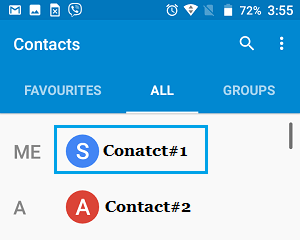
Open the app's Contacts > choose the contact you simply want to designate as your star contact.
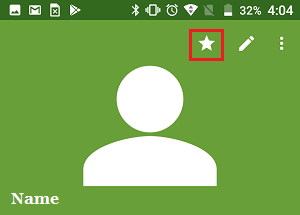
On the next screen, click on the star-shaped Favorites icon to designate this specific contact as a star contact.
If you want to allow other people to bypass Do Not Disturb mode, you'll need to repeat the steps above to designate them as your Star Contacts in Manage eBook.
2. Allow someone to call you in Do Not Disturb mode
After designating starred contacts, the next step is to allow starred contacts to call or message you while your Android phone is in Do Not Disturb mode.
Open Settings > Scroll down and click on Sounds and vibration shocks.
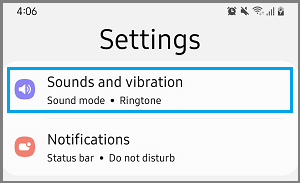
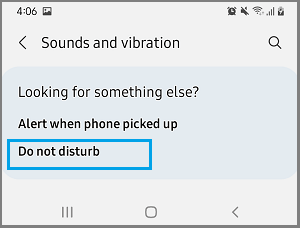
On the Sounds and vibrations screen, swipe down and tap Do Not Disturb.
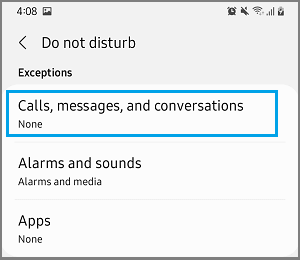
On the Do Not Disturb screen, swipe down and select Calls, messages and conversations , located in the "Exceptions" section.
On the next screen, click on Call and select Only favorite contacts you can choose from the menu that appears.
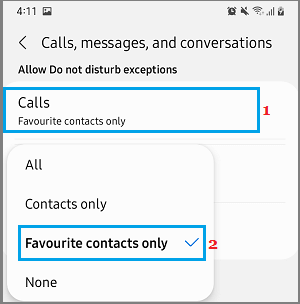
If you want to allow messages, click on Messages and choose Favorite contacts only from the context menu.
After this, all of your favorite contacts will be able to bypass Do Not Disturb mode and give you a name or message, even when your phone is in Do Not Disturb mode.
- How to know who has learned your message in a group WhatsApp
- How to disguise your WhatsApp profile picture from safe contacts
