- Use of specialized software such as Fan Control and MSI Afterburner to manage fan speed.
- Custom PWM curve configuration based on CPU and GPU temperature to optimize noise.
- Importance of hysteresis and chassis ventilation to avoid annoying sound fluctuations.
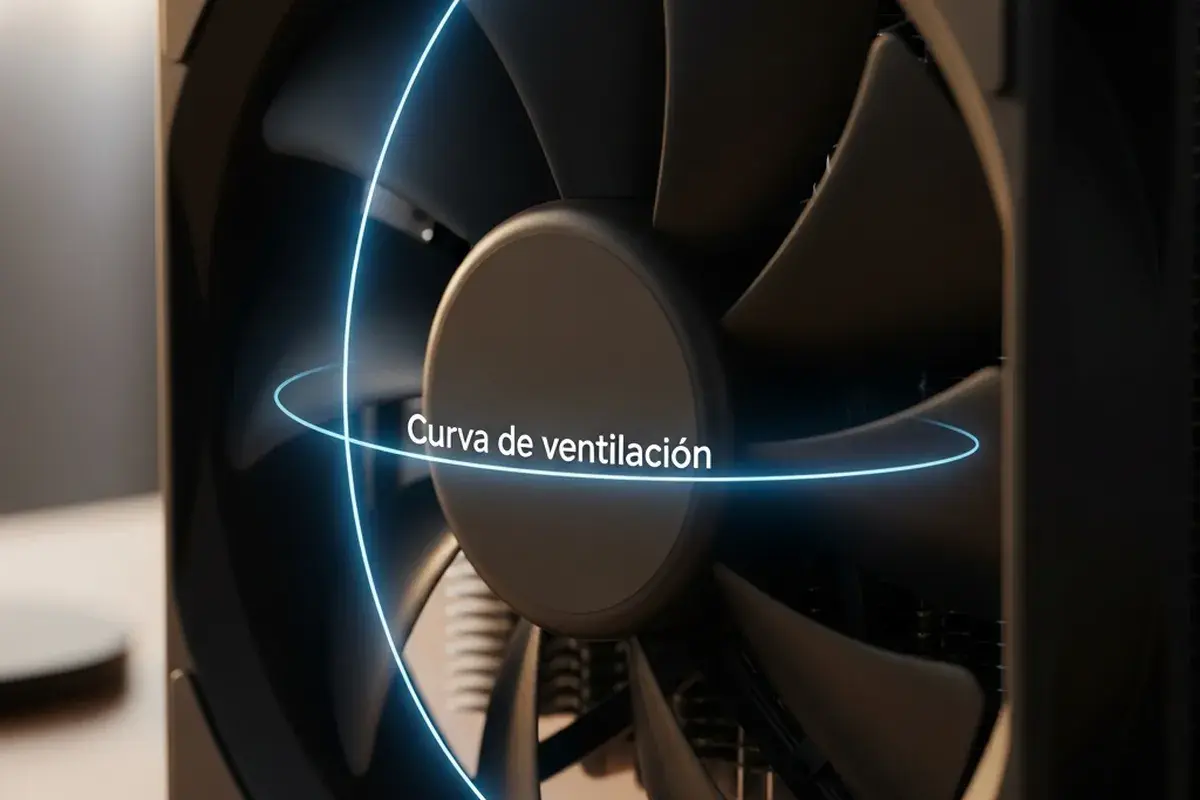
If you've ever felt your computer sound like a jet engine just when you're trying to concentrate, you know that thermal management is a real headache. Whether you have a custom-built PC or a powerful laptop, keeping the fans from going haywire with every background process is crucial for maintaining the health of your hardware and your own peace of mind.
Fortunately, we don't have to resign ourselves to factory settings, which are often too conservative or erratic. By using software tools and BIOS adjustments , we can fine-tune the airflow, creating profiles that suit our actual needs, whether for pushing the limits in demanding games, editing high-resolution video, or simply browsing the web in absolute silence.

Fan Control: The Swiss Army knife for your fans
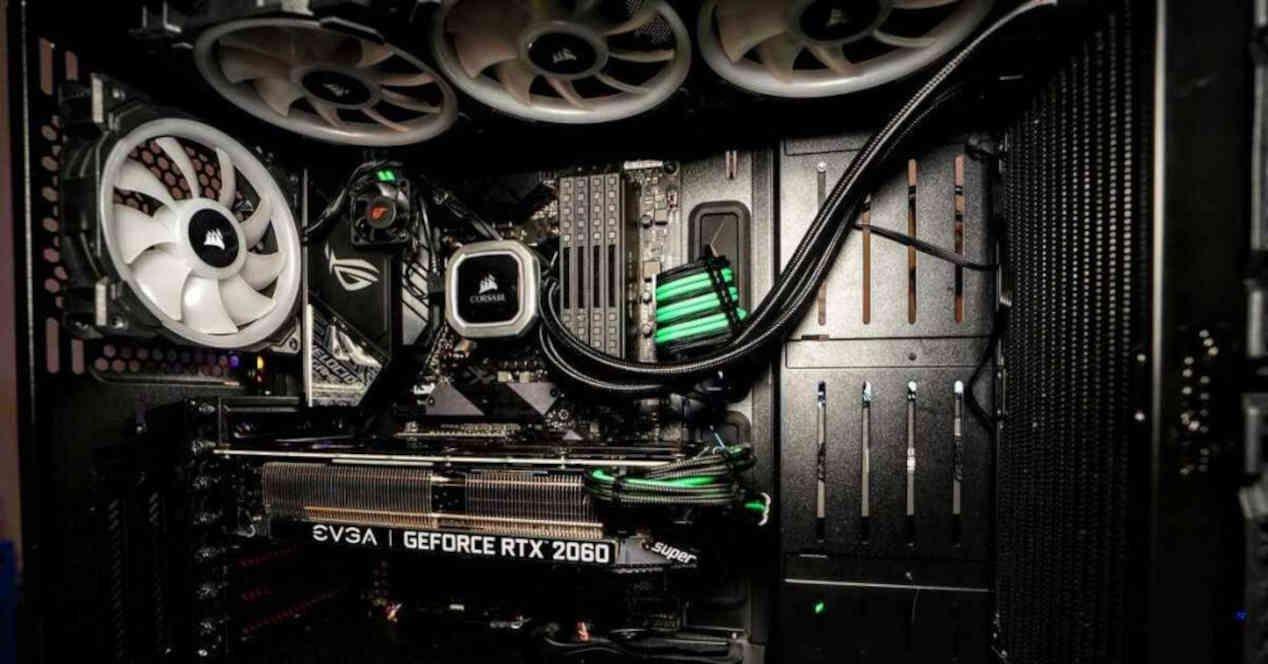
For those seeking a versatile and free solution, Fan Control stands out as an exceptional option. As open-source software hosted on GitHub, it requires no traditional installation; simply extract the files and run the program. This lightweight design even allows you to carry it on a USB drive to configure computers without internet access.
Upon launching the application, the system automatically scans the installed fans, detecting their minimum and maximum speed limits. Interestingly, not all fans start at the same percentage; some may require 45% or more to begin spinning. This crucial information is revealed by the software to prevent us from configuring fan curves that the hardware simply cannot handle.

The magic lies in the curves section, where we can add a fan curve graph and link it to a specific temperature sensor. For example, we can define the CPU fans to maintain 20% until 40°C, increase to 40% upon reaching 60°C, and reach maximum performance when the processor reaches 80°C, all through a very intuitive visual interface.
If you find that the program isn't detecting a component, the first thing to try is running it as administrator . Sometimes, other programs like MSI Afterburner or ASUS Armoury Crate (specifically Fan Xpert) can cause conflicts. In that case, simply disable the control functions of the other software or add a delay of about 30 seconds to Windows startup so that Fan Control loads after the other services.
The art of creating the perfect ventilation curve
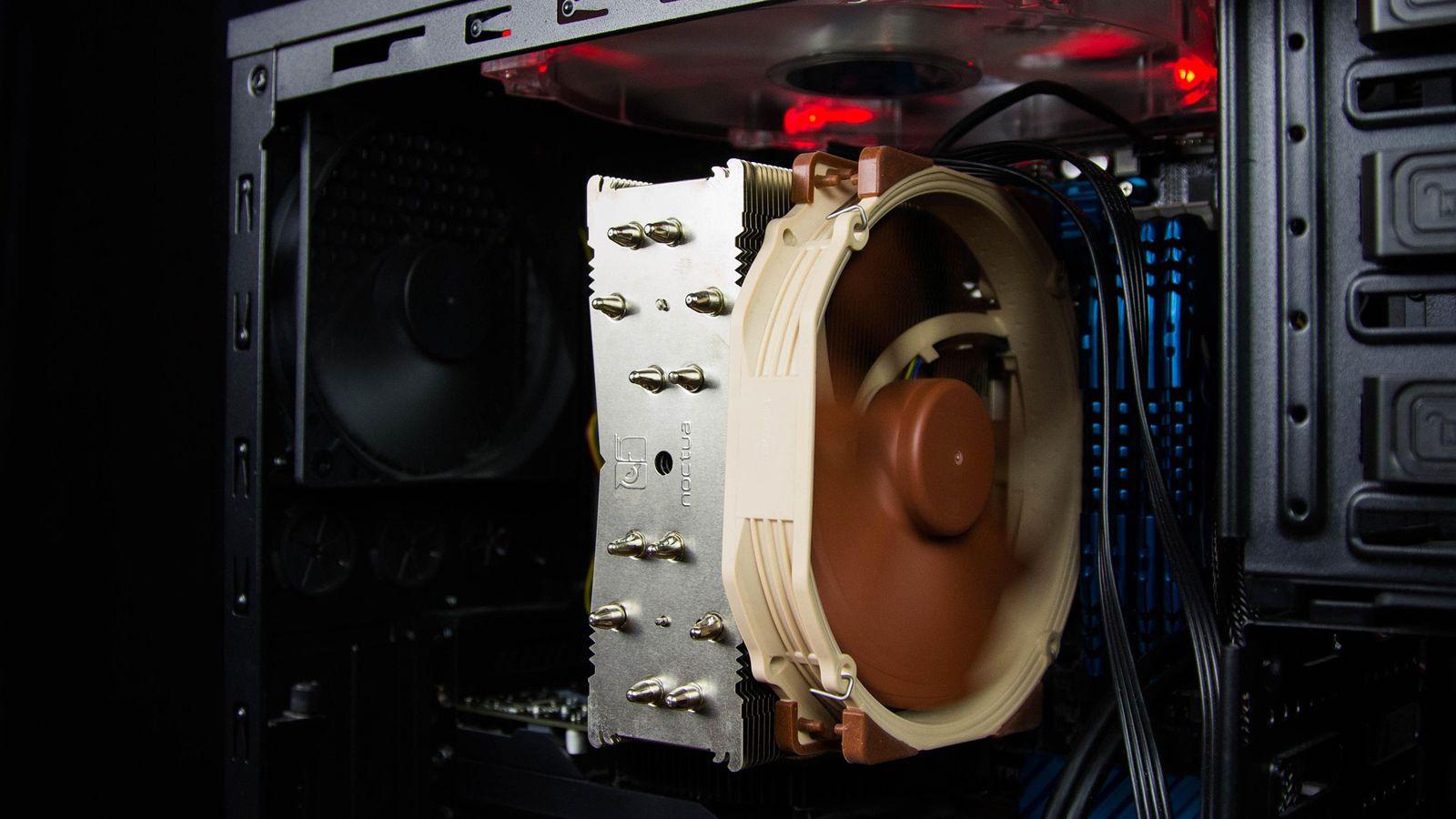
To understand how to optimize noise, we must first differentiate between PWM (4-pin) fans, which are regulated by a signal, and 3-pin fans, which depend on voltage. The problem with the default linear curves is that they generate abrupt speed changes in response to sudden temperature spikes, producing that annoying "whistling" effect that is so distracting.

The key to avoiding this is to implement a flatter fan curve in the low and medium temperature ranges. By maintaining a constant base speed up to 60°C, we prevent the fan from constantly speeding up and down every time we open a browser tab or a Windows update is launched. Additionally, enabling fan hysteresis is highly recommended ; this introduces a slight delay before changing speed, smoothing out the acoustic transition.
Depending on how you use the computer, the strategy varies. For office tasks or browsing, a stable and quiet fan speed is ideal. However, if you're going to be gaming or rendering video, you need a steeper fan speed . In these cases, it's preferable for the fan to ramp up quickly once the safe temperature is exceeded to avoid thermal throttling , which is when the component reduces its power to prevent overheating.
Specific management: GPU, CPU and Chassis
The graphics card is usually the biggest source of heat. Many modern GPUs have a feature that shuts down completely once a certain temperature is reached. To adjust these settings, MSI Afterburner is the go-to tool, allowing you to configure the fans to operate at low speed from startup and then perform a final burst of speed before reaching 80°C, ensuring the card stays within healthy levels, typically around 70°C under heavy load.

Regarding the microprocessor, the adjustment can be made directly from the BIOS/UEFI . A balanced configuration could start at 50% speed until 40°C, gradually increasing to 100% if the chip reaches 75-80°C. It is vital to monitor this with programs like Cinebench to confirm that, even under maximum stress, the temperature does not exceed 85-90°C.
Finally, we can't forget the case fans. The ideal strategy is to create optimized airflow : drawing in cool air from the bottom front and expelling hot air from the top and rear. Since hot air rises and the chassis temperature has more inertia than the CPU temperature, these curves require more patience to adjust, as the case's thermal stability can take up to 20 minutes to reach during a gaming session.
Mastering fan control through software like Fan Control or BIOS settings allows you to transform a noisy system into an efficient and quiet machine. By balancing fan speed with the actual temperature of the components and applying concepts like hysteresis and flat curves, you can protect the lifespan of your GPU and CPU without having to endure excessive noise, always adapting the cooling power to the ambient temperature and current workload.


Passionate writer about the world of bytes and technology in general. I love sharing my knowledge through writing, and that's what I'll do on this blog, show you all the most interesting things about gadgets, software, hardware, tech trends, and more. My goal is to help you navigate the digital world in a simple and entertaining way.