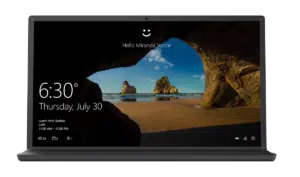
- Windows Hello allows you to securely access Windows 10 and 11 using biometric methods such as facial recognition, fingerprint, or a specific PIN.
- Its configuration requires hardware compatible, and offers advanced options such as improved recognition and dynamic blocking for greater protection and convenience.
- Biometric data never leaves the device, protecting user privacy from external threats.

Would you like to forget about traditional passwords and access your computer faster and more securely? Windows Hello is the built-in solution in Windows 10 and Windows 11 that lets you log in using biometric methods such as your fingerprint, facial recognition, or a device-specific PIN. While it might sound like science fiction, it's a very real technology available on most recent computers.
This article provides a complete and easy-to-follow guide to activating and configuring all Windows Hello features . It covers everything from hardware requirements and advantages to detailed steps for setting up facial recognition, fingerprint access, and PIN login. We'll also address how to troubleshoot common errors and improve recognition if Windows Hello fails to recognize you.
What is Windows Hello and how does it work?
Windows Hello is Microsoft's biometric authentication technology that allows users to log in to their compatible devices or apps using unique personal characteristics such as their face, fingerprints, or a PIN. It provides more convenient access and significantly improves security, as biometric data is stored locally on the device and not on external servers.
It works intuitively: when you activate Windows Hello, the system scans your face using an infrared camera or your fingerprints using a dedicated sensor. These unique characteristics are linked to your account, and from that moment on, you can access your computer simply by showing your face or placing your finger on the keypad, forgetting about long passwords.
The main sign-in methods offered by Windows Hello are:
- Facial recognition using a compatible infrared camera.
- Integrated or external fingerprint reader.
- Personal PIN code, linked only to that specific device.
The Windows Hello PIN does not replace your Microsoft account password , but rather complements it and will only be valid on the computer where you configure it, thus adding another level of protection.
Advantages of using Windows Hello
Choosing Windows Hello over traditional login methods brings numerous advantages, both in terms of ease of use and digital security :
- Instant Access: You just need to show your face or place your finger on the reader to log in, without typing or remembering long passwords.
- Greater protection: Biometric data is securely stored on the device and never leaves it, making identity theft extremely difficult.
- Less exposure to attacks: Since the PIN only works on the registered device, it's not at risk if someone else sees it, and conventional password-based attacks are rendered obsolete.
- Extended Compatibility: Windows Hello also enables secure access to third-party apps, cloud services, and even confirmation of purchases from the Microsoft Store.
Prerequisites for activating Windows Hello
Before activating Windows Hello on your PC, check these key points to ensure your computer is compatible:
- OS version: You must have Windows 10 or Windows 11 installed.
- Required hardware:
- For facial recognition, you need a compatible infrared camera (not all webcams work, check your device's specifications).
- For the fingerprint reader, it must be physically incorporated into the laptop or connected via USB.
- Microsoft account: It's recommended that you link your device to a Microsoft account to take advantage of backup and recovery sign-in methods.
- Set up a PIN: It is a mandatory step before enabling any biometric method.
If in doubt, you can check compatibility on the manufacturer's website or use Windows Device Manager to verify if the IR camera or fingerprint sensor is present and up to date.
How to activate and configure the Windows Hello PIN
The PIN should be the first method you set up, as it acts as a backup in case facial recognition or fingerprint doesn't work:
- Click on the windows icon and access the setup menu (the gear icon).
- Sign in Accounts and later Login Options.
- Locate the section Windows Hello PIN and select Add o Setup.
- Enter your current password to verify your identity.
- Enter and confirm the new PIN you want to use. You can choose a simple number or add letters and Symbols if your environment allows it.
- Click on Accept To save the changes.
This PIN will only work on the device where it is set up, so if you use multiple devices, you'll need to set one on each.
Set up facial recognition in Windows Hello (Windows 10 and Windows 11)
If your computer has an infrared camera, you can use the facial recognition unlocking system. The process is very simple and similar in Windows 10 and Windows 11:
- Sign in Configuration and select Accounts.
- Accede to Login Options.
- Choose Facial recognition (Windows Hello) and click Setup.
- Press on Start o Introduction. Enter your PIN to verify your identity.
- Stand in front of the camera and keep your face within the on-screen frame. The camera will capture your features and complete the process in seconds.
- If you want more precision, you can activate the option Improve recognition to record different conditions, such as with glasses or in different lighting.
Once you're done, you can log in simply by looking at the screen. If recognition fails, your PIN is your quick backup.
How to enable fingerprint unlock with Windows Hello
If you have a fingerprint reader, you can set it up to access with just a touch of your finger:
- Go to Configuration → Accounts → Login Options.
- Choose Fingerprint recognition (Windows Hello) and click on Setup.
- Enter your PIN to validate your identity.
- Clean and dry your finger thoroughly, place it on the reader, and follow the on-screen instructions. Repeat several times, adjusting the angle.
- If you wish, you can register additional fingerprints with other fingers for added convenience.
With this method, unlocking your device will be instantaneous: just place your finger on it and you'll be inside in seconds.
Improve the accuracy of facial and fingerprint recognition
Are you having trouble being recognized by Windows Hello? There are options to optimize the biometric system:
- Facial recognition and glasses: If you wear glasses, repeat the registration without them with the option Improve recognition so that it recognizes your face in different circumstances.
- Light and environment conditions: Lighting affects accuracy. To improve it, re-register your face under typical conditions for each location.
- Fingerprint readers: Keep your fingers clean and dry. Record several prints, especially if your fingers tend to be moist or covered with cream.
Other security methods: Windows Dynamic Lock
Apart from biometric methods, Windows offers Dynamic Lock to increase security in shared environments.
With this feature, you can link your PC to a Bluetooth device, such as your cell phone. When you move away and lose connection, Windows automatically locks after one minute:
- Accede to Configuration and enters Login Options.
- Active Dynamic lock.
- Pair your Bluetooth device if you haven't already.
So, if you walk away with your phone, your device locks itself, protecting your data.
How to remove or reset Windows Hello
To remove or change access methods, you just have to do it from the settings:
- Accede to Configuration → Accounts → Login Options.
- Select the method to delete (facial recognition o Fingerprint).
- Press on Delete to erase stored data.
You can re-register your biometric data at any time from that same section.

Passionate writer about the world of bytes and technology in general. I love sharing my knowledge through writing, and that's what I'll do on this blog, show you all the most interesting things about gadgets, software, hardware, tech trends, and more. My goal is to help you navigate the digital world in a simple and entertaining way.