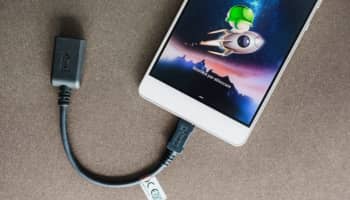
Here's how to enable OTG on Android with and without root access . I know you're here because you want to connect a mouse, gamepad, keyboard, or other device to your phone using an OTG cable, but your new Android phone isn't compatible.
We have great news for you. If so, you've come to the right place. Today we're going to tell you how to activate OTG support on Android . Basically, OTG allows you to connect your drive to any Android device to increase external storage capacity.
You can connect your PC keyboard, mouse, gaming mousepad, and other devices in the same way. Most smartphones currently support OTG and don't require any software to activate it. However, in some cases, it is necessary.
You can also read: How to Install Kali Linux on Android
Enabling OTG on Android
Let me explain one thing before we get into the process. In the early days, OTG compatibility depended entirely on the hardware 's capabilities , and the software didn't need to be OTG-compatible.
However, there are many Android devices that have OTG support, but it is not enabled by the manufacturer or developer. So, if your phone has OTG support, we can use a trick to add it without rooting.
The Google Nexus 4 does not support OTG and it cannot be enabled without rooting. However, if the device is rooted, you can flash it to add OTG support without any problems.
What you need to know before enabling OTG support on Android.
There are some important things you need to know before starting the procedure. You need to review them so that everything goes smoothly during the process.
Can I add OTG support to any Android phone?
No, it's not possible to add OTG support to just any Android phone, as it's a combination of hardware and software . If your phone has OTG support but it's not enabled by the manufacturer, you can enable it without root access.
Can I enable OTG on Android without root?
Yes, you can enable OTG support on any Android phone without rooting. However, if your phone does not have OTG-compatible hardware, you will not be able to enable it under any circumstances.
Can OTG support be enabled on rooted Android?
Yes, you can enable OTG support on any rooted Android phone. If your phone is rooted, you don't need to use OTG support software . If you have rooted your Android device, you can add OTG support using `meat` or the `vold.fstab` script to enable it.
How to Enable OTG on Android Without Root and With Root
We have two methods to tell you how to enable OTG on Android with root. Be careful and choose the option that suits your conditions:
Method 01: Enable OTG on Rooted Android [Using Vold.fstab File].
If you are using a rooted Android phone, follow this method to learn how to enable OTG support using root:
- First, root your device if not already rooted.
- Download and install «root browser","Root Explorer»Or«Es File Explorer«. [In the tutorial we use the Root Browser application].
- Download and install the app Busy Box.
- Now Open the Root Browser app and throw it.
- You will be prompted to enter root rights. Just click on «ALLOW» to allow it.
- Now you will see several folders in the Root Browser app. Scroll down the screen and find the “etc.” folder and click on it to open it.
- Then scroll down and look for the file «Vold.fstab». Open it in any test editor.
- You will see many scripts in the vold.fstab file. Don't change anything or you may brick your device.
- scroll down and paste the following sequence of commands To enable otg support on your rooted android smartphone: # otg usb disk dev_mount usbotg / mnt / usbotg auto / devices / device / platform / mt_usb / devices / platform / musbfsh_hdrc
- Click on the «SAVE»To save the changes.
- Reboot your device to apply the changes. A reboot is required.
- Last step: Install all!!!!
Now connect your OTG cable and flash drive to your device to see if it works or not. This should work if your Android phone has OTG compatible hardware.
Method 02: Enable OTG on your Android using the downloaded NeOGT APK from XDA.
This method is created by XDA developer to enable OTG support on any Android. The procedure in this case is as follows:
- The first thing to do is, of course, root the device if it is not already rotate. It is absolutely necessary to do so.
- If that doesn't work, Flash some custom ROMs and Karnel on your rooted Android phone.
- Download and install the apk «NeOTG«.
- After launching this app, you may see a warning “I am not responsible for any misuse or damage to your device…”, so please read it carefully and do so at your own risk. If you agree and wish to continue, Click the “Next” button.
- Now you will see an “Enable OTG” button. Just click on it to turn on OTG support on your Android device.
- Everything is ready!
How to Enable OTG on Android without Root
Therefore, if you're trying to find a way to enable OTG support on Android without root, make sure your device has the necessary hardware support . Once you've verified this, you can proceed with the following steps to enable OTG on Android without root:
- First of all, you have to Find out if your device supports OTG or notTo do this, you need to download the “USB OTG Support Checker” application from the Play Store.
- Once downloaded successfully, start the applicationIf you have done everything correctly, the “Check USB OTG Support” option will appear. Click on it to open it.
- The process will begin to check your phone's compatibility and you will receive a “Verification” notification.
- Once verified, the following message will appear: «Your device supports OTG support.»
- Congratulations! If you see the above message, then you have the option to manually add OTG support on Android by following the steps below.
Please note that if your device supports OTG, but it is not enabled by the manufacturer, the file manager will not support it by default.
This will lead users to believe their phone is not compatible with this feature. To enable OTG support on Android, you need to install the "es File Explorer " app from the Play Store and then follow these steps:
- First, Download and install “es File Explorer” and start it.
- Now connect your pendrive or USB drive to the charging port using the OTG cable.
- A notification will appear asking you to «Enable USB OTG support«.
- Click “YES” and it will be activated on your device.
- The USB drive folder will now appear in the file manager.
- All set! Now You can access all files and folders what's on your pendrive.
How can I enable OTG support on a device that doesn't have it?
OTG compatibility is hardware-dependent , meaning you can't enable OTG support on your Android device if it doesn't have it. If OTG support is disabled by the manufacturer or developer, you can enable it with or without root access by flashing a custom ROM that has built-in USB support.
You have learned how to enable OTG on Android without root or with root. We have tried our best to explain all the possible scenarios. It is made for those who really want to add OTG support to their Android phones.
Hopefully, it's now clear that OTG compatibility is hardware-based and can only be enabled if the manufacturer or developer has disabled it . This means your phone must support OTG; otherwise, you won't be able to add external hardware to enable it.
You can also read: How to Remove Kingo Root From Your Phone – Tutorial

My name is Javier Chirinos and I am passionate about technology. Ever since I can remember, I have been interested in computers and video games, and that passion has turned into a job.
I have been publishing about technology and gadgets on the Internet for over 15 years, especially in mundobytes.com
I am also an expert in online marketing and communication and have knowledge in WordPress development.