- God Mode centralizes over 200 advanced settings into a single folder
- Allows you to access and customize options normally hidden in the system
- There are alternative modes for specific functions using different codes.
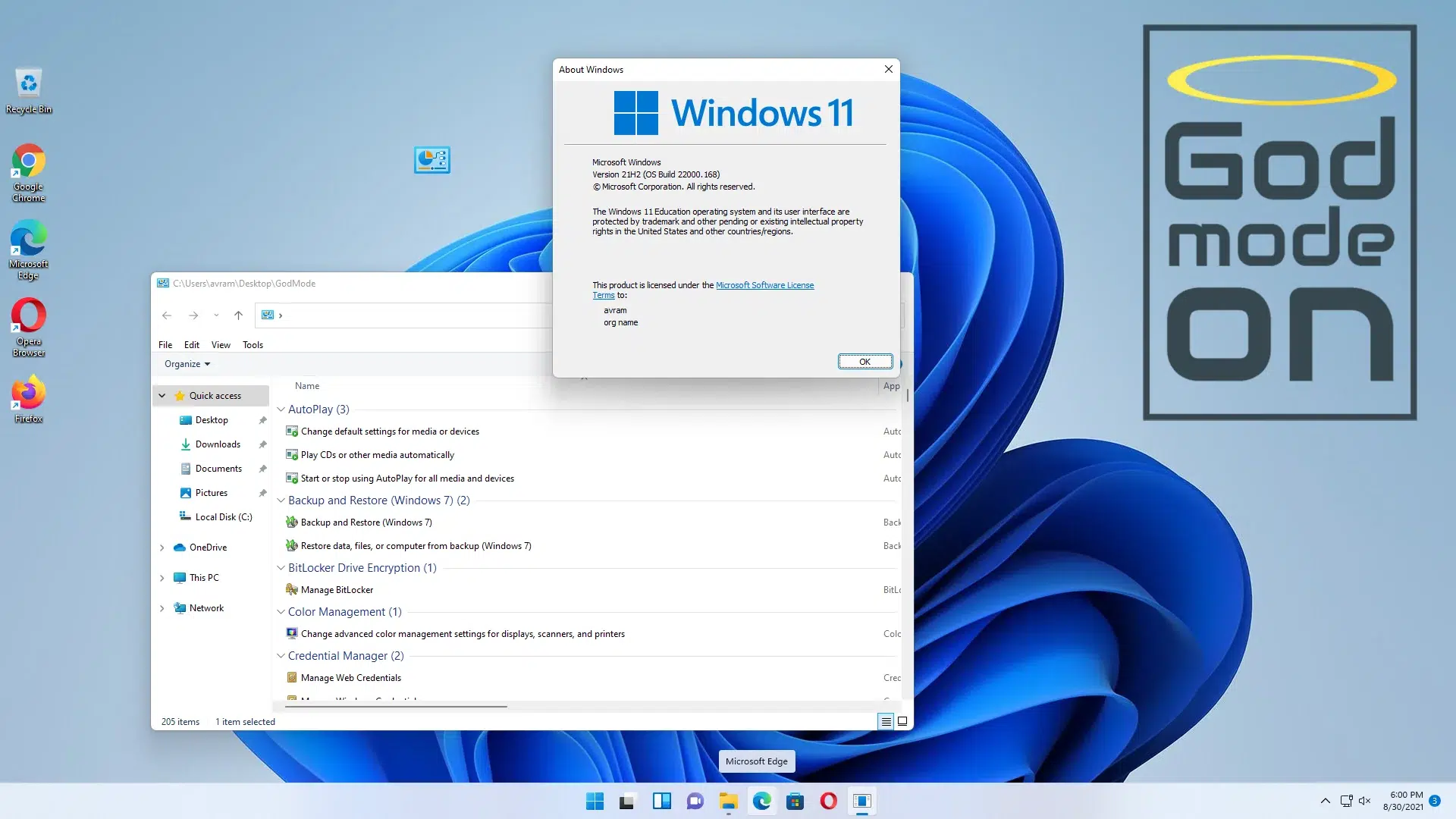
Did you know that Windows 11 hides advanced features that can make your life much easier? Although most users never discover them, one of the system's most powerful and hidden tools is popularly known as God Mode . If you've ever felt lost among the settings menus, or if accessing Windows ' advanced features feels like a real labyrinth, keep reading: here you'll learn all about this secret trick, how to activate it, and everything you can do with it.
The famous God Mode isn't an urban legend or a risky trick : it's a hidden official feature, inherited from previous versions of Windows, that lets you centralize hundreds of configuration and management options in one place. By simply creating a special folder on your desktop, you'll have over 200 shortcuts to the inner workings of your system just two clicks away , from network and power settings to the most advanced administrative tools. And that's not all: there are other, lesser-known secret modes for managing even more specific areas of your PC. Here's the most comprehensive guide on the subject, explained step by step with all the details you need to know.
What exactly is Windows 11 God Mode?
The so-called God Mode —or GodMode for the purists—is actually a special folder that brings together all the shortcuts and advanced settings of the operating system . Despite its dramatic name, it won't grant you infinite lives like in video games , but it will give you total control over virtually every customizable aspect of the operating system . Microsoft officially introduced it back in the Windows 7 era , although its existence has never been publicly promoted as a feature. However, it has survived all the major updates and remains as functional as ever in Windows 11.
Its greatest strength lies in centralizing all the settings that are usually scattered between the classic Settings and the old Control Panel into a single advanced control panel, saving you time, clicks, and searching through menus. This way, you won't have to rummage through windows to find everything from user and device management to power settings, security, networking, or hardware details . If you often get lost in Windows menus, GodMode is the ultimate solution.

Why is it called God Mode?
The name GodMode is inspired by the world of video games, where activating god mode grants unlimited power. Here, the analogy is similar: you gain unrestricted access to all of Windows' internal controls . However, it's not a hack or a dangerous backdoor ; it's an official feature that Microsoft has never blocked and that you can use without compromising your system's integrity. That said, you should always know what you're doing and exercise caution with certain advanced changes.
Advantages of using God Mode in Windows 11
- Time saving: It consolidates over 200 shortcuts to options and panels that would otherwise be scattered across different menus into a single folder.
- Facilitates administrative tasks: You'll find management tools that are often hidden or require several clicks to access.
- Allows you to customize your Windows experience: From hardware to security, including user accounts, power, devices, and more.
- Ideal for advanced users and enthusiasts: While any user can benefit from it, it is especially useful for those who frequently need to adjust advanced details.

How to enable God Mode in Windows 11 step by step
Activating God Mode is much simpler than you might think. You don't need to download anything, modify any registry entries, or apply any suspicious patches. Simply create a special folder and give it the appropriate name . Here are the detailed steps:
- Right-click on any free space on your desktop and select “New” and then “Folder”.
- Rename the newly created folder with the following code, without quotes and respecting the exact format:
GodMode.{ED7BA470-8E54-465E-825C-99712043E01C} - Hit enterYou'll automatically see the name disappear and the folder icon change to the classic Control Panel icon, indicating that you've done it correctly.
- Double click on the folderA window will open with a long list of categories and advanced settings. You now have access to the famous God Mode!

Important: If you already have the folder created with a different name, don't worry, just right-click on it and choose "Rename" to enter the code. Also, if any specific setting is outdated or has been replaced by the new Settings app, clicking on it will automatically take you to it.
What can I do in God Mode?
When you open the God Mode folder, you'll find over 200 shortcuts grouped by category . Everything is organized into thematic groups, making it easy to explore.
- Administration tools: Disk management, event viewer, programming of tasks, services and much more.
- Energy options: Change the power plan, set actions when closing the lid, manage the behavior of the power button, and more.
- Device Configuration: Bluetooth, printers, USB, management of connected hardware…
- Networks and Internet connection: Settings for WiFi and Ethernet connections, private and public network configuration, and network troubleshooting and repair.
- User account: Managing profiles, passwords and permissions.
- Safety and maintenance: Configuring antivirus, firewall, disk encryption, BitLocker, and system restore.
- File History and Backups: Shortcut to configure and manage automatic file backup and restore.
- Personalization and notifications: Change system icons, manage notifications, adjust visual and theme options.
Many shortcuts can be dragged onto the desktop to create even quicker access to frequently used functions. Additionally, you can search for any setting using the search bar at the top right of the window, further streamlining the process of finding exactly what you need to adjust.
Can I change the name or icon of God Mode?
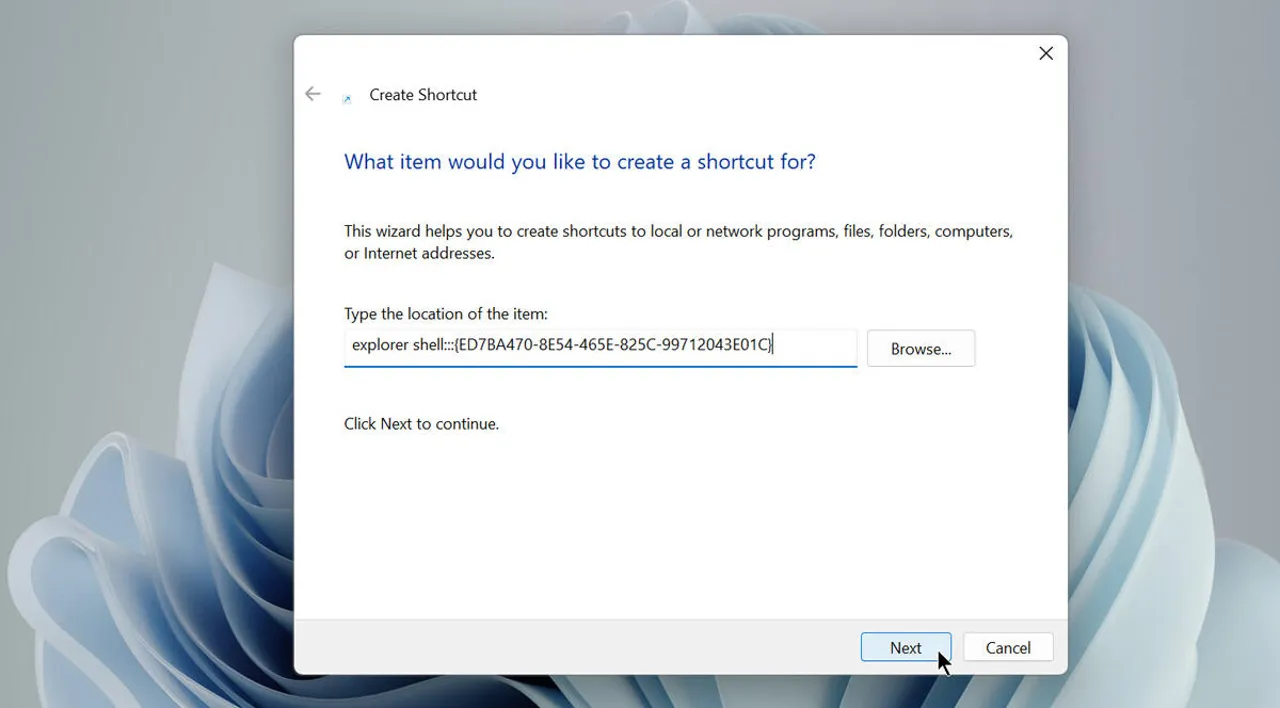
Once the folder is created, you can't directly change its name or icon, as the system blocks it . However, there's a trick to fully customize it: create a custom shortcut on your desktop using this command:
explorer shell:::{ED7BA470-8E54-465E-825C-99712043E01C}
After completing the wizard, give it a name you like, then right-click, go to Properties, and select "Change Icon." You can customize it with any system icon or even your own. This way, you'll have your own special access to advanced management tools without losing that personal touch.
Can God Mode be disabled?
Removing God Mode is as easy as deleting the folder or shortcut you created . This doesn't affect your Windows settings at all; it simply removes the shortcut. All your options will still be available through the usual methods. So you can try it without worry and undo it whenever you want.
Other hidden modes and special combinations in Windows 11
In addition to the main God Mode , there are several folder name combinations that allow direct access to other specific areas of the system, acting as alternative "god modes" for particular functions. Here are the most popular codes and what each one does:
- Default Programs.{17cd9488-1228-4b2f-88ce-4298e93e0966}: To manage which programs are used as default to open different types of files – ideal if you want to change your browser, photo viewer, media player, etc.
- My Computer.{20D04FE0-3AEA-1069-A2D8-08002B30309D}: Displays all disk drives, system information, and integrates shortcuts to PC resources.
- Network.{208D2C60-3AEA-1069-A2D7-08002B30309D}: Quick access to all network settings, active connections, and advanced network management options.
- All Networks For Current Connection.{1FA9085F-25A2-489B-85D4-86326EEDCD87}: Displays currently connected networks, their status, diagnostics, and network troubleshooting tools.
- Programs and Features.{15eae92e-f17a-4431-9f28-805e482dafd4}: : Shortcut to uninstall, repair and modify all installed programs.
- Power Settings.{025A5937-A6BE-4686-A844-36FE4BEC8B6D}: Advanced control of all power options, sleep, and system behavior with respect to battery or current usage.
- Printers.{2227A280-3AEA-1069-A2DE-08002B30309D}: Centralized management of connected printers, scanners, and printing devices.
- Icons And Notifications.{05d7b0f4-2121-4eff-bf6b-ed3f69b894d9}: Customize system icons and notification settings.
- Firewall and Security.{4026492F-2F69-46B8-B9BF-5654FC07E423}: Direct access to security options and advanced firewall settings.
- Administrative Tools.{D20EA4E1-3957-11d2-A40B-0C5020524153}: Exclusive panel with all the system's administrative tools.
- Credentials and Logins.{1206F5F1-0569-412C-8FEC-3204630DFB70}: : Management and editing of saved credentials and automatic logins.
- Speech Recognition.{58E3C745-D971-4081-9034-86E34B30836A}: Advanced settings for voice recognition and commands of the System.
- All NET Frameworks and COM Libraries.{1D2680C9-0E2A-469d-B787-065558BC7D43}: Technical information and direct access to resources related to system libraries and frameworks.
Creating these folders is just as easy : copy the name (including the code and brackets) and use it when creating a new folder on your desktop. This will give you faster access to specific areas of your system.
What do you need to activate God Mode?
It's essential to have administrator privileges in your user session . If you're using a home PC, you usually already have them, but if it's a work computer, you might need additional rights. You can check your privilege level by going to Settings → Accounts, where your account type will be displayed.

Passionate writer about the world of bytes and technology in general. I love sharing my knowledge through writing, and that's what I'll do on this blog, show you all the most interesting things about gadgets, software, hardware, tech trends, and more. My goal is to help you navigate the digital world in a simple and entertaining way.