
Would you like to know what a brand account on YouTube is and how it works? YouTube is one of the most visited websites in the world, ranking just behind Google as the second largest search engine on the web. Having a YouTube channel and using it as part of your social media marketing strategy is a great asset for any business. With video content on the rise, YouTube is projected to continue growing in the future.
While you may already be running a channel for your business, did you know that YouTube offers a dedicated channel for businesses? Like other social platforms, YouTube allows you to connect your channel to a separate brand account.
What is a YouTube Brand Account?
A YouTube Brand Account is a business account that you can activate and manage through your personal channel. This Brand Account gives your business a distinct presence on YouTube with your company's unique name, branding, and content.
Here you can learn about: How to Create a Custom Watermark for YouTube
Additionally, YouTube allows you to add channel managers to your account. This makes it infinitely easier to work as a team to promote and advertise on the platform. Instead of assigning one person the job of managing your brand account, you can assign tasks to your entire team so you can upload more content and continue to grow your online presence.
In this article, we'll explain how you can connect a brand account to your channel and the benefits your business can gain from doing so.
How to set up a YouTube brand account
To begin the process of setting up your Brand Account, you'll first need to log in to your existing YouTube account.
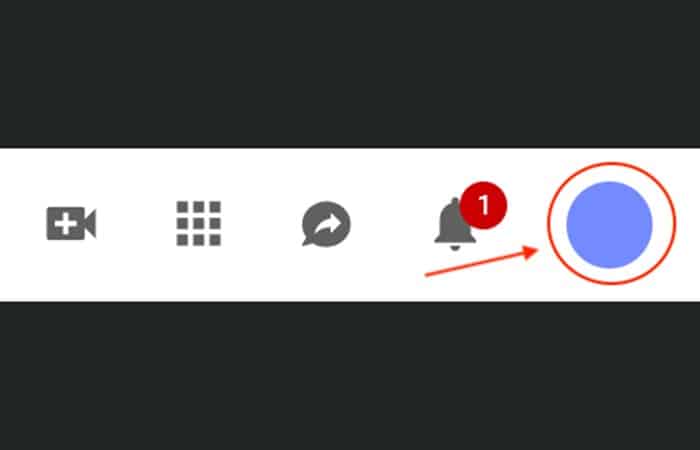
- Step 1:: Once you've finished setting up your personal account, click on the avatar in the top right corner of the YouTube home page.
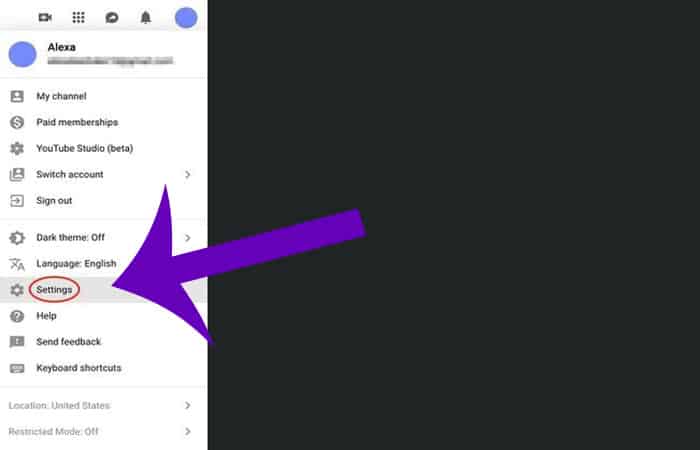
- Step 2:: A drop-down menu will appear. Click on Configuration.
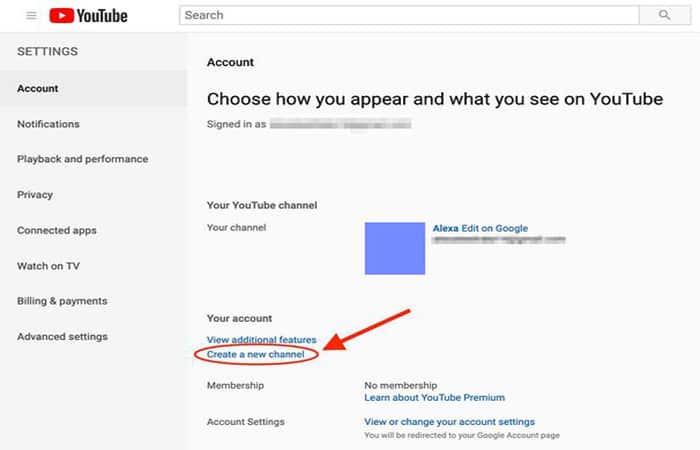
- Step 3:: YouTube will direct you to your account settings. Here, you need to click on Create a new channel.
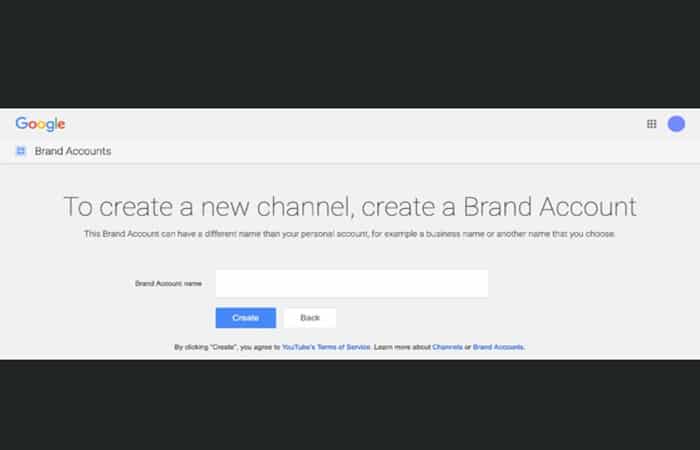
NOTE : This is where you'll name your brand account. Remember that this account will be public and will represent your company on YouTube. Enter your company name, not just " Company Brand Account " or your company email address.
- Step 4:: Once you have given your account a name, click on Create.
How to add managers to your brand account
As mentioned above, adding multiple managers to your brand account can help your team upload and promote even more video content. You can't add more than one channel manager to a personal channel, so adding a brand account is the only way you can collaboratively manage your YouTube presence across your team.
Because you're the owner of your new branded channel, you'll be able to add and remove admins, edit your business information, post and manage videos, and interact with your audience. You'll be the one adding admins and giving them access to do everything mentioned above, except adding and removing admins.
Tip: When creating a YouTube brand account for your business, the team administrator should be the one to create it. They will be the only ones who can add and remove future administrators.
Add administrators
To add an admin to your new brand account:
- Step 1:: Sign in to your personal YouTube account (the one you used to create your Brand Account).
- Step 2: Click the avatar in the top right corner of the YouTube home page, then select Change account in the drop-down menu.
- Step 3: Select your brand account.
- Step 4: Click on the avatar again in the top right corner and click Configuration.
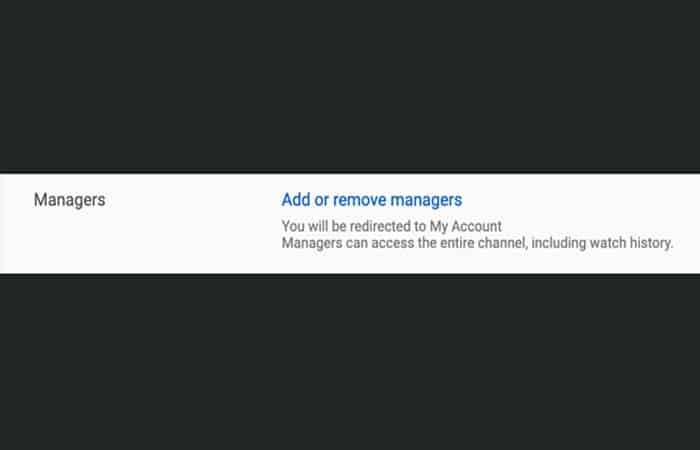
- Step 5: Click on Add or remove administrators of the section Administrators.
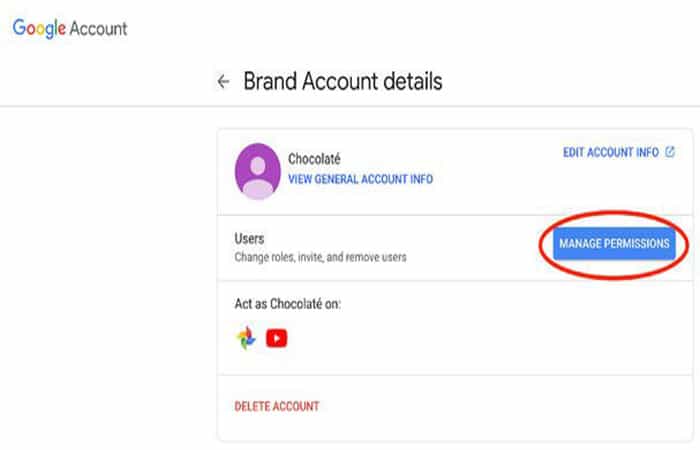
- Step 6: Click on Manage permissions.
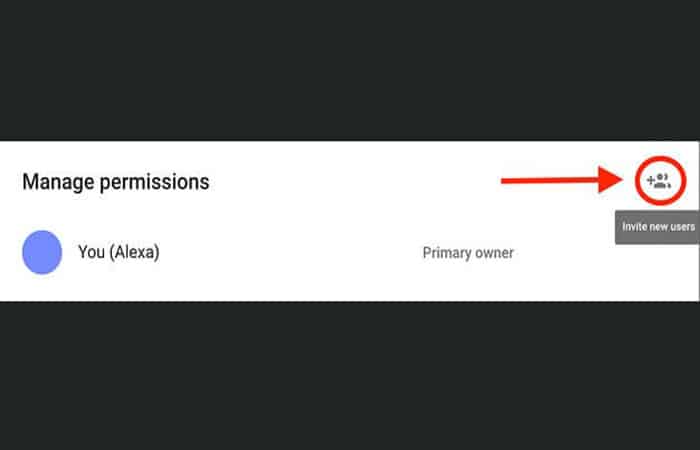
- Step 7: Click the person icon at the top right and enter the email address of the admins you want to add to the account.
Not all managers will have the same access to the brand account. For example, communication managers will only be able to respond to reviews. Take advantage of the ability to add multiple users to your account. You'll be able to manage your channel more thoroughly and produce better content consistently.
Customizing your brand account
You'll want to tweak a few things once you've created your brand account. Before you post content, here are a few things you'll want to customize to make your channel look more professional.
1. Channel Description
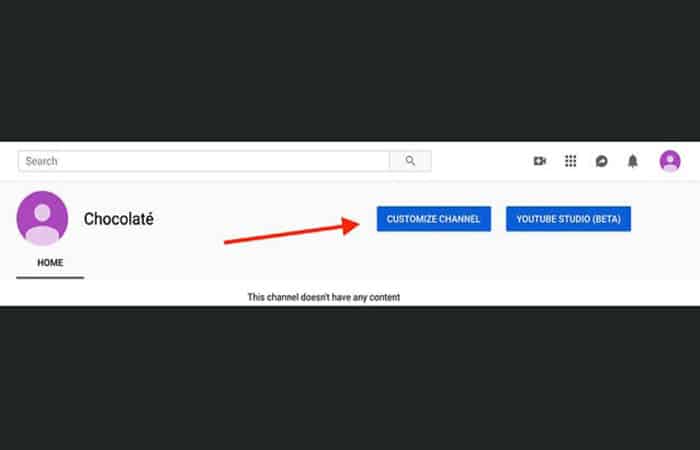
- Step 1: To add a channel description, click the button Customize that is displayed on your account page.
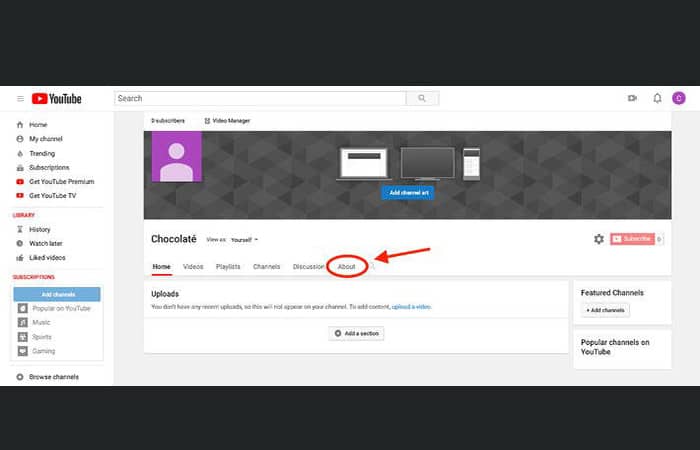
- Step 2: You'll arrive at a page where you can customize your channel as much as you like. For reference, we'll call this page the customization page. Then click on the tab About.
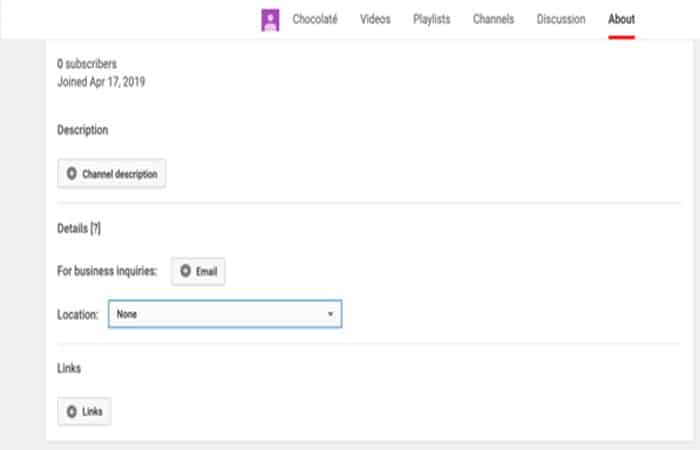
- Step 3: You'll be taken to a page where you can add a description, as well as a business email, location, and any relevant business links. When entering a description, you can use a blurb from your company's website or even add your core values. Make sure to be concise when describing what your company does. The channel description is a great place to add any relevant keywords that represent your company. This will make it easier for people to find you on YouTube.
- Step 4: Entering a business email on this page can be helpful for customers who want to contact you. It can be a standard email «[email protected]» that you check in with periodically. Don't underestimate keeping an open line of contact with your audience. It can make all the difference when they interact with you. You'll seem more down-to-earth and they'll appreciate the option to contact you directly.
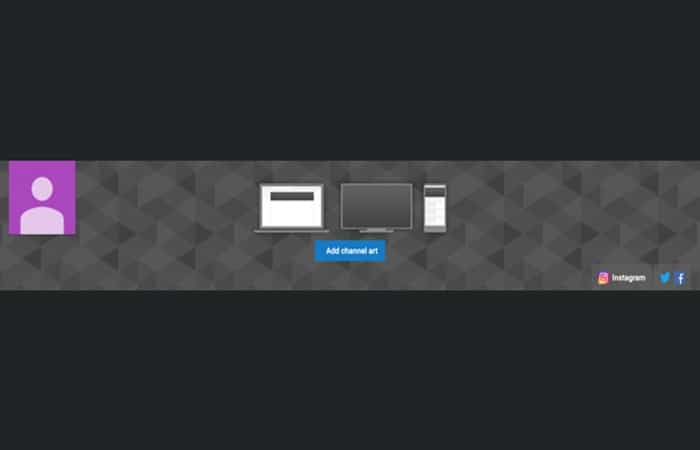
NOTE : Be sure to add links to your social media profiles. They will appear as overlaid icons on your channel design for your audience's convenience. The first link will appear with a text title, while the others will only appear as icons, so be sure to list your most relevant social profile first.
2. Featured Channels
- Step 1: On the right side of the page, you will see a section titled Featured channels. Here you can submit any additional YouTube channels that your business manages or owns.
Featuring channels is also a great way to build connections and highlight influencers you may be working with. You can always go back and add channels as your business expands and your YouTube presence grows.
3. Art and channel icon
Uploading a channel icon and banner is an essential step in setting up your account. If someone searches for your company name on YouTube, they will be more inclined to click on your logo since they are already familiar with it. Having an icon and banner makes your account look credible.
The standard icon dimensions are 800 x 800. The channel banner dimensions are 2560 x 1140 (YouTube recommends a size of 1546 x 423 for mobile devices ).
Benefits of a YouTube Brand Account
Creating a brand account will allow your team to collaboratively manage your company’s YouTube presence. By adding multiple admins to your channel, you can assign tasks (such as creating thumbnails, writing descriptions, and responding to comments) to specific people, so the process of posting videos can be smooth and efficient.
Implementing a brand account will help your company's online presence grow over time , so start posting.
YouTube Brand Account: What It Is
You've probably already come across many companies with YouTube channels where they offer valuable information or advice about the products or services they offer.
Well, this is because they have a YouTube Brand Account. A YouTube Brand Account is an account created specifically for your brand or business. A YouTube Brand Account is different from a Google account that you may have for your personal information or any personal channel.
Features of a YouTube brand account
What can you do with a YouTube brand account?
If your YouTube channel is linked to a Google Brand Account, multiple users can manage it from their Google Accounts.
Let's take an example, Metricool's YouTube account. All of us who have a business account can manage our channel. In other words, you don't need additional accounts to manage it.
You can use your YouTube Brand Account to communicate with your channel's subscribers or fans, share information with them, interact with other accounts, and more.
When you have a Google branded account, in addition to YouTube, you can also use other services such as Google Photos.
How to create a brand account on YouTube
Follow these steps to create a YouTube Brand Account:
- Step 1:: Access YouTube.
- Step 2:: Go to the channel list.
- Step 3:: Click Create a channel.
- Step 4:: Fill in the brand account name and verify your account. Then click Create.
It's that simple. You now have your YouTube brand account at your disposal. Now it's up to you to develop a YouTube marketing strategy and unleash your creativity with all your audiovisual content.
Four Reasons Why You Need a YouTube Brand Account
Video always wins the day. It tells a story that images and words alone can't convey. But creating the video is only half the formula for success. According to Tripepi's Smithism, content x distribution = impact . If a video isn't reaching your social media networks, then (in most cases) it's just as bad as not producing any video content at all.
Enter YouTube, the second most visited search engine in the world, behind only Google (your parent company). Most public and private agencies already publish their video content on the mega video-sharing platform. Still, many have yet to make the professional move to secure your YouTube brand account. If you’re one of them, here are four reasons why you should do so ASAP:
1. Enhanced Security
YouTube Brand Accounts grant access through personal Google accounts without sharing information between profiles. This means you can set up multiple channel managers and keep your personal Google login secure.
2. Team collaboration
Brand accounts have two types of access: owner and managers. The brand account owner can add or remove managers, edit business information, post and manage videos, and interact with their audience in the comments. Managers have all the same capabilities as an owner, except for adding and removing managers.
3. Personalization
After you sign up for a Brand Account, you can choose your channel name and URL. YouTube's standard is to name your channel after the email address you signed up with, but this doesn't give you the online credibility that people look for when searching for valid sources of information.
Pro Tips:
- Step 1:: Choose a URL and name that are consistent with your agency's username/URL on other social networks.
- Step 2:: Take advantage of YouTube's other ways to personalize your channel:
- Write descriptions for your videos that have useful links.
- Choose an attractive thumbnail
- Featured channels
- Add end screens to guide viewers to your other videos or subscribe
- Link to your other social networks and website
- Extend your brand on your channel banner and profile picture
4. Measurements
Brand accounts give you access to Analytics , which provides data on watch time reports, engagement reports, audience engagement, demographic reports, and revenue reports. Used correctly, this data will show you how to get the most out of your resources and videos.
How to Create a YouTube Brand Account
- Step 1:: Create a Google account. You can skip this step if you already have one.
- Step 2:: Sign in to YouTube with your Google username and password.
- Step 3:: Go to Account settings and create a new channel.
- Step 4:: Give your brand account a name.
Once that's complete, you can have your team start adding managers and developing the channel's brand. To check if you already have a brand account, you can go to your Google account information.
Conclusion
As you can see, this is how you can create a brand account on YouTube. Having this type of account can greatly benefit your company's marketing by delivering your advertising strategy through audiovisual media. We hope this information has been helpful.

My name is Javier Chirinos and I am passionate about technology. Ever since I can remember, I have been interested in computers and video games, and that passion has turned into a job.
I have been publishing about technology and gadgets on the Internet for over 15 years, especially in mundobytes.com
I am also an expert in online marketing and communication and have knowledge in WordPress development.