
Want to learn how to create a custom YouTube watermark ? There are many ways to increase your YouTube subscriber count: you can iterate your YouTube content into video series, add end cards, or directly ask your audience. Here, we explain the simplest methods that can help you. We invite you to stay with us.
Methods to create a custom watermark for YouTube
To start making it easier for viewers to subscribe quickly without making any changes to your content, you can simply add a logo watermark to the corner of your video that users can click to subscribe to your channel instantly. Here are 5 things you should know:
You might also be interested in reading about: YouTube Not Working in Chrome. Causes, Solutions, and Alternatives
- Don't leave it square, make it transparent
- You can use your avatar, but add something extra
- Make sure your logo fits the limitations
- Get a head start by using a youtube logo template
- How to add your logo to your YouTube channel
1. Tip 1: To create your watermark for YouTube, don't leave it square, make it transparent!
All YouTube channel logos have to be perfectly square images , but that doesn't mean your image has to look like a square.
You can use transparent PNG image files of any shape, as long as the file's aspect ratio is 1:1 . This allows you to create circular logos , as well as transparent text-only designs.
If your group, company or brand uses a unique logo design, don't make the mistake of leaving the square background in place - it looks much more professional to have the partially transparent logo on a completely transparent background.
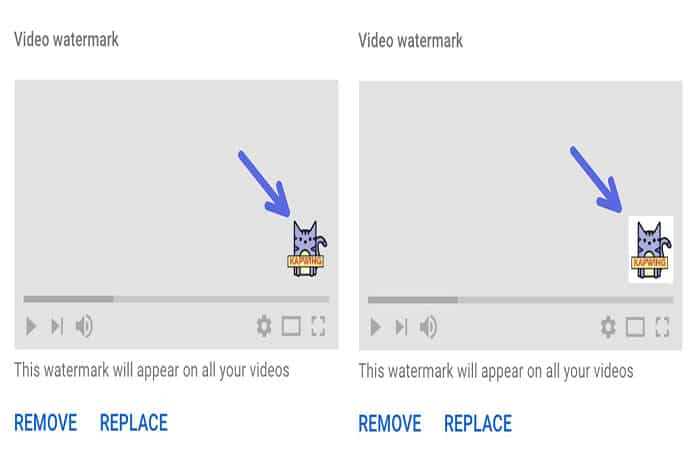
Kapwing lets you create logos on a completely transparent canvas, as well as add transparency to square photos by rounding their corners or cropping them into a circle.
All of YouTube's logo templates use transparent backgrounds in different ways, allowing your logo to take any shape and fit seamlessly into your video.
2. Tip 2: To create your watermark for YouTube you can use your avatar, but add something extra
Your YouTube channel most likely already has a profile avatar added: it's the circular photo you see next to your channel name below your videos.
It's easy to add a little flair to your logo:
- Step 1:: simply put the name of tu channel in it or add » Subscribe » at the bottom can make your logo look a little more refined.
Here are a couple of super simple examples:

3. Tip 3: To create your watermark for YouTube make sure your logo fits within the limitations
YouTube gives you a lot of room for creativity when making your watermark logo, but there are some technical limitations you should be aware of.
- As we mentioned, the most important thing is that your image file must have a 1:1 aspect ratio.
Your logo itself can be as tall or as wide as you like, but it must have a transparent fill so that the file is square. If you're creating your logo with Kapwing, you can move , resize , and crop your image to any aspect ratio, even adjusting the size and dimensions per pixel.
This kind of precise adjustment is especially useful given YouTube's file size restriction. A file with any transparency will be much larger than the same image with a solid background. All logo watermarks must be under 1 MB , so an image size of 1080 x 1080 should be perfect to fit within this limit.
This will ensure high image quality, which is useful for viewing on large screens and allows you to not worry about the minimum image size of 150×150 pixels.
4. Tip 4: To create your YouTube watermark, get a head start by using a template.
We've done some of the work for you by creating a set of templates specifically for YouTube watermark logos. They come in different shapes, designs, are all transparent, and can be customized to look exactly how you want.
All you need to do is select a template, click " Create, " and you can use all the editing tools in Kapwing Studio to add , move , replace , and edit any layer in the template. Once you select a layer, you can use the tools on the right side of Studio to edit your text , font , shape , color , position , background —anything you need to make your logo look great.





Once you've resized and edited your thumbnail, you're ready to process it. Simply click " Publish " in the top right corner of the window. Kapwing will automatically work its magic, and your thumbnail image will be ready to download in no time. Once Kapwing has finished processing, simply click " Download ."
If you are not logged into a Kapwing account, log in or register with your Google or Facebook account ; once you are logged into a Kapwing account, the watermark in the bottom right corner will be removed from your final image.
5. Tip 5: To create your watermark for YouTube
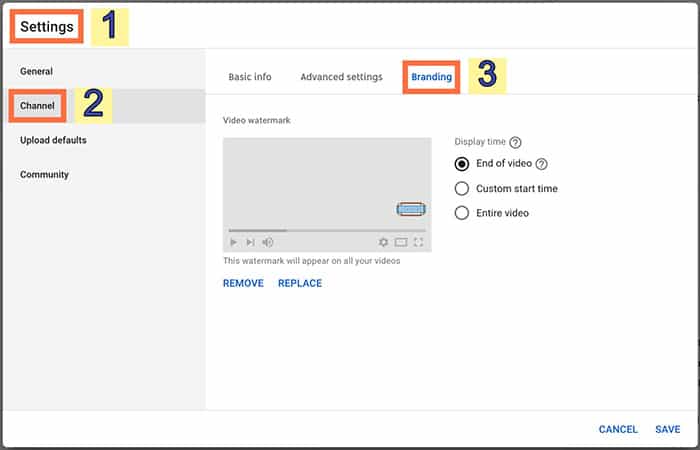
To add your channel logo to your YouTube profile, follow these steps:
- Step 1:: Go to YouTube, click on your profile icon in the top right corner and select » Your channel«.
- Step 2:: From your channel page, go to » YouTube Studio«.
- Step 3:: Then click on » Configuration» in the menu on the left, » Canal » in the pop-up window and select the » tab Brand «.
- Step 4:: Then, simply click on «Choose image» and find your logo in the file explorer. It will be uploaded to YouTube immediately!
2 more ways to create your watermark on YouTube
YouTube is the second most visited website online. That means there’s a lot of potential for getting your video content (and brand in general) seen, but it’s also more important than ever to make your content stand out.
Aside from making great videos, creating click-worthy thumbnails, and branding your YouTube channel as a whole, there's one more thing that will help you keep your video content on brand: adding a watermark.
It’s a pretty common part of the creative workflow to watermark photos and designs, but these days where video content reigns supreme, watermarking videos is also on the rise. Not only does a watermark add a professional, branded look to your videos, but it also helps prevent your content from being stolen.
Luckily, you can easily create your own watermarks with BeFunky’s Background tool and everything you need to get creative with text, graphics, and logos in our Photo Editor. Whether you’re designing a watermark from scratch or want to use a logo you’ve already created, we’ll show you two ways to make watermarking happen on your YouTube videos.
What is a video watermark and why is it important?
A video watermark is essentially the same as a photo watermark. It is a still image that sits at the top of your video as it plays, commonly located in the bottom right corner of the video. This watermark can be anything you want; your brand logo, website URL, or a custom watermark.

Watermarking your videos has become increasingly important for two main reasons: brand recognition and protection against video theft. Sadly, it's not uncommon for YouTube videos to be stolen and passed off as someone else's work.
However, a watermarked video is less likely to be stolen because the watermark indicates the true source. It's basically like an artist signing your masterpiece and it can't be easily removed.
Not only does watermarking help with protection against video theft, but a watermarked video will help increase brand recognition. By adding watermarks to every YouTube video, viewers will consistently see your brand and associate it with your video content.
The ultimate goal with this is for your brand to achieve mainstream recognition among its viewers, and watermarked videos are just one part of a complete brand experience. Other pieces include making sure your video content, YouTube channel art, and any YouTube thumbnails you create are on-brand.

Even if you've already posted tons of YouTube videos without watermarks, you can easily add them after the fact. First, we'll show you how to create a video watermark, then we'll show you how to add one, whether you're in the process of video editing or have already uploaded a video to YouTube.
How to create a watermark for YouTube
Creating a watermark is easy, if you use for example the BeFunky software, let's see the steps to create your watermark for YouTube.
- Step 1:: First, you need to decide what you want your YouTube watermark to be (a logo, website URL, etc.),
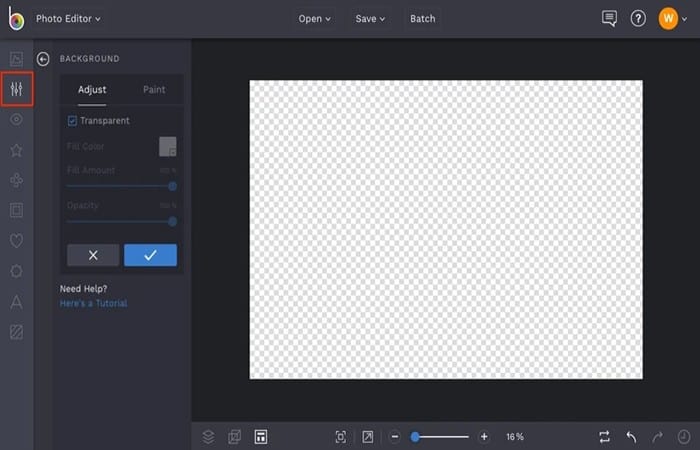
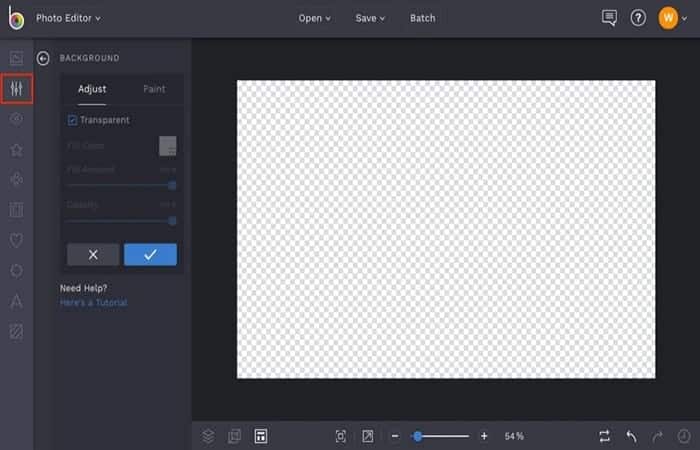
- Step 2:: then go to the BeFunky Photo EditorYou'll want to create a transparent background canvas to design on, so upload any image and select the tool Background on the menu Edit on the left.
- Step 3:: When you click on the Background tool, the entire photo will become a transparent background. Press the blue check mark to apply transparency.
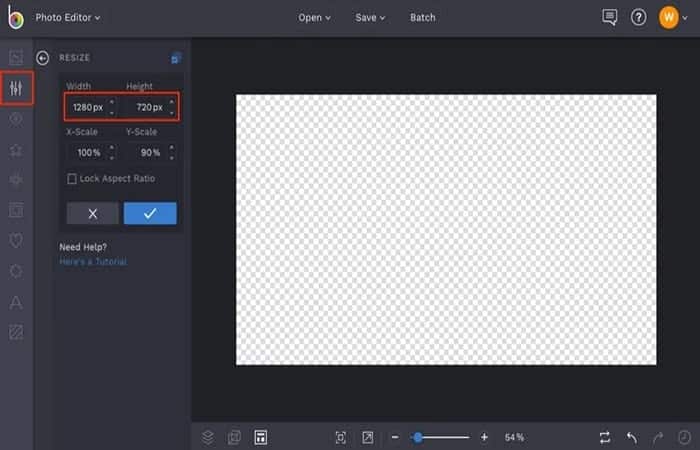
- Step 4:: Then click on the tool Change the size of menu Edit on the left.
- Step 5:: Make sure the box is checked Lock aspect ratio is not checked, then type 150 in the boxes Ancho Steak: and 150 in the paintings
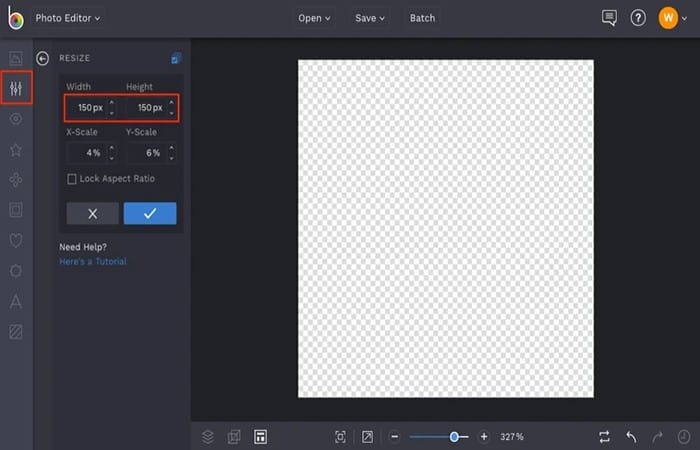
- Step 6:: Press the button Enter on your keyboard to make your transparent design canvas sized 150px x 150px, then press the blue check mark to apply the Resize tool. This is the most common size for a video watermark.
Creating a watermark for Youtube with a logo
If you already have a logo that you want to use as a watermark for YouTube, you must follow these steps:
- Step 1:: click on the tab Image Manager at the top of the left menu.
- Step 2:: Then, use the button Computer to upload your logo. Once uploaded, it will appear as a thumbnail in the Image Manager.
- Step 3:: Click on the thumbnail and select Add as layer in the menu that appears.
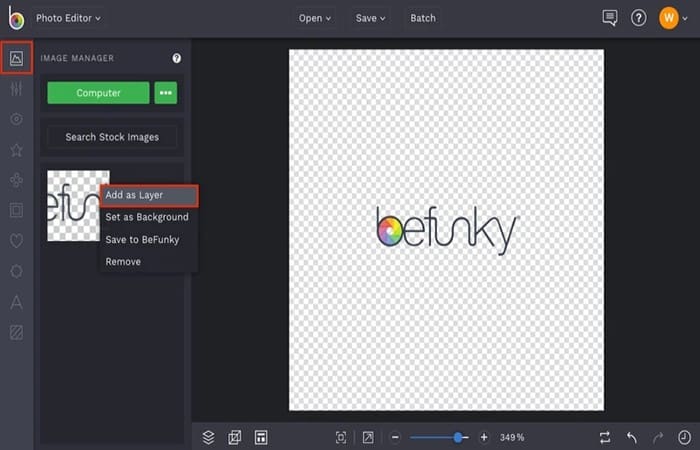
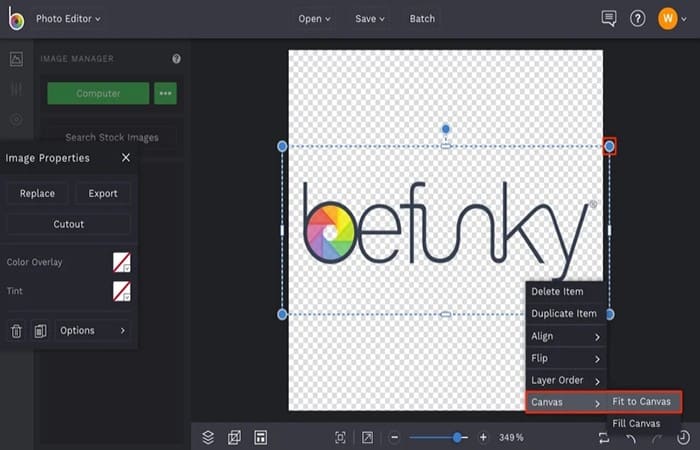
- Step 4:: Now that your logo is on top of your transparent background canvas, use the blue circles around it to resize the logo so it fits perfectly within the canvas.
- Step 5:: For a really quick and efficient way to do this, right click on the logo layer and select Canvas > Fit to Canvas in the drop-down menu that appears.
- Step 6:: Finally, click the button Flatten layers (two overlapping squares icon) in the bottom left menu. From here, you can click the Save on top of Photo editor to save your watermark to your computer. Just make sure to select the PNG option from the menu Guardar to keep the background transparent.
Designing a YouTube watermark from scratch
If you don't already have a logo you want to use as a watermark, BeFunky software has all the necessary tools you need to design one from scratch.
Follow the steps above to create a transparent background and resize the canvas to 150px x 150px. To design a watermark with graphics, do the following:
- Step 1:: click on the tab Recorders (the heart icon) in the left menu, then click the button Search for graphics.
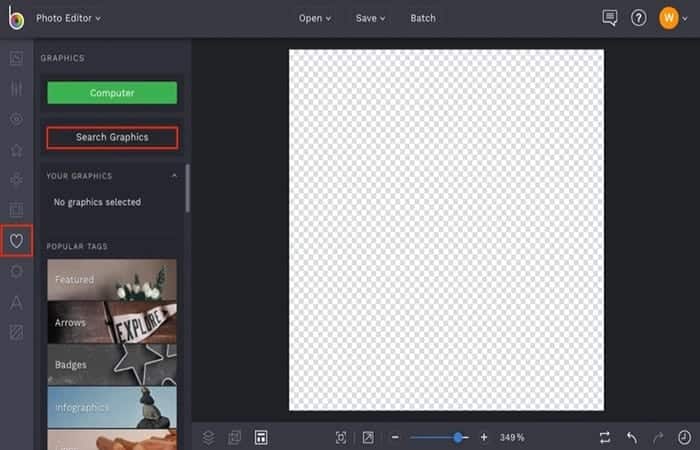
- Step 2:: To search the graphics library, type your search query or use the popular tags to find the design elements you'd like to use. Select any you want to use, then close the Graphics Library.
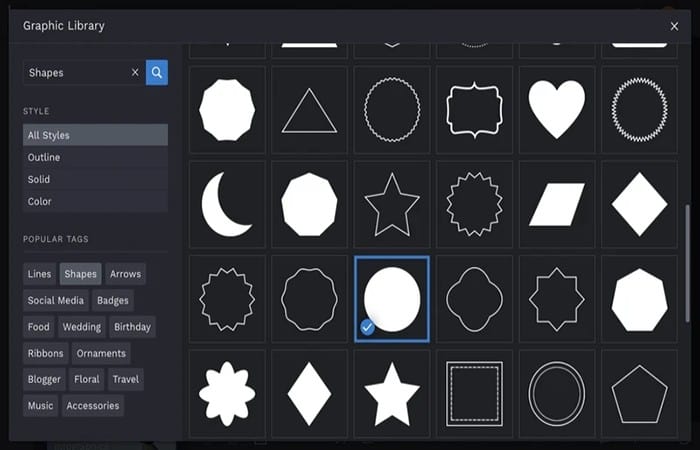
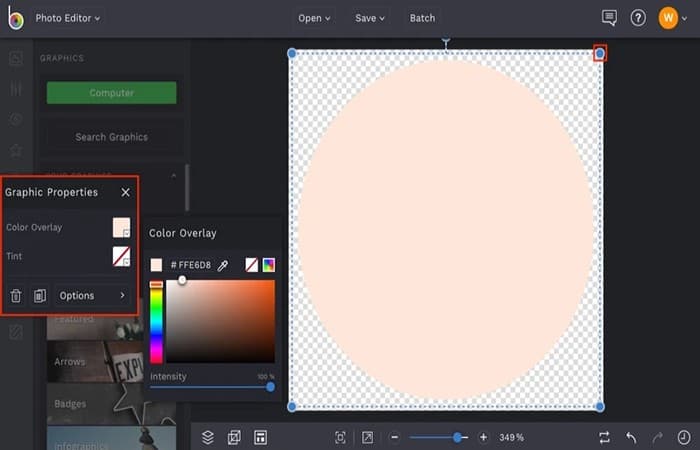
- Step 3:: You will see that all the charts you have selected from the Chart Library will be added to the Charts tab below Your graphics. Simply double-click them or drag and drop them to add them to your design canvas, then use the menu Graphic properties to adjust color, opacity, blending mode, and more.
- Step 4:: If you want to add text to your watermark in addition to or instead of graphics, click the tab Text (the A icon) in the left menu.
- Step 5:: Select the button Add text and type what you want in the text box that appears.
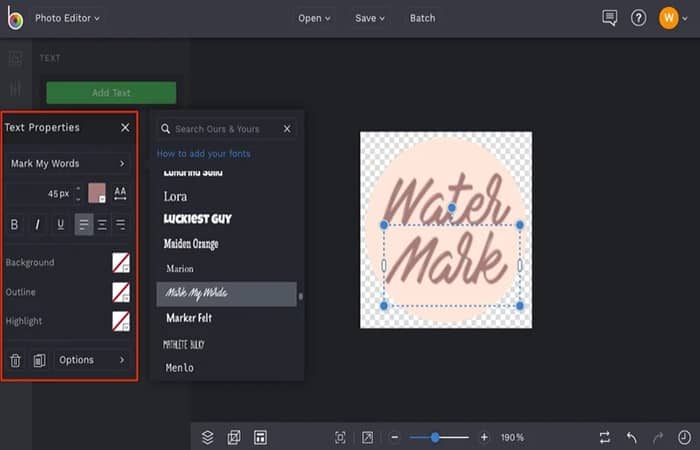
- Step 6:: Then you can use the toolbar Properties of the text that appears to change the font, colors, and more.
NOTE : Remember to keep your watermark design simple, legible, and memorable.
- Step 7:: When you have finished designing your YouTube watermark, click the button Flatten layers (icon of two overlapping squares) in the bottom left menu.
- Step 8:: From here, you can click on the button Save on top of Photo editor to save your watermark to your computer. Just make sure to select the PNG option from the menu Save to keep the background transparent.
How to add a watermark to YouTube
Now that you have the perfect video watermark, it's time to add it to your YouTube videos! Whether you need to add watermarks to videos that have already been published or videos you are creating, here's everything you need to know:
Adding video watermarks to published YouTube videos
YouTube makes it really easy to embed your watermark into your published videos. To do so, follow these steps:
- Step 1:: Log in to your YouTube account and select YouTube Studio (beta) from the drop-down menu that appears when you click on your icon in the top right corner.
- Step 2:: Then click on the tab Configuration in the menu on the left, followed by Canal > Brand
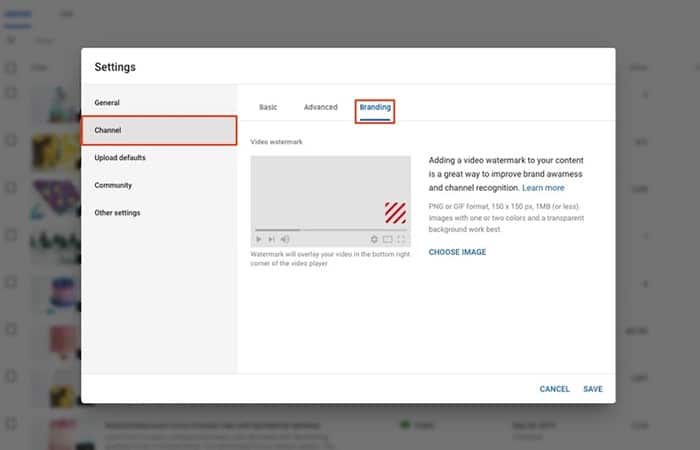
- Step 3:: Choose Choose image and upload the watermark PNG file you created in the previous section. Once it is uploaded, you can select options for the Display time, choosing when and where your watermark will appear on all videos on your YouTube channel.
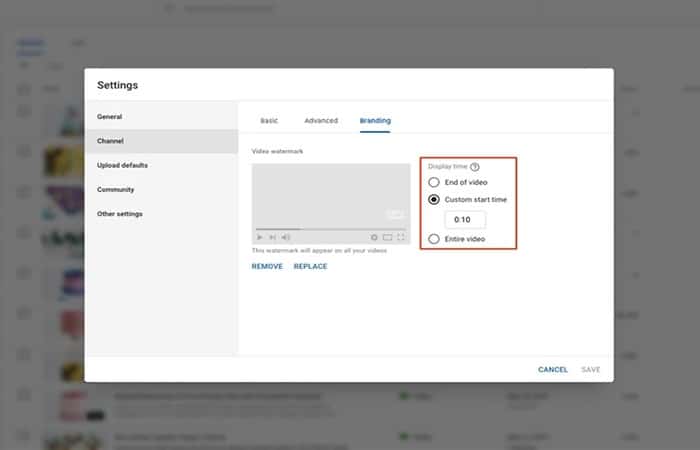
- Step 4:: Press Save and that's it! Every video you upload will now have a consistent branded watermark.
Add video watermarks in the editing process
Whether all of your current YouTube videos are watermarked using the steps above, or you just want to watermark them from here on out, there is one additional step you need to add a watermark to videos in the editing process. Follow these steps:
- Step 1:: Return to the BeFunky Photo Editor and upload any photo, then select the tool Background on the menu Edit to create a transparent design canvas.
- Step 2:: Then click on the tool Change the size from the menu Edit on the left and change the canvas size to 1280px x 720px. This is the size of the YouTube video itself.
- Step 3:: Open the tab Image Manager (the top icon) in the left menu and select Computer
- Step 4: Then upload your watermark PNG file. When uploaded to the Image Manager, it will appear as a thumbnail.
- Step 5: Click on the thumbnail and select Add as layer in the menu that appears.
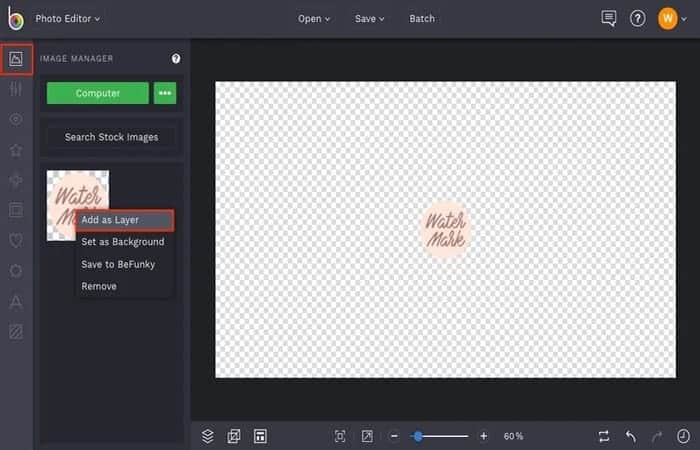
NOTE : When your watermark is on the transparent canvas, use the blue circles around it to resize it, then drag to position it where you want your YouTube watermark to appear. The bottom right corner is a popular placement option.
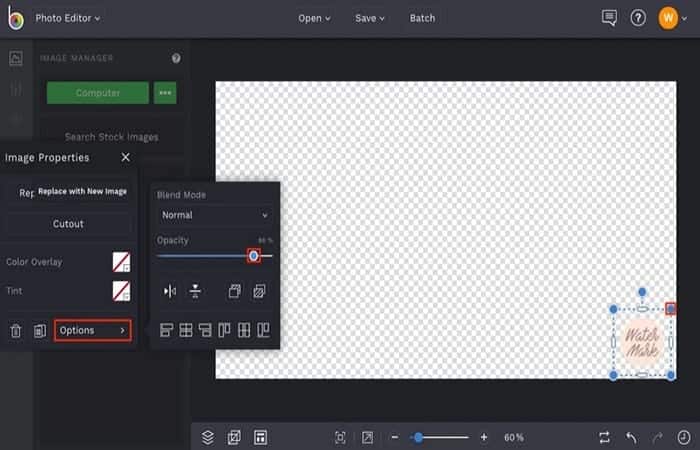
- Step 6:: Finally, click Flatten layers and select the button Save at the top of the Photo Editor. Make sure you choose the PNG option from the menu Save to keep the background transparent and save the file to your computer. In the video editing program of your choice, you can now add this PNG file as a layer on top of your video.

Here you can read about: How to Manage Multiple YouTube Channels – Guide
Conclusion
As you can see, these are the ways on how to create a watermark for Youtube. Now that you know how to watermark your YouTube channel art, create custom YouTube thumbnails, and watermark all your videos, you will now be totally unstoppable. We hope we have helped you with this information.

My name is Javier Chirinos and I am passionate about technology. Ever since I can remember, I have been interested in computers and video games, and that passion has turned into a job.
I have been publishing about technology and gadgets on the Internet for over 15 years, especially in mundobytes.com
I am also an expert in online marketing and communication and have knowledge in WordPress development.