- It is essential that the console is turned on or in rest mode to initiate remote downloads.
- Remote Play allows you to play on PC, Mac, mobile devices, and Android TV with your linked account.
- The quality of the remote experience depends on a stable connection, with 15 Mbps recommended for PS Portal.
- The application allows you to manage your game library and maintain communication through group and voice chats.
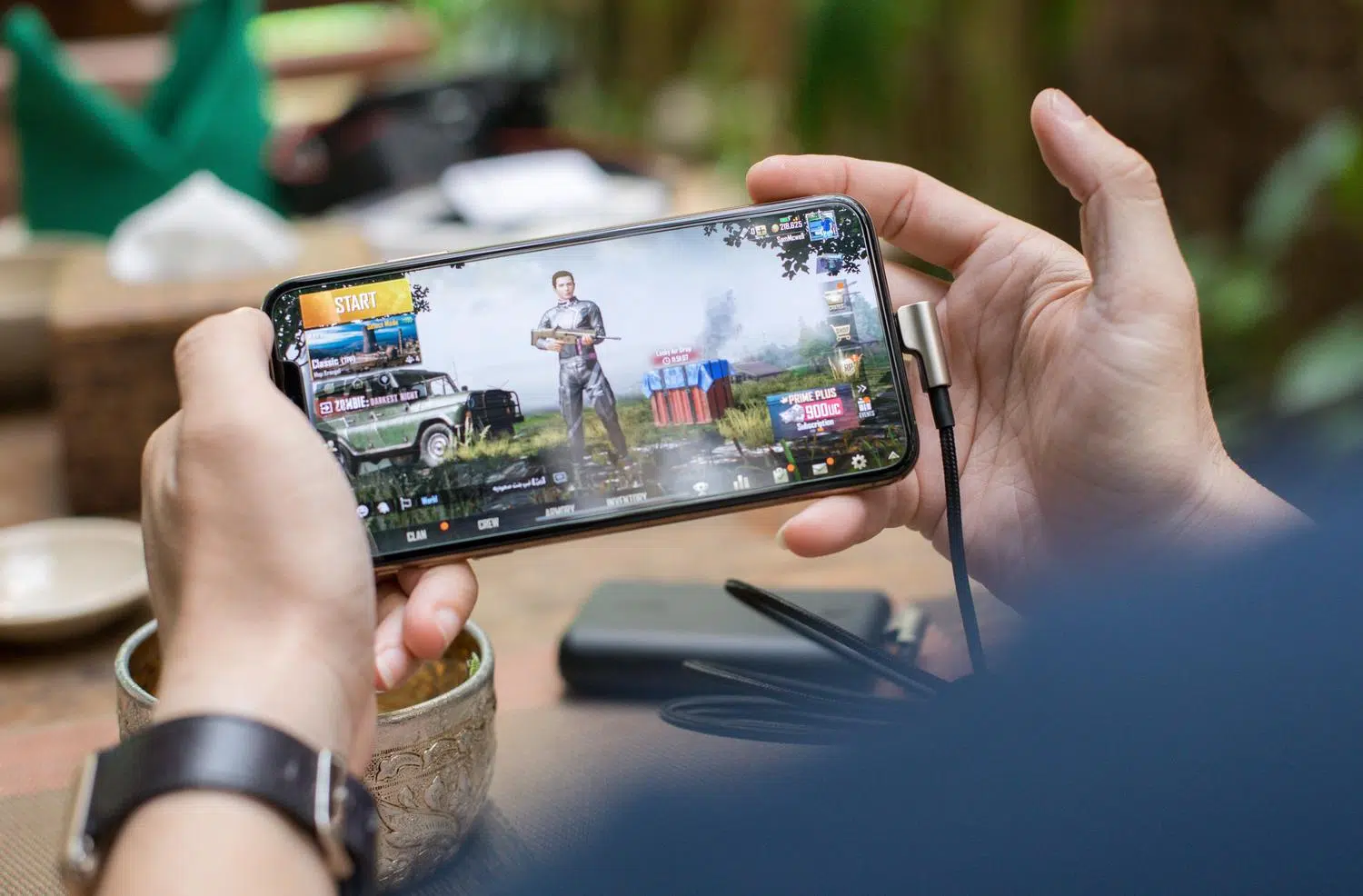
I'm sure it's happened to you: you're out and about, you see a great game on sale or redeem a code, and you're dying to have it ready to play on your console when you get home. The PlayStation app is a fantastic tool for managing your library from your phone, although sometimes finding the exact button to launch a remote download can be a bit tricky for those who haven't been using the console for very long.
It's not just about buying things, but about making the most of the Sony ecosystem. Whether you have a PS4 or the power of the PS5, there are remote control and content management features that let you save time and get started much faster. Let's break down step by step how all this works and what you should keep in mind to avoid any connection issues.
How to manage your games and remote downloads

To start downloading a game while you're not in front of the TV, the first step is to access the PlayStation Store through the app. Once you've redeemed a code or purchased the game, it will appear in your media library. For the console to begin downloading, it's essential that the system is configured correctly.
Keep in mind that your console must be either turned on or in rest mode ; if it's completely off, it won't receive the download command. Once the game is in your list, look for the download option on the console linked to your account. If you're new to this, don't worry if you don't see the option right away, as the interface may vary depending on the software version you have installed.
All about Remote Play (PS Remote Play)

If you want to go a step further and not just download, but actually play your PlayStation outside the home with Remote Play , Remote Play is your best ally. This feature lets you stream your PS4 or PS5 screen to a PC, Mac, iPhone, iPad, or even an Android TV. For this to work seamlessly, both the console and the remote device need to share the same PlayStation Network account.

- On PC and Mac: You must connect the controller via USB, open the Remote Play app, log in, and select your console.
- On mobile devices: All you need is the updated app and a stable internet connection.
- PS Portal: This dedicated device requires a broadband network of at least 5 Mbps, although ideally, to avoid lag, it should be 15Mbps or more.
It's important to know that there are certain limitations. For example, games that require VR headsets (PS VR or VR2) or very specific peripherals cannot be played remotely. Titles that require a PS Plus Premium subscription to stream are also unavailable.
Controller and hardware compatibility

The controller ecosystem is quite broad, but it has its rules. The DualSense works great on Android 12+, iOS 14.5+, Mac 11.3+, and Windows (via USB). The DUALSHOCK 4 , on the other hand, is compatible with older versions of Android and iOS, as well as Mac and Windows. For optimal setup, you can refer to how to configure your PlayStation controller on Windows 11.
If you're using a PC or Mac, you can adjust the video quality , resolution, and frame rate in the app settings for a smoother experience. If you notice excessive latency, keep in mind that the physical distance between your console and the remote TV directly affects performance.

Communication and social aspects in the App

The app isn't just for downloading games; it's also your command center for friends. You can chat and connect with friends directly from the PlayStation App by selecting the corresponding icon and add multiple friends to send them stickers, images, or voice notes. If you prefer talking, voice chat is integrated and can be quickly activated from any group chat.
To prevent your phone from constantly ringing, you can disable notifications for specific groups by going to the group name and selecting the mute option. Additionally, if you're the administrator, you have the power to manage who's in the group and remove friends on PlayStation Network if needed.
For everything to work properly, always make sure your system software is up to date on both your console and the app. Remember that service stability depends heavily on your network environment and ensuring your console is properly charged. Managing your library from your mobile device and playing remotely completely transforms how you enjoy your PlayStation, allowing you to optimize your time and stay connected with your community no matter where you are.


Passionate writer about the world of bytes and technology in general. I love sharing my knowledge through writing, and that's what I'll do on this blog, show you all the most interesting things about gadgets, software, hardware, tech trends, and more. My goal is to help you navigate the digital world in a simple and entertaining way.