- Full integration of Discord on PS5 to facilitate cross-platform communication with PC and Xbox users.
- Use of the official PlayStation app to manage chats, notifications and remote control of the console.
- Advanced screen sharing and multimedia content streaming options using external and native tools.
- Data synchronization and capture management between the console and mobile device for a unified social experience.

If you're a passionate gamer, you know there's nothing more frustrating than wanting to organize a game with friends and realizing everyone's on a different platform. Luckily, Sony has taken a significant step to make communication much smoother , breaking down the barriers between consoles and PCs so no one gets left out.
Whether you want to use the official app on your mobile device or take advantage of the new voice integrations, you now have a huge range of options. From linking accounts with external services to managing your screenshots from your phone, the PlayStation ecosystem has become much more open and social, making chat not a hindrance but a help while you play.

Mastering Discord integration on PS5
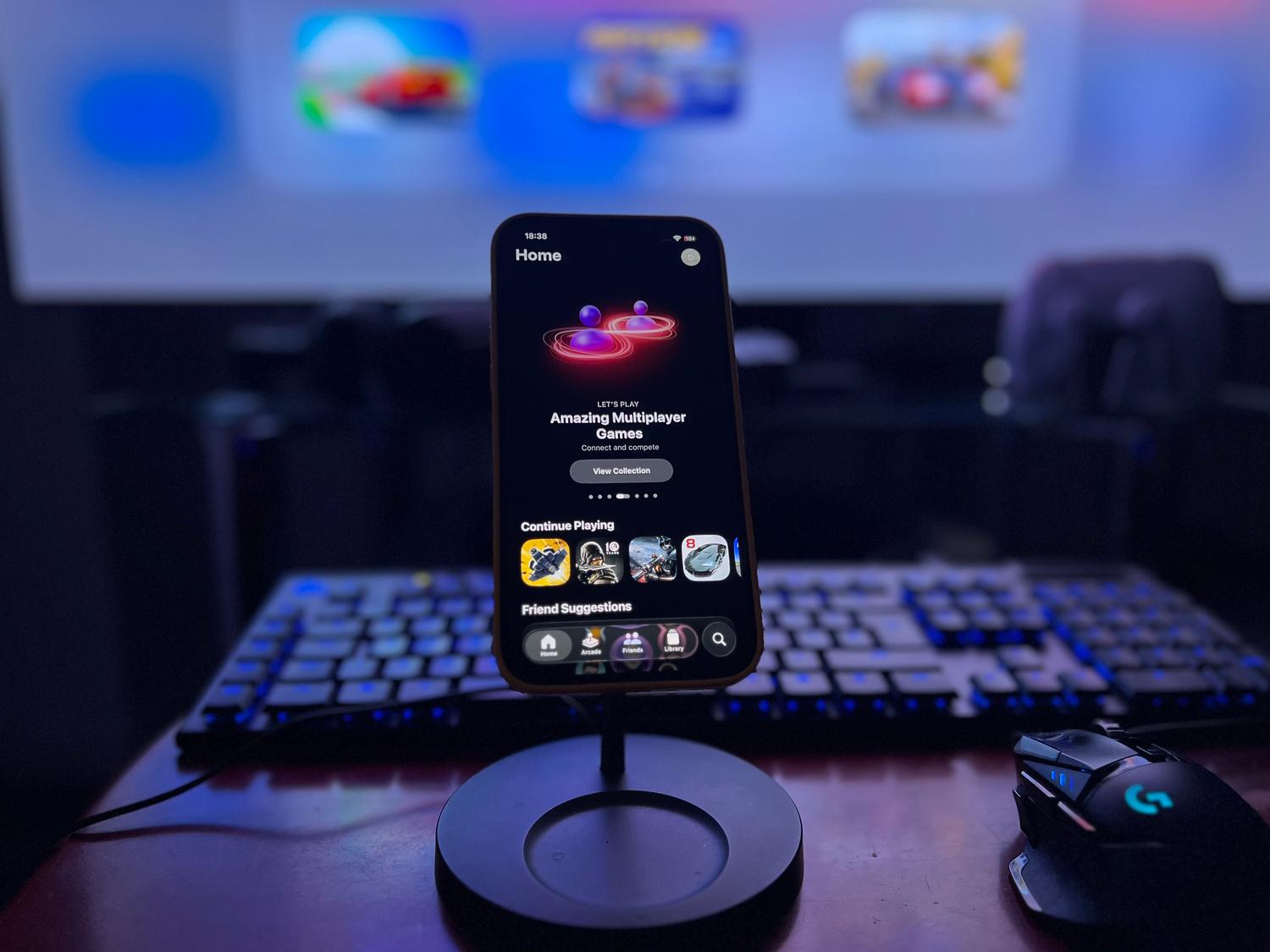
One of the most exciting new features is the arrival of Discord on the PS5 via update 7.00. This means you no longer have to choose between playing on your console or chatting with your Xbox or PC friends; now you can seamlessly integrate both worlds . To get started, simply go to your console settings, enter "Users & Accounts," find "Linked Services," and select Discord.
The linking process is incredibly simple: you can scan a QR code with your mobile phone or enter the information manually on the website. It's important to note that if you've linked these accounts before, you'll likely need to repeat the process to grant the new permissions . Once connected, initiate a call on your mobile device or PC, and upon seeing the controller and phone icons, you can transfer the audio directly to the console to comfortably talk using your headset.

Using the PlayStation App for social life

The official Sony app isn't just for buying games; it's a fantastic tool for staying connected. From here, you can chat with your friends in real time , receive notifications of who's online, and manage your trophies. Plus, with the latest improvements, you can now manually upload your videos and screenshots from your PS5 to the app, making it incredibly easy to share your best gameplay moments on social media.
If you switch between generations, the app also helps you manage your content. Migrating your saved data from PS4 to PS5 is now much easier ; if you download an older game, the console will notify you if there are cloud saves so you can download them instantly without any hassle. You can even transfer settings, screenshots, and save data between two different PS5s via LAN cable or Wi-Fi without deleting anything from the original console.
Share screen and multimedia content on PS4

Although the PS4 doesn't have a native screen mirroring function for streaming to mobile devices, there are workarounds and third-party apps that can help. If you want your friends to see what you're doing, you can use the PlayStation app itself to connect your phone to the console. Simply go to the app's connection settings on your PS4, add a device, and enter the code generated on your iPhone or Android device.

For those seeking more advanced multimedia options, there are solutions like iMediaShare or Plex. These tools allow you to stream photos, music, and videos from your smartphone to the TV screen connected to your PS4, transforming the console into a shared entertainment hub. On the other hand, if you need a second screen to view maps or inventories while playing, the PS4 Second Screen app is the perfect solution to avoid interrupting the main action.
Play and connect remotely

If you don't have your console handy but want to keep playing, Remote Play is the solution. This tool lets you stream the game directly to your phone or tablet. Just install the Remote Play app, log in, and connect your controller to your device. It's perfect for those times when you can't sit in front of the TV but don't want to leave your friends hanging.
Additionally, for those who prefer external solutions, programs like FlashGet Cast allow you to mirror your mobile screen on a PC, a viable alternative if you want to coordinate strategies with your team while watching the game on the console. Regarding hardware, remember that update 7.00 also optimized VRR for 1440p resolutions and enabled wireless updates for the DualSense controller , eliminating the need for a cable when updating the controller's firmware.
Having complete control over communication means knowing how to combine the power of the PS5, the versatility of the PlayStation App, and the flexibility of Discord. Whether transferring voice calls, managing media files, or playing remotely from your mobile device, Sony has created an environment where connectivity with other players is the priority, allowing us to interact with anyone regardless of the platform they use.


Passionate writer about the world of bytes and technology in general. I love sharing my knowledge through writing, and that's what I'll do on this blog, show you all the most interesting things about gadgets, software, hardware, tech trends, and more. My goal is to help you navigate the digital world in a simple and entertaining way.