
In this article, we'll tell you how to easily format an Android phone from your PC. Are you having a problem with your phone or its software that you can't seem to fix? One of the most efficient ways to solve it is to format the operating system. This way, you can reset your phone's firmware and, therefore, resolve almost any software-related issue you might encounter.
Format an Android phone from PC easily
Restoring the settings of your cell phone or tablet can fix almost anything, from a slow system to a common error that can affect performance, making it much slower.
This is usually considered one of the simplest solutions because it guarantees that everything will return to system 0, allowing you to reinstall all those applications that are having trouble synchronizing or updating them.
You might also be interested in: How to Format an SD Card with Ubuntu
Important note: Restoring your device to its factory settings will erase all data on it, including photos, videos, apps, contacts, and settings.
Format a tablet or mobile phone from the PC
Thanks to all the tools you can find on the web, you can format your phone or tablet from the comfort of your PC. This may interest you if the manual method seems a bit complicated. To format your phone or tablet from the PC, just follow these steps without skipping any:
- Step 1: To start, you must have the drivers from your mobile previously installed on your PC so that the system can recognize them without problems.
- Step 2: After that, you will need to install ADB y FastBoot inside your computer.
- Step 3: Now, take your phone and turn it off. After this you must hold down the buttons turn on y decrease the volume, all at the same time. You need to wait until the device boots up.
- Step 4: Once you have started your phone, you will proceed to connect the phone to your computer. To do this, you will need to use the cable USB.
- Step 5: After that, you need to run the window commands ADB y FastBoot to start the process. To do this, you must enter each of the commands you see on the screen. Then press enter. You will see that each command is represented in quotes, so it will not be necessary to add them within the command to send.
- Step 6: you must start with «fastboot erase cache» This is the command that will wipe the cache, all without even formatting the device.
- Step 7: Once this step is completed, you must enter "fastboot reboot» to start and restart your phone. From this point, you can check if the problem affected your phone. If on the contrary, there is nothing left to do, continue with the following steps.
- Step 8: In this step you can access a factory reset, and do all this with the command «fastboot erase userdata».
- Step 9: When the whole process is finished, access the « againfastboot reboot» to restart the device.
How to restore an Android phone from a PC with Universal ADB Helper
To start all the drivers you must have your Android phone installed on your computer. Once it is installed, you must follow these steps:
- Step 1: Start by connecting your Android device to your computer using the USB cable.
- Step 2: Once you have connected and your PC has recognized the device, proceed to run the Universal ADB Helper tool.
- Step 3: Inside the screen, you will see that you only have one option which is “Reiniciar». After that, you need to press the option «Bootloader».
- Step 4: There, you will see that you can choose the option that says "Factory Reset via Fastboot».
Wipe Android from PC: Permanently Erase, 100% Unrecoverable!
It is important to note that iMyFone Lockwiper (Android) has been designed to ensure that all your Android data, both previously deleted and existing data, is permanently erased from your phone and can never be recovered, even using the most modern recovery tool.
It is like the last line to protect your data from data criminals. By the way, let’s check out some key features of iMyFone Android data eraser below. The key features of LockWiper to format Android phone from PC easily are as follows:
It protects your personal information in such a way that your browsing history, banking information, passwords, etc. on your Android device is strictly protected from falling into the wrong hands.
- With just 1 click, this data eraser erases your device and all the unnecessary data that usually slows down your phone and this helps speed up your device.
- It is compatible with all Android devices and brands, up to 6000 models.
- Remove FRP lock. Screen locks for Android devices are also removed.
You might also want to know: How to Format an External Hard Drive
Step by step guide to format an Android phone from PC
These are the steps you must follow:
Step 1: Connect your Android to the program
The first thing you need to do is, of course, download and install the software on your PC. Then launch the software and use an Android USB cable to connect it to the computer. When you're done, the software will display your phone's information on the main interface.
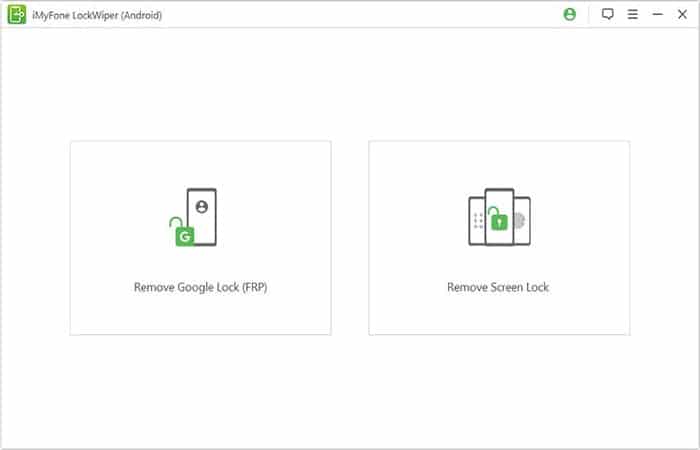
Step 2: Select the erase mode
Choose Remove Screen Lock mode and follow the instructions to easily delete all data on your device.
Step 3: Wipe Android data permanently
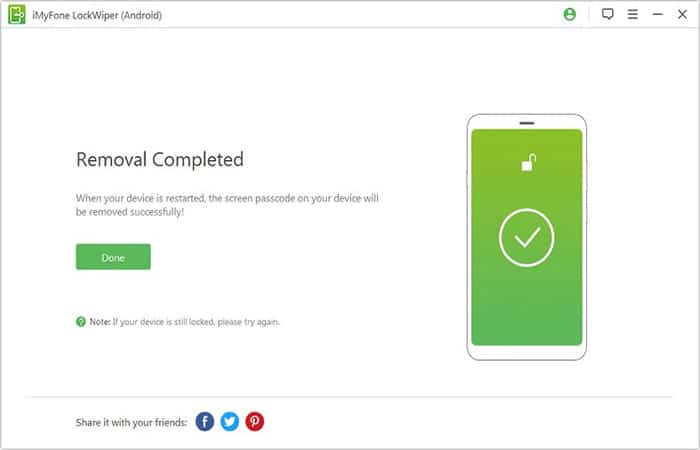
At this point, the program will erase your Android phone from the PC.
Tips for protecting Android phone privacy
What are some things you can do to help protect your Android privacy? Some of these tips below will help.
- Don't save all your passwords: It's important to avoid saving those important passwords on your Android phone, especially for banking and other payment apps. Saving passwords on your phone will mean that anyone who gets hold of your phone will be able to see them.
- Use app permissions: When installing an app on your Android device, it is recommended that you use the app permissions options to help restrict access in case someone gets hold of your phone.
- Create a multiple user account to protect privacy: If you regularly share your Android device, it's important to create a multiple user account, for example, create a general account for anyone who wants to use your Android device.
FAQ
Below we will show you the answers to some of the doubts and frequently asked questions related to formatting an Android phone from the PC:
How can I format my phone without a computer?
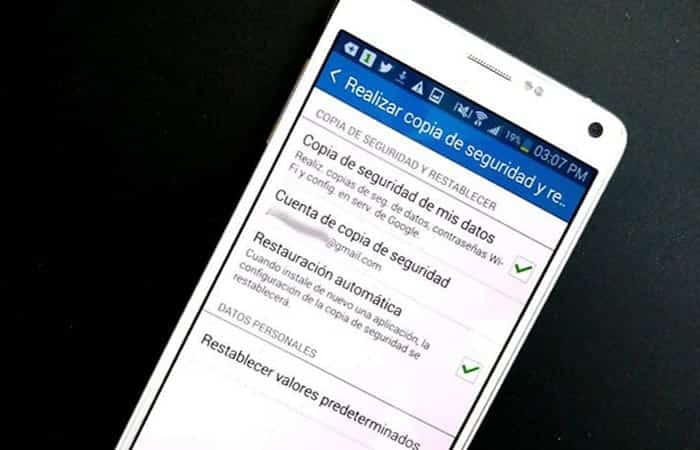
You can reset your phone by going to Settings , then Backup , and then Reset . You might be able to reset your phone without losing all your data if you have an option that says " Reset settings ." If you want to tap either of these, back up your device first.
What happens if I format my Android phone?
Unless you've created a backup, you'll lose your call and message history when you format your phone. The built-in backup feature on Android and iPhone can be used, as well as third-party backup apps. Contacts will also be deleted.
How do I factory reset my phone without password?
Press and hold the Volume Up and Power buttons . After the home screen appears, press and hold the Power button for 3 seconds. Your phone will then enter recovery mode and begin functioning again. To erase data or perform a factory reset, use the Volume buttons or tap the screen.
Can I factory reset my phone from my computer?
You can choose the device you want to factory reset by signing in to your Google account . As soon as you click the ring, you can enable Lock and erase . To factory reset your Android phone, select Erase all data.
Can I erase my phone from my computer?
You don't need to use a computer. If you unlock your Android device, you can then reset it to factory settings. A format is also known as this. You can delete all the settings, your data, your files, apps, and all the data on your Android device.
How do I reset my phone from my laptop?
You don't need to worry about that: a hard reset (or full boot ) is not the same as a factory reset. You can turn your Android device off and on again using this option, which is a drastic step. You can do this by holding down the power button on your computer. Hold the power button for at least 20 seconds to try it.
If I reset to factory settings, does it delete everything on the PC?
When your PC is reset to factory settings, the hard drive is completely erased and all business, financial, and personal files on the computer are lost. It is impossible to interrupt the reset process once it has begun.
Check out: 8 Essential Programs for Windows 10 After Formatting
Final thoughts
There you have it, we have learned how to format an Android phone from the PC. If all these procedures do not bring any effect, it is likely that the computer does not recognize your phone. And this in turn can be caused by a connection problem with the USB cable. If you liked the tutorial, let us know through the comments section. You can also tell us about your experience so that many more people can learn about it and solve their problem.

My name is Javier Chirinos and I am passionate about technology. Ever since I can remember, I have been interested in computers and video games, and that passion has turned into a job.
I have been publishing about technology and gadgets on the Internet for over 15 years, especially in mundobytes.com
I am also an expert in online marketing and communication and have knowledge in WordPress development.