- LET assigns names to intermediate results and improves clarity and performance.
- LAMBDA creates custom functions and validates with an in-cell call.
- BYROW, BYCOL, MAP, SCAN, REDUCE and MAKEARRAY apply LAMBDA to arrays.
- Ready examples: subtotals, mappings, cumulative and matrix generation.

When working with data in Excel, there comes a point where repeated formulas and endless ranges become unmanageable; that's where the LET and LAMBDA functions come into play , two key pieces for creating clean, reusable, and faster-to-maintain calculations.
With these functions, and with several modern matrix functions that rely on them, you can define intermediate names, encapsulate calculations, and apply transformations to matrices as if you were traversing a loop; BYROW, BYCOL, MAP, SCAN, REDUCE, and MAKEARRAY are the icing on the cake, allowing you to apply a LAMBDA function to rows, columns, or elements of a matrix in an elegant and efficient way.
What are LET and LAMBDA in Excel?
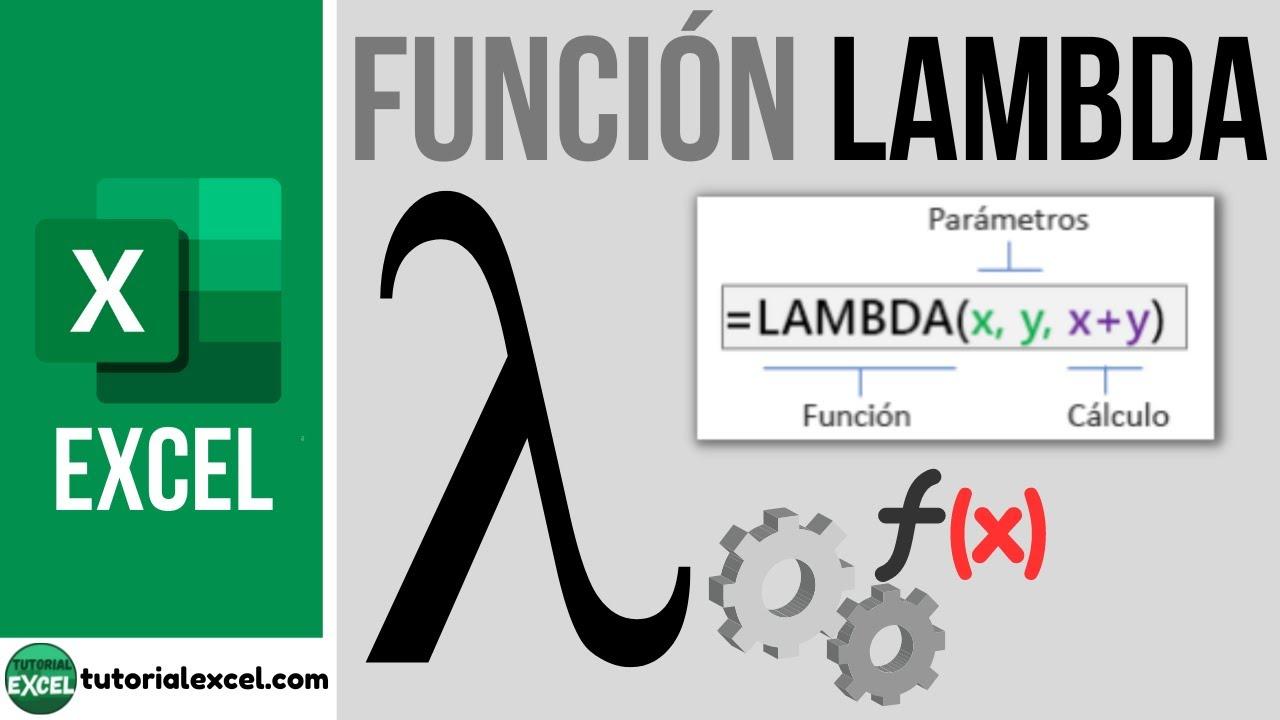
The LAMBDA function allows you to create custom functions using Excel's own formula language , without macros or VBA: you define parameters, write the calculation and, if you want, call it with arguments to get an instant result.
The LET function, on the other hand, is used to assign names to intermediate results within the same formula , so you can reuse them several times without recalculating them, gaining readability and efficiency in complex spreadsheets.
Around LAMBDA, functions have emerged that treat matrices as if they were collections to be traversed: BYROW (by rows), BYCOL (by columns), MAP (maps elements), SCAN (accumulates and returns intermediate states), REDUCE (returns only the final accumulated value) and MAKEARRAY (generates matrices on demand).
Think of this set as tools that simulate loops and traversals on matrices : you pass a LAMBDA with the desired transformation and Excel does the rest, returning vectors or matrices with the results.
The result is that you can build sophisticated calculations without resorting to auxiliary columns or external code; everything is encapsulated in pure formulas , with less risk of errors and better maintenance.
How to test and define a LAMBDA without errors
A good practice is to build and validate the LAMBDA function directly in a cell before defining it as a reusable function: define parameters, write the calculation, and add the test call with the desired arguments at the end.
If you don't make that test call, it's relatively easy to run into the #CALC! error in incomplete formulas; the final call forces the calculation to be evaluated and confirms that the structure is correct.
The clearest way to work is: LAMBDA(parameter1; parameter2; …; calculation)(argument1; argument2; …) ; thus, in a single cell you write the definition and its execution to validate the result.
For example, to add 1 to a number, you can try: =LAMBDA(number; number + 1)(1). This expression returns the value 2, which confirms that the LAMBDA and its call are well planned.
Once verified, you can register that LAMBDA as a custom function (with a name) or insert it into other formulas and array functions to solve more ambitious problems.
LET: syntax, arguments and considerations
The general syntax of LET is: =LET(nombre1; nombre_valor1; cálculo_o_nombre2; ); its objective is naming intermediate results and use those names within a final calculation.
Key arguments of LET: name1 (required) is the first identifier you assign; it must start with a letter, cannot be the result of a formula, and cannot conflict with Excel's range syntax .
The argument name_value1 (required) is the value or expression that will be associated with name1 ; this way you avoid repeating the same calculation and improve performance if you are going to reuse it.
The third argument, calculation_or_name2 (required), can be one of two things: either the final calculation that uses all the declared names, or a second name to be defined; if you decide to declare a name, then you will also need to provide value_name2 and calculation_or_name3.
name_value2 (optional) assigns a value to the name declared in the previous step; if you continue chaining names, repeat the name/value pattern until the last argument is a calculation.
Finally, calculation_or_name3 (optional) can be the final calculation or a third name; remember that the last argument of LET must always be a calculation that returns the expected result.
This scalable pattern allows you to chain definitions clearly and avoids duplicating expressions within the same formula; in short, LET simplifies, clarifies, and speeds up complex workbooks.
Modern matrix functions leveraging LAMBDA
These functions traverse matrices by applying a transformation defined with LAMBDA, behaving as if they were iterators; they facilitate subtotals by rows or columns , mappings, cumulative totals , and the construction of custom matrices.
BYROW: Apply a LAMBDA to each row
BYROW evaluates a LAMBDA for each row in the input range and returns a column vector with the results; it is ideal for creating subtotals or row-by-row indicators without auxiliary columns.
Its syntax is: =BYROW(rango; LAMBDA(fila; cálculo_por_fila)), where the parameter fila represents the current row that the function is processing; the LAMBDA returns a single value per row.
Practical example: if your matrix is in B2:D7 and you want to add up each row, in E2 write =BYROW(B2:D7; LAMBDA(fila; SUMA(fila))); you will get a vector with the sum of each row, ready for use in analysis or graphics.
BYCOL: apply a LAMBDA to each column
BYCOL works similarly to BYROW, but iterating through columns; it returns a column vector with one result for each column in the source range.
The syntax is: =BYCOL(rango; LAMBDA(columna; cálculo_por_columna)); the parameter columna exposes the current column to LAMBDA, which produces one value per column.
Practical example: with data in B2:D7, place in B8 the formula =BYCOL(B2:D7; LAMBDA(columna; PROMEDIO(columna))); you will get a vector with the average of each column, useful as a summary or quality control.
MAKEARRAY: Create calculated arrays
MAKEARRAY generates an array of the size you specify, calculating each element with a LAMBDA that receives row index and column index; in some Spanish environments it has been seen as ARCHIVOMAKEARRAY.
Its general form is: =MAKEARRAY(n_filas; n_columnas; LAMBDA(fila; columna; cálculo_por_posición)). Each row/column intersection goes through the LAMBDA and returns the desired value for that coordinate.
Position identifier example: in any cell, use =ARCHIVOMAKEARRAY(3; 2; LAMBDA(fila; col; -(fila&col))) to create an array of 3 rows by 2 columns where each element concatenates its row and column (and is forced to number with the minus sign).
Another example combining several functions: =LET(arrPos; ARCHIVOMAKEARRAY(3; 2; LAMBDA(fila; col; -(fila&col))); arrPosF; COINCIDIR(arrPos; K.ESIMO.MENOR(arrPos; SECUENCIA(6))); INDICE(G8:G13; arrPosF)). With this construction, you generate positions, you get the 6 minors and you map them over a range with INDEX.
MAP: transform element to element
MAP takes one or more arrays and returns another of the same size by applying a LAMBDA to each element; it is perfect for cleaning, normalization or conditional labels without auxiliary columns.
The basic syntax is: =MAP(matriz; LAMBDA(valor; transformación)); if you pass multiple arrays, the LAMBDA receives multiple parameters, one per array; the result preserves dimensions of the input matrix.
Classic example for marking even and odd numbers in A21:A26: =MAP($A$21:$A$26; LAMBDA(param1; SI(ES.PAR(param1); param1; "-"))). Thus, each element is replaced by itself if it is even, or by a hyphen if it is not; all processing is vector.
SCAN: accumulated with intermediate states
SCAN traverses an array with an accumulating LAMBDA and returns all intermediate states, not just the final one; it is ideal for running totals, percentage cumulatives , and calculations that depend on the previous result.
The structure is: =SCAN(valor_inicial; matriz; LAMBDA(acumulador; valor; nuevo_acumulado))Where initial_value the accumulator starts, matrix is the range to be processed and the LAMBDA defines the transition between states.
For a classic jackpot over A31:A36, writes: =SCAN(0; A31:A36; LAMBDA(acum; param1; acum + param1)); you will get the sequence of partial sums in one step.
And if you want the cumulative ratio, you can combine LET and SCAN: =LET(total; SUMA(A31:A36); SCAN(0; A31:A36; LAMBDA(acum; param1; (acum + param1))) / total). Here you first calculate the total with LET and then you divide each intermediate state by that total.
REDUCE: the final accumulated
REDUCE works like SCAN but only returns the last state of the accumulator; that is, it reduces the entire array to a single value by applying the transformation defined by LAMBDA.
Its pattern is: =REDUCE(valor_inicial; matriz; LAMBDA(acumulador; valor; nuevo_acumulado)); the final value is usually a sum, a product, a logical intersection, or the result of the process you are interested in.
Example of final running sum on A1:A6: =REDUCE(0; A1:A6; LAMBDA(acum; param1; acum + param1)); in a single expression, you get the total sum without exposing intermediate steps.


Passionate writer about the world of bytes and technology in general. I love sharing my knowledge through writing, and that's what I'll do on this blog, show you all the most interesting things about gadgets, software, hardware, tech trends, and more. My goal is to help you navigate the digital world in a simple and entertaining way.