- The PDF They can include scripts, embedded files, and actions that attackers exploit.
- Combines Defender, VirusTotal and structural analysis (PDFiD, pdf-parser).
- Disable JavaScript, use protected modes, and keep your software up to date.
- If infected, isolate and disassemble the PDF, securely erase it, and scan the system.

Opening a PDF on Windows should be routine, but that same file can become a gateway for malware if it's been tampered with. These days, PDFs don't just contain text and images: they support forms, scripts, attachments, and even actions that trigger other programs, making them a tempting target for attackers. To start, you can run a downloaded file check to ensure an attachment is safe.
The good news is that you have clear tools and methods to identify, analyze, and neutralize a malicious PDF without putting yourself at risk , from a quick scan with Microsoft Defender to more advanced techniques using utilities like PDFiD, pdf-parser, or sandboxes. In this guide, I explain, step by step and in a way that's easy for everyone to understand, how to detect suspicious signs, how to securely verify a PDF, and how to minimize the risk with simple adjustments and habits.
What is a malicious PDF and why is it a concern in Windows?
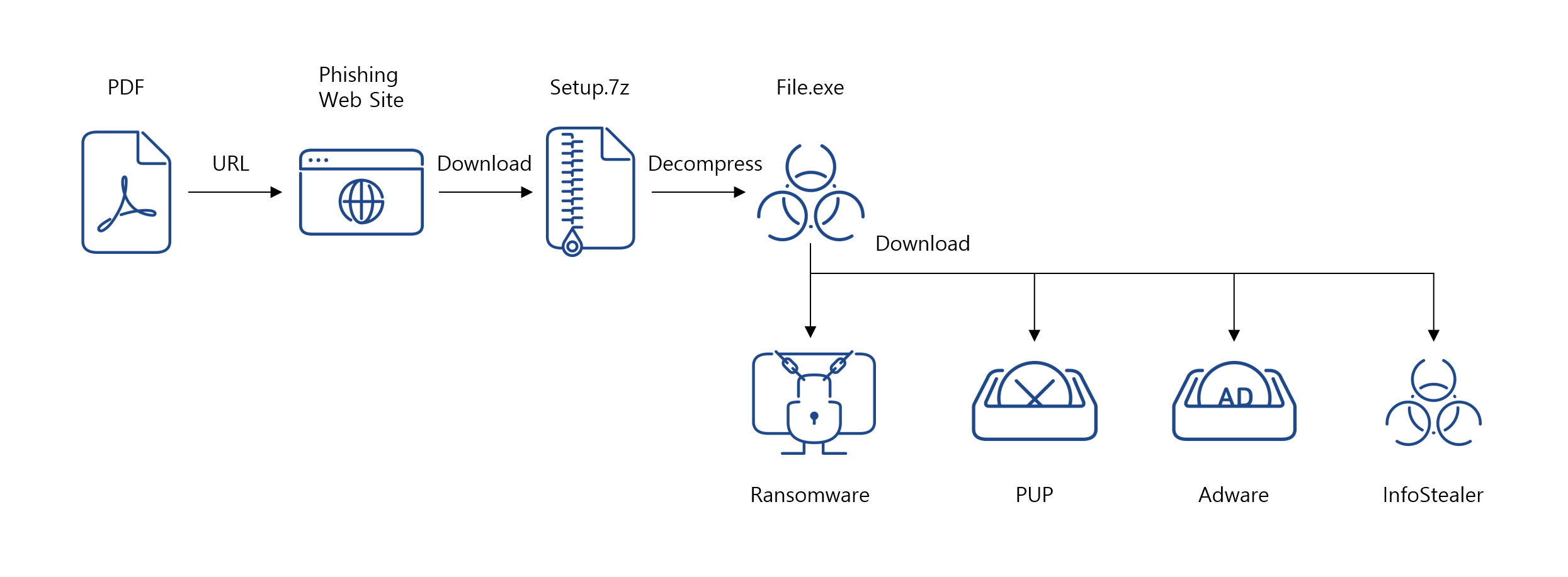
A malicious PDF is a seemingly normal document that takes advantage of legitimate features of the format to perform harmful actions , such as redirecting you to phishing websites, exploiting reader vulnerabilities, or starting processes on your computer.
Attackers often rely on several techniques : embedded JavaScript that runs when the file is opened; attachments within the PDF (EXE, ZIP, or disguised scripts); and "launch actions" capable of opening programs or executing commands if the reader allows it.
The real danger lies in the fact that many victims blindly trust PDFs because of their reputation as "static documents ." This trust facilitates phishing attacks, credential theft through fake forms, or code execution by exploiting reader vulnerabilities (including zero-days).
Therefore, when faced with any unexpected or unforeseen PDF from that person or company, the wisest course of action is to be suspicious and verify it . A simple click to open it without checking it first could be enough to compromise your computer.
Signs to suspect a PDF
You don't need to be a forensic analyst to spot red flags; many signs are just common sense . If you notice one or more, don't open the file and verify it first.
- Unknown or “strange” sender: Emails with misspelled domains, unsolicited invoices or offers, and messages that force urgency are classic phishing scams.
- Unusually large sizeA simple PDF is usually lightweight; excessively large PDFs can hide embedded payloads.
- Double extension: Names like “document.pdf.exe” or “report.pdf.scr” reveal attempts to disguise executables; enable the display of real extensions in Windows to detect them at a glance, for example with the guide for find out the format of a file without extension.
- Permit applications: If the PDF asks you to enable JavaScript, download external content, or open attachments with other apps, bad sign.
- Strange behavior when opening it: Reader crashes, CPU spikes, unexpected network connections, or pop-ups may indicate malicious activity.
- Minimal content or deceptive “template”: : Almost blank documents with logos and a clickable area simulating a login are typical for stealing credentials.
Golden rule: if in doubt, don't open it . The prudent thing to do is to analyze the file first with secure tools.
How to analyze a PDF in Windows step by step
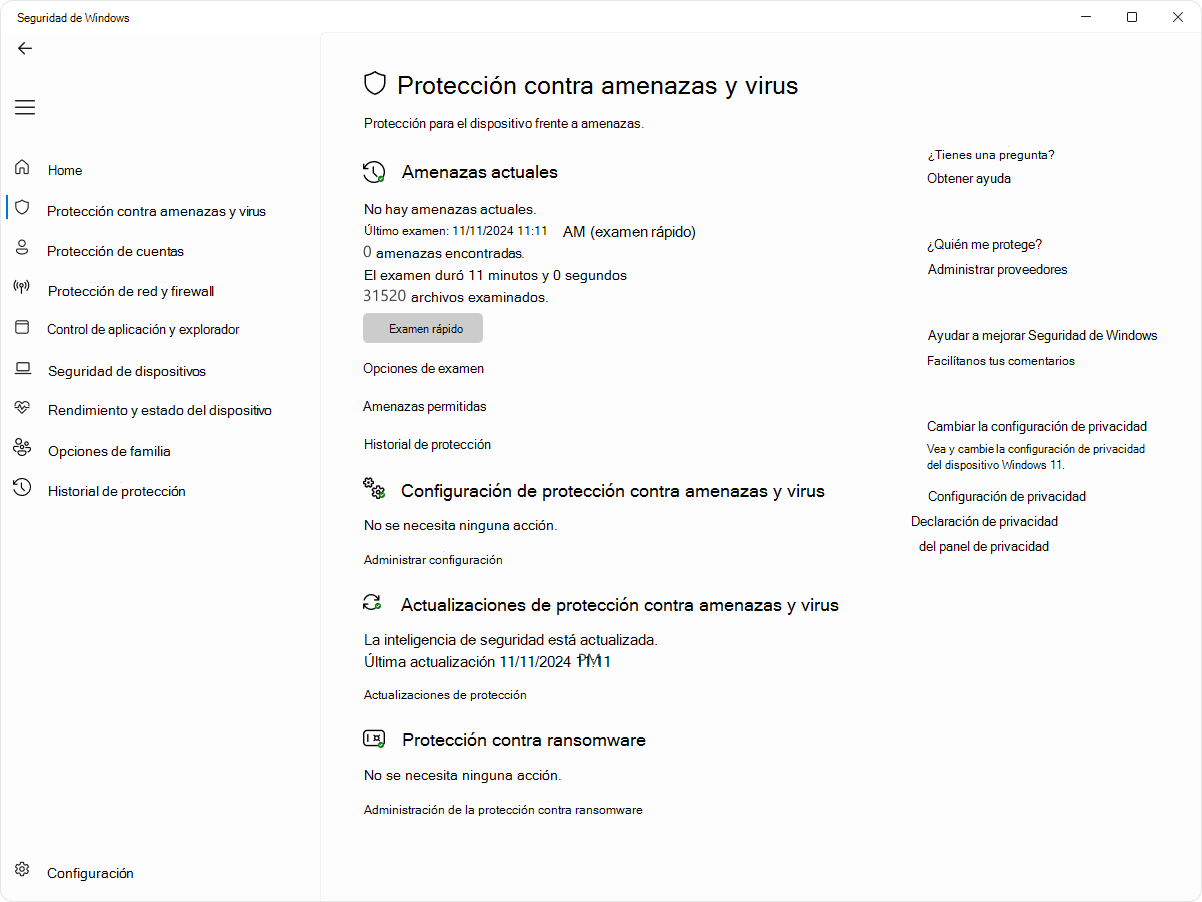
Windows makes it easy with built-in Microsoft Defender; you can scan any file or folder on demand and check for detections in seconds.
Direct scan from Explorer : Locate the PDF, right-click, select "Show more options," and then click "Scan with Microsoft Defender." When finished, you'll see the scan results in the Scan Options section.
Confirm that your protection is active : Open the Windows Security app and go to "Virus & threat protection." Under "Who protects me?", click "Manage providers" to verify that your antivirus is running.
Activate real-time protection if it's disabled : In Windows Security > Virus & threat protection > Virus & threat protection settings > Manage settings, enable "Real-time protection". Defender will then automatically activate and block threats on the fly.
Pre-scanning with cloud services : For suspicious files, services like VirusTotal allow you to upload the PDF and compare it with dozens of antivirus engines simultaneously. Note: Do not upload sensitive material, as these analyses may be shared with the security community.
Other useful filters : Email providers like Gmail include attachment scanning (many use VirusTotal technology). Even so, it's good practice to re-scan the file yourself.
Advanced analysis tools and techniques
If you want to go beyond basic scanning, there are specialized utilities for analyzing PDFs internally and examining their behavior . These are the most effective and widely used by professionals, offering a perspective that can be seen as part of good cybersecurity practices, along with tools like Windows security software.
- VirusTotalUpload the PDF and get the community engagement and reputation indicators. Ideal as a first filter.
- PDFiD (Didier Stevens): script in Python that detects suspicious markers (JavaScript, /OpenAction, /EmbeddedFile…). Perfect for a quick X-ray.
- pdf-parser (Didier Stevens): Deep inspection of PDF objects, ideal for locating obfuscated scripts and examining internal structures in detail.
- Sandboxes: Cuckoo and Any.Run: Run PDFs in isolated environments to monitor processes, network, and disk changes. Any.Run offers real-time interactive views; Cuckoo is open source and very powerful for controlled analysis.
- Hexadecimal editors: HxD or Hex Fiend allow you to review the binary to find anomalies, hidden scripts or structure manipulation.
- PDF Examiner: Service aimed at detecting JavaScript obfuscation and known exploits, even in encrypted documents.
Pro tip : Combine a multi-layer scan (Defender + VirusTotal) with a structural analysis (PDFiD/pdf-parser) and, if warranted, a sandbox run to see what the document is trying to do.
Disassemble or clean a PDF securely
If you confirm or suspect that a PDF is compromised, handle it with extreme care . The goal is to neutralize it without infecting the system and, if possible, preserve the legitimate content.
1) Isolate it : Move the file to a virtual machine or isolated environment, and if possible, without a network connection. Avoid opening it on your main computer.
2) Remove JavaScript and embedded attachmentsWith tools like QPDF, you can deflate and clean up problematic objects. For example: qpdf --qdf --object-streams=disable infectado.pdf limpio.pdf. In Adobe Acrobat Pro, check “Document JavaScript” and “Action” to locate and delete scripts or launch actions.
3) Flatten it into imagesTo remove interactive elements, convert each page to an image and recompose the static PDF. Example: pdftoppm infectado.pdf pagina -png & AFTER convert pagina-*.png seguro.pdf (ImageMagick). You lose interactivity, but you gain security.
4) Selective reconstruction : with utilities like mutool or Poppler-utils , extract only clean pages/objects and compose a new document with no trace of the malicious content.
5) Digital signatures : If the original was signed, any changes will invalidate it. Re-sign the corrected version with a valid certificate.
6) Report and share indicators : Notify the legitimate source (if known) and forward the sample to the security team. This helps break the distribution chain and improves threat intelligence.
Prevention: Configure the reader and your system
Prevention is your best antivirus . With a few simple adjustments and habits, you'll greatly reduce the risk.
- Disable JavaScript in the PDF reader: In Adobe Reader, go to Preferences > JavaScript and uncheck “Enable Acrobat JavaScript.”
- Block dangerous actions: Prevents the reader from opening external files and disables any automatic application “launch” options.
- Protected mode / sandbox: Use Adobe Reader Protected Mode or the PDF viewer Microsoft Edge, which confine the document with minimal permissions.
- Keep everything up to date: Windows, PDF reader, and antivirus software are up to date. Most exploits take advantage of outdated software.
- Enable the display of extensions in Windows: avoid falling into double extensions such as “.pdf.exe”.
- A single antivirus, well updated- Avoid installing multiple installations at once; they can interfere with each other. Enable periodic scans.
- Encrypted backups- Perform regular backups, and if possible, use encryption. They'll save you from ransomware or accidental deletion.
- Evita downloads from dubious sourcesNo suspicious websites or attachments from unexpected senders. If in doubt, verify by phone or another channel.
- Form the teamEducation reduces reckless clicks. Phishing drills help strengthen good habits.
- Endpoint Protection (EDR): EDR solutions automatically detect, isolate, and alert you to malicious attachments.
If you're already noticing symptoms: Check processes on Windows and macOS
If your computer is running slowly, overheating for no reason, or you notice unusual network activity after opening a PDF, check for active processes . There may be malware running in the background. Also, see how to detect hidden processes and rootkits to confirm.
Windows ( Task Manager ) : Right-click Start > Task Manager (or press Ctrl+Alt+Delete). Under "Processes," sort by CPU/memory usage and look for unknown or unusually resource-intensive programs. Right-click > "End task."
Helpful questions to consider : Do I recognize the process? Does it use significantly more resources than others? If you still have doubts, search for the name on reputable sources (e.g., File.net) and, after completing the process, run a full scan with your antivirus software.
macOS (Activity Monitor) : Open Activity Monitor and check processes by CPU/memory usage. Select suspicious processes, click the "i" icon to view information, and use the "X" to force quit if necessary. The gear icon allows you to run diagnostics.
After stopping the process, scan your system with Microsoft Defender or a reliable anti-malware tool to remove any remaining traces.
Additional diagnostics and secure file deletion
Never run or open a file you suspect is malicious . First, analyze it and, if there's any evidence, securely delete it according to your platform's instructions.
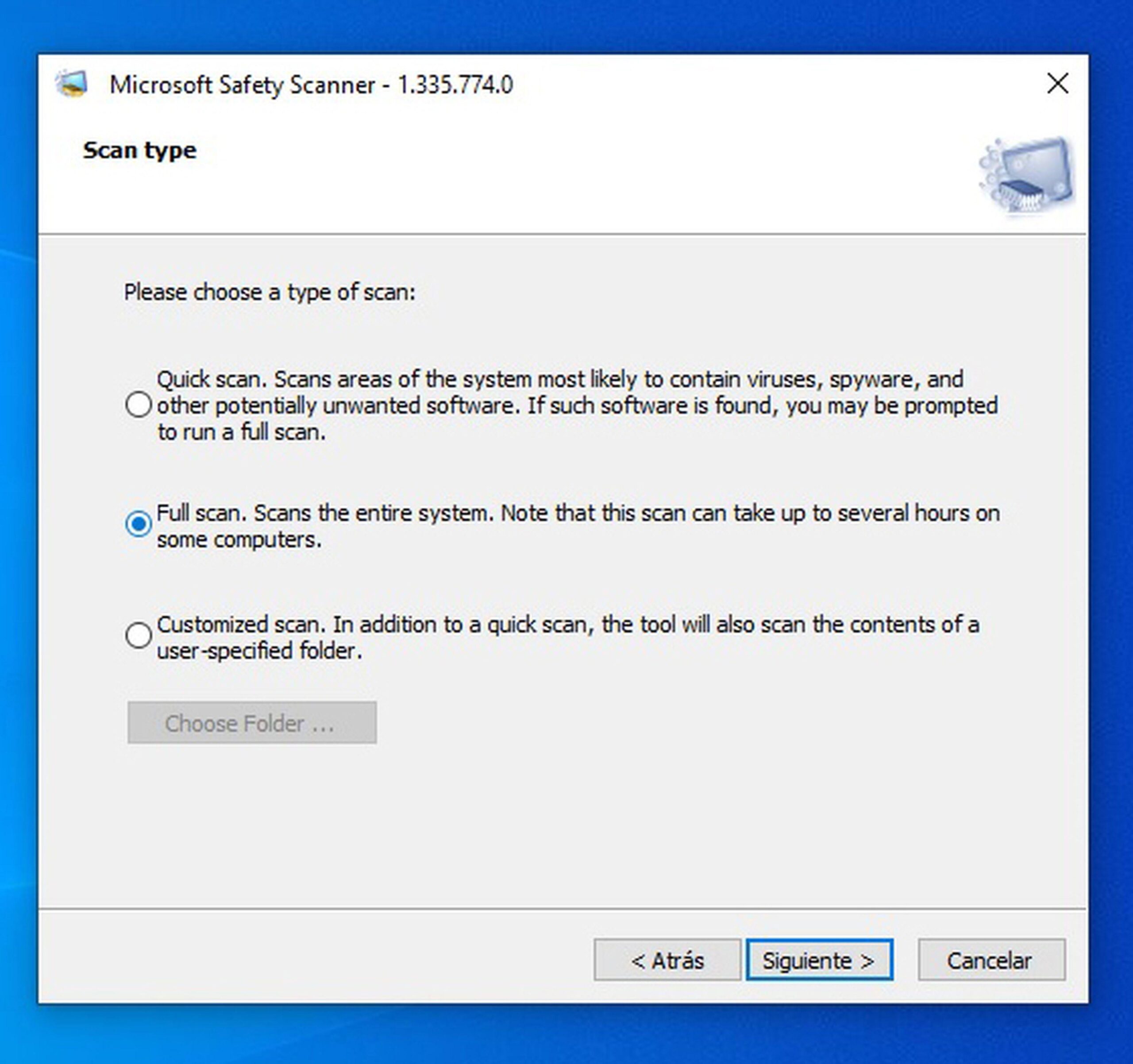
Second scan with antimalware : In addition to your resident antivirus, you can run the free version of Malwarebytes for an extra check on Windows and macOS (there are also versions for Android and iOS ). Remember to uninstall it if you only use it occasionally.
Online scanners : If you don't want to install anything, use a cloud-based antivirus to scan the file. Respect privacy: Do not upload sensitive documents or documents containing personal data.
Safe disposal :
- Windows: Use Eraser for secure overwriting.
- GNU / Linux: the command
srmrewrites the file before deleting it. - MacOS: delete and empty the trash; you can also use secure delete commands in versions that support it.
- Android: Shreddit – Data Eraser allows secure deletion.
- iOS: Delete the file, empty “Recently Deleted” and check iCloud or other associated clouds.
- BleachBit: available for Linux, Windows and macOS to clean and erase with advanced options.
Best practice : Maintain a single, trusted, and up-to-date antivirus; enable scheduled scans and real-time protection to cut off threats before they execute.
Recover PDFs deleted by malware (optional)
Even with good defenses, sometimes a virus deletes files or forces you to delete them . If you need to recover an important PDF, professional recovery tools are available.
Example workflow with a recovery tool : Download and install the utility (e.g., Wondershare Recoverit). Open the app, go to "Hard drives and locations," choose the drive where the file was located, and run the scan. When it finishes, select the PDFs you want to recover and tap "Recover ," always saving to a different drive to avoid overwriting.
Important notes : Scanning time will vary depending on the size and type of drive ( SSDs are usually faster); try to recover as soon as possible to maximize results; and remember that recovery may not be 100% guaranteed in all cases.
Keeping your eyes open, applying simple checks, and using the right tools makes all the difference . With Defender as your first line of defense, support from services like VirusTotal, deep analysis utilities (PDFiD, pdf-parser), and hygiene measures such as disabling JavaScript in your reader, using protected modes, and being wary of unexpected attachments, you can deal with suspicious PDFs with much greater peace of mind. If something does slip through, the steps for disassembling the document and the secure deletion and recovery procedures will help you get out of trouble without any major scares.


Passionate writer about the world of bytes and technology in general. I love sharing my knowledge through writing, and that's what I'll do on this blog, show you all the most interesting things about gadgets, software, hardware, tech trends, and more. My goal is to help you navigate the digital world in a simple and entertaining way.