- Access allows you to design custom search engines by combining tables, queries, and forms.
- Search fields and drop-down lists streamline data entry and filtering.
- Search engine customization streamlines work and reduces errors in information management.
- Access is ideal for small businesses or projects seeking efficiency without great technical complexity.
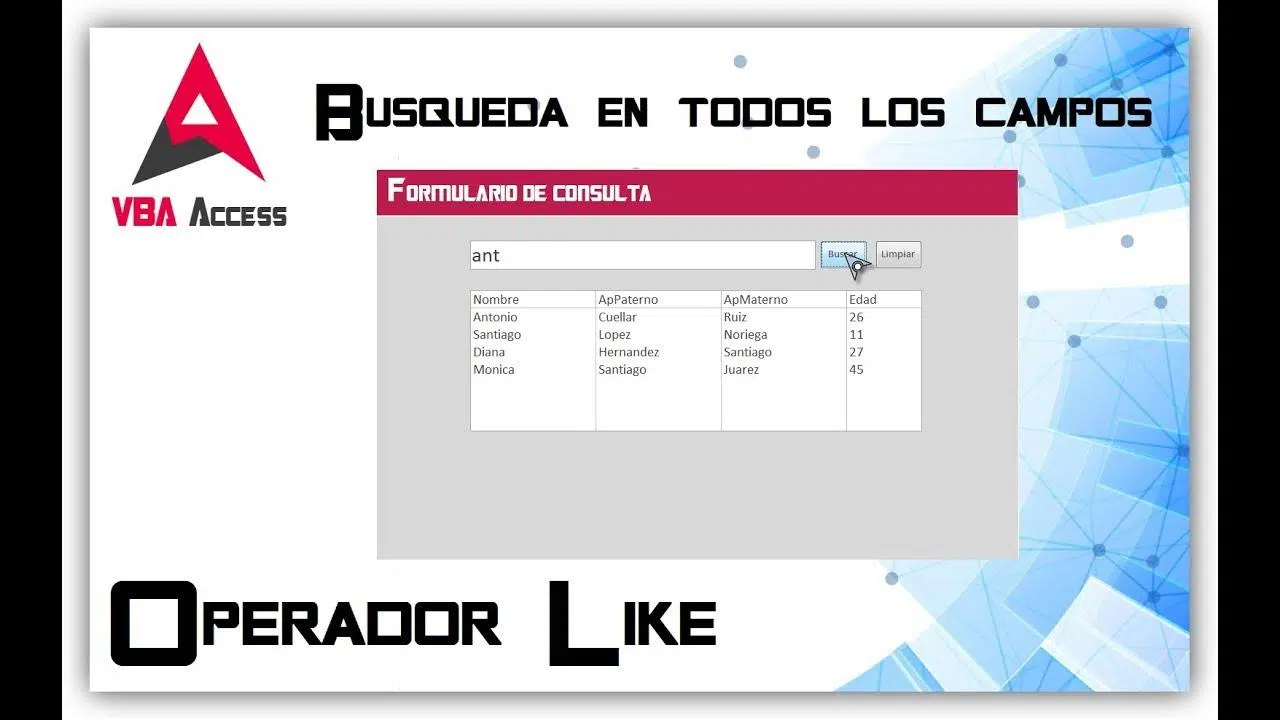
Have you ever wondered how to speed up the search for specific data in your Access databases ? If you manage information with Microsoft Access , you'll likely need a simple, fast, and accurate way to find specific records at some point. Custom search tools not only optimize your daily work but also enhance professionalism and prevent errors , allowing you to filter and display only the relevant data at any given time.
Creating custom search engines in Access is more accessible than you might think, even though it may initially seem like a task reserved for experienced developers. In this article, I'll guide you step-by-step through configuring your own search system tailored to your specific needs, combining tables, queries, forms, and search fields. Discover how to make the most of Access's tools and design a user-friendly, practical, and powerful experience.
What is Access and what is it for?
Microsoft Access is the database solution included in Microsoft Office that allows you to manage, query, and present data easily and powerfully. While not as robust as other systems (such as SQL Server), it's ideal for managing information in small businesses, personal projects, inventories, CRM systems, or any situation where you need to control and structure data without complications.
One of its strengths is the ability to create custom applications without extensive programming knowledge . You can define the tables you need, establish relationships between them, design forms for data entry, and, of course, create custom search engines tailored to your industry or projects.
Some of its main advantages:
- Intuitive layout: You can create databases from scratch or from templates, adding forms and queries depending on the intended use.
- Automation using macros: Simplifies routine tasks and improves efficiency.
- Integration with Excel and other Office programs, facilitating the import and export of data.
- Powerful views and filters: allows you to create reports, graphs and perform advanced searches.
Why create custom search engines in Access?
Advanced search is essential in any database . If users can quickly find what they need (customers, products, sales records, etc.), you'll save time and reduce errors. A custom search function in Access allows you to filter information based on the criteria that truly matter to your business or project , displaying only the relevant data and hiding the rest.
These searches can be adapted to input forms (for example, to select customers from a drop-down list), as well as to queries that return results based on defined parameters, or even reports that show grouped information.
Pre-planning: structure and relationships
Before you start creating your search engine, it's advisable to plan your database structure. First, make a rough sketch on paper with the tables and fields you'll need, and analyze the relationships between them. This will save you trouble later and ensure your search engine works correctly.
For example, if you want to create a product search engine by category and supplier, you should have at least these tables:
- Products
- Categories
- Suppliers
Establish relationships between them to ensure accurate lists and filters. This will prevent errors or duplications, and you can take advantage of Access's built-in wizards to automate complex tasks.
Key components for creating a search engine in Access
To implement an efficient and elegant search engine in Access , it is necessary to combine several objects:
- Boards: contain the information that we are going to consult.
- Consultations: These are filters that return only records that meet certain criteria (for example, all customers in a city).
- Forms: visual interfaces for users to enter search criteria.
- Search fields or drop-down lists: allow you to select a value from a list associated with another table, facilitating navigation and avoiding typing errors.
- Macros and automations (optional): To perform actions after a search, such as refreshing data or sorting results.
The key is to properly interconnect these elements . For example, a form might have several combo boxes (drop-down lists) for choosing filters and a query that automatically displays only the records that meet those criteria.
Step by Step: How to Create Custom Search Engines in Access
Let's take a practical look at how you can set up your own custom search engine. This example will serve as a basis for creating any variant: from a simple name filter to advanced systems where the user can search by any field or combination of fields.
1. Create tables and define relationships
In Access, each type of information goes in a separate table . Create the tables you need (Customers, Products, Orders, etc.), making sure that each one has a unique key field (for example, an ID or Code).
Next, set up relationships from the Database Tools > Relationships tab. This allows filters and search engines to work by joining data from different tables (for example, to find all orders for a specific customer).
2. Create the search fields
Lookup fields, also known as dropdown lists or combo boxes, are essential for creating custom search engines. They allow you to select values from another table, displaying user-friendly text while saving the corresponding numerical value (ID). This is crucial for preventing errors and speeding up data entry.
To add a search field:
- Open the table in “design view”.
- Select the field that will function as the search (for example, “CategoryID”).
- Go to the “Lookup” tab and use the wizard to define where the list will get its values from (another table, query, etc.).
- Save the table when you're done.
Now, whenever you use this table in a form, Access will automatically display a list of descriptive values (instead of the ID number), making it easier to select and view data.
3. Create a filtered query
Queries are essential for returning only the records that meet the search criteria. You can create a select query that uses parameters, so users enter a term (for example, a customer's name) and the query returns only the matching data.
Basic steps:
- On the Create tab, choose Design Query.
- Add the relevant table(s).
- Drag the fields you want to display.
- In the "Criteria" row of a field, enter a parameter in brackets, for example: .
- Save and test the query. When you run it, Access will prompt you for the data and only display matching records.
You can combine multiple parameters and use more complex expressions to achieve advanced searches.
4. Design the search form
The key step in making your search engine user-friendly and engaging is creating a custom form. Here you can add text boxes, dropdown lists, buttons, and any other controls needed to collect search criteria.
A typical example of a search form:
- A text box to search by name or keyword.
- Drop-down lists (search fields) to filter by category, status, or any other relevant field.
- A search button that executes the associated query and displays the results in a subform or table.
On your form, you can use the Control Wizard to directly link a combo box to a search query. If you prefer more control, you can program a small event in VBA to refresh the data after each search.
5. Automate and personalize the experience
Access lets you further customize search results using macros and automations. For example, you can automatically update a field (such as phone number or contact information) as soon as a user selects a customer, or run a report with the filtered results. All of this can be done without writing much code, using the built-in macro wizards.
Some useful examples of automation:
- Macros to automatically copy data between related fields.
- Setting up chained actions after triggering the search (opening forms, displaying messages, refreshing subforms, etc.)
- Buttons to clear filters or redisplay all data.
Advanced Personalization: Navigation and Security
Customizing the Navigation Pane in Access lets you create categories and groups tailored to your workflow. This allows you to organize forms, reports, and queries by area or department, making it easier to access search results from the main menu. In the Navigation Options dialog box, you can create new groups, hide unused ones, and arrange your items as you prefer.
Keep in mind that these customizations only affect the current database, not others. For shared databases, it's a good idea to carefully plan the organization of categories and groups.
Regarding security , Access allows you to set passwords and encrypt the database, although for critical projects or those with sensitive data, more robust solutions might be advisable. You can set access controls, limit object editing, or disable design view to prevent accidental changes.
What types of search engines can I create?
Access is surprisingly flexible and allows you to set up different types of custom search engines :
- simple search: Filter by a single field such as name, code, or date.
- Advanced search: combines multiple fields (e.g. name + city + state).
- Search engine dependent: where choosing a first filter (such as a category) limits the values of the next (e.g., only showing products from that category).
- Smart drop-down lists (autocomplete): Show suggestions as the user types, speeding up the process.
You can even create Access web applications with custom search engines accessible from any browser, making teamwork and remote access easier.
Advantages and limitations of Access for creating search engines
Microsoft Access is an ideal tool due to its ease of use, the large number of available templates, and its integration with Office. It allows you to create custom search engines without being a programming expert , and its visual environment makes interface design user-friendly and fast. Furthermore, it supports multiple users and allows you to easily import data from other applications.
Among its limitations are its storage capacity , lower security compared to corporate databases, and the possibility of file corruption if used with too much data or concurrent users. For large or critical projects, consider more robust platforms, but for SMEs, clubs, libraries, or medium-sized projects, Access remains an excellent and efficient option.
If you've ever felt your Access database could be more streamlined, visually appealing, and tailored to your needs, try putting these recommendations into practice and creating your own custom search engine. You'll be amazed at how easily you can improve information access and management, expanding the possibilities of your projects and making work easier for all users.


Passionate writer about the world of bytes and technology in general. I love sharing my knowledge through writing, and that's what I'll do on this blog, show you all the most interesting things about gadgets, software, hardware, tech trends, and more. My goal is to help you navigate the digital world in a simple and entertaining way.