- ShutUp10++ allows you to create and export a portable privacy profile in Windows 10 and 11.
- Apply the recommended options first and then adjust those that require evaluation.
- Avoid conflicts: Create a restore point and download only from the official website.
- Reapply your profile after major updates and keep your .cfg up to date.
If you work with multiple computers and want them all to have the same level of privacy without constantly fiddling with the registry and Windows settings, O&O ShutUp10++ lets you create a portable profile and apply it in minutes . The best part is that it requires no installation, runs instantly, and can save your settings to a file that you can then import onto any Windows 10 or 11 PC.
However, prioritizing privacy can clash with everyday convenience: Windows displays fewer notifications and "makes things easier" by sending a lot of data . Creating a balanced profile—one that doesn't break anything essential and minimizes telemetry—is possible, and here you'll see how to do it in a portable way, which options to adjust, and what precautions to take to avoid encountering blocks or messages like "this setting is managed by your organization."
What is O&O ShutUp10++ and why is it useful for a portable profile?
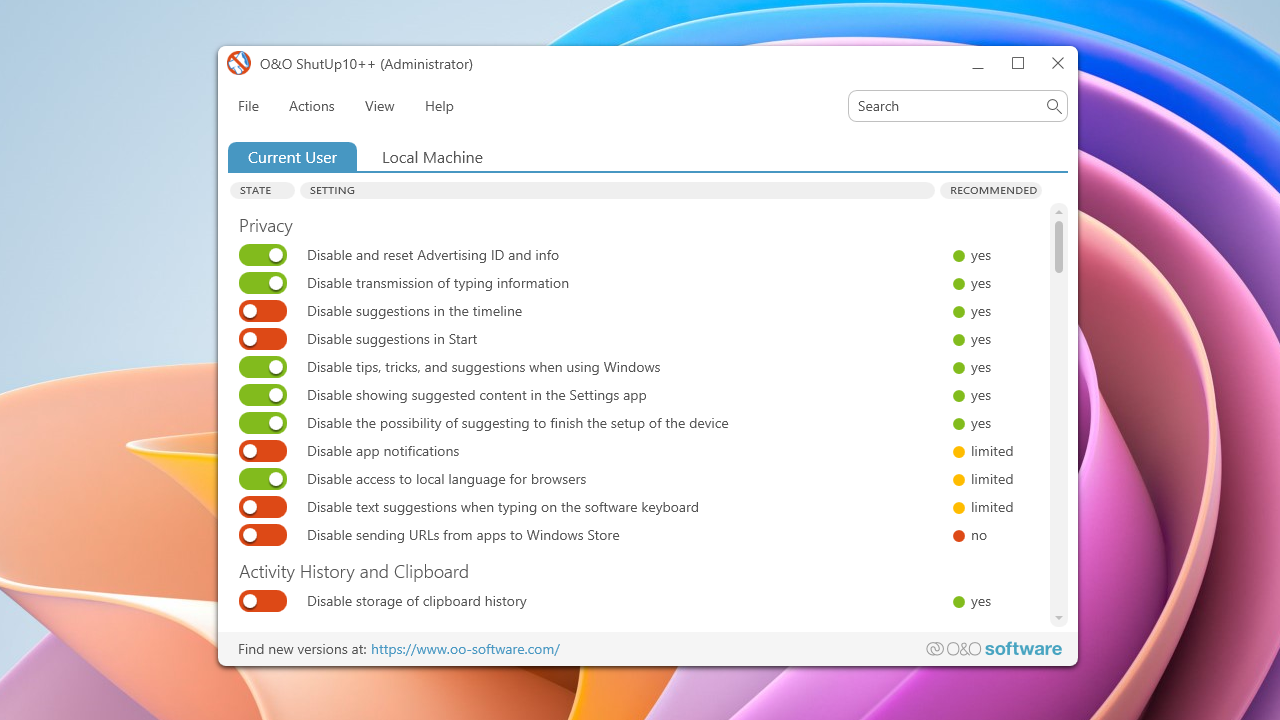
O&O ShutUp10++ is a free utility for Windows 10 and 11 that centralizes dozens of privacy, security, and telemetry settings in a single window . It doesn't install anything or download any extraneous components: you run it, change what you want, and exit. It's also updated regularly to cover new Windows features that affect privacy.
The tool features switches grouped by category and a color-coded recommendation system to guide your decision: green (recommended), amber (to consider), and red (not recommended) . This helps you avoid removing services that could break system functions or applications like Microsoft Edge , Office, or Cortana.
A key advantage is that it can apply changes to the current user or the entire machine , allowing for granular profiling. And best for our purposes: it supports exporting and importing your configuration as a .cfg file, so you can carry that "privacy profile" on a USB drive and reuse it across multiple computers.
What Windows collects and the balance between convenience and privacy
Windows 10 and 11 prioritize a simpler daily experience, with fewer interruptions and security alerts, but this "simplicity" comes at the cost of more data than many users would like . Microsoft uses this information to personalize the experience, such as reminding you to leave for the airport earlier based on traffic, which requires access to your calendar, emails, location, and internet connection.
Various ecosystem services can collect interactions, associate usage patterns, and even share network information or automatically connect to public Wi-Fi if permitted. It's convenient, yes; it also comes with risks. ShutUp10++ puts all those privacy keys right in front of you so you can decide the balance between convenience and control.
In theory, some of this data is processed anonymously, without being linked to your account, but it's wise to review and disable anything you don't need . Manually going through all the Windows menus is possible, although it's a long and tedious task; with ShutUp10++, you do it from a single panel with clear explanations of each setting.
Categories and types of settings you can control
ShutUp10++'s switches are grouped into areas so you can quickly find what you're looking for. Among the most important categories are options related to privacy, location services, and system behavior.
- Private
- Activity history
- App privacy
- Security, Microsoft Edge (Chromium)
- Microsoft Edge (Legacy)
- Microsoft Office
- Synchronizing Windows Settings
- Cortana
- Location services
- User behavior
- Windows update
- Windows Explorer
- Microsoft Defender and Microsoft SpyNet
- Lock screen
- Different
Each entry displays a description when you tap its name, along with its current status and the developer's recommendation. This contextual text helps you understand exactly what each toggle disables and whether it might affect other system or application functions.
Some examples of what you can disable or adjust from the tool, always with its risk indicator, include system and Office telemetry, system suggestions, background tasks, or cloud integration :
- Remove tips, Tricks and suggestions from Windows itself
- Disable Timeline and Activity Log
- Block user activity from being sent to Microsoft and synchronization clipboard in the cloud
- Turn off Start menu suggestions
- Prevent apps from running in the background
- Disable operating system and Microsoft Office telemetry
- Limit web tracking in Microsoft Edge
- Turn off Cortana on the system and on the web
- Disable components such as Microsoft SpyNet, OneDrive or Windows Spotlight
- Delete notifications in the lock screen and the “fun facts” on that screen
With that range, it is possible to build a very strict privacy profile or a more conservative one , depending on what you need and what you are willing to sacrifice in comfort.
How to create a portable privacy profile for multiple devices
The key to the portable approach is that ShutUp10++ requires no installation and allows you to export your configuration . To make it work as a replicable "profile" across machines, follow these guidelines when designing it on your home machine:
- Download the tool only from its official website. Run the file directly (e.g. OOSU10.exe) and wait for the list of options to load. Since the app is portable, you can save it to a flash drive to take it to other devices.
- Before touching anything, use the Actions menu itself to create a system restore pointIt's a lifesaver if a setting leaves you without a critical function or if a driver reacts poorly to a telemetry change.
- Apply a first block with “Actions > Apply only recommended settings”. This activates the green switches (safe level), avoiding most common conflicts. Then, go through the categories and evaluate the amber-colored ones according to your needs.
- Make sure to adjust the “Location Services,” “Settings Sync,” and “App Privacy” settings. They are the ones that generate the most friction if you work with apps that depend on location, timing, or notifications, but also the ones that reduce the data footprint the most when you limit them.
- Once you are satisfied with the profile, go to “File > Export Settings” and save the .cfg. That file is your portable privacy profile.. Take it with you and apply it to other PCs using “File > Import Settings.”
- On each destination computer, repeat the restore point precaution. Import the .cfg and reboot if the app suggests it., as some changes require a logout or system restart to take effect.
Important note: With Windows updates, it's normal for some settings to be reverted or new options to appear . Reapply the .cfg file after major updates and check if there's a newer version of ShutUp10++ that includes the system changes.
Good practices to avoid breaking anything (and avoiding scares)
When it comes to privacy, it's best to start small and work your way up. Begin with the green options, test your usual workflow, and then consider the amber settings . Options marked in red often affect basic functions or other applications; only adjust these settings if you know why.
If you share a PC or have multiple user profiles , decide whether to apply the settings to the "Current User" or the "Local Machine." A typical portable profile applies to the entire computer to ensure consistency across machines , but in environments with multiple user accounts, you might prefer to adjust settings per user.
Regarding Edge and Office, be careful about disabling all telemetry in bulk if you use cloud services or smart features. Disabling OneDrive and Spotlight, for example, reduces noise and data, but also eliminates suggestions and featured content . Consider your actual needs on each PC.
If you're concerned about performance, reducing background apps and system suggestions can help, but check essential notifications (email, calendar, messaging) to avoid missing important information . Whenever you're unsure, check the description of each setting by tapping its name.
The classic problem: location is blocked and “your organization manages it”
A typical consequence of hardening policies with ShutUp10++ is that Windows displays certain sections as "managed by your organization ." This doesn't mean you've magically become a company PC: the tool writes system policies (just as an administrator would), which is why you see this warning.
If, after applying the recommendations, you start seeing constant location service notifications or your location remains grayed out, check "Location Services" within the app. Re-enable location access from ShutUp10++, not from Settings , as the policies that block it are located there. Then, verify that the app requesting your location (for example, a browser) has the appropriate permissions.
It's also possible that hardened browsers (with profiles like Arkenfox) or privacy-oriented forks like LibreWolf may conflict with Windows location policies, increasing requests or errors . In such cases, first adjust the location blocking level in ShutUp10++ and, if the problem persists, check the browser's own geolocation settings.
If you get stuck and can't revert from Windows, remember that ShutUp10++ can undo changes or restore settings to factory defaults from the Actions menu. And, of course, you can always restore the system restore point you created initially.
Key menus and sections of the tool
File: Here you can Import settings (load your .cfg), Export settings (create your profile's .cfg), and exit the application . This is the foundation for the portability we're aiming for.
Actions: This section handles large-scale changes. It includes buttons to apply the recommended options, the recommended options, and the "to consider" options, or even all of them (the latter is not advisable unless you are certain of the impact). It also includes "Undo all changes," "Factory reset," and "Create restore point."
View: Allows you to regroup or ungroup categories, change the appearance of the switches (blue/gray) , and select a language. The app offers several: English, French, Spanish, German, Italian, and Russian.
Help: integrates a short guide within the window itself, online version checking, and access to the changelog . The "About" button displays information about your system (edition, version, type) and the developer company.
Download safely and ensure your privacy
Download ShutUp10++ only from its official website to avoid installers bundled with unwanted software. This utility doesn't require an internet connection to function and doesn't collect the data you disable , reinforcing its privacy proposition compared to more intrusive solutions.
When you update your profile with new versions of the app, export the .cfg file again to incorporate the newly added options . If you manage multiple teams, it's helpful to keep a simple version control of the profile (e.g., v1, v2…) to know what each team has.
Who's behind O&O and its ecosystem of tools?
ShutUp10++ is part of the catalog of O&O, a German company with over two decades of experience developing software for Windows. Their solutions are used by clients in more than 140 countries and are common in large companies , including many listed on the DAX index and other international benchmark lists.
Their portfolio includes utilities such as Defrag, DiskImage, DiskRecovery, SafeErase, SSD Migration Kit, and CleverCache. These are focused on maintenance, backups, recovery, and secure erasure , and cover various aspects of Windows system administration.
Besides being freeware, ShutUp10++ doesn't include ads or any extras. If you like the tool, the company itself suggests supporting them with a nice gesture: "inviting" their office dog, Frida, for a bone . It's not mandatory, of course, but it's a fun way to support a useful project.
Practical tips for profiling, exporting, and reusing without surprises
- Create two profiles: one “stable” with only green settings and another “strict” adding the amber ones that suit you. This way you can choose what to apply depending on the team or user. without editing switch by switch each time.
- After major Windows updates, reopen ShutUp10++ and check for new switches. Update your .cfg and re-export it to keep your profile up to date.It is normal for the system to reset some values after a version change.
- If you are going to deploy the profile on many PCs, document the changes and Test on a “guinea pig” machine before launching into productionYou'll avoid last-minute surprises, especially in environments where Edge, Office, or UWP apps are critical.
- A USB with the app and your .cfg is enough to apply the profile on any compatible device. Run, import, apply and restartOn shared computers, remember to choose between “current user” or “local machine.”
Although ShutUp10++ greatly simplifies the task, every environment is different and it's best to adjust it carefully . The goal of a good portable profile is to replicate a consistent privacy standard without ruining the experience or turning your desktop into a jungle of notifications.
All of the above demonstrates that you can have a Windows that is much more respectful of your data without sacrificing the essentials: with ShutUp10++ you configure, export and deploy a portable profile in a matter of minutes , knowing that the tool guides you with recommendations, that you can undo changes and that you will always have the restore point at hand as a safety net.


Passionate writer about the world of bytes and technology in general. I love sharing my knowledge through writing, and that's what I'll do on this blog, show you all the most interesting things about gadgets, software, hardware, tech trends, and more. My goal is to help you navigate the digital world in a simple and entertaining way.