- Registering an application in Azure with Sites.FullControl.All application permissions on SharePoint ensures secure and centralized access to sites and documents.
- Creating managed identities in Dataverse and linking them to SharePoint using the sharepointmanagedidentity table consolidates Power Platform authentication.
- Configuring federated credentials in the Azure application allows Dataverse to exchange tokens with Azure AD using environment-specific subjects and issuers.
- Using PowerShell scripts to generate the subject identifier reduces errors and facilitates adaptation to different types of environments and sovereign clouds.
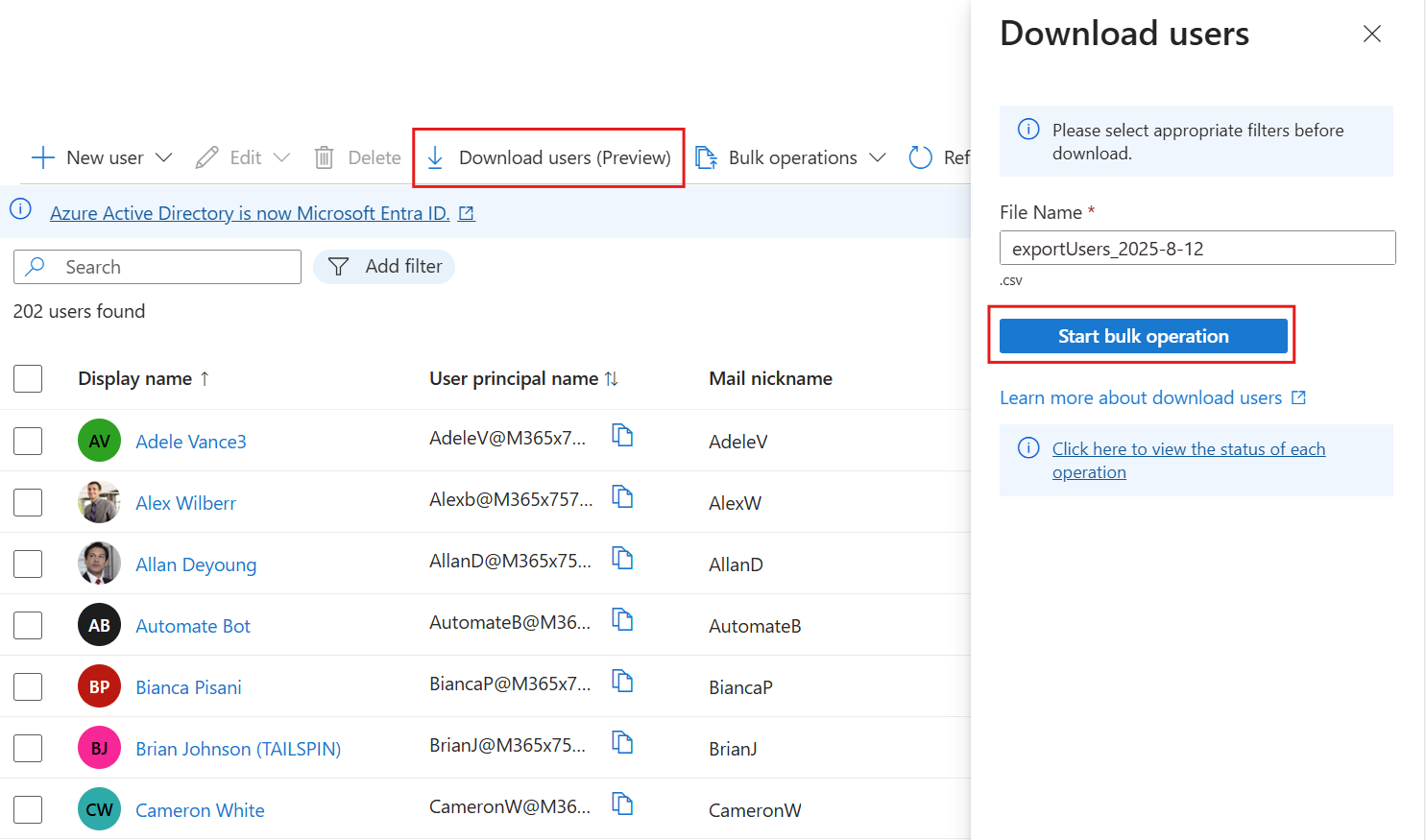
Work with Azure AD, SharePoint and Power Platform It increasingly demands more security and finer configurations than we're used to. When we want to automate processes like managing documents, integrating Dataverse, or preparing the groundwork for creating and managing users in Azure AD from SharePoint data, simply using the same old credentials is no longer enough.
Since March 2025, Microsoft has tightened the way in which access to the SharePoint document table from Dynamics 365 and model-driven applicationsespecially when such access is made from Power Automate or Dataverse API calls. This implies that we need to use an application registered with Azure, managed identities, and federated credentials to continue working safely and without interruptions.
Context: Why you need an Azure app to access SharePoint
When a business solution in Dynamics 365 or Power Platform uses the SharePoint document tableOften, this is done outside the classic document grid of a model-driven app. In other words, SharePoint is accessed from Power Automate flows, plugins, custom connectors, or direct calls to the Dataverse API that require intensive permits on sites and libraries.
Until recently, this access could take advantage of less stringent legacy mechanisms, but Microsoft has decided remove that access in March 2025 to strengthen the environment's protection. In practice, if you don't prepare the new configuration, you may encounter workflows that stop working, integrations that no longer read or write documents, or automations that start failing without warning.
The solution involves creating and configuring a application in Azure (Microsoft Entra ID) that acts as a centralized identity for integrations, assign it the appropriate SharePoint permissions, and link it to Dataverse using managed identities and federated credentialsAll of this will allow you to continue running automations that, for example, read SharePoint lists, manage documents, or even serve as the basis for processes that then create or manage users in Azure AD based on that information.
Registering an application in Azure with permissions on SharePoint
The first pillar of this setup is to register a application in Azure (Microsoft Entra ID) This app will represent your automations when they need to communicate with SharePoint. It will operate with application permissions (not delegated), so it can function independently of a logged-in user.
To begin, enter the Azure portal with an account that has permissions to manage application logs and Entra ID settings. Once logged in, go to the section of "Application Logs"This is usually visible within Microsoft Login ID or directly in "Azure Services". This is where you will create the identity that Dataverse will use to access SharePoint.
Click on "New registration" and assign a recognizable name to the application, so that it is easy to identify it as the one that manages authentication with SharePoint (for example, something alluding to Power Platform or the organization). In the section of "Account types supported"Select the option that restricts access to "You only have accounts in this organizational directory"because the app will work within your specific tenant.
After completing the wizard, click on "To register" To finalize the app creation. On the summary screen of the registered application, in the section of "Basic Information" or "Essentials"You will see two critical values: the "Application ID (client)" and the "Directory ID (tenant)"These GUID identifiers will be key later on to link the app with Dataverse and the configuration of managed identities.
Write down and carefully store the Application ID (clientId) and Directory ID (tenantId)since you will use them both when creating the managed identity records in Dataverse and when defining the federated credential that will generate the correct token for SharePoint.
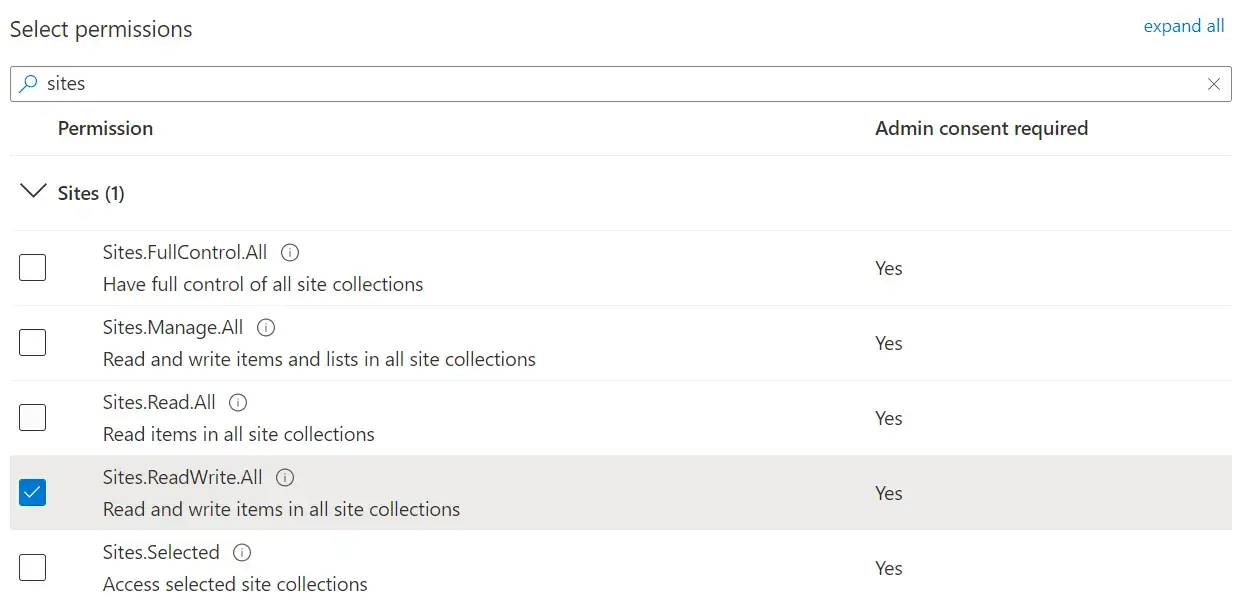
Next, you need to grant the application the appropriate permissions on the SharePoint APIIn the app's navigation menu, go to "API Permissions" and select the option "Add a permission"Choose the service SharePoint And when asked about the type of permits, mark "Application permissions"which are what allow the app to act on its own without an interactive user.
Within the list of available permissions, locate and select "Sites.FullControl.All"This permission grants the application full control over all SharePoint sites in the tenant, which is useful in scenarios where Power Platform intensively manages documents, folders, and metadata. Once selected, click on "Add permissions" to incorporate it into the app.
With the added permission, the key step is still missing: granting the administrator consentOn the same permissions screen, you will see the option to "Grant administrator consent to »Perform this action with an account that has global administrator privileges or similar, so that the SharePoint permission is active and the app can use it in production.
Creating managed identities in the Dataverse
With the Azure application ready and with the correct permissions on SharePoint, the next step is to connect that identity with Dataverse through managed identity recordsThis allows the Power Platform environment itself to use that app to generate tokens and securely access SharePoint.
The process is carried out by creating records in the internal tables of Dataverse, specifically in the table "managedidentity"which represents each managed identity associated with an environment. For this, you can use the Dataverse Web API, using tools like Postman, Insomnia or any HTTP client that makes it easy to send authenticated requests.
In the table managedidentity You will need to insert a new row with a series of specific fields. The field applicationid must contain the GUID of the Application ID (client) that you obtained when you registered the app in Azure. Meanwhile, the field tenantid will store the GUID of Directory ID (tenant) from the same application record.
In addition to these identifiers, there are other configuration fields that determine the credential type and scope. credentialsource you must set the value 2, which indicates a managed credential source (IsManaged) via the platform. In the field subjectscope The value should be used 1, which corresponds to a EnvironmentScope type scopeThat is, linked to a specific Dataverse environment.
The HTTP request to the Dataverse web API will take the form of POST to the URL [Organization URI]/api/data/v9.2/managedidentitieswith typical OData headers (e.g., Content-Type application/json, OData-MaxVersion 4.0, etc.) and a JSON body similar to this, adapted to your actual values:
POST [Organization URI]/api/data/v9.2/managedidentities
Content-Type: application/json; charset=utf-8
OData-MaxVersion: 4.0
OData-Version: 4.0
Accept: application/json
{
 "applicationid": "<appId>",
 "credentialsource": 2,
 "subjectscope": 1,
 "tenantid": "<tenantId>"
}
If everything goes well, the API will return a response. HTTP 204 No Content, accompanied by a header OData-EntityId which includes the URL of the newly created record. Within that URL you will see a GUID that corresponds to the managedidentityid, something like aaaaaaaa-0000-1111-2222-bbbbbbbbbbbbSave that identifier because you will need it to link it to the specific SharePoint managed identity.
Associate SharePoint managed identity in Dataverse
Once the managed identity base is created in the table managedidentity, it's necessary to link it to an entry of type SharePoint managed identity, who lives on the table sharepointmanagedidentityThis is the piece that explicitly connects Dataverse with the use of SharePoint through that identity.
To do this, you will need to insert a new row into the table. sharepointmanagedidentity using, again, the Dataverse Web API. Field uniquename It must contain a unique name within the environment, for example "new_ppmiforsharepointauth", which clearly identifies that this identity is intended for authentication with SharePoint.
In the countryside name You can use a descriptive and friendly label, such as "Identidad administrada para la autenticación de SharePoint" or similar, that allows you to quickly locate it using administration tools or scripts.
The most important thing is the relationship with the base managed identity record you created earlier. This is done using the link field. ManagedIdentityId@odata.bind, whose value should point to the resource /managedidentities(<managedidentityid>), substituting <managedidentityid> by the GUID returned previously by the creation of the managed identity.
The request to the Dataverse web API would look something like this, again using POST But now against the table sharepointmanagedidentities:
POST [Organization URI]/api/data/v9.2/sharepointmanagedidentities
Content-Type: application/json; charset=utf-8
OData-MaxVersion: 4.0
OData-Version: 4.0
Accept: application/json
{
 "uniquename": "new_ppmiforsharepointauth",
 "name": "Managed Identity For SharePoint Auth",
 "ManagedIdentityId@odata.bind": "/managedidentities(<managedidentityid>)"
}
As before, the answer will be HTTP 204 No Content with the header OData-EntityId pointing to the new registration, for example sharepointmanagedidentities(bbbbbbbb-1111-2222-3333-cccccccccccc)That GUID is the sharepointmanagedidentityidwhich you will need to use when building the subject identifier for the federated credential in Azure.
Configuring federated credentials in the Azure application
With the application registered in Azure and the managed identities already created in Dataverse, the last major step is to configure a federated credential in the app's own registration. This credential allows Power Platform to securely exchange tokens with Azure AD, using the relationship established with the managed identity and SharePoint.
To configure it, go back to Azure portal and access Microsoft Access IDWithin the menu, go to "Application Logs" Locate the specific record you created to manage access to SharePoint. Open it to edit its authentication and certificate settings.
In the side panel of the registry, enter "Certificates and secrets", and then go to the tab of "Federated credentials"There you will have the option to "Add credential", which is where you will define both the issuer and the subject that will represent Dataverse.
In the field of "Scenery" For the federated credential, select "Another issuer"Since you'll be manually specifying both the sender URL and the subject identifier pattern, this gives you the flexibility to match the exact configuration Power Platform requires for SharePoint managed identities.
In the countryside "Transmitter" You must write a URL in the format https://login.microsoftonline.com/<tenantId>/v2.0, substituting <tenantId> by the GUID of Directory ID (tenant) from your Azure app. That URL represents the Azure AD token issuance point for your tenant.
The key field is that of "Value", where the subject identifier which will be used in the federated relationship. The expected format is a string of the type:/eid1/c/pub/t/<base64-encoded-tenantId>/a/<base64-encoded-appid>/Env/<orgid>/sharepointmanagedidentity/<sharepointmanagedidentityid>
In that structure, the tenantId encoded in Base64 URL-safe Is placed in <base64-encoded-tenantId>, and the Power Platform application identifier that acts as Managed Identity (a specific AppId provided by Microsoft) is also Base64 encoded in <base64-encoded-appid>. Also <orgid> is the GUID of the Dataverse environment or organization, while <sharepointmanagedidentityid> corresponds to the GUID of the entry created in the table sharepointmanagedidentity.
Once you have filled in this information, click on "Add" to create the federated credential. From that moment on, the Dataverse managed identity linked to SharePoint will be able to obtain tokens through this configuration, allowing external flows, plugins, or integrations to access the SharePoint document table in a controlled and secure manner.
Generating the subject identifier with PowerShell
Assemble the chain by hand subject For federated credentials, this can be quite cumbersome, especially since it involves encoding GUIDs to Base64 securely for URLs and adhering to a very specific structure. To simplify this task, you can use a PowerShell script that automatically generates both the subject identifier and other relevant values.
The proposed script defines a function called GetSharePointManagedIdentifyConfig, which receives several mandatory parameters: the type of environment (EnvironmentType), the GUID of the SharePoint Managed Identity (SharePointManagedIdentityId), the tenantId and the EnvironmentId associated with the Dataverse environment where you apply the configuration.
Parameter EnvironmentType It must be one of the values recognized by the script: Public, Gov, GovFR, High, DoD, MoonCake, USNat o USSecEach of them is associated with a different combination of issuer URL and Token Exchange Resource URLbecause different sovereign clouds and regions use different authentication endpoints.
Within the script, an internal function is declared called Convert-ToBase64Url, which is responsible for transforming a GUID into its encoded version in Base64 URL-safeThe procedure converts the GUID to a byte array, encodes it to Base64, and removes padding characters (=) and replaces the characters + y / by - y _ respectively, thus ensuring that the result is valid for use in URLs.
The script also defines a constant with the Power Platform Managed Identity AppId, 58e835ab-2e39-46a9-b797-accce6633447This is the identifier used by Dataverse for these integrations. This value is also passed through the Base64 URL-safe encoding function to fit the final subject string.
Environment configuration is managed through a list ($environmentConfigList) that assigns to each group of environments a IssuerUrl, TokenExchangeResourceUrl or with a SubjectPrefixFor example, for environments of the type Public, Gov y GovFR the emitter is used https://login.microsoftonline.com/ and a subject prefix /eid1/c/pub, whereas for environments of type High o DoD is used https://login.microsoftonline.us/ with a different prefix.
When you invoke the function GetSharePointManagedIdentifyConfigThis seeks the appropriate configuration according to the EnvironmentType provided, builds the Issuer URL concatenating the tenantId and the suffix /v2.0and encodes the tenantId and the managed AppId in Base64. With all that, it generates the subject string with this pattern:{SubjectPrefix}/t/{encodedTenantId}/a/{encodedAppId}/Env/{EnvironmentId}/sharepointmanagedidentity/{SharePointManagedIdentityId}
The function returns a formatted output with the input data, the calculated values, and finally, the Subject URL for federated credential configurationThat last value is the one you should copy and paste into the "Value" field when you create the federated credential in the Azure app.
To use the script, first save it as GetSharePointManagedIdentifyConfig.ps1 and then you create a second script test.ps1 import it and provide the appropriate parameters. test.ps1 A hashtable structure like this is commonly used:
. .\GetSharePointManagedIdentifyConfig.ps1
$configInput = @{
 environmentType = "<environmentType>"
 sharePointManagedIdentityId = "<sharePointManagedIdentityId>"
 tenantId = "<tenantId>"
 environmentId = "<environmentId>"
}
GetSharePointManagedIdentifyConfig @configInput
When running test.ps1You will see an output with the input data, the encoded IDs, the calculated issuer, and the final result of the Subject URLThat final value is the one used in the federated credential; for example, something similar to:/eid1/c/pub/t/u7uqqgAAzMwREd3dIiLu7g/a/qzXoWDkuqUa3l6zM5mM0Rw/Env/a0a0a0a0-bbbb-cccc-dddd-e1e1e1e1e1e1/sharepointmanagedidentity/bbbbbbbb-1111-2222-3333-cccccccccccc
With this combination of Azure app with SharePoint permissions, managed identities in the Dataverse, and carefully configured federated credentialsYou have a robust foundation aligned with Microsoft's latest security requirements. From there, you can design workflows and solutions that leverage SharePoint lists and documents as a data source for advanced processes (including user creation and management in Azure AD), knowing that authentication is well-handled, scalable, and meets modern environment security requirements.

Passionate writer about the world of bytes and technology in general. I love sharing my knowledge through writing, and that's what I'll do on this blog, show you all the most interesting things about gadgets, software, hardware, tech trends, and more. My goal is to help you navigate the digital world in a simple and entertaining way.