- Master the emoji keyboard of Windows and the menus specific to Word and Outlook to insert icons into any document or email.
- Take advantage of Outlook's autocorrect and custom shortcuts to automatically and quickly convert text into emojis.
- Combine standard emojis with custom images and add-ons like Emoji Keyboard to expand your possibilities.
- Use emojis sparingly and with a sense of context to improve communication without losing professionalism.
Emojis have gone from being a mobile phone feature to an indispensable tool in the workplace: they help to modulate tone, soften messages, and make text feel more personal. In the Microsoft Office ecosystem ( Word, Outlook, and other applications, including emojis in Excel ), they can not only be used seamlessly, but there are also various ways to insert them, from keyboard shortcuts to dedicated menus and add-ins.
Mastering how to use emojis in Office allows you to leverage them effectively in both formal documents and business emails, without sacrificing professionalism. The key is understanding all the options offered by Windows, Word, and Outlook, learning how to combine them, and above all, using emojis wisely, knowing when they enhance your message and when they might backfire.
Emojis in Windows 10 and 11: the built-in keyboard that changes everything
If you're using Windows 10 or 11, you have a built-in emoji keyboard that works in virtually every Office application: Word, Outlook, PowerPoint, and more. This keyboard is fast, convenient, and always available, so you don't need to install anything extra to start using emojis.
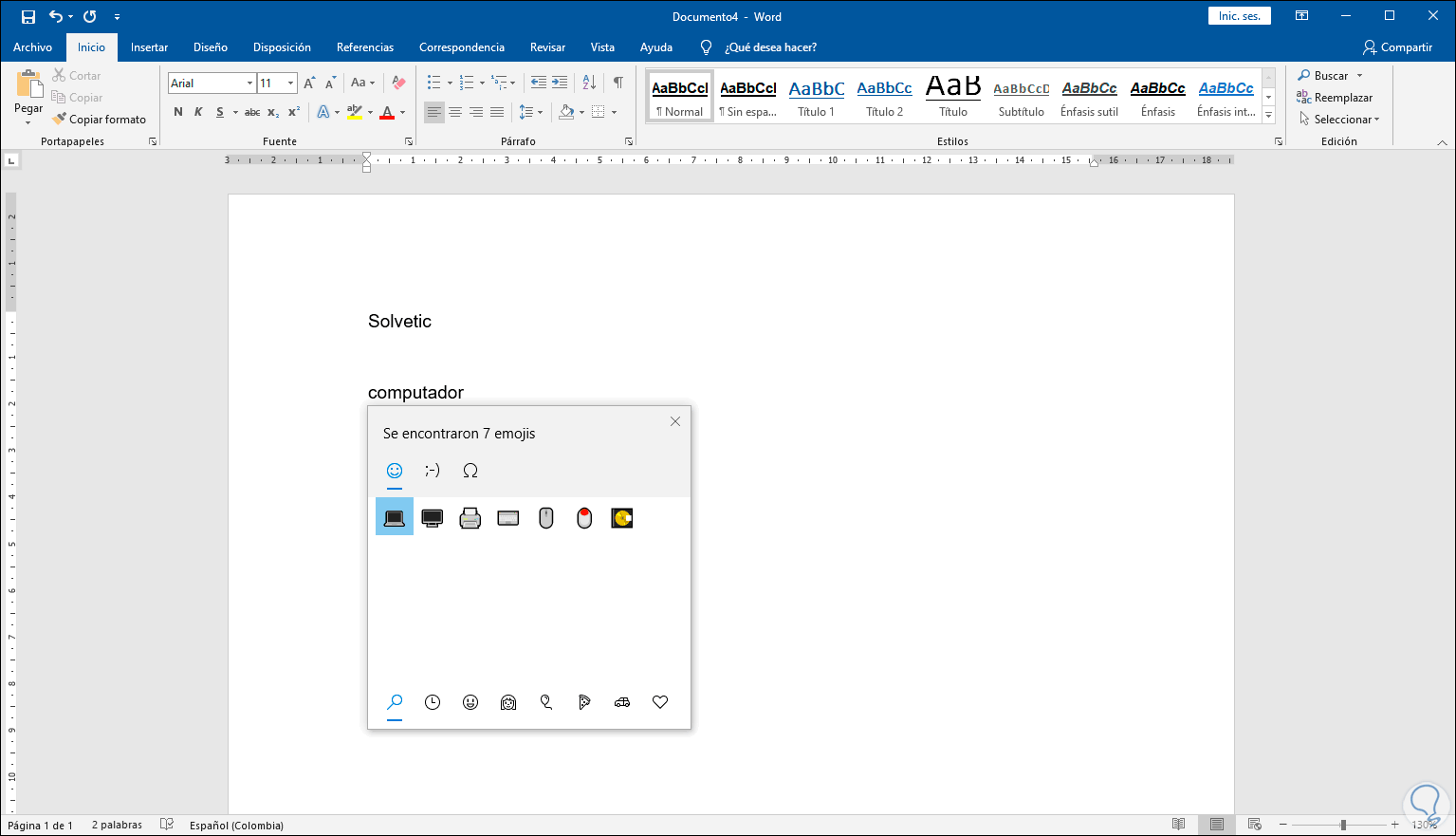
To open the Windows emoji picker , place your cursor where you want to insert the symbol in the document or email and press the appropriate key combination. On most current Windows computers, simply press Windows + . (period) or Windows + ; (semicolon) . This will open a small floating window with the entire emoji catalog, as well as other elements such as symbols and, in recent versions, even GIFs and kaomojis.
Once the emoji panel opens , you can navigate by scrolling with your mouse or trackpad, or by using the category tabs at the top and bottom of the selector. You'll find sections for faces, people, animals, food, objects, symbols, and more. When you find the emoji you want, simply click on it to insert it directly into your Office document.
If you prefer to search by keyword , the Windows panel lets you type a term into the search box. For example, if you type "present," "heart," or "smile," the selector will filter only the emojis related to that concept. This option is especially useful when you can't remember which category a particular icon belongs to or when you're in a hurry.
Once you've finished inserting the emojis you need , you can close the panel using the close button (the × in the corner of the selector) or by simply pressing the Esc key . From there, you can continue writing normally in your email or document.
How to use emojis in Word for desktop and Word for web
Word, as the flagship word processor in Office , offers several ways to insert emojis into your documents. You can take advantage of the Windows emoji keyboard, use Word's own features like the symbols menu, or even use specific add-ins that provide an emoji keyboard within the program itself.
Using the Windows emoji keyboard in Word
The quickest and most universal way to add emojis in Word is to open your document, place the cursor exactly where you want the emoji, and press the shortcut Windows + . (period) . The Windows emoji panel works in Word just like in any other application, so you simply choose the desired icon and it will be inserted inline with the text.
These emojis behave like special characters within the document, so you can copy and paste them , change their font size, and format them just like any other text. However, their final appearance may vary slightly depending on the Windows version and font used, although they are usually displayed in color with the system's standard emoji style.
Insert emojis from the Insert tab in Word for the Web
If you use Word for the web (the online version of Word in your browser) , you also have direct access to emojis from within the application's interface, without relying on the Windows keyboard. In this case, the process is very simple and designed to resemble the experience on mobile devices.
To add an emoji in Word for the web , open your document, go to the Insert tab , and choose the Emoji option . A small panel will immediately appear with a selection of faces and people, like a quick list of frequently used emoticons. If you want to access the entire available catalog, click on More Emojis , and a much larger selector will appear.
In addition, Word for the web automatically converts some character sequences into emojis as you type. For example, if you type 🙂 or 🙂 , the system can transform that text into a smiley face; the same happens with combinations like 🙁 , 🙁 , 😀 , 😀 , 😉 , or 😉 , which are replaced by the corresponding icons according to the autocorrect rules configured by Microsoft.
Word Add-ins: The Case of Emoji Keyboard
Another interesting way to insert emojis in Word is to install a dedicated add-in like Emoji Keyboard , which adds an emoji keyboard directly to the Word panel. This type of add-in is ideal if you frequently work with emojis and want to have them readily available without relying so heavily on Windows shortcuts.
To install an add-in like Emoji Keyboard in Word , open a document and go to the Insert tab in the Tools menu. In the Add-ins section , locate the Store or Get Add-ins option . From there, search for "Emoji Keyboard," select the add-in, and click Add . Accept the terms, click Continue , and wait for it to install.
Once the installation is complete , the new Emoji panel will usually appear on the side of your document, displaying a wide collection of icons ready to be inserted. Simply click on the desired emoji, and it will be added directly to your text. It's a convenient way to have a visual and permanent "emoji keyboard" within Word.
The great advantage of these add-ins is that they work with virtually all recent versions of Word , both the desktop editions and, in many cases, the online version. Furthermore, the inserted emojis are treated as images within the document, opening up more editing options.
Edit and customize emojis as images in Word
When an emoji is inserted into Word as an image (for example, through an add-in like Emoji Keyboard), it behaves like any other graphic element in the document. This means you can resize it, rotate it, move it within the page, or adjust its position relative to the text without any problems.
To modify an emoji image , click on it and use the corner sizing handles to enlarge or reduce it proportionally. In the image formatting tab (which appears when you select the object), you can adjust the text wrapping to decide whether the emoji is placed in line with the text, behind it, in front of it, or with a box around it, among other options.
This flexibility allows for the extensive use of emojis to highlight sections, provide visual cues, or make more informal documents much more appealing. However, it's important not to overuse them and to maintain a balance to avoid detracting from the clarity of the content or creating an overly cluttered feel, especially in professional settings.
How to insert emojis in Outlook: all available options
Outlook, in its desktop, web, and mobile versions , offers several ways to insert emojis into your emails. Some involve simply typing text that the program itself converts, others use the symbols menu, and you can also use the Windows emoji keyboard or even import images from the web.
Option 1: Use character sequences that Outlook converts into emojis
One of the quickest ways to add emoticons in Outlook is to take advantage of the autocorrect feature. If you type certain character combinations that represent classic emoticons, Outlook will automatically replace them with the corresponding graphic emoji as you compose your message.
For example, typing 🙂 anywhere in an email will usually convert to a smiley face. Similarly, combinations like 🙁 , :O , 😉 , 😀 , or even <3 (heart) will automatically transform when you press space or enter a punctuation mark. These rules may vary slightly between versions, but the idea is to offer a quick conversion of text emoticons into visual emojis.
The advantage of this system is that you don't have to interrupt your typing to go to a menu or a graphical panel; you simply keep typing as usual, and Outlook does the rest. Furthermore, from the program's autocorrect options, you can view, modify, or expand the list of sequences you want to be replaced with specific icons.
If you prefer a more visual and controlled method , Outlook allows you to insert emojis as symbols, using a font specifically designed for this purpose. In modern versions of the program, this font is usually Segoe UI Emoji , which includes a large number of compatible icons.
To access these emoji symbols in Outlook desktop , open a new email, go to the Insert tab , click Symbol , and then More Symbols . A window with different fonts will open; select Segoe UI Emoji from the list, and within the subset field, choose Miscellaneous Symbols to go directly to the section where many of the emoticons are located.
Scroll through the list until you find the emoji you want . They may initially appear in black and white, but when inserted into the message, they generally display in color, adapting to the system's style. Select the desired icon and press Insert to add it to your email. You can repeat this process as many times as needed.
Option 3: Create your own keyboard shortcuts with Autocorrect
Outlook lets you go a step further and define custom keyboard shortcuts for your favorite emojis, using the same autocorrect feature we mentioned earlier. This is very useful if you send a lot of emails a day and frequently use the same icons.
The typical process for creating a custom shortcut begins, again, in the More Symbols window (Insert > Symbol > More Symbols). Choose an emoji from the Segoe UI Emoji font and, with that symbol selected, click the AutoCorrect button . In the Replace field , type the text combination you want to use as a trigger, for example, “lol”, “:clap:”, or any sequence that works for you.
When you click Add and then OK , Outlook will save that rule. From then on, every time you type the defined combination and press space or a punctuation mark, the program will automatically replace the text with the associated emoji. You can create multiple shortcuts for different emoticons and modify or delete them at any time.
Option 4: Add your own emojis as images in Outlook
If the collection of emojis that comes with Outlook doesn't convince you or you need very specific icons (for example, adapted to your brand or project), you always have the option of inserting external images and using them as personalized "emoticons" within the email.
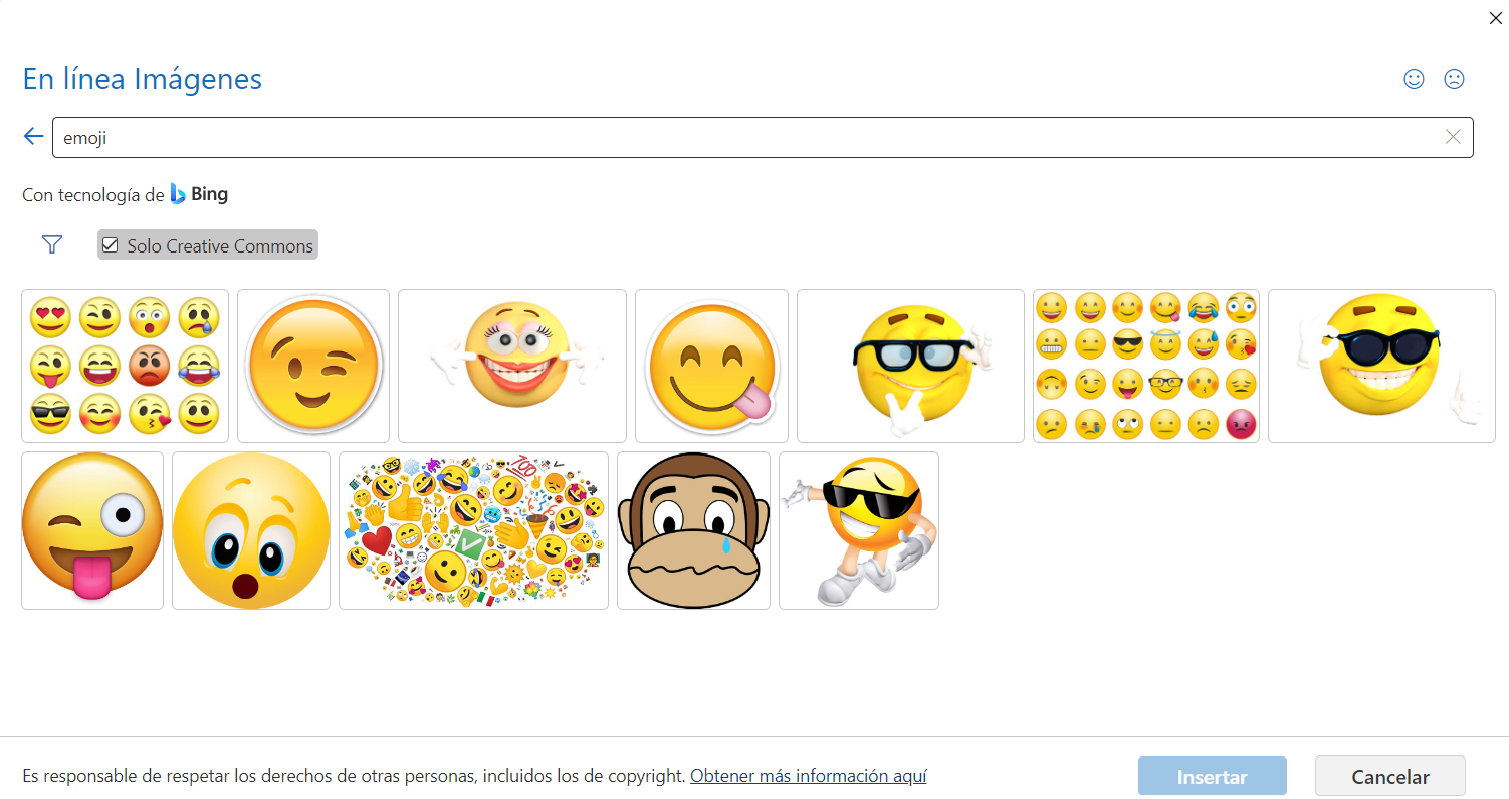
In versions like Outlook 2021 and Microsoft 365 Outlook , you can use the Bing integration to search for images online. From a new message, go to Insert and select Pictures , then choose Online Pictures . In the search box, type “emoji” and be sure to check the Creative Commons Only box to use images with appropriate licenses.
When you find an icon that fits , click on it and press Insert to add it to your message. From there, you can resize and reposition it just like any other image in Outlook. This method can also be applied to images previously downloaded to your computer, using the Insert Images from File option.
In Outlook Web and some recent desktop versions of Outlook , you'll find an expressions menu that mimics the experience of mobile messaging apps . This panel includes emojis and, in some cases, other elements like GIFs or stickers, depending on the exact version you're using.
To open this emoji menu in Outlook Web , compose a new email and click the three-dot button (more options). In the list that appears, select the Emoji option . A selector will appear where you can browse different categories or use a search box to find a specific emoji.
Simply click on your chosen emoji to make it appear in the message body. This system is very intuitive and convenient, especially if you're used to platforms like WhatsApp or Telegram, as the panel design is quite similar.
Common problems when adding emojis in Office and how to fix them
While inserting emojis in Outlook and Word is usually straightforward , certain issues can arise, especially when emails are sent to other devices or email applications. Understanding these potential problems will help you avoid or mitigate them.
One of the most common problems is that the emoji doesn't appear as expected in the recipient's inbox. For example, the icon might appear in a very vibrant color on your screen, while on the recipient's device it only shows up in black and white, or with a different design. This is usually due to differences in the operating system version, Outlook version, or emoji rendering engine.
To minimize these kinds of discrepancies , it's advisable to use relatively standard emojis and avoid very new symbols that may not be compatible with older systems. Furthermore, whenever the message is important, it's a good idea not to rely solely on an emoji for critical information, but to accompany it with clear text.
Another issue is that emojis don't look the same in all email apps . The same icon might appear one way in Outlook, another in Gmail, and yet another in mobile clients. This generally doesn't affect the basic meaning, but it can lead to misunderstandings with more ambiguous or double-edged emojis.
If you can't find the emoji you're looking for in the Outlook or Word list , you have several alternatives. You can use the system's emoji keyboard (Windows + . or, on a Mac , Control + Command + Space if you're using Office on macOS), which usually includes a wider selection. You can also copy the emoji from an online repository and paste it into your document or email, provided the font supports it.
If you need very specific or unique icons , you can still insert personal images as emojis. Simply import the image using the Images option on the Insert tab and adjust its size. However, keep in mind that embedded images can affect the email's file size and that not all email clients will display them the same way.
Some platforms or configurations even allow you to type the emoji name between two colons (for example, “:smile:”) so the system automatically converts it into the corresponding icon. While this feature is more common in chat tools like Slack, similar behavior may exist in some Office-integrated environments, which you should check in their settings.


Passionate writer about the world of bytes and technology in general. I love sharing my knowledge through writing, and that's what I'll do on this blog, show you all the most interesting things about gadgets, software, hardware, tech trends, and more. My goal is to help you navigate the digital world in a simple and entertaining way.
Table of Contents
- 1 Emojis in Windows 10 and 11: the built-in keyboard that changes everything
- 2 How to use emojis in Word for desktop and Word for web
- 3 How to insert emojis in Outlook: all available options
- 3.1 Option 1: Use character sequences that Outlook converts into emojis
- 3.2 Option 2: Insert emojis from the Outlook Symbol menu
- 3.3 Option 3: Create your own keyboard shortcuts with Autocorrect
- 3.4 Option 4: Add your own emojis as images in Outlook
- 3.5 Option 5: Use the expressions menu in Outlook Web and newer versions
- 4 Common problems when adding emojis in Office and how to fix them