- Direct integration of physical controls to manage scenes, audio, and recordings without interrupting the live flow.
- Ability to create complex workflows through multiple actions and custom profiles.
- Production optimization through the use of specialized plugins and organizational folders.
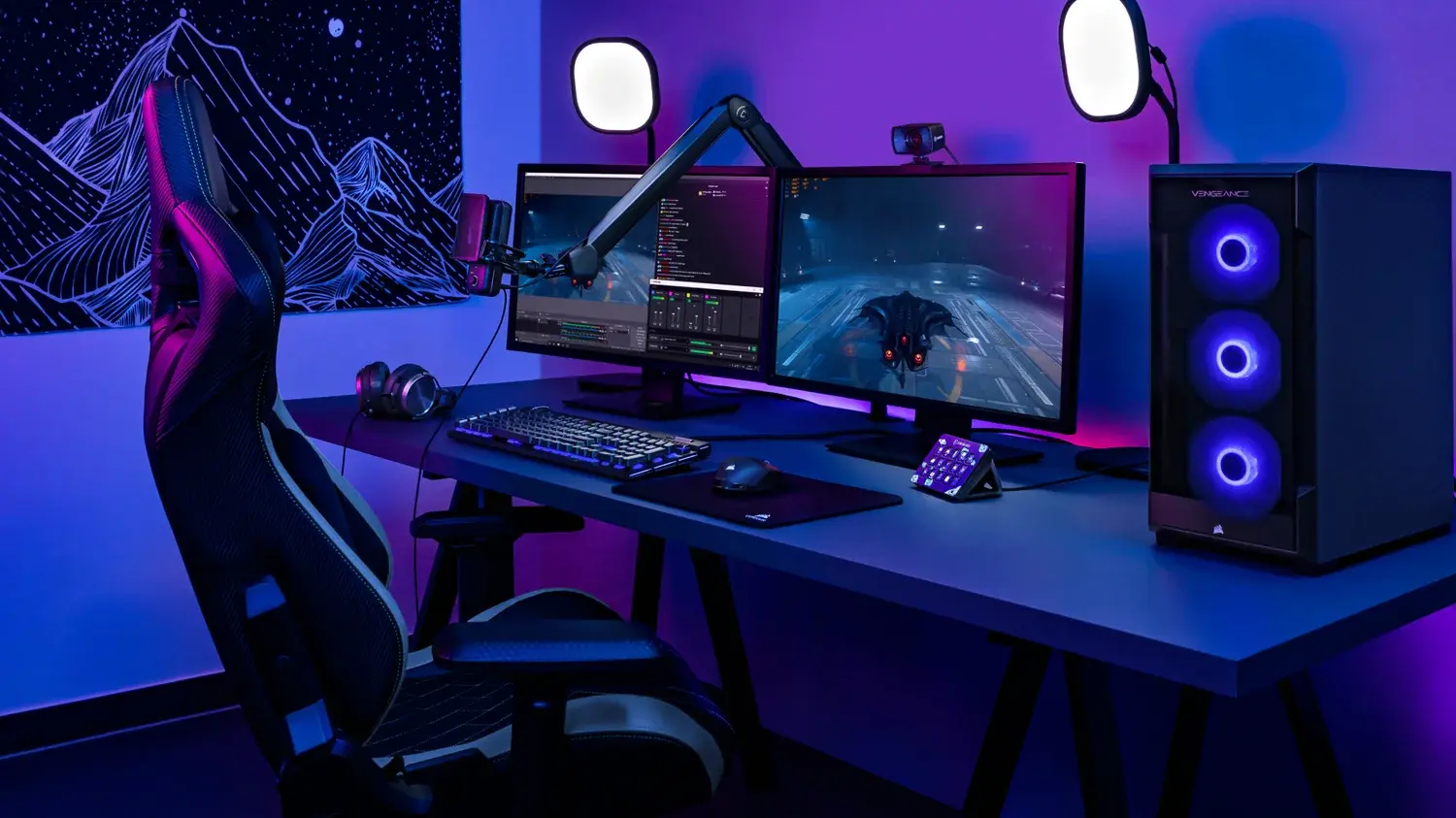
Running a live stream is basically juggling a million things at once. While trying to connect with your audience, you have to keep an eye on the audio to prevent distortion, switch the video feed to show the game, and keep the chat from going haywire—all while maintaining your energy on camera . Navigating the OBS Studio menus mid-stream is a real headache that completely disrupts your flow and throws you off your game.
To solve this chaos, the Stream Deck emerges as the ultimate tool, transforming those complicated clicks into instant physical taps . Instead of struggling with keyboard shortcuts, you can delegate all the technical management to a panel of programmable buttons, allowing you to focus on what really matters: content and interaction with your community, without anyone noticing that someone is stressed behind the controls.

What exactly is the Stream Deck and how does it help the streamer?
At first glance, it looks like a simple set of buttons, but the Elgato Stream Deck is actually a highly customizable control center. Although it was designed with gamers in mind, it has become the standard for any content creator thanks to its ability to manage multiple interfaces and devices from a single location. The major advantage over a conventional keyboard is that each key has its own LCD screen, allowing you to add visual icons and eliminating the need to memorize the function of each button.
Beyond its visual appeal, the system is extremely flexible. You can organize functions into folders or create entire profiles that change depending on the application you have open. This means you're not limited to a fixed number of buttons; you can expand your capabilities with free and paid add-ons that include features you didn't even know you needed.
Steps to get your Stream Deck up and running
To get started with the device, the first step is to connect it to your computer using the USB cable. A word of advice: avoid using passive USB hubs, as they can sometimes cause connection problems or slow down communication between the panel and the PC. Once connected, you'll need to install the official Elgato application from their website, selecting the appropriate version for Windows or macOS.

Within the software, you'll see a side panel with various action categories. To configure a key, simply drag the desired function to any of the empty slots on the virtual keyboard. If you run out of space, don't worry, as you can add extra pages by pressing the plus (+) button, allowing you to navigate between different sets of commands using the arrow keys.
Mastering integration with OBS Studio
The OBS Studio Stream Deck plugin is the crown jewel. Once installed from the Elgato Marketplace, you have complete control of your streaming software right in the palm of your hand. Among its most powerful features are instant scene switching , perfect for going from the "Be Right Back" screen to the action without a second thought, and scene collection management for those who alternate between podcasts, tutorials, and live gameplay.
Regarding audio, you can mute specific sources or adjust the mixer volume using dials if you have the Stream Deck + model, thus avoiding the common mistake of streaming with the microphone muted. You can also control source filters, activate the virtual camera for Zoom alternatives for event streaming , and manage the playback buffer to save clips of the best moments without interrupting the main recording.

Advanced tricks: Multiple Actions and Organization
If you want to take your automation to the next level, you have to try Multi Actions . These allow you to chain several commands into a single button. For example, you could configure a key that, when pressed, switches to the opening scene, activates background music, and mutes your microphone—all at once. This eliminates the need for repetitive manual steps and adds incredible professionalism to your production.
To stay organized, it's best to use folders and profiles. Folders are useful for grouping similar functions and preventing your main screen from becoming cluttered. Profiles, on the other hand, allow you to have completely different configurations: one for when you're editing video and another for when you're live streaming. If you enable Smart Profiles , Stream Deck will automatically switch configurations as soon as it detects that OBS Studio is in the foreground.
Answering common questions and providing extra features
It's common for questions to arise about the system's efficiency. For example, many people wonder how to avoid duplicate keys when they use the same font in different scenes. While the standard plugin is usually linked to the scene, there are ways to optimize font management so that a single button controls the element regardless of the active view.
Additionally, tools like the Uno Overlays plugin allow you to integrate animated overlays. To configure it, simply install the plugin, obtain the overlay token from the Uno website, and paste it into the Stream Deck application. This lets you launch timers or visual alerts with a single tap, enhancing the visual appeal of your stream without the hassle of external scripts.
The combination of dedicated hardware with the power of OBS Studio allows anyone, from professionals to beginners, to achieve a smooth stream. By delegating repetitive tasks to physical buttons and automating workflows through profiles and multiple actions, the streaming process becomes much more intuitive, eliminating technical stress and allowing creativity to flow uninterrupted in every live session.

Passionate writer about the world of bytes and technology in general. I love sharing my knowledge through writing, and that's what I'll do on this blog, show you all the most interesting things about gadgets, software, hardware, tech trends, and more. My goal is to help you navigate the digital world in a simple and entertaining way.